
Connect Close to Freesbe
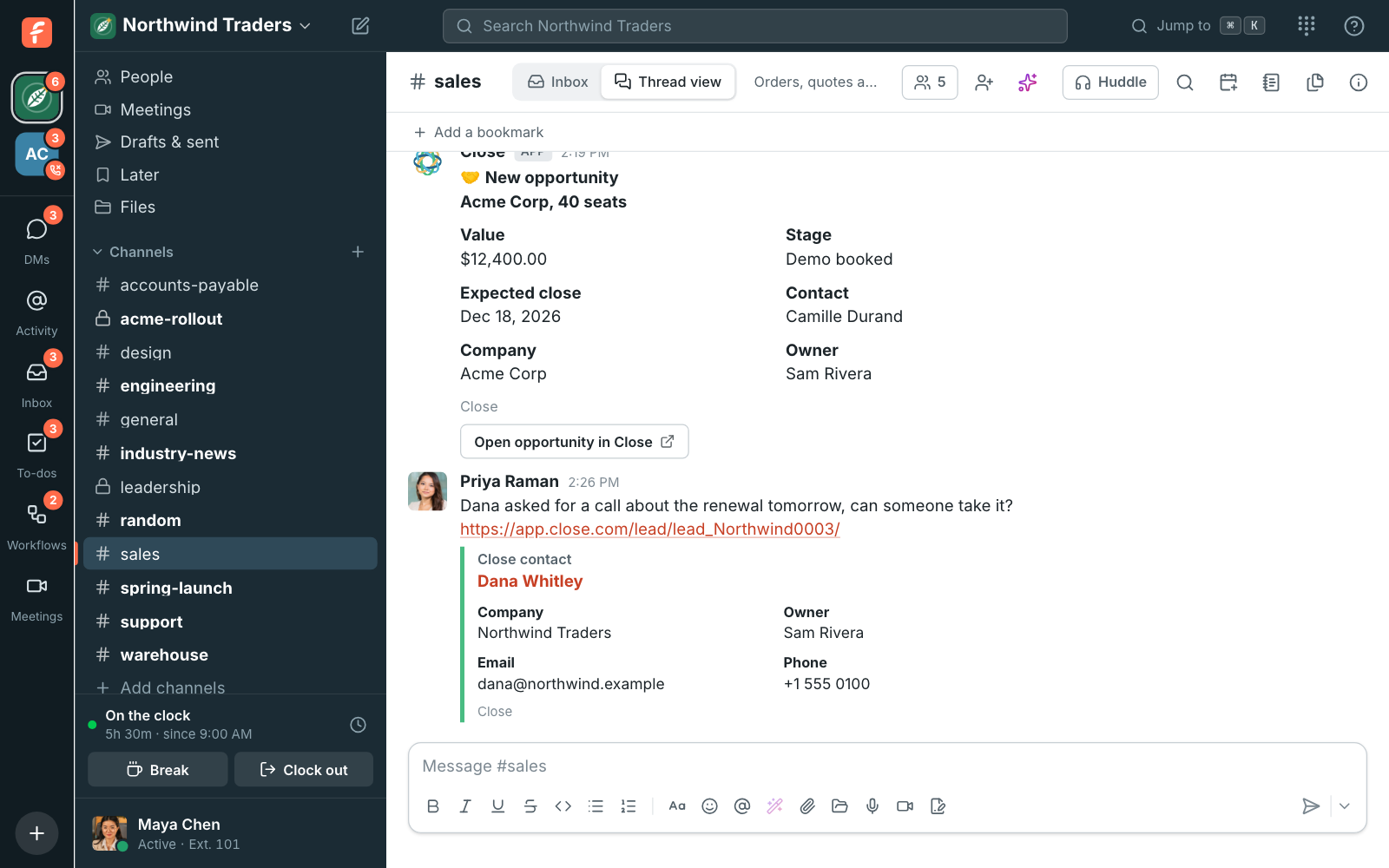
Connect Close and your sales team sees new opportunities, stage changes, wins, losses and new
contacts in a channel, gets a preview under every link to a lead, finds records with /close and
adds conversations to a lead as notes. You need to be a Freesbe owner or admin, and an admin of
your Close organization.
1. Pick who connects
Section titled “1. Pick who connects”Freesbe sees what the person who connects sees in Close, and adds notes as them. Connect as an organization admin: only an admin can add the webhook alerts use, and an admin sees every lead.
2. Connect your organization
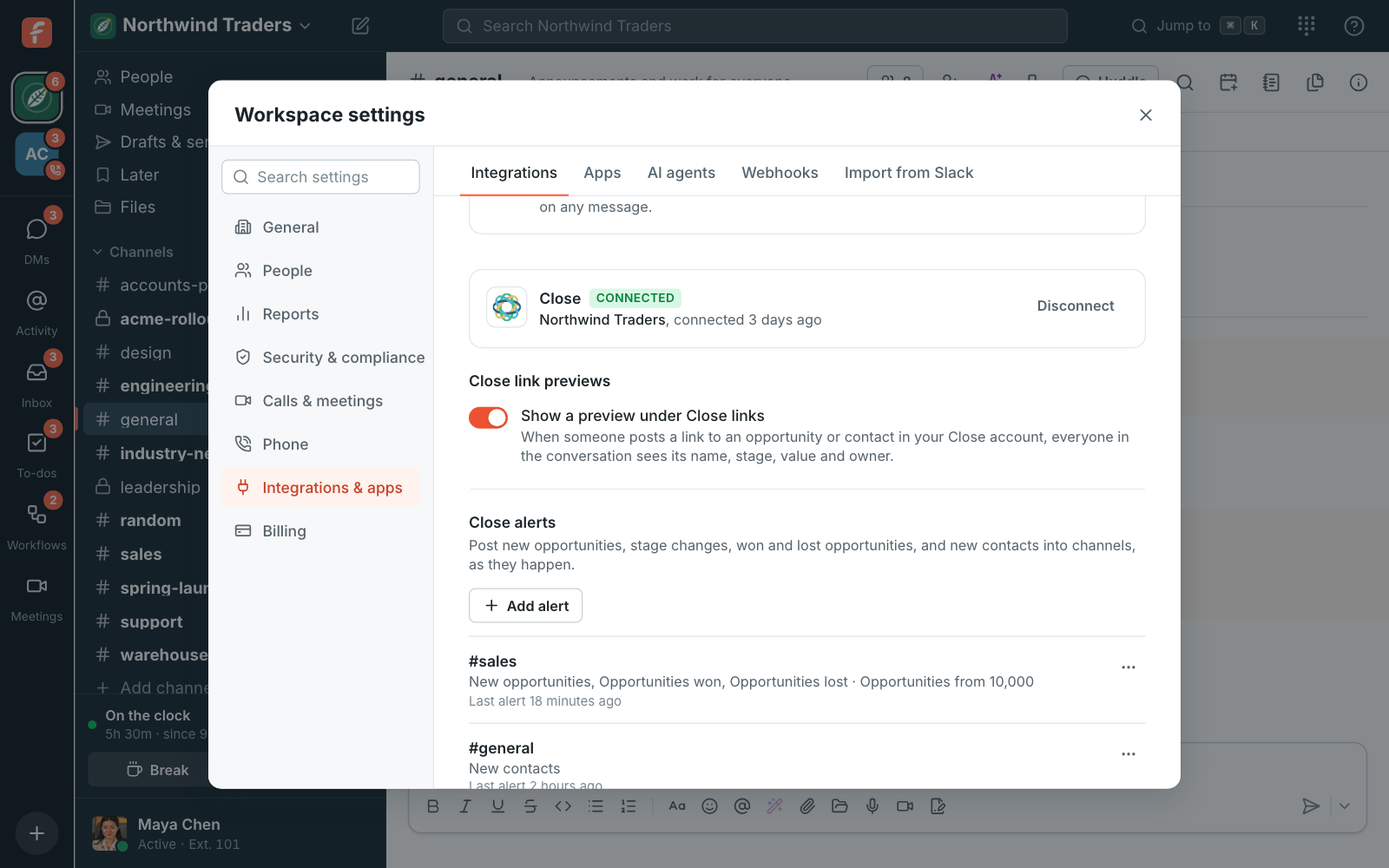
Section titled “2. Connect your organization”- Open Workspace settings → Integrations & apps → Integrations → CRM and find Close, under monday CRM.
- Click Connect Close, sign in to Close if it asks, and click Allow.
- Connected shows next to Close, with the organization’s name.
3. Add alerts
Section titled “3. Add alerts”- Under Close alerts, click Add alert.
- Pick Post to channel, for example #sales.
- Tick the Alerts to post: New opportunities, Opportunities moving stage, Opportunities won, Opportunities lost, New contacts.
- Set a Smallest opportunity to post if you only want the big ones. New contacts always post.
- Click Add alert to save it, then choose ⋯ → Send a test alert to see a sample card.
Alerts post as soon as Close sends the change. Add more alerts for different channels: opportunities over $50,000 to #leadership, new contacts to #sales.
4. Decide on link previews
Section titled “4. Decide on link previews”Show a preview under Close links is on to start with. Everyone in the conversation sees a preview, guests included, so turn it off in Integrations → CRM if your CRM details shouldn’t be shared that way.
5. Tell your team what they can do
Section titled “5. Tell your team what they can do”- Type
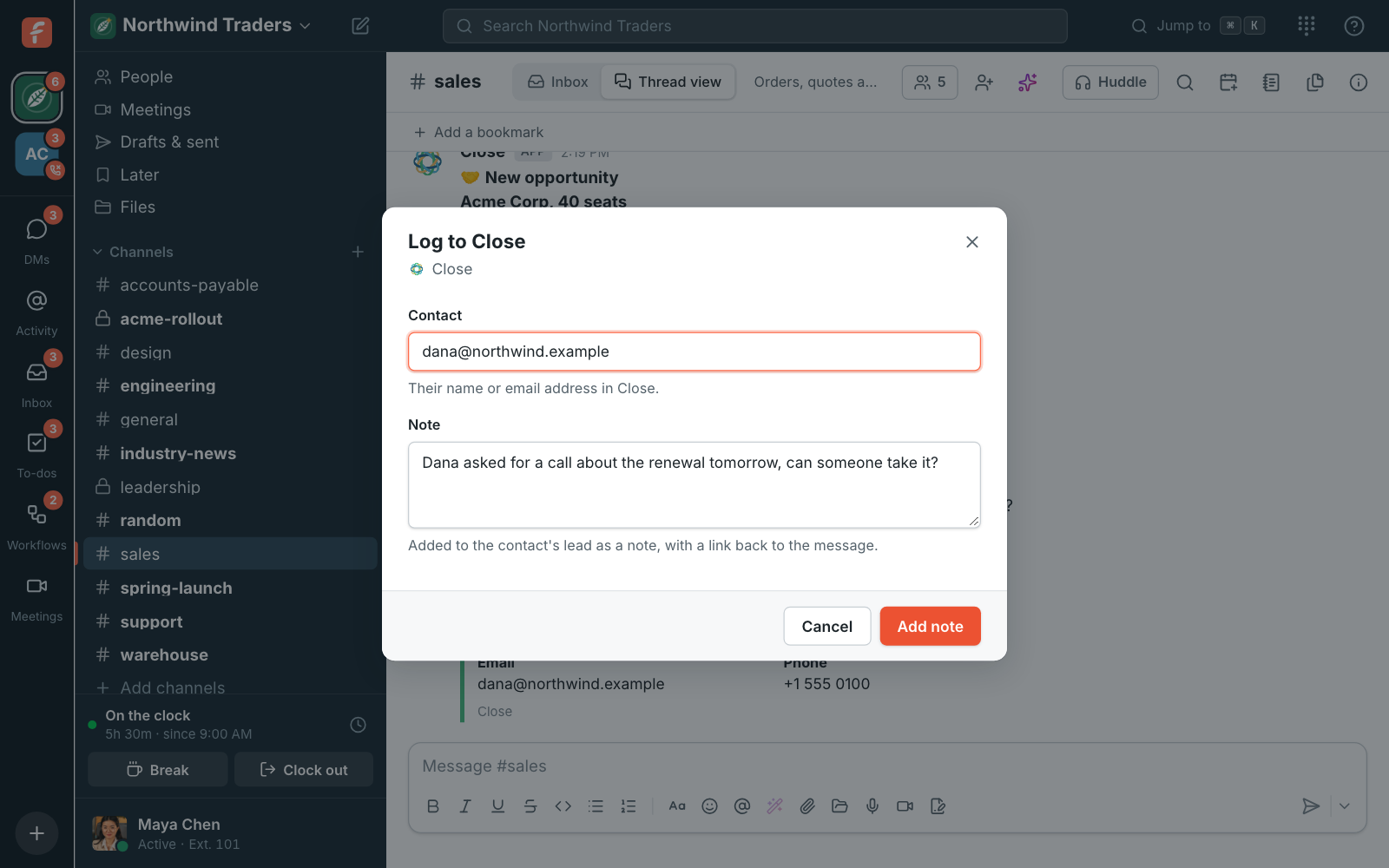
/close Contosoto find opportunities and contacts. Only you see the answer. - Hover over a message, click ⋯ → Log to Close, type the contact’s email address and click Add note. It goes on the contact’s lead with a link back to the message.
- When a customer calls or writes in, their Close contact shows on the call and in the conversation, with Open in Close.
If something’s wrong
Section titled “If something’s wrong”See Close alerts aren’t posting.
- Close shows Alerts are off. The person who connected isn’t an admin of the Close organization, so Freesbe couldn’t add the webhook alerts use. Reconnect as an admin.
- Close shows Needs reconnecting. Close stopped accepting Freesbe’s access, often because the app was removed or the person who connected left. Click Reconnect.
- No preview under a link. Previews only show for leads in the connected organization, up to three per message, and only while previews are on.
Disconnect
Section titled “Disconnect”Click Disconnect in Integrations → CRM. Freesbe removes its webhook from your organization. Your alerts are kept for when you connect again.
See Close for more.
Answers come from the Freesbe guides and are written by AI, so check the linked guide before relying on one. Please don't include personal details such as emails or passwords.