
Schedule a meeting with someone outside your company
A meeting gives a customer a link, like https://meet.freesbe.net/abc-defg-hij, that opens in any
browser without a Freesbe account. This schedules a quarterly review with Acme Corp, shows what the
guest sees, and makes sure you hear when they’re waiting. Anyone in the workspace can do it.
1. Schedule it
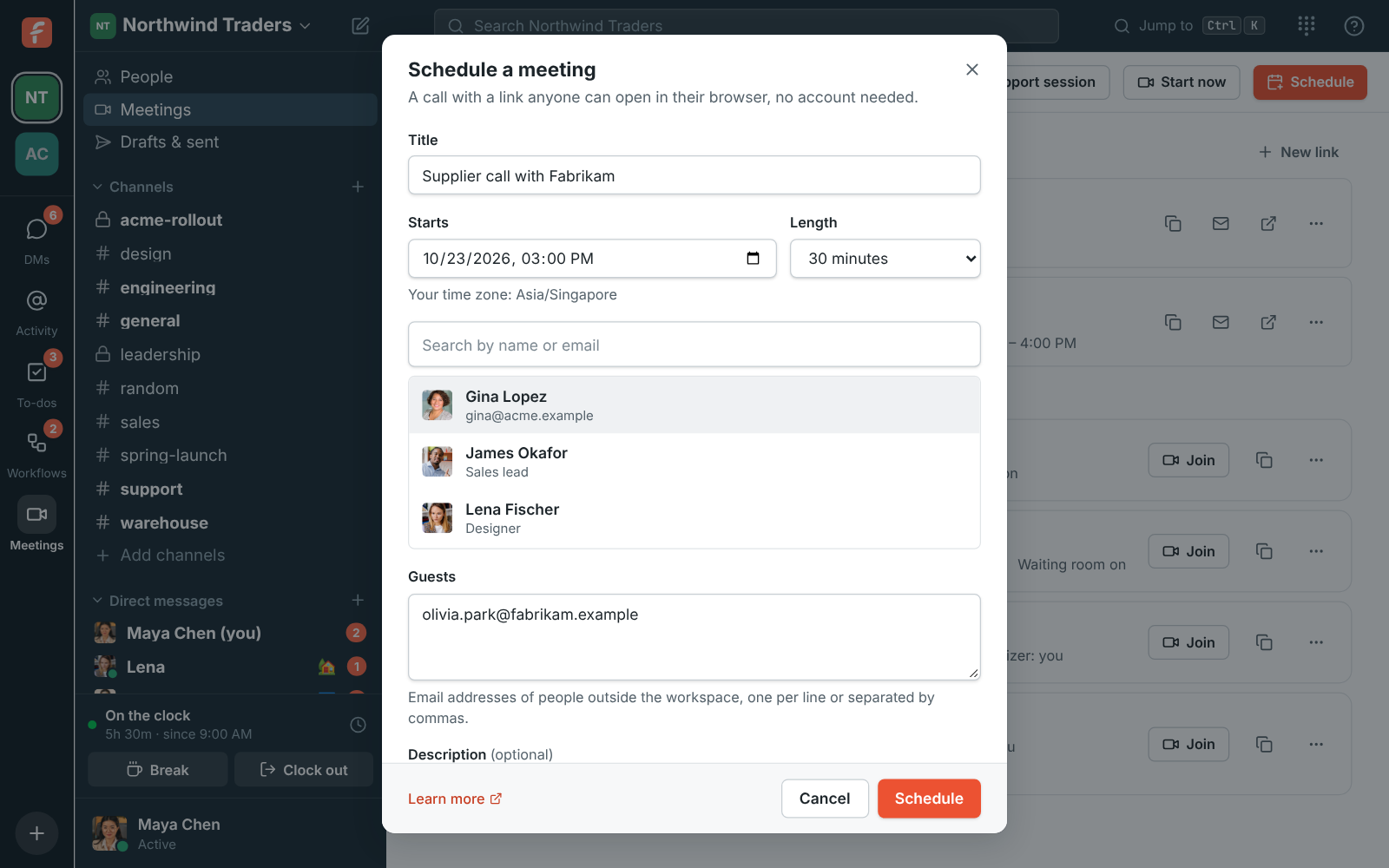
Section titled “1. Schedule it”- Open Meetings in the sidebar and click Schedule. Or, from the channel or DM where you talk about Acme, click the calendar button (Schedule a meeting) at the top: everyone in the conversation is invited to start with.
- Enter a Title, when it Starts (in your time zone) and its Length, from 15 minutes to 4 hours.
- Under People in this workspace, pick teammates. Under Guests, add the customer’s email addresses, one per line or separated by commas.
- Add a description if you like. Leave Waiting room for guests on to let each guest in yourself, and leave Email the invites on.
- Click Schedule.
Each guest gets an invite email with a personal link that fills in their name. Pasted into a chat app, the link previews as a card with your workspace’s name and logo; the title and time stay out of it.
Your team in Outlook or Google Calendar? Schedule from there with the add-in or add-on instead, and the meeting shows up in Meetings marked From Outlook or From Google Calendar. See Make Freesbe your Outlook meeting and Make Freesbe your Google Calendar meeting.
2. What the guest sees
Section titled “2. What the guest sees”The link opens a page with your workspace’s logo next to the meeting’s title, time and organizer, so they know right away who they’re meeting (a workspace without a logo shows its initials; an admin sets the logo in Workspace settings). They click Ask to join and wait in a lobby, with soft music, until someone from the workspace lets them in. Guests can join from 15 minutes before the start.
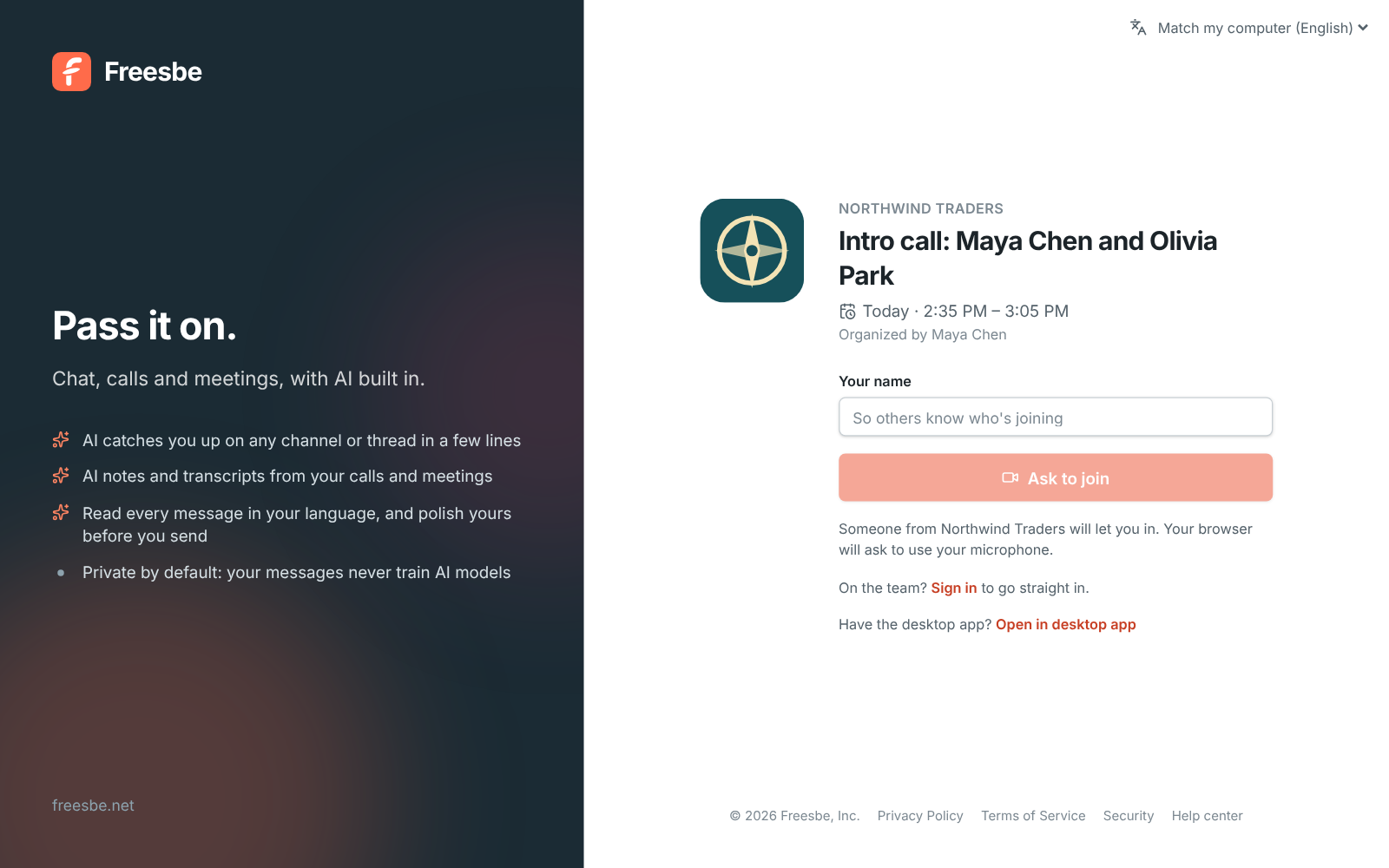
With Waiting room for guests turned off, invited guests go straight in with their personal link; anyone else with the link still asks to join. People in the workspace go straight in either way.
3. Let them in
Section titled “3. Let them in”When someone asks to join, everyone from the workspace in the call sees a banner with Admit and Deny. You don’t have to be in the call: while the meeting is open, its row under Meetings shows who’s waiting, with Admit and Deny next to each person.
If nobody from the workspace is in the call yet, you hear about it. Right away, a card appears in the corner of Freesbe with the guest’s name, the meeting and how long they’ve waited, with Admit, Deny and Join, and the app plays a knock. After 2 minutes every Freesbe app you have open knocks again, and the mobile app gets a push notification. After 5 minutes, hosts who are away get an email with Let them in.
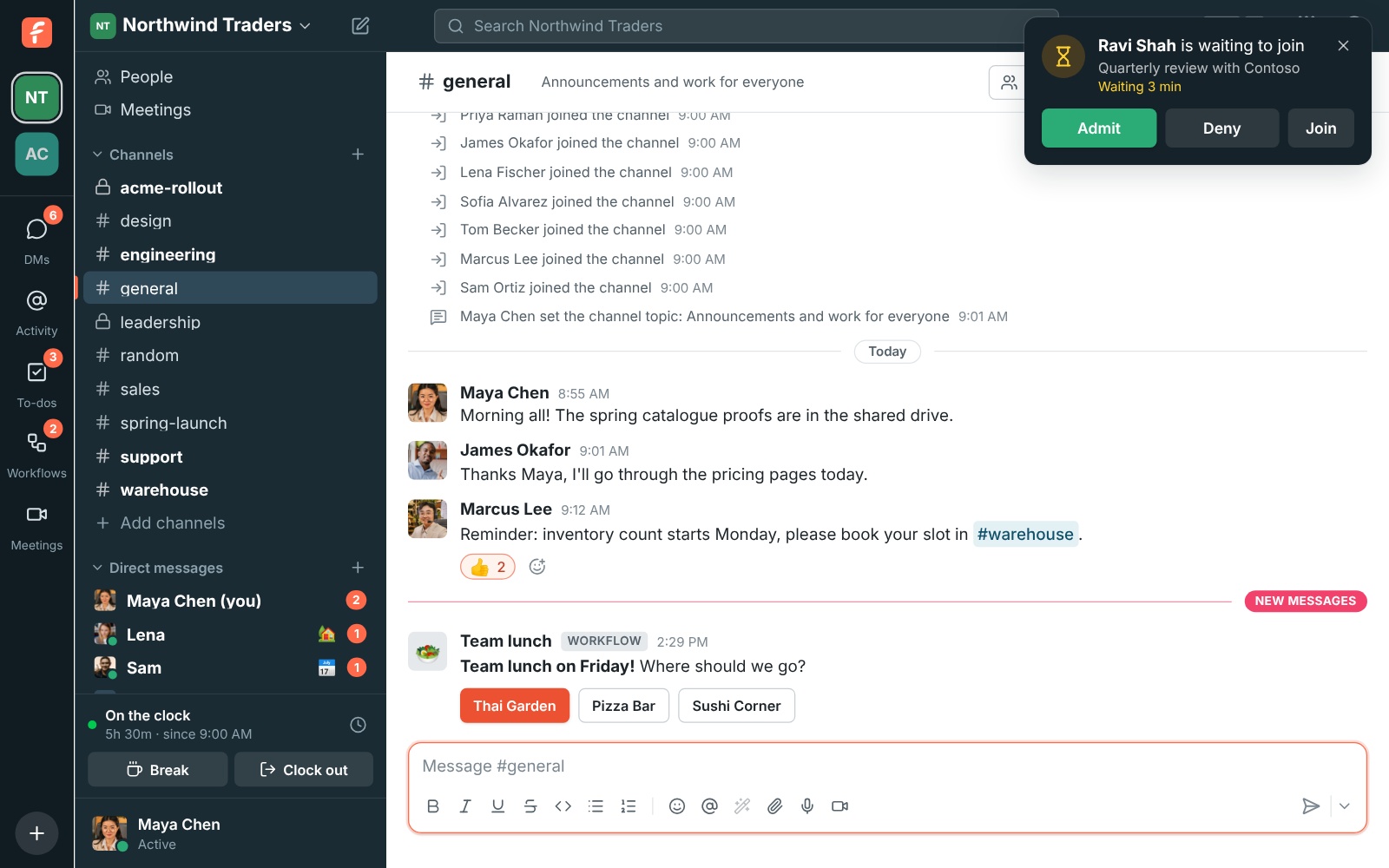
Admins set the timing for the whole workspace in Workspace settings → Calls & meetings → Waiting room → Waiting room alerts. Anyone can turn the email off for themselves in Preferences → Notifications → Meetings.
4. Record it, if you like
Section titled “4. Record it, if you like”Click Record the meeting at the bottom of the call. Everyone hears a tone and sees a red REC badge. Once the call ends, Freesbe writes it up: a transcript that says who said what, and notes with a summary, decisions and action items. An admin can have the notes and transcript emailed to the guests who joined with their invite link, each with a private link of their own. See Run meetings with AI notes.
What happens next
Section titled “What happens next”- When everyone leaves, the meeting moves from Upcoming to Recent, with its recording. Rejoin within 5 minutes carries on the same call.
- The link keeps working until 30 days after its last call, so a follow-up next week can use the same link: opening it again, or Join on the meeting under Recent, starts a new call of the same meeting, and Recent lists each call with when it was and who was in it.
- A meeting holds up to 20 people. It stops working sooner if the organizer ends it or makes a new link.
- On Corporate and Enterprise, guests’ links can use your company’s own address, like
https://meetme.acme.com/m/…. See Put booking links on your own domain.
See Meetings for everything in the call.
Answers come from the Freesbe guides and are written by AI, so check the linked guide before relying on one. Please don't include personal details such as emails or passwords.