
Keep a support playbook in a canvas
Every channel has a canvas: one shared document beside the conversation, where the playbook, price list or FAQ lives instead of being pinned, lost and rewritten. This sets up a support playbook in #support at Northwind Traders, with the whole team editing it as they chat. Anyone in the channel can do it.
1. Open the channel’s canvas
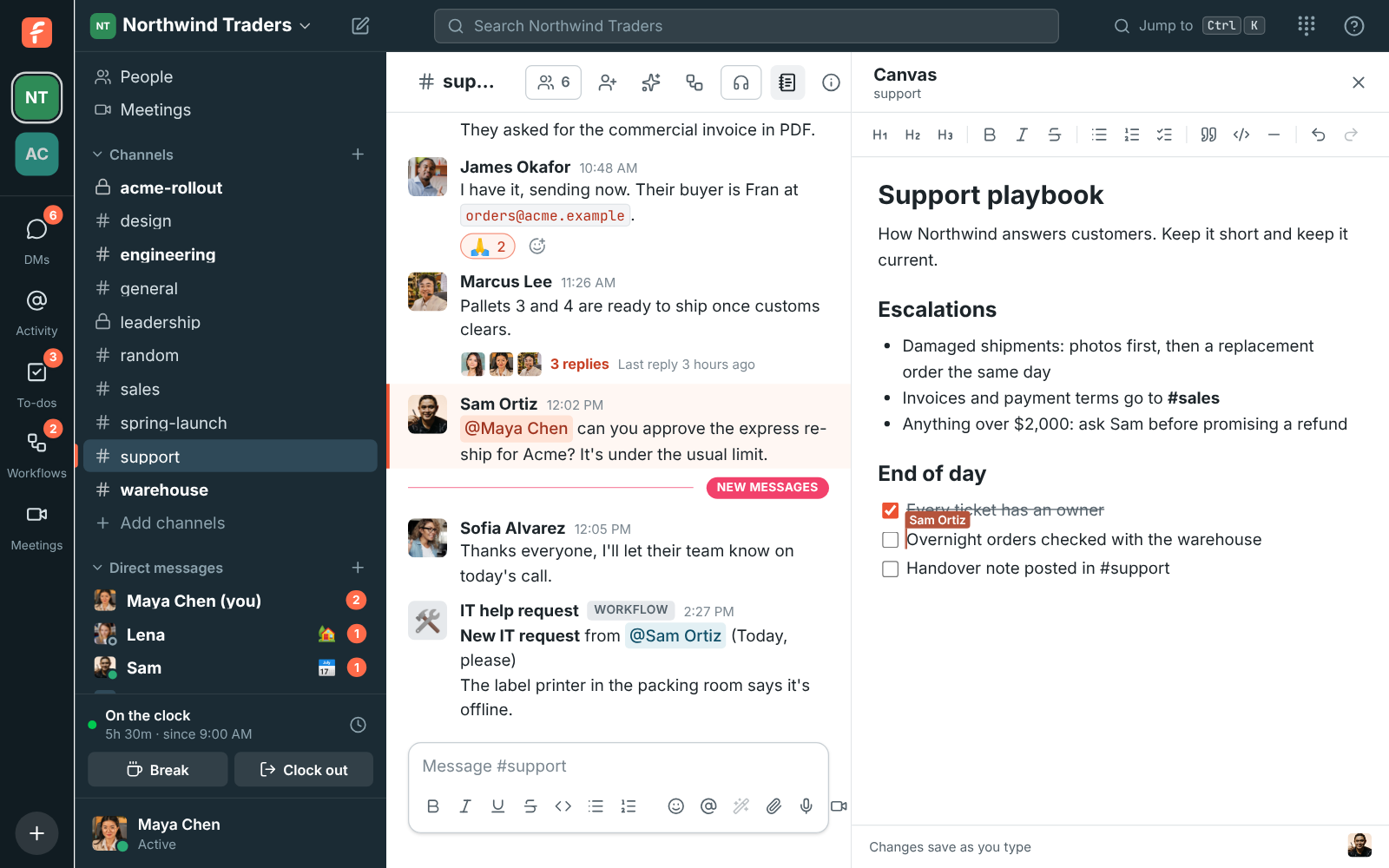
Section titled “1. Open the channel’s canvas”Open #support and click the canvas button at the top, next to the huddle button. The canvas opens on the right, beside the messages. The first time, it’s empty and ready to write in. There’s nothing to set up or save: Changes save as you type shows at the bottom.
2. Start from the template
Section titled “2. Start from the template”While the canvas is empty, a few ready-made starts show under the first line. Click Support playbook to fill it with headings, lists and checklists for opening hours and response times, who to escalate to, and an end-of-day checklist. Then replace the prompts with your own details.
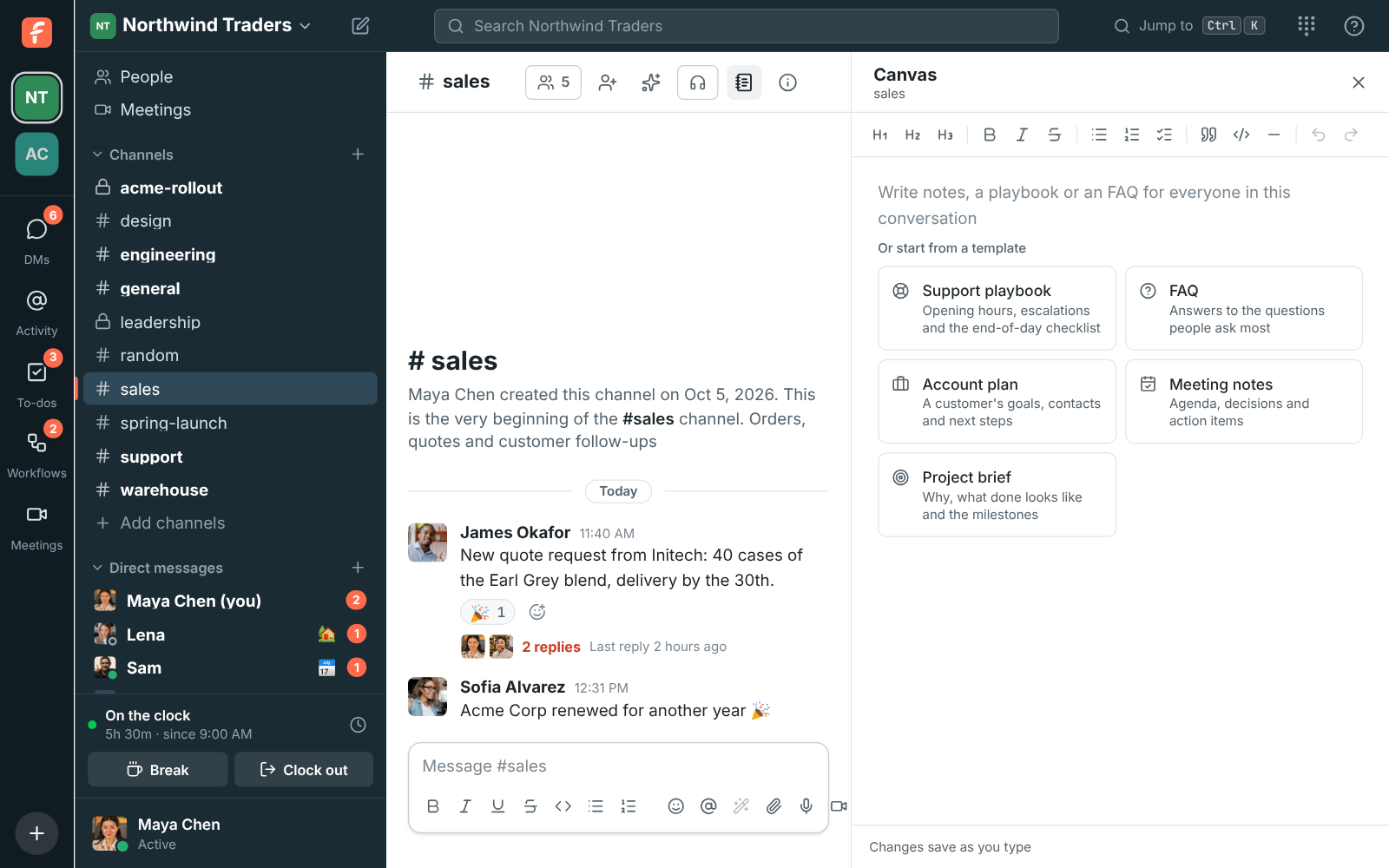
The other templates suit other channels: FAQ for questions grouped by topic, Account plan for a customer channel, Meeting notes and Project brief. Once the canvas has anything in it, the templates go away, so they never replace someone’s work. Picked the wrong one? Undo takes the canvas back to empty.
3. Write it together
Section titled “3. Write it together”Type straight into the canvas. The bar at the top gives you headings in three sizes, bold, italic
and strikethrough, bulleted and numbered lists, checklists you can tick off, quotes, code blocks
and a divider. Shortcuts at the start of a line are quicker: # and a space for a large heading,
- for a bullet, [ ] for a checklist item, > for a quote. Ctrl+B and Ctrl+I (⌘ on
a Mac) work as you’d expect, and pasted links become clickable.
Ask the team to add what they know. When someone else has the canvas open, their cursor shows with their name, and their picture appears at the bottom. Everyone’s changes merge as they type, even in the same paragraph, so nobody waits their turn. Undo undoes your own changes, never someone else’s. If your connection drops, keep writing: the canvas says you’re offline and sends your changes when you’re back.
4. Point people to it
Section titled “4. Point people to it”Post in #support that the playbook is in the canvas, and from then on answer “how do we handle refunds?” with “it’s in the canvas”. New people find it the moment they join the channel. For a playbook that spans teams, make a short public channel for it, so anyone browsing the channel can read the canvas.
Who can see and edit it
Section titled “Who can see and edit it”A canvas follows its conversation:
- Members of the channel or DM can edit it.
- People who can read a public channel without being in it can read the canvas but not change it; they Join the channel to edit.
- A private channel’s or DM’s canvas is only visible to the people in it.
- An archived channel’s canvas is read-only.
- Keep the end-of-day checklist near the top: checklists in a canvas can be ticked off, and the evening shift sees what’s left.
- A canvas can hold about a book’s worth of text. If one ever fills up, start a new channel or move part of it elsewhere.
- Hebrew and Arabic lines are written right to left on their own, so a bilingual playbook works.
- Canvases you can create on their own and share with anyone, version history and your own templates are coming next.
See Canvases for the formatting shortcuts and templates.
Answers come from the Freesbe guides and are written by AI, so check the linked guide before relying on one. Please don't include personal details such as emails or passwords.