
Connect Claude or ChatGPT to Freesbe
Connect the AI tool you already use and it can work in your workspace for you: find out who’s around, read what you can read, search, post as itself, and ask a teammate a question and wait for the answer. Freesbe speaks the open Model Context Protocol (MCP), so there’s no app to install. The first part is for anyone; the last is for admins deciding the rules. It’s on every plan; guests can’t connect agents.
Three things hold for every agent: it acts for the person who connected it and sees only what they can see, it shows up as its own bot with an AI agent badge, never as the person, and admins choose who can connect what and see everything it did.
1. Add Freesbe in your AI tool
Section titled “1. Add Freesbe in your AI tool”In your tool, add Freesbe as a connector or MCP server with this address:
https://api.freesbe.net/mcpWhere to put it depends on the tool: in Claude it’s Settings → Connectors → Add custom
connector; in ChatGPT, Settings → Connectors; in most code editors, an mcp.json file.
2. Allow it
Section titled “2. Allow it”The tool opens a page in your browser:
- If you aren’t signed in to Freesbe in that browser, sign in as usual. Your workspace’s sign-in rules apply, including a second step and single sign-on.
- Pick the workspace the agent should work in. One connection is for one workspace; connect it again for another.
- Read what it will be able to do. Anything crossed out isn’t allowed in that workspace, so the agent won’t get it.
- Click Allow. You go back to the tool, connected.
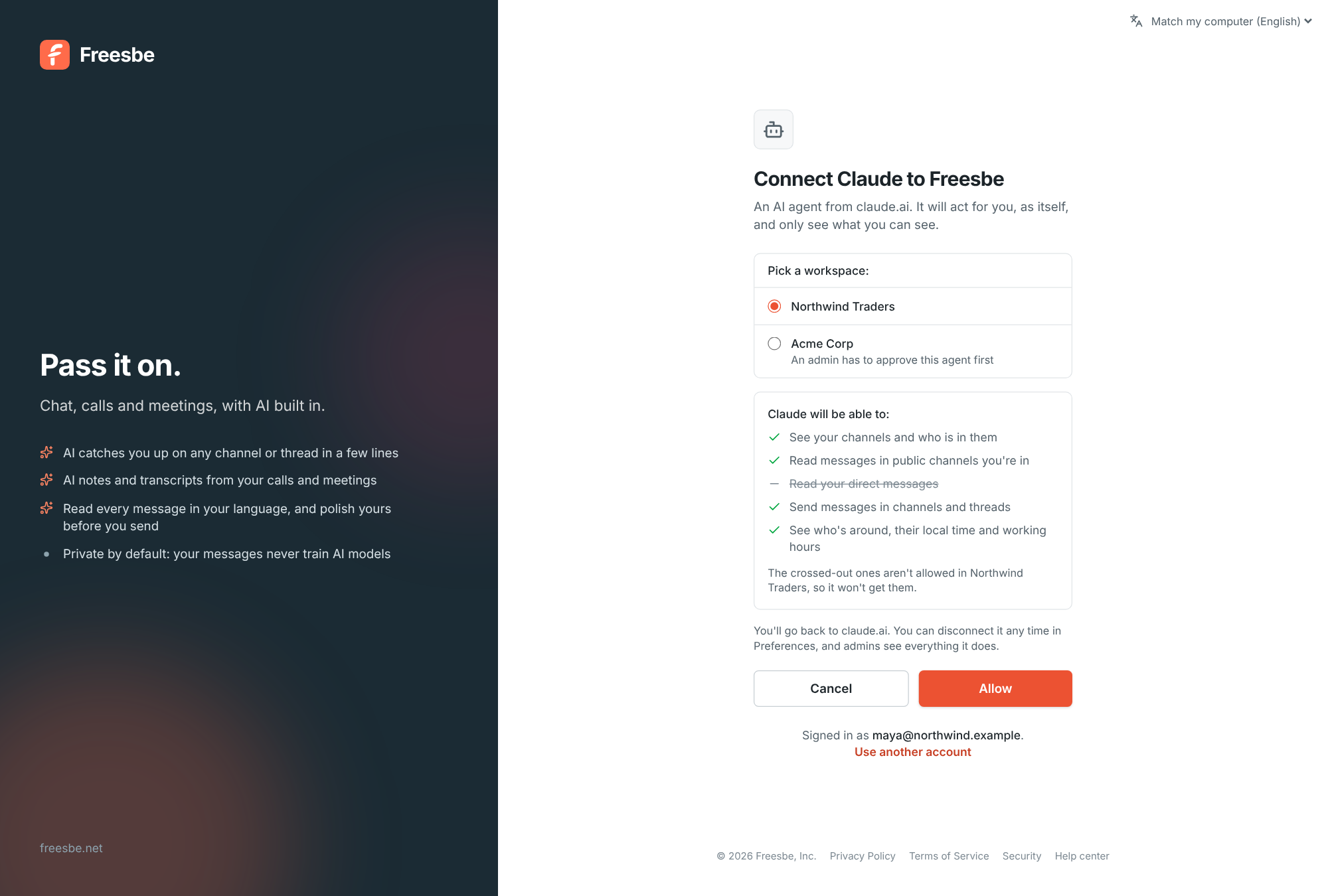
If the button says Ask an admin, your workspace’s admins approve new agents first. Add a note if you like; you’ll see the agent as Waiting in your preferences until an admin approves it, then connect again.
3. Try it
Section titled “3. Try it”Ask the tool something it can only answer from Freesbe: “What did #spring-launch decide about the launch date?” or “Is Priya around this afternoon?” Every message it reads comes with a link back to it in Freesbe, so it can point you to its sources. Ask it to post a summary in a channel and the message shows Sent by Claude, an AI agent, for Maya Chen under it.

It can also ask a teammate for you (“When will the Acme Corp order ship?”): the question arrives as a direct message from the agent, saying who it’s asking for, with a date picker, choices, Yes or No or a text box, and waits for their working hours. When they answer, pass it on or don’t answer in time, the agent tells you in your DM with it.
4. Keep an eye on your connections
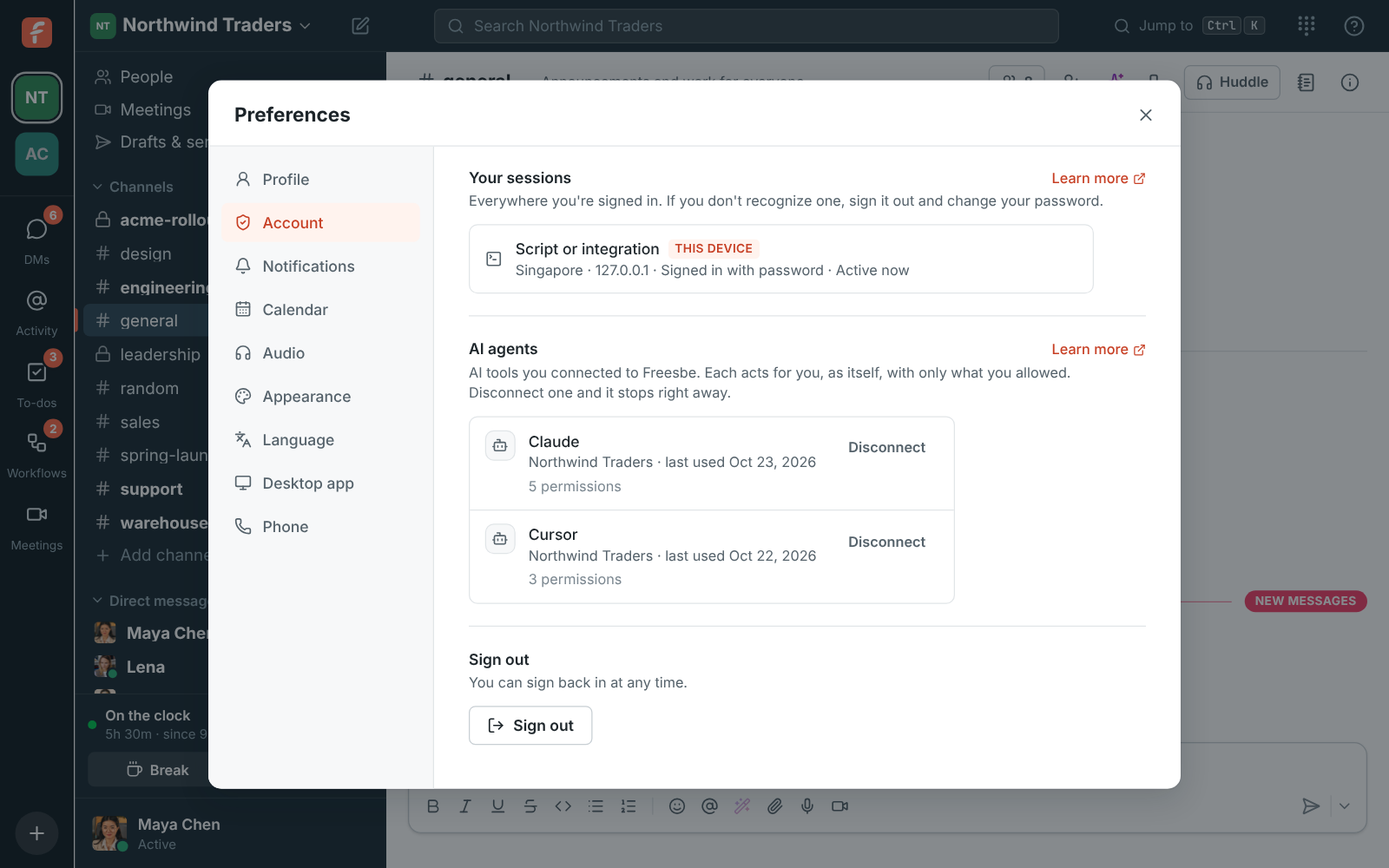
Section titled “4. Keep an eye on your connections”Preferences → My account → Sessions and apps → AI agents lists every agent you’ve connected, in which workspace, and when it last did something. Disconnect stops it at once. An agent keeps working for 30 days after it was last used, then asks you to connect again.
For admins: set the rules
Section titled “For admins: set the rules”Owners and admins manage agents in Workspace settings → Integrations & apps → AI agents.
- Who can connect AI agents: Anyone (the default, except guests), Agents an admin approved (the first person to connect a new agent asks you; once approved, anyone can connect it), or Nobody.
- Let agents read private channels and direct messages is off by default. On, an agent can ask for those permissions and still only reads the private conversations of the person who connected it.
- Each agent anyone connected is listed with Approve or Allow, Block (stops every connection to it), Permissions (the most it may do here; unticking one takes it away from everyone who connected it) and Remove.
- Activity at the bottom shows what agents did for 90 days: connections, approvals, blocks and every tool call.
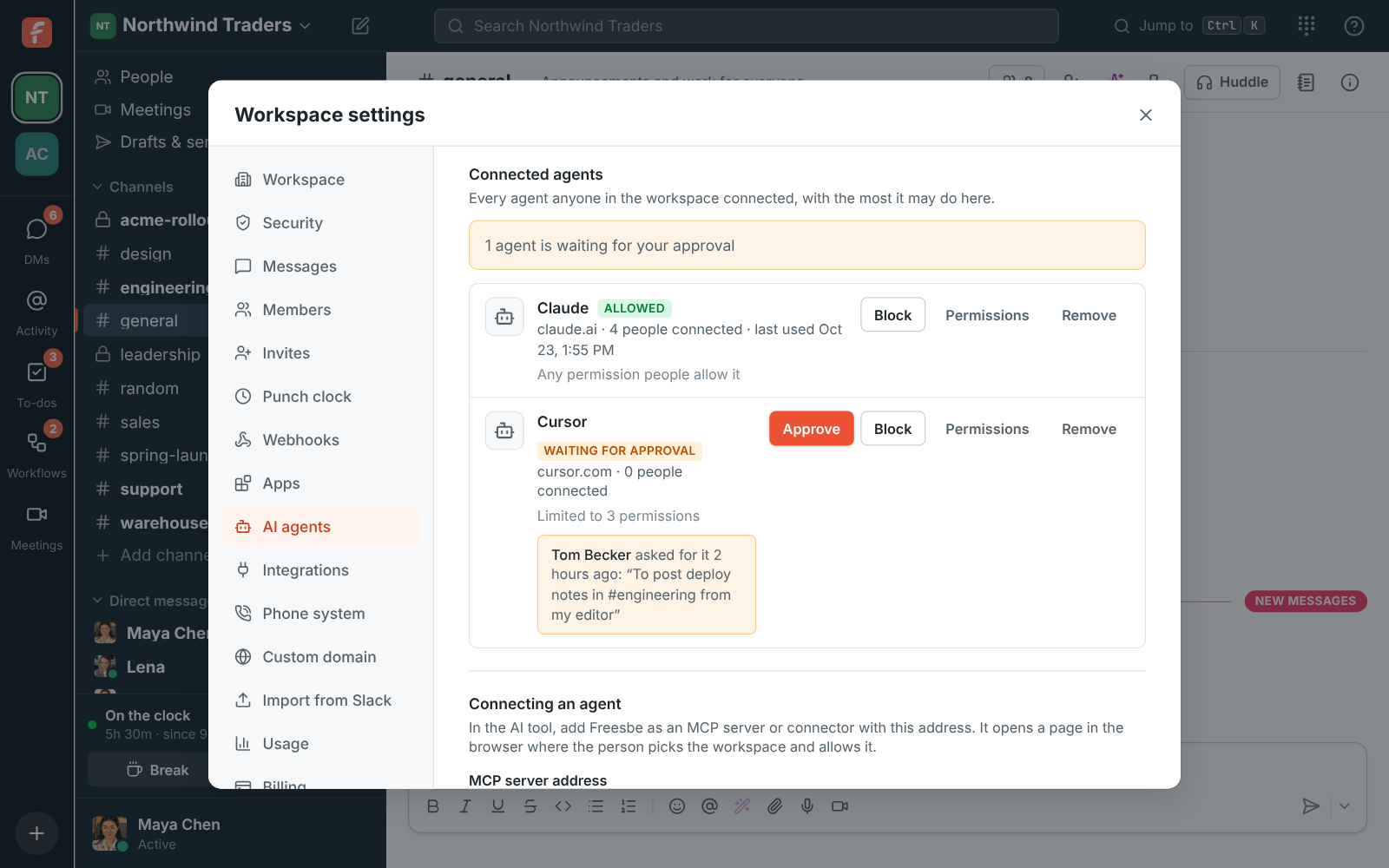
A sensible start for a company: Agents an admin approved, private reading off, and the phone:call permission unticked unless someone needs click-to-call.
- Agents treat what they read in messages as information, never as instructions, and post only what you asked for.
- A client that asks for nothing gets everything but the two private permissions and phone:call, which places calls on your workspace’s phone bill.
- Building your own agent? The MCP server, OAuth endpoints and scopes are under For developers.
See AI agents for every permission and tool.
Answers come from the Freesbe guides and are written by AI, so check the linked guide before relying on one. Please don't include personal details such as emails or passwords.