
Catch up after a week off
Back from holiday to forty unread channels? Don’t read them top to bottom. Summarize each channel since you last read it, open only the threads that need you, ask Freesbe the questions you’d otherwise scroll for, and park the rest in Later. Here’s the order that works. Anyone in the workspace can do it; guests can’t use the AI parts.
1. Start with what’s addressed to you
Section titled “1. Start with what’s addressed to you”The rail on the left shows your DMs and Activity, where mentions and replies to you are. Go through DMs first, since someone is waiting on them. On your phone, Catch up on Home does the same job one conversation at a time, DMs and the ones that mention you first, with Mark read, Reply and Skip.
2. Summarize each busy channel since you last read
Section titled “2. Summarize each busy channel since you last read”Open a channel and click the Summarize channel button (the purple sparkles) at the top, then pick Since I last read. Freesbe reads everything new since you were last there and gives you a sentence or two on where things stand, followed by the main points. Click the arrow after a point to jump to the message it came from, even when it’s a reply in a thread.
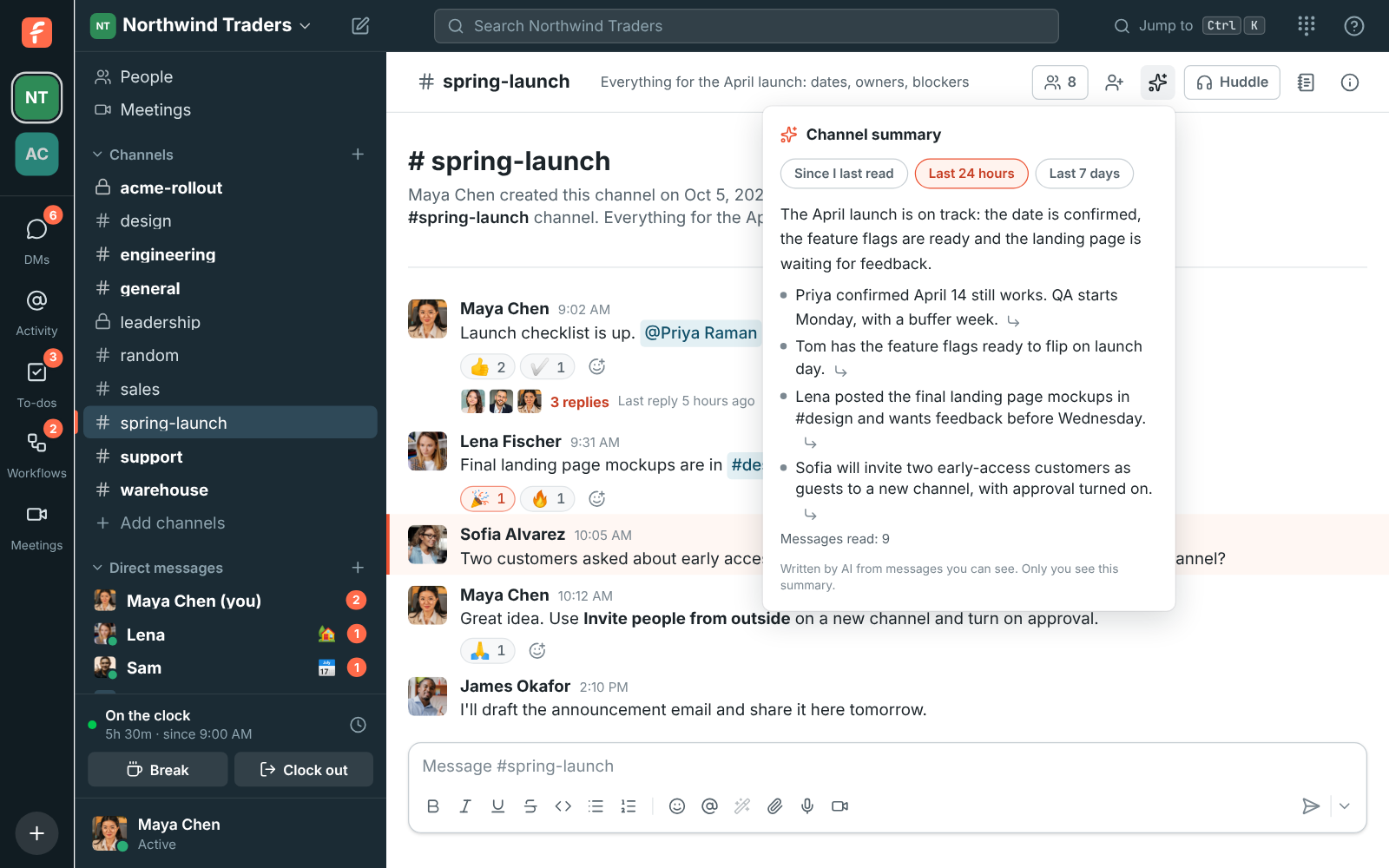
You see what it’s doing as it works, first how many messages it’s reading, then the summary as it’s written, so you can start reading before it’s done. Channels where monitoring tools post the same alert again and again are quick: a repeated message is read once, with how many times it came, and the summary says which problems are still open.
Do this for every channel with a lot unread. Summaries are only for you; nobody sees that you asked. Each one counts as one AI request toward the workspace’s monthly allowance, but asking again with nothing new costs nothing: the summary is kept, marked Up to date.
3. Open only the threads that matter
Section titled “3. Open only the threads that matter”A summary point about a decision usually leads to a long thread. Open it and click Summarize thread (the sparkles at the top of the thread), then Summarize: it covers the first message and every reply, so you know whether you need to read it all.
4. Ask for the facts you need
Section titled “4. Ask for the facts you need”Type a question into the search box, like When is the spring launch? or What did Priya say about pricing?, and Ask Freesbe answers it at the top of the results from the messages you can see, with a numbered link after each sentence. Click a number to jump to the message. If the messages don’t answer the question, it says so and shows what came closest instead of guessing.

Plain words work as filters too: files Dana shared in #sales last week looks in #sales, from Dana, with files, last week. Choose In #channel above the results to ask about the channel you have open only.
5. Park what you can’t deal with today
Section titled “5. Park what you can’t deal with today”Point at a message you’ll come back to and click the bookmark: it shows Saved for later and goes into Later in the sidebar, which only you see, on all your devices. For something with a deadline, open More actions → Remind me about this and pick In 1 hour, tomorrow, Monday or Custom…. When the reminder goes off, Freesbe shows it with a View button and sends a notification. Mark each one done as you go; they move to Completed.

- Before you go away next time, pause notifications and set a status, so people know to wait. See Keep notifications under control.
- AI can get things wrong. Use the arrows to check the original message before acting on something important, and remember a summary reads only what you can open yourself.
- If the AI buttons are missing, an admin turned AI features off for the workspace, or this month’s requests are used up; they come back on the 1st.
See AI summaries, Ask Freesbe and Save for later and reminders for the details.
Answers come from the Freesbe guides and are written by AI, so check the linked guide before relying on one. Please don't include personal details such as emails or passwords.