
Close
The Close app brings your Close CRM into the conversation. Once an admin connects it:
- Alerts post new opportunities, opportunities moving stage, opportunities won and lost, and new contacts into the channels you pick, as they happen.
- Link previews show an opportunity’s or contact’s details under any link to a lead that someone posts.
- /close finds an opportunity or contact without leaving the conversation.
- Log to Close adds any message to a contact’s lead as a note, with a link back to it.
- Calls and customer conversations show the caller’s or customer’s Close contact, with Open in Close. See See who’s calling from your CRM.
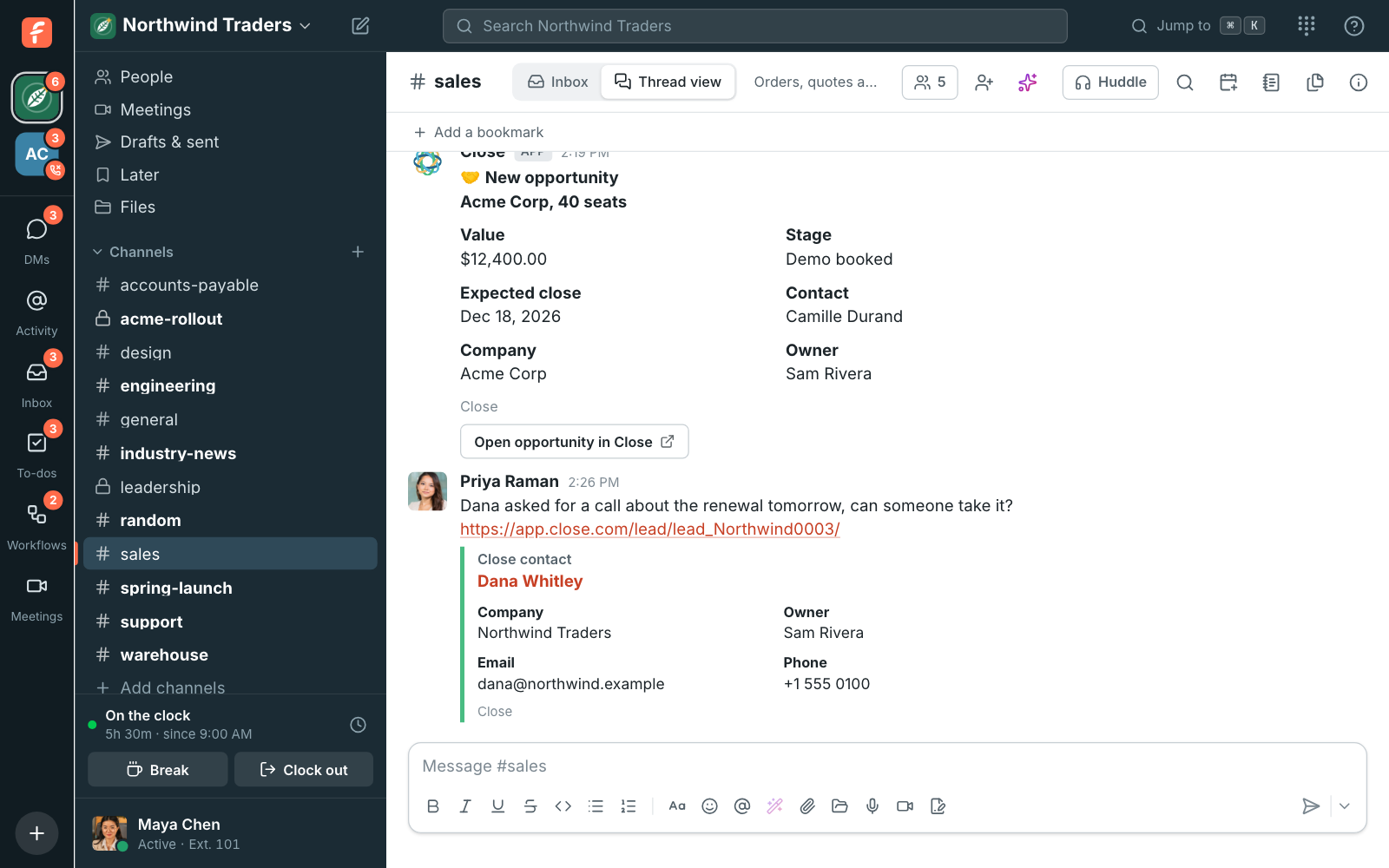
Close posts as its own member, Close, so its cards are easy to tell apart from people.
Connect Close
Section titled “Connect Close”Only Freesbe owners and admins can connect it.
- Open Workspace settings → Integrations & apps → Integrations → CRM and find Close, under monday CRM.
- Click Connect Close. Close asks you to sign in and allow Freesbe into your organization.
- Click Allow. You’re back in Freesbe, with Connected next to Close and your organization’s name.
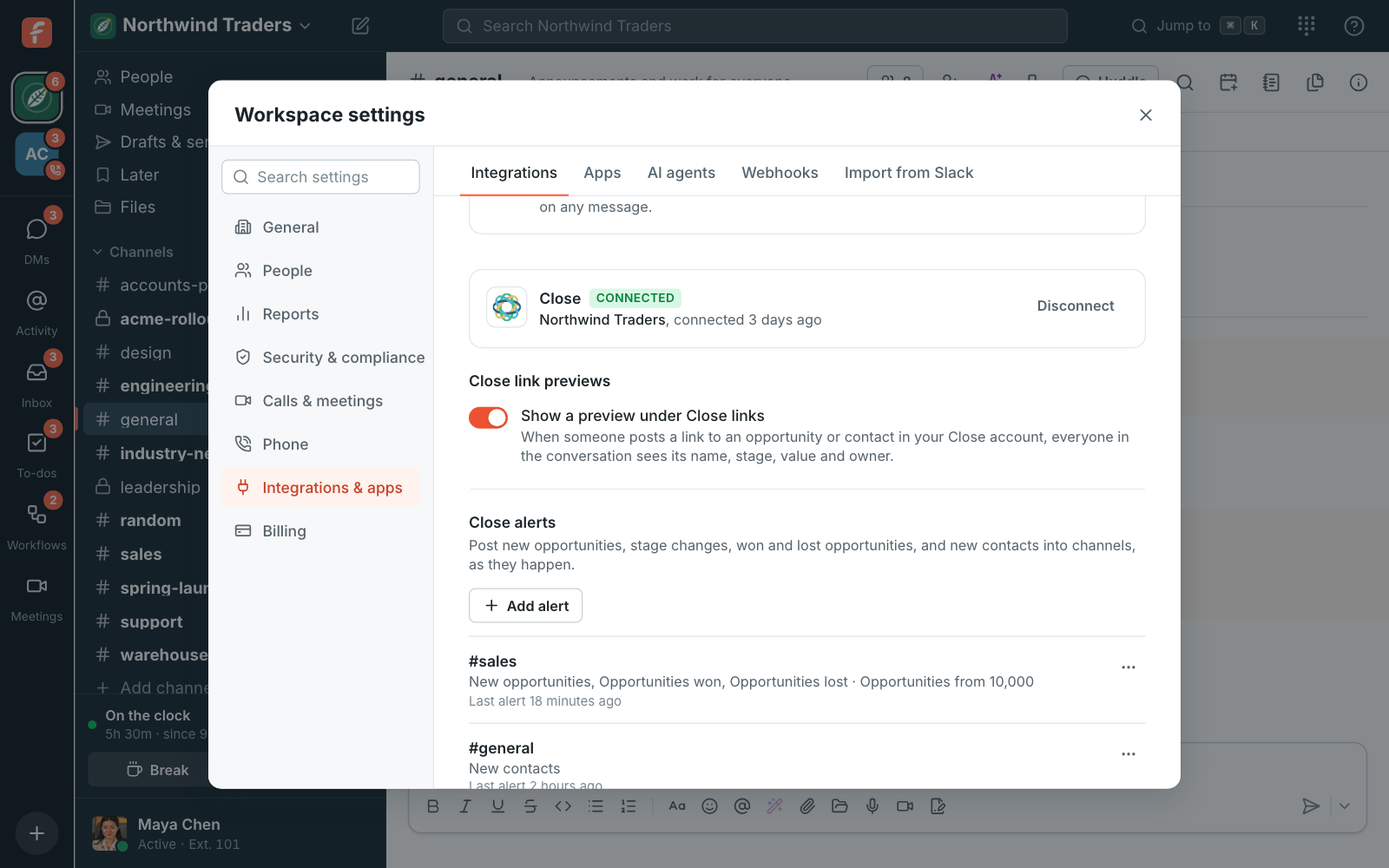
A workspace connects one Close organization. Freesbe reads it as the person who connected, so it sees what they see: connect as an organization admin, so no lead is missed and alerts can be set up. Notes from Log to Close are added as that person too. Freesbe doesn’t change or delete anything else.
Alerts
Section titled “Alerts”Under Close alerts, click Add alert, then pick:
- Post to channel. Any channel, public or private. Alerts in a private channel are only visible to admins who are in it.
- Alerts to post:
- New opportunities, as soon as one is added to a lead.
- Opportunities moving stage, for example from Demo booked to Proposal sent.
- Opportunities won and Opportunities lost, when an opportunity moves to a won or lost status.
- New contacts, as they’re added to a lead.
- Smallest opportunity to post. Opportunities worth less are left out. New contacts always post.
Add more alerts to send different things to different channels: big opportunities to #leadership, new contacts to #sales. Each card shows the opportunity’s value, status and pipeline, the lead and contact, and an Open opportunity in Close button.
From an alert’s ⋯ menu:
- Send a test alert posts a sample card, marked Sample alert, so you can see where alerts land.
- Edit changes the channel, the kinds of alerts or the smallest opportunity.
- Turn off pauses it, and Delete removes it.
Last alert under each one says when it last posted. To send alerts, Freesbe adds a webhook to your Close organization when you connect, which only an organization admin can do. If the person who connects isn’t one, Close connects with Alerts are off, and everything else works: reconnect as an admin.
Link previews
Section titled “Link previews”When someone posts a link to a lead, such as app.close.com/lead/lead_…/, Freesbe adds a preview
of its contact under the message, and a link to one of its opportunities gets the opportunity’s
preview. Up to three links in a message get a preview.
Everyone in the conversation sees the preview, including guests, so turn Show a preview under Close links off in Integrations → CRM if your CRM details shouldn’t be shared that way. Leads in other Close organizations are left alone.
Find a record with /close
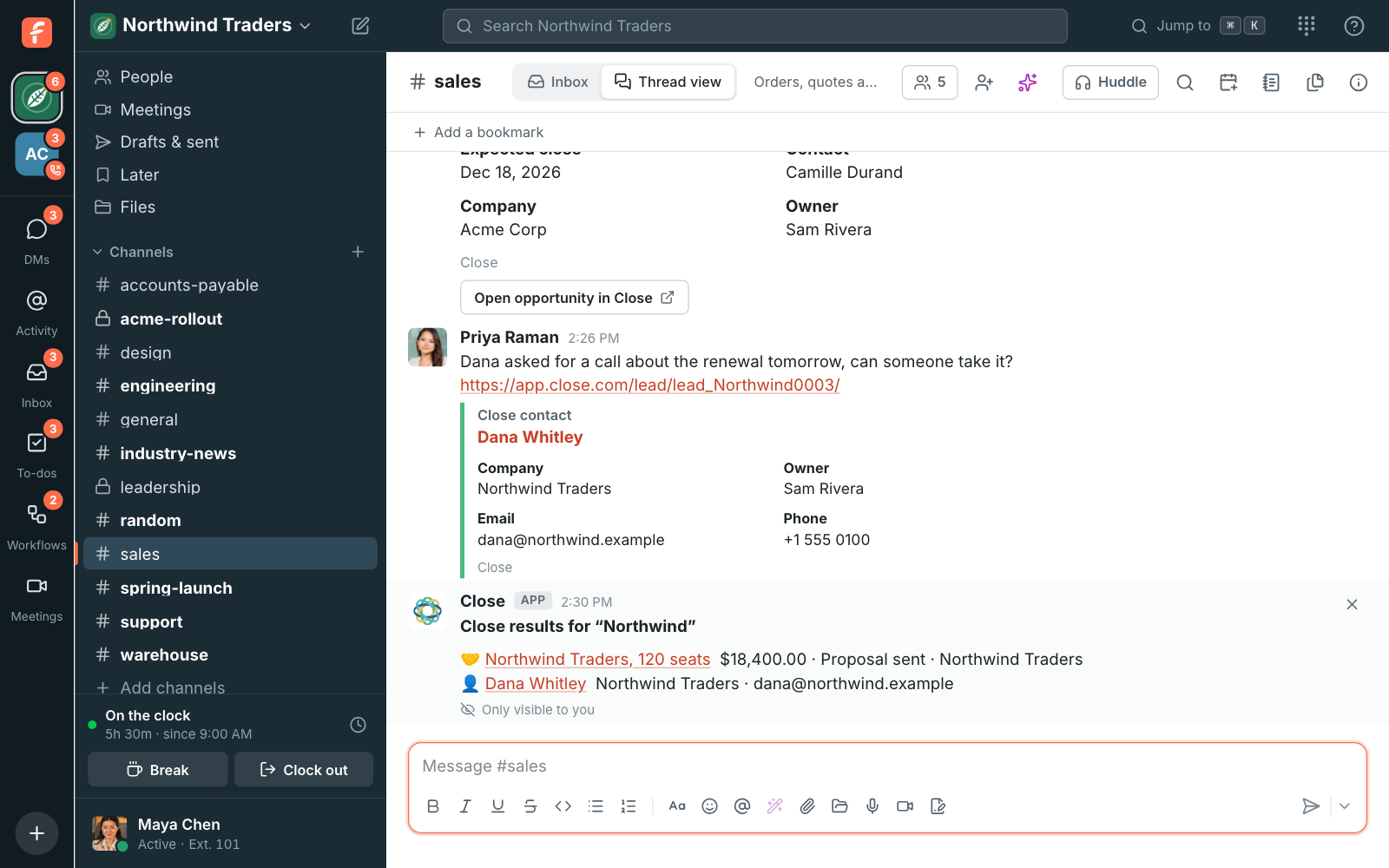
Section titled “Find a record with /close”Type /close and a company’s or person’s name, or an email address, in any conversation, for
example /close Contoso. The answer is only visible to you: matching opportunities and contacts,
each a link that opens the lead in Close.
Add a message to a contact
Section titled “Add a message to a contact”Hover over any message, click ⋯ and choose Log to Close.
- Type the contact’s email address or name. When the message is from a guest, their email address is already filled in.
- Change the Note if you like. It starts as the message’s text.
- Click Add note. When more than one contact matches, pick the right one and click Add note again.
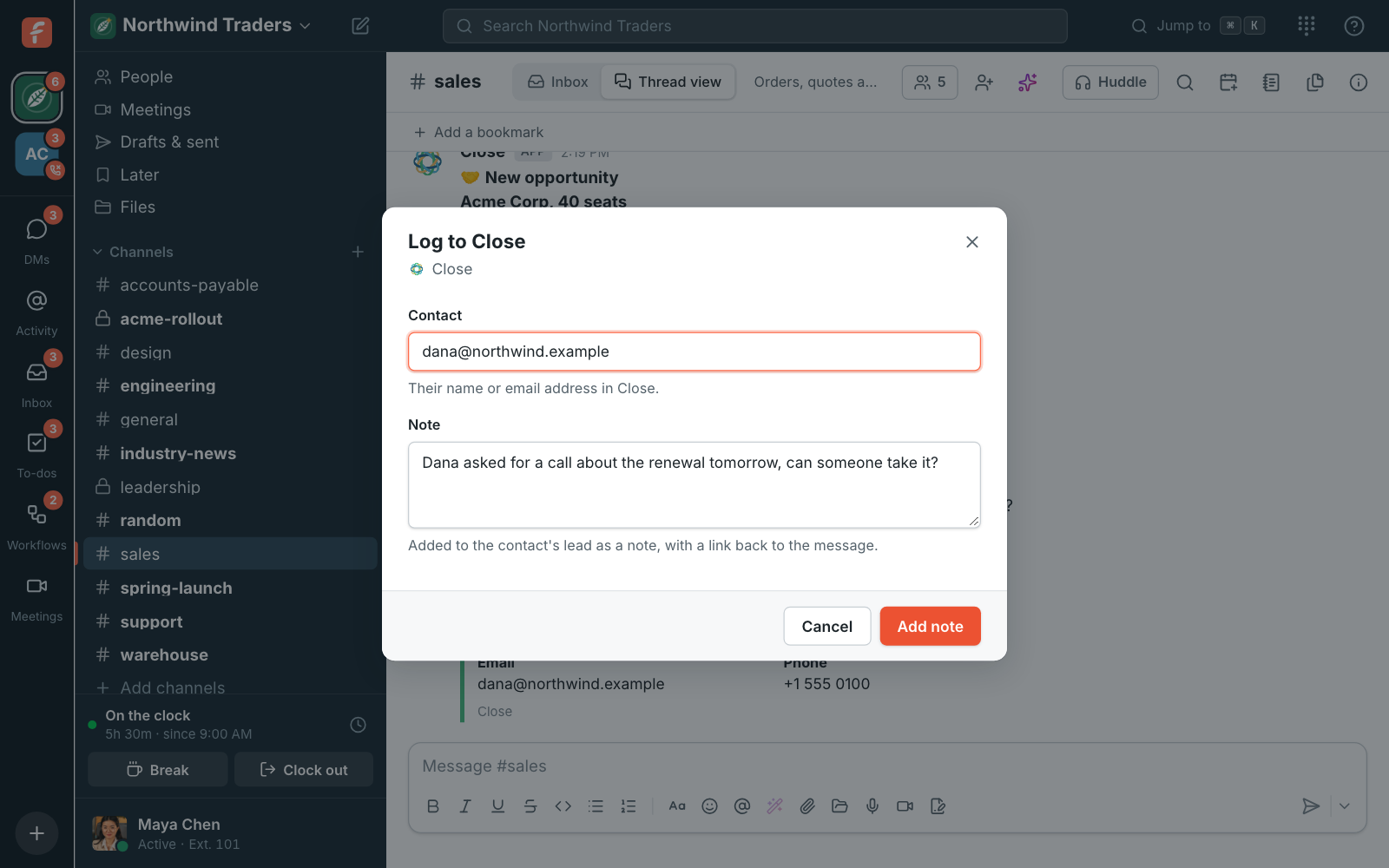
The message goes on the contact’s lead as a note, with who wrote it, the channel and a link back to the message in Freesbe. You get a confirmation only you can see, with an Open contact button.
Disconnect
Section titled “Disconnect”In Integrations → CRM, click Disconnect next to Close. Freesbe removes its webhook from
your organization, alerts and previews stop, and /close and Log to Close go away. Your
alerts are kept, so connecting again picks up where you left off.
If Close stops accepting Freesbe’s access, for example because the app was removed there or the person who connected it left, Close shows Needs reconnecting: click Reconnect and sign in again.
Privacy and security
Section titled “Privacy and security”- Freesbe keeps its access to your Close organization encrypted and only uses it for what’s above. Each change is posted once.
- Freesbe doesn’t copy your CRM: alerts and previews are made from the record when they’re posted.
- Close signs every alert it sends with a key only your workspace’s webhook has, and each workspace’s alerts arrive at an address of its own.
Setting it up for a sales team? See Connect Close to Freesbe. If alerts don’t show up, see Close alerts aren’t posting.
For other CRMs, see HubSpot, Salesforce, Pipedrive, Zoho CRM, GoHighLevel, Dynamics 365, Freshsales and monday CRM, use an incoming webhook or build an app.
Answers come from the Freesbe guides and are written by AI, so check the linked guide before relying on one. Please don't include personal details such as emails or passwords.