
Roll out Freesbe to your team
A rollout goes best when people open Freesbe on day one and find their channels, their history and their apps already there. Here’s the order that works, from creating the workspace to the first week.
Set up the workspace
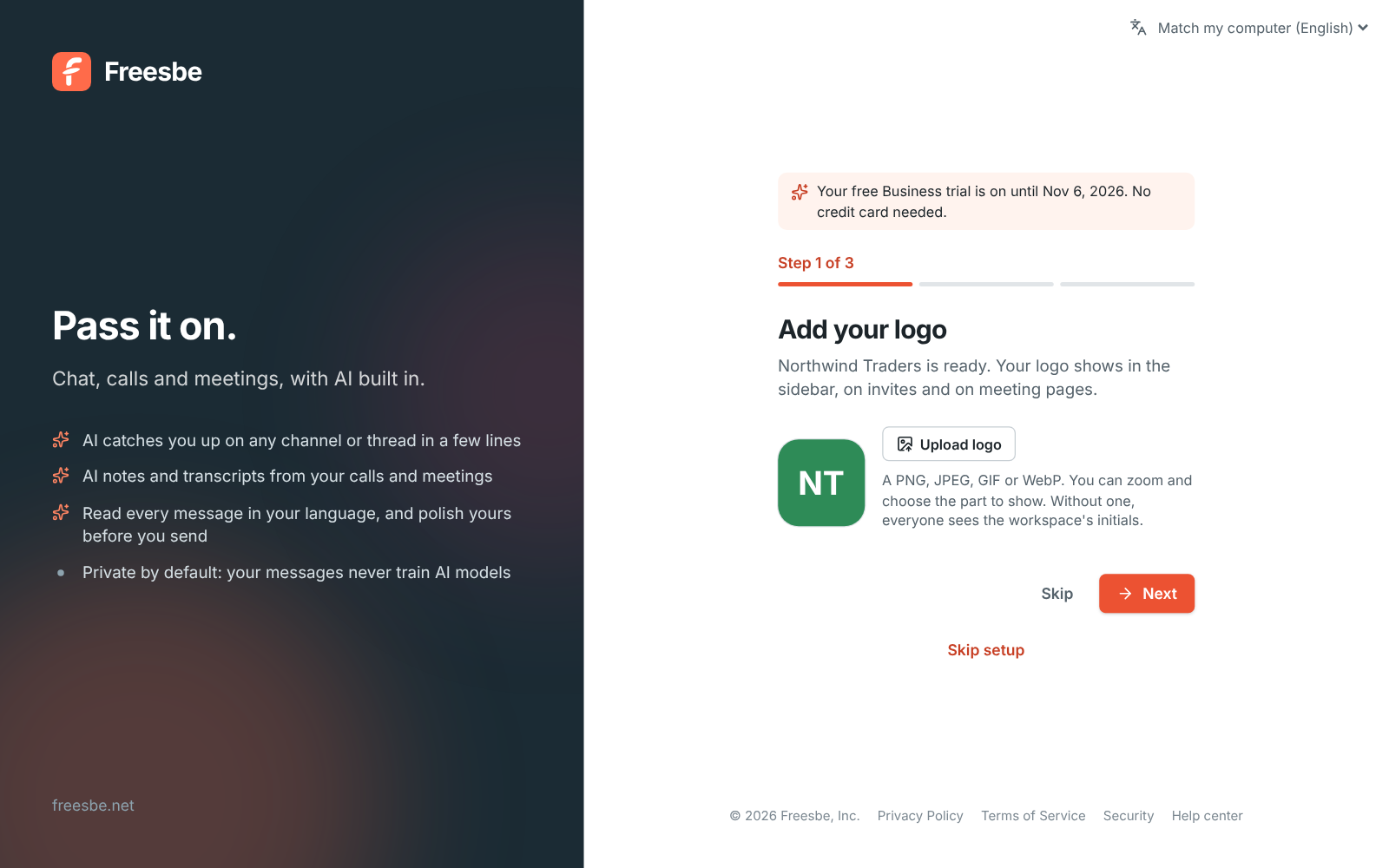
Section titled “Set up the workspace”- Sign up and name the workspace after your company. Your first workspace gets a free 14-day trial of Business, with no credit card needed.
- Add your logo. It shows in the sidebar, on invites and on meeting pages, so customers you meet know who they’re talking to.
- Decide on sign-in and security before anyone joins. See Secure your workspace.
Bring your Slack history
Section titled “Bring your Slack history”Moving from Slack? Import your Slack export before you invite people, so channels and messages are waiting for them.
Create the channels people need
Section titled “Create the channels people need”Make the handful of channels each team works in, such as #support, #sales and
#support-escalations, so the first thing people see is where to talk. Add a channel per customer
or partner you work with closely, and invite their people as guests.
Invite everyone, with the apps
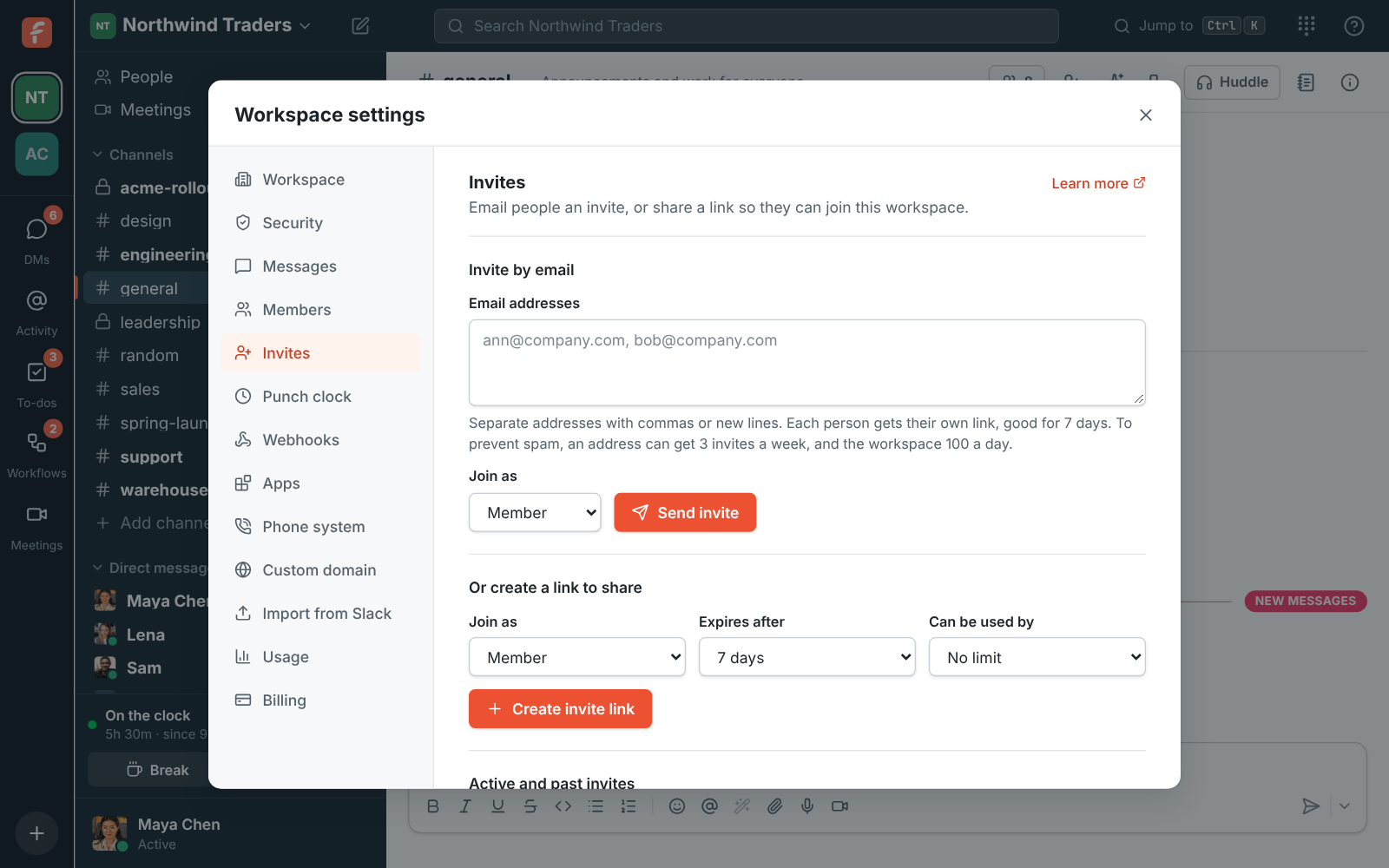
Section titled “Invite everyone, with the apps”Open the workspace menu and choose Invite people. Paste up to 50 addresses at a time and choose whether they join as a Member or an Admin.
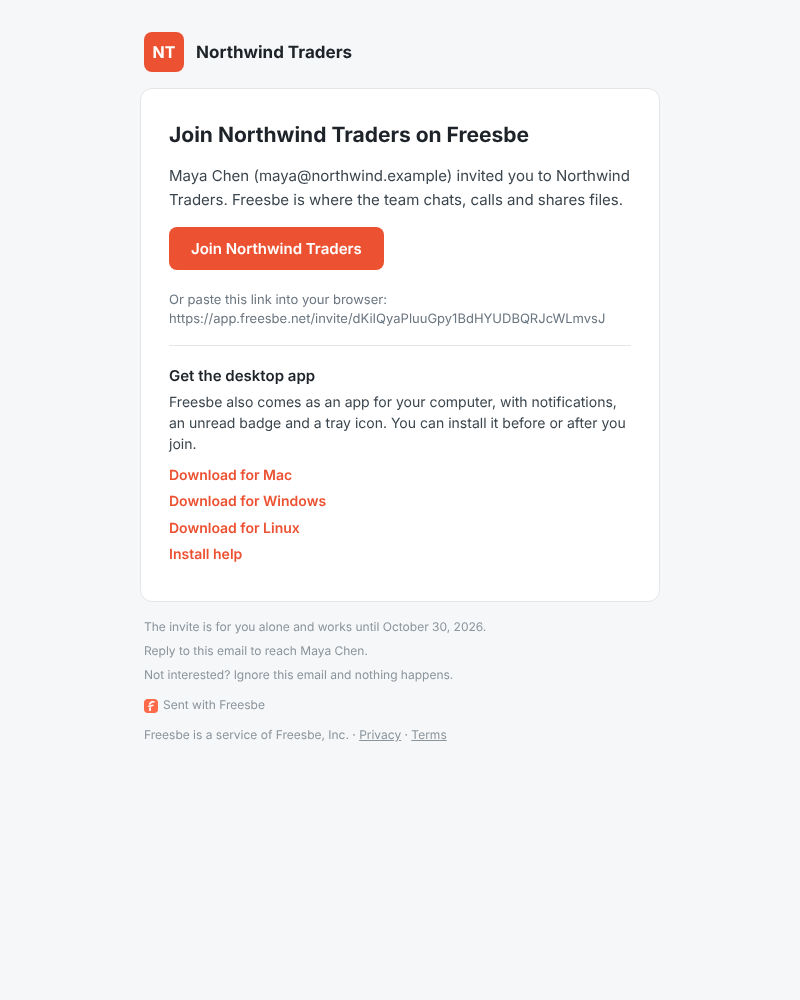
Each invite email has Get the desktop app links for Mac, Windows and Linux, so nobody has to search for it. Ask people to install the desktop app, which keeps notifying with its window closed, and the mobile app for when they’re away.
A workspace can send 100 invite emails a day. For a big team, also share an invite link from the same page.
Give people a short first-day list
Section titled “Give people a short first-day list”- Install the desktop app and the phone app.
- Turn on notifications and send a test one. See Keep notifications under control.
- Add a photo and title to your profile.
- Join your team’s channels from Browse channels.
- Start a huddle with a teammate to check your microphone and speaker.
Help them in the first week
Section titled “Help them in the first week”Point people to the docs and this knowledge base, and to ? → Contact support in Freesbe’s top bar. Most first-week questions are answered in Troubleshooting.
Answers come from the Freesbe guides and are written by AI, so check the linked guide before relying on one. Please don't include personal details such as emails or passwords.