
Publish an app
If you make software that many teams use, like a CRM, a help desk or a billing system, you can publish your Freesbe app so every customer adds it with one click instead of building their own copy. You build the app once, in your own workspace. Your customers click Add to Freesbe on your site, pick their workspace, and allow what it asks for. Freesbe then hands your server a bot token for their workspace.
Your customers never paste a manifest, a token or a signing secret. When you change your app, every workspace that has it gets the change.
Sharing an app is part of the partner program: apply on freesbe.net/partners/ first. Once you’re approved, you can share any of your workspace’s apps.
How it works
Section titled “How it works”- You build the app in your own workspace like any other app: its bot, scopes, events, slash commands, buttons, customer details and so on.
- You turn on sharing and add your redirect URL and the hosts your app’s URLs use. Freesbe gives you a client ID and a client secret.
- A customer clicks Add to Freesbe. They sign in, pick a workspace and see exactly what your app will be able to do there.
- They click Add app. Freesbe adds your app’s bot to their workspace and sends them back to your redirect URL with a code.
- Your server swaps the code for that workspace’s bot token, and you’re in.
Everything your app already does then works in each workspace that installs it. Events, commands, buttons and customer lookups all go to your URLs, with the workspace they came from.
Turn on sharing
Section titled “Turn on sharing”- In your own workspace, open the Admin Center and go to Integrations → Apps.
- Open your app’s ⋯ menu and click Share with other workspaces.
- Under Distribution, fill in what customers see when they add it:
- Company name, such as Acme Corp. It shows as “Made by Acme Corp”.
- Support email, Website and Privacy policy. All three are required.
- Redirect URLs: where Freesbe sends people back after they allow your app, such as
https://app.acme.example/freesbe/callback. They must use https and match exactly. Add one per line. - Hosts: the hosts your app’s events, command, button and lookup URLs use, such as
hooks.acme.example. Freesbe sends workspaces’ data only there. - Countries you process data in, as two-letter codes such as US.
- Click Share app.
Freesbe shows your client ID, your install link and your client secret. The secret is shown once, so copy it into your server’s secrets now. If you lose it, click New client secret; the old one stops working at once.
Your app now has an install link. Anyone in a Freesbe workspace who opens it can add your app, as long as their workspace lets them. To stop new installs, click Stop sharing. Workspaces that already have your app keep it.
The Add to Freesbe button
Section titled “The Add to Freesbe button”Put the button where your customers set up integrations, linking to your app’s install address:
<a href="https://id.freesbe.net/apps/install?client_id=01JD4P…&scope=chat:write,customers:read&redirect_uri=https%3A%2F%2Fapp.acme.example%2Ffreesbe%2Fcallback&state=…"> <img src="https://freesbe.net/partners/add-to-freesbe.svg" alt="Add to Freesbe" width="180" height="44" /></a>| Parameter | What it is |
|---|---|
client_id |
Your app’s client ID |
scope |
The scopes to ask for, separated by commas. Leave it out for all of your app’s |
redirect_uri |
One of your redirect URLs. Required when you have more than one |
code_challenge |
A PKCE S256 challenge. Required: keep its verifier for the next step |
state |
A random value you check when the customer comes back. Required |
workspace |
A workspace ID, to pick it for them when you already know it. They still see its name and click Allow. Optional |
Use the light button on light pages and add-to-freesbe-dark.svg on dark pages, at 40 pixels
high or more. Both are on freesbe.net/partners/add-to-freesbe/.
What your customer sees
Section titled “What your customer sees”- Sign in. If they aren’t signed in to Freesbe, they sign in first, with their workspace’s usual rules: single sign-on, a second step, or approving on their phone.
- Pick a workspace. The list shows only workspaces they’re in. Owners and admins can add the app themselves. Anyone else sees Ask an admin, and the admins get an email and a request in the Admin Center.
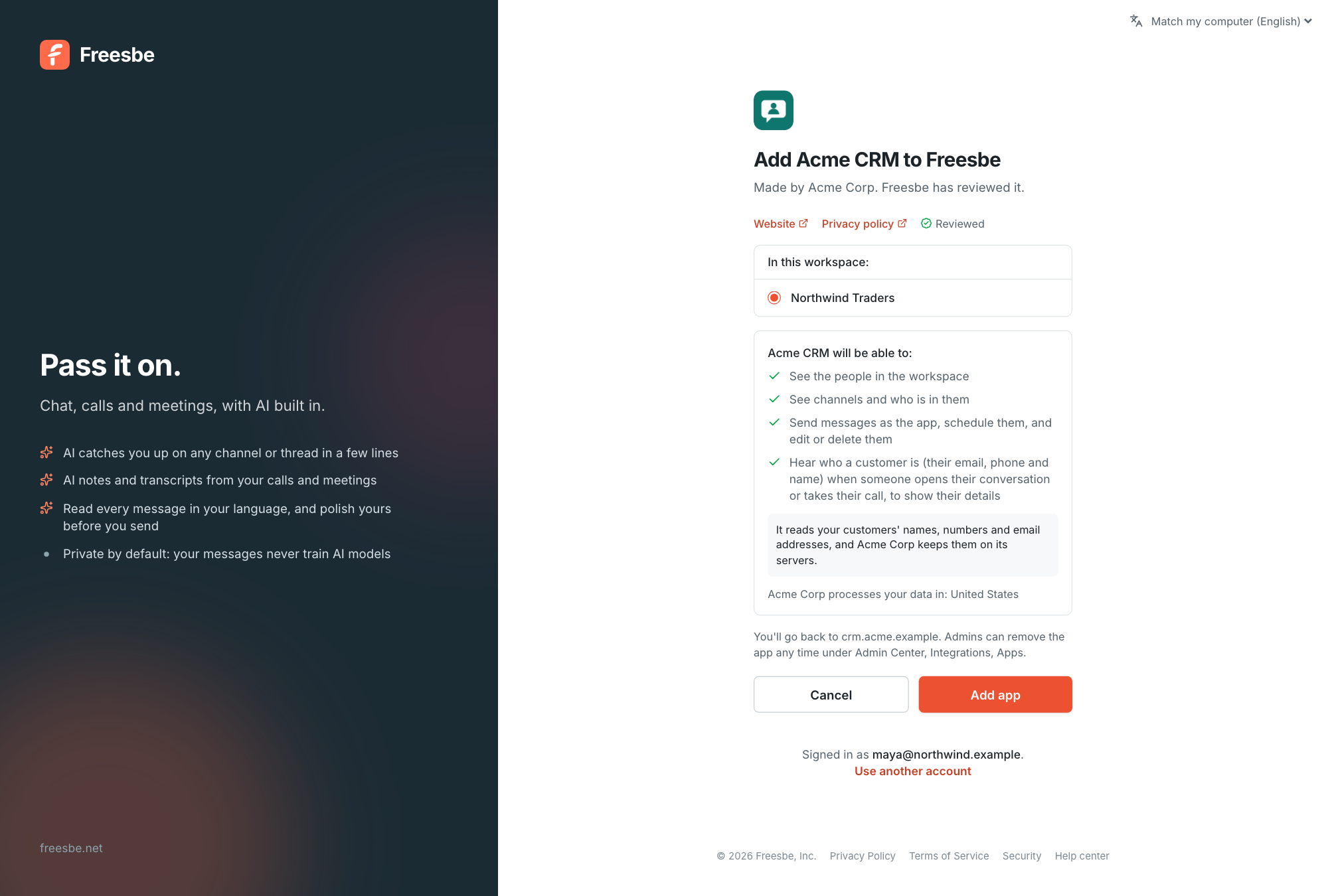
- Add app. The screen shows your app’s name, logo and company, what each scope lets it do in plain words, whether it reads customers’ details, and the countries its data goes to. Apps that Freesbe has reviewed show Reviewed.
When they click Add app, your app’s bot joins their workspace and the browser goes back to
your redirect URL with code, your state and iss. When they click Cancel, or ask an
admin, it goes back with error=access_denied.
Swap the code for a token
Section titled “Swap the code for a token”Your server sends the code to Freesbe within 10 minutes, with your client ID and secret (in the
form, or as HTTP Basic auth) and the PKCE verifier. Check that the iss on the redirect is
https://id.freesbe.net first. A code works once: if it’s sent twice, the token it gave is
revoked too.
curl https://id.freesbe.net/apps/token \ -d client_id="$FREESBE_CLIENT_ID" \ -d client_secret="$FREESBE_CLIENT_SECRET" \ -d grant_type=authorization_code \ -d code=… \ -d redirect_uri=https://app.acme.example/freesbe/callback \ -d code_verifier=…{ "ok": true, "access_token": "fsb-bot-…", "token_type": "bot", "scope": "chat:write,customers:read", "installation_id": "01JD5K…", "app_id": "01JD4P…", "bot_user_id": "01JD5M…", "workspace": { "id": "01J9W6…", "name": "Northwind Traders" }, "team": { "id": "01J9W6…", "name": "Northwind Traders" }, "installed_by": { "id": "01J9W7…", "name": "Maya Chen" }}Keep the token with the workspace ID: it’s that workspace’s bot token, and it works with every
API route its scopes allow, like a token for an app the workspace made itself. The
answer has the same shape as Slack’s oauth.v2.access (team, bot_user_id, access_token),
so Slack’s Bolt installer works once you point it at Freesbe’s addresses.
Bot tokens don’t expire. They stop working when the workspace removes your app, when someone
there adds it again (you get the new token from that code), or when you make a new one for that
installation with POST /api/workspaces/{w}/apps/{id}/installs/{installationId}/token. If you
think your tokens leaked, Stop every token under Distribution stops every one of them at
once; get each workspace a new one the same way, or have it add the app again.
One app, many workspaces
Section titled “One app, many workspaces”Everything Freesbe sends your app says which workspace it’s for:
- Events carry
team_id(the workspace ID),api_app_idandinstallation_id. - Slash commands, buttons and
dialogs carry
team_id, the same way Slack’s do. - Customer lookups carry
team_id, so you answer with that customer’s records only.
All of them are signed with your app’s one signing secret, so a single check covers every
workspace. Use team_id to pick the right token before you call back. Workspaces that added your
app never see its signing secret or its tokens.
Freesbe also tells you about installs, whatever your app’s scopes, on its events URL:
app.installed and app.scopes_changed with the workspace’s team_id, its installation_id and
the scopes it allowed, and app.uninstalled when it removes your app. They show in your app’s
Deliveries like any event.
Change your app
Section titled “Change your app”When you change your app’s manifest, such as its commands or its description, every workspace that has it gets the change at once.
Your app’s addresses are pinned to the hosts listed under Distribution → Hosts: a manifest with a URL on another host can’t be saved. Request URLs and lookup URLs on those hosts change at once too. Adding a host is a bigger step, because it changes where every customer’s data goes: once any workspace has your app, only an owner can do it, after confirming it’s them, and it takes effect 48 hours later. The admins of every workspace that has your app get an email about it.
New scopes are different. A workspace has to allow them first. Admins see “Acme CRM asks for
more” on the app in the Admin Center, with what’s new. Until one of them clicks Allow, your
app keeps its old scopes there, and calls that need the new ones answer 403 missing_scope.
Freesbe sends you app.scopes_changed when they allow it. You can also send an admin to your
install link again; it shows only what’s new.
When a workspace removes your app
Section titled “When a workspace removes your app”When an admin removes your app, its token stops working at once, its bot leaves the workspace,
and Freesbe sends app.uninstalled to your events URL with the workspace’s team_id. Delete
what you kept for that workspace. When a workspace is deleted, you get the same event.
Get reviewed
Section titled “Get reviewed”To have Freesbe review your app, write to partners@freesbe.net with its client ID, a short description, and the category it belongs in (CRM, Support, Finance and the others under Integrations). We check that it works, asks only for the scopes it needs, keeps customers’ data to what it needs, and that its privacy policy and support address work. We reply by email, usually within five business days.
Reviewed apps get the Reviewed badge on their install screen and in the Admin Center, and an Add to Freesbe button on their page on freesbe.net/integrations/. A Directory in the Admin Center, where workspaces browse reviewed apps, is coming later.
Until an app is reviewed, its install screen says Freesbe hasn’t reviewed it yet, and it can’t
have channels:history, search:read, files:read, recordings:read or phone:call, even if
its manifest asks for them. Workspaces get them once it’s reviewed, after an admin allows them.
Placing calls
Section titled “Placing calls”Adding your app never lets it place calls, even a reviewed one. A workspace’s admins turn Can place calls on for it separately, and only on a paid plan, never on Free or a trial. Across every workspace that has your app, it places at most 500 calls a day; write to us if you need more.
Good to know
Section titled “Good to know”- A workspace has one installation of your app. If two admins add it at the same time, they get the same one.
- Each installation counts toward that workspace’s plan limits like any other app. Rate limits are counted per installation, so one busy customer doesn’t slow down the rest.
- Your servers aren’t in the customer’s data region. Say under Distribution which countries you process data in: the install screen shows it with what your app will see.
- Freesbe can suspend an app that breaks the partner program terms: every workspace’s token for it stops at once, and nobody can add it until we lift it.
app.uninstalledis signed like every event, with a timestamp; ignore one older than 5 minutes. The partner program terms ask you to delete a workspace’s data within 30 days of it removing your app.- You see your installations, and when each was added, under Distribution → Installs.
- Your own workspace can’t add your app: it’s yours already.
Answers come from the Freesbe guides and are written by AI, so check the linked guide before relying on one. Please don't include personal details such as emails or passwords.