
AI agents
AI agents are the AI tools people already use, connected to Freesbe: Claude, ChatGPT, a code editor such as Cursor or VS Code, or an agent your own team built. Once connected, an agent can work in your workspace for you: find out who is around, read what you can read, post as itself, and (soon) ask people questions and wait for their answers. It’s on every plan.
Three things stay true for every agent:
- It acts for the person who connected it. An agent sees only what that person can see, and never more than they allowed when they connected it.
- It’s visible. An agent shows up in the member list and in messages as its own bot, with an AI agent badge and the name of the tool it is, never as the person.
- Admins are in charge. Owners and admins choose who can connect agents, approve or block each one, limit what it may do, and see everything it did.
Freesbe’s agent support uses the open Model Context Protocol (MCP), so any tool that can add an MCP server or “connector” works, with no app to install.
Connect an agent
Section titled “Connect an agent”In your AI tool, add Freesbe as a connector or MCP server with this address:
https://api.freesbe.net/mcpWhere to put it depends on the tool. In Claude it’s Settings → Connectors → Add custom
connector; in ChatGPT, Settings → Connectors; in most code editors, an mcp.json file. The
tool then opens a page in your browser:
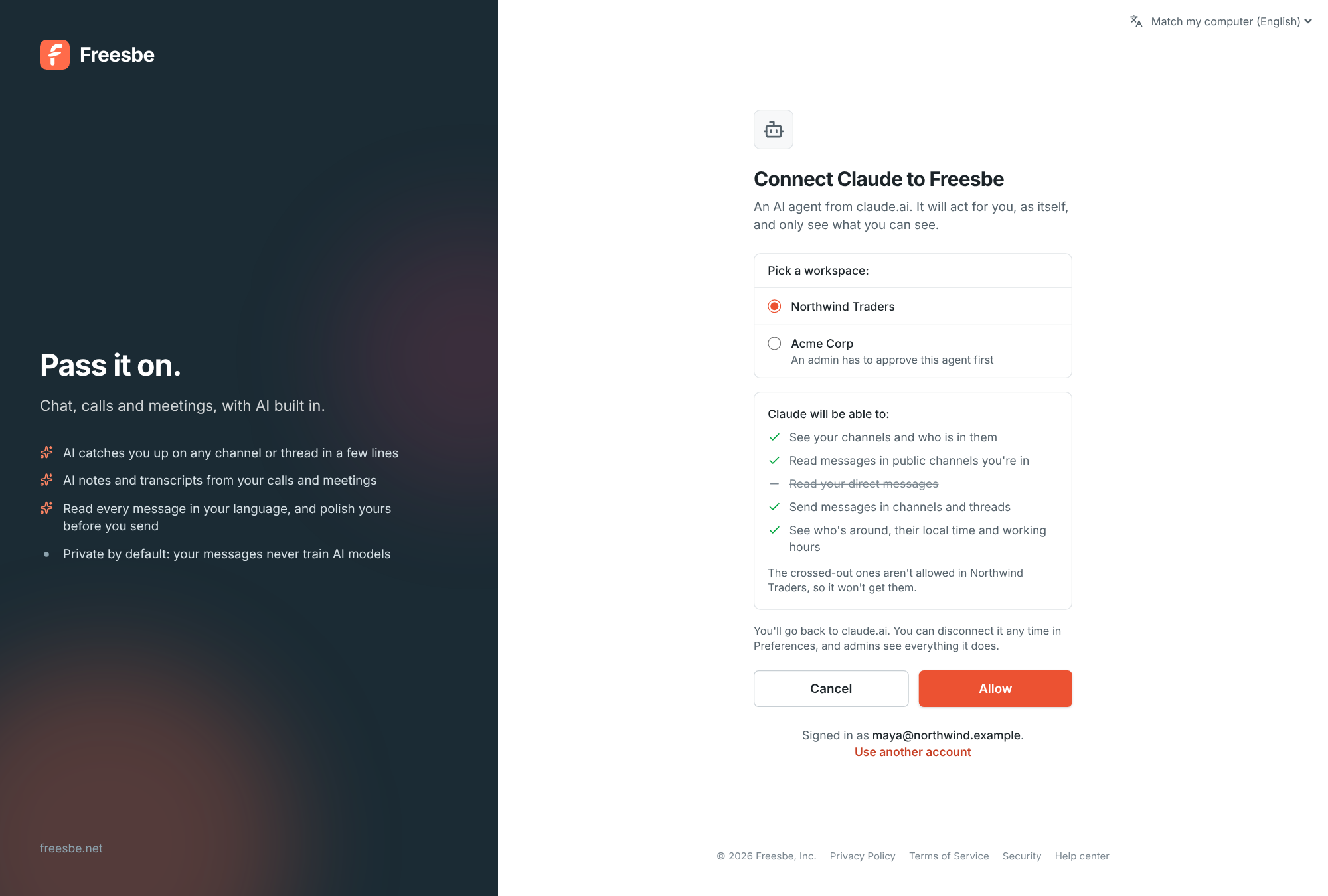
- If you aren’t signed in to Freesbe in that browser, sign in as usual. Your workspace’s sign-in rules apply, including a second step and single sign-on.
- Pick the workspace the agent should work in. One connection is for one workspace; connect it again for another.
- Read what it will be able to do. Anything crossed out isn’t allowed in that workspace, so the agent won’t get it.
- Click Allow. You go back to the tool, connected.
If the workspace’s admins want to approve new agents first, the button says Ask an admin instead. Add a note if you like, and connect again once an admin has approved it (you’ll see the agent as Waiting in your preferences until then). Guests can’t connect agents.
Your connected agents
Section titled “Your connected agents”Preferences → My account → Sessions and apps → AI agents lists every agent you’ve connected, in which workspace, and when it last did something. Click Disconnect and it stops at once; connect it again from the tool whenever you like.
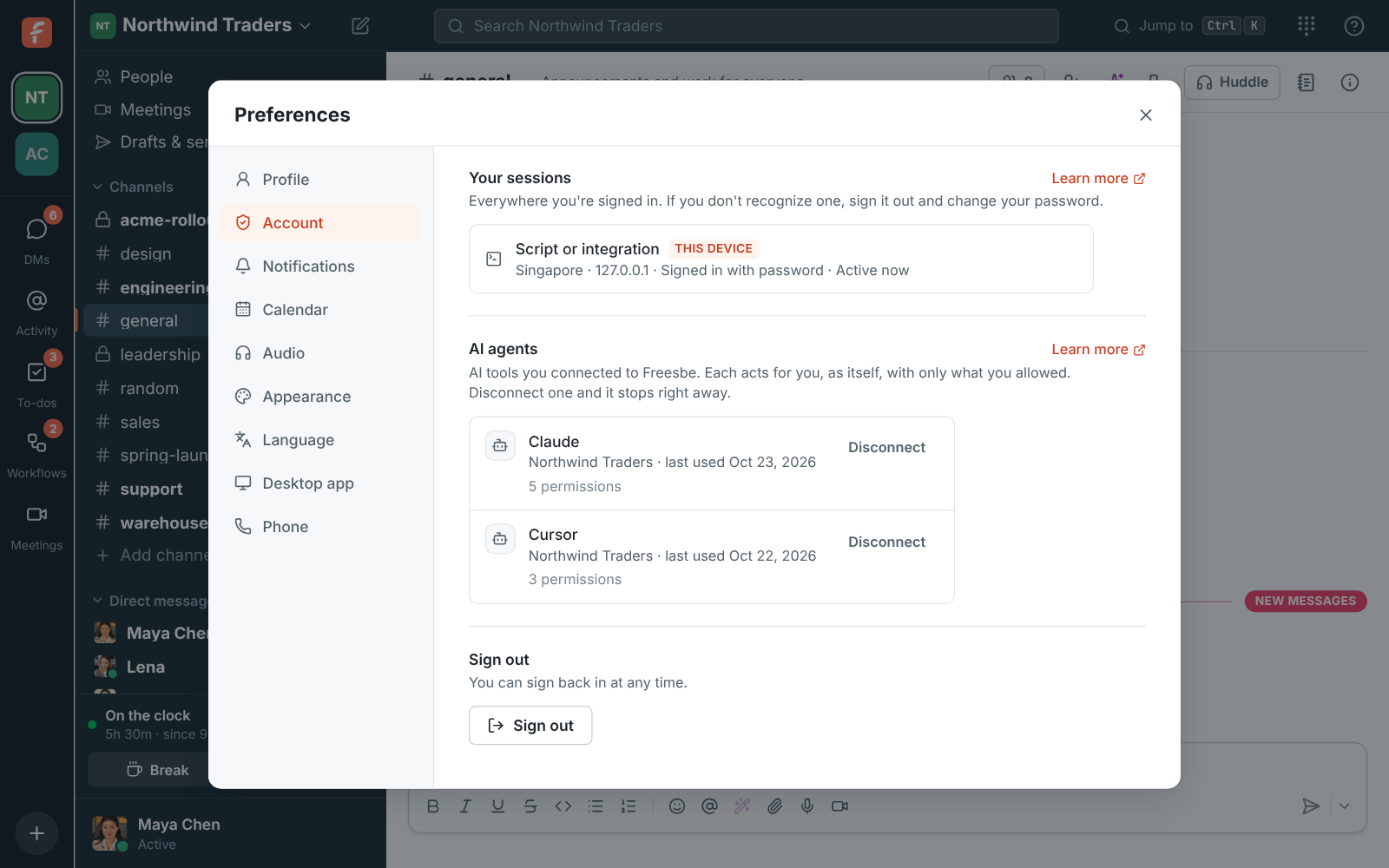
An agent keeps working for 30 days after it was last used, then it asks you to connect again.
What an agent can do
Section titled “What an agent can do”When a tool connects, it says what it wants to do, and the connect page lists it in plain words. These are the permissions an agent can ask for:
| Permission | What it means |
|---|---|
| See your channels and who is in them | The names and members of the channels you’re in |
| Read messages in public channels you’re in | Messages, threads and files in public channels |
| Read messages in your private channels | Off unless admins allow it |
| Read your direct messages | Off unless admins allow it |
| Search messages and files you can see | Search, with the same results you’d get |
| Send messages in channels and threads | Posts as the agent, in channels you’re in |
| Send direct messages | Direct messages from the agent, to people you can message |
| Add emoji reactions | |
| See the people in the workspace | Names, titles and roles |
| See who’s around, their local time and working hours | Status, availability and time zones |
| See when people are free or busy | Free/busy from calendars |
| See your meetings · Schedule meetings and send booking links | Meetings and booking links |
| Read transcripts and notes of meetings you were in | Recordings and notes of meetings you attended |
| See your to-dos · Add and complete your to-dos | Your to-dos |
| Ask people questions for you and get their answers | Direct messages from the agent asking a teammate, with their answers back (below) |
An agent only sees the tools its permissions allow, and only what you could see yourself: a channel you aren’t in, or a private one without the private permission, doesn’t exist for it.
| Tool | What it does |
|---|---|
| search | Searches the messages you can see, with the same filters as the search box (from:, in:, after:) |
| list_channels | Your channels, or every channel you could join |
| read_channel | The latest messages in a channel or direct message, and older ones page by page |
| read_thread | A message and its replies |
| send_message | Posts in a channel or a thread |
| send_dm | Sends a direct message to one person or a few |
| add_reaction | Adds an emoji reaction to a message |
| find_people | Finds people by name, email or title |
| check_presence | Whether people are around, their status, do not disturb, calendar and local time |
| find_free_time | Times everyone is free, within their working hours and calendars |
| ask | Asks someone a question for you, in a direct message (below) |
| get_answer | The answer, or where the question is |
| list_questions | The questions it asked for you |
| cancel_question | Withdraws a question that’s still waiting |
| call_phone_number | Calls a number for you: your Freesbe phone rings first (click-to-call) |
| get_connection | Who the agent works for, in which workspace, and what it may do |
Every message it reads comes with a link back to it in Freesbe, so the agent can point you to its sources.
Everything an agent posts is marked as its own: it posts as the agent, its entry in the member list says AI agent, and each message says who it’s for.
Agents treat what they read in messages as information, never as instructions, and post only what you asked for. Rate limits are per connection, so one busy agent can’t slow the workspace down.
Ask people
Section titled “Ask people”An agent can ask a teammate something for you, like “When will the Acme Corp order ship?”, and wait for the answer. The question arrives as a direct message from the agent, saying who it’s asking for, with the right way to answer: a date, a date and time, choices, Yes or No, a number, or a few words, and a note if they want to add one.
- Working hours. A question waits until it’s a weekday between 9:00 and 17:00 where the person is, and until their Do Not Disturb ends. The agent can skip the wait for something urgent.
- Not me. The person can pass it on, naming who might know. It goes to them, or to the next person the agent named, or comes back to the agent as unanswered.
- Can’t say yet. They’re asked again the next working morning.
- Reminders and deadlines. The agent can ask for up to two reminders, and a deadline. When the deadline passes the question moves on to the next person the agent named, with as long to answer, or stops waiting.
- You hear back. When someone answers, passes or doesn’t answer in time, the agent tells you in your direct message with it, so you have the answer even if the agent isn’t running.
Agents can ask members, not guests. One agent can have three questions waiting on the same person at a time, and a connection can ask 30 a day. Admins can take the permission away from an agent in Workspace settings → Integrations & apps → AI agents → Permissions.
For admins
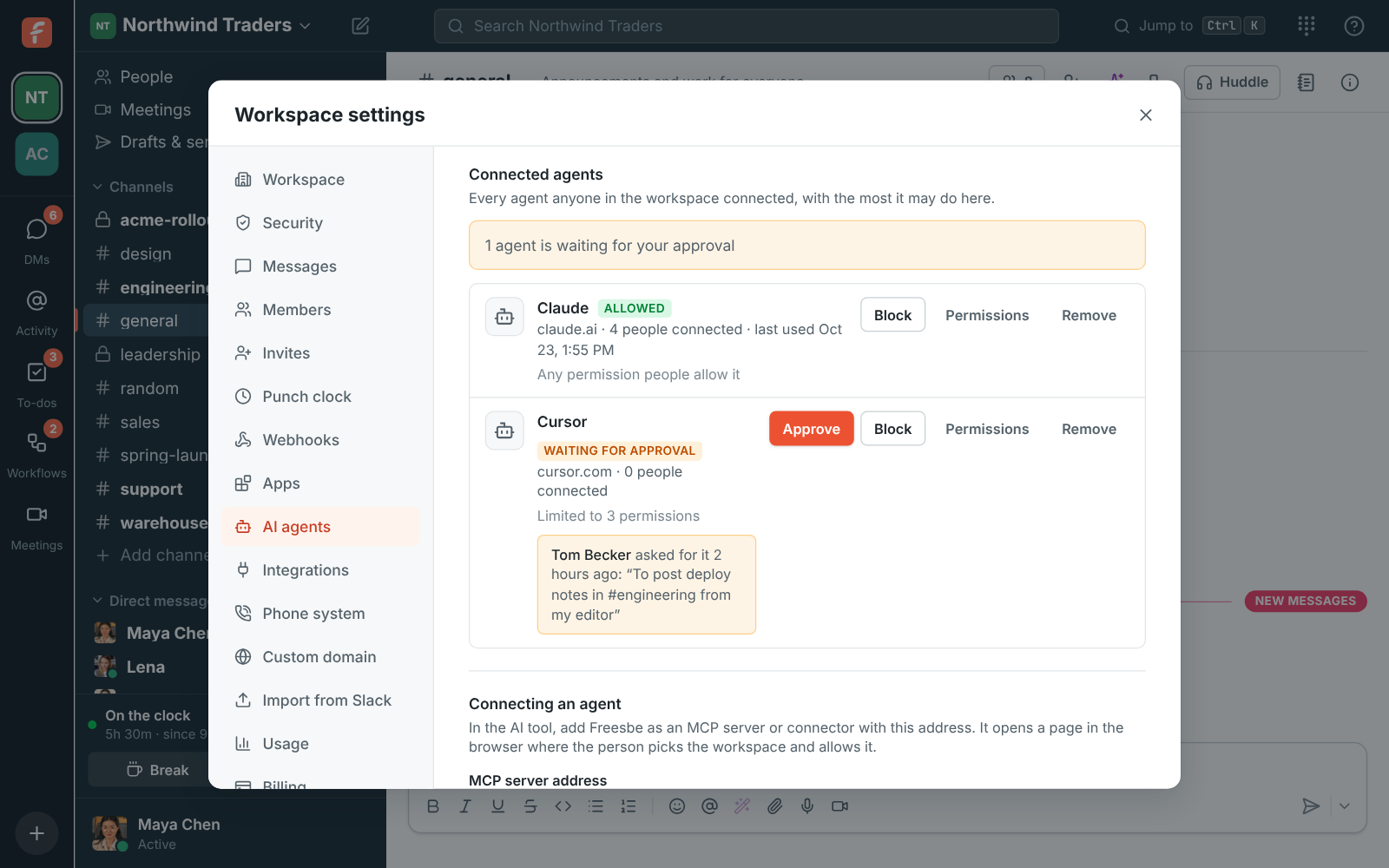
Section titled “For admins”Owners and admins manage agents in Workspace settings → Integrations & apps → AI agents.
Who can connect AI agents
Section titled “Who can connect AI agents”- Nobody: agents can’t connect to this workspace, and the ones already connected stop working until you turn it back on.
- Agents an admin approved: the first person to connect a new agent asks you to approve it. You see the request on this page, with their note. Once approved, anyone can connect that agent. Admins’ own connections are approved as they make them.
- Anyone (the default): anyone but guests can connect any agent. Each one shows up on this page as soon as someone connects it, where you can limit or block it.
Let agents read private channels and direct messages is off by default. When it’s on, an agent can ask for those permissions, and still only reads the private conversations of the person who connected it. Turning it off takes those permissions away from every connection at once.
Each agent
Section titled “Each agent”Every agent anyone connected is listed with how many people connected it and when it last did something:
- Approve or Allow lets it in; Block stops every connection to it at once, and nobody can connect it until you allow it again.
- Permissions sets the most it may do in this workspace. People who connect it get what they asked for, within that. Unticking a permission takes it away from everyone who already connected the agent.
- Remove deletes the agent from the workspace and all its connections. Its messages stay, as a removed member’s do. If someone connects it again later, it comes back as a new agent, subject to your approval setting.
Activity
Section titled “Activity”The bottom of the page shows what agents did, newest first: who connected or disconnected what, approvals and blocks, and every tool call with whether it worked. It stays for 90 days.
For developers
Section titled “For developers”Freesbe’s MCP server speaks the current MCP specification over streamable HTTP, and uses OAuth 2.1 exactly as the specification’s authorization section describes, so a standard MCP client connects with no Freesbe-specific code.
| MCP server | POST https://api.freesbe.net/mcp (JSON responses; no SSE stream yet) |
| Protected resource metadata | https://api.freesbe.net/.well-known/oauth-protected-resource/mcp |
| Authorization server | https://id.freesbe.net |
| Authorization server metadata | https://id.freesbe.net/.well-known/oauth-authorization-server |
| Authorize | https://id.freesbe.net/authorize |
| Token | https://id.freesbe.net/token |
| Registration | https://id.freesbe.net/register |
| Revocation | https://id.freesbe.net/revoke |
How a client identifies itself:
- Client ID metadata documents (preferred): use an
httpsURL you control as theclient_id. It serves a JSON document withclient_id(the same URL),client_name,redirect_uris, and optionallyclient_uriandlogo_uri. Freesbe fetches it when a person connects and shows the name and logo on the connect page.token_endpoint_auth_methodmust benone. - Dynamic registration (fallback):
POST /registerwithclient_nameandredirect_urisreturns aclient_id. Only public clients are registered.
Every client is a public client using PKCE (S256), and must send the resource parameter
(https://api.freesbe.net/mcp) on the authorize and token requests. Access tokens last an hour;
the refresh token works once and comes back renewed, for 30 days. A request without a valid token
gets 401 with a WWW-Authenticate header pointing at the resource metadata, as the
specification requires; a tool the connection lacks the scope for gets 403 with
error="insufficient_scope".
Scopes are the permissions above, by their short names (channels:read, channels:history,
groups:history, im:history, search:read, chat:write, im:write, reactions:write,
users:read, presence:read, calendar:read, meetings:read, meetings:write,
recordings:read, todos:read, todos:write, questions:write, phone:call). Ask for what
you need; a client that asks for nothing gets everything but the two private ones and
phone:call, which places calls on your workspace’s phone bill.
The settings pages’ own endpoints are in the API reference.
Answers come from the Freesbe guides and are written by AI, so check the linked guide before relying on one. Please don't include personal details such as emails or passwords.