
Payment alerts
Payment alerts post money moving in your bank and payment accounts into a channel: a customer’s wire landing in Mercury, a Stripe payout reaching your bank, a deposit into an Airwallex global account. Your finance team sees it the moment it happens, without logging in to each account.
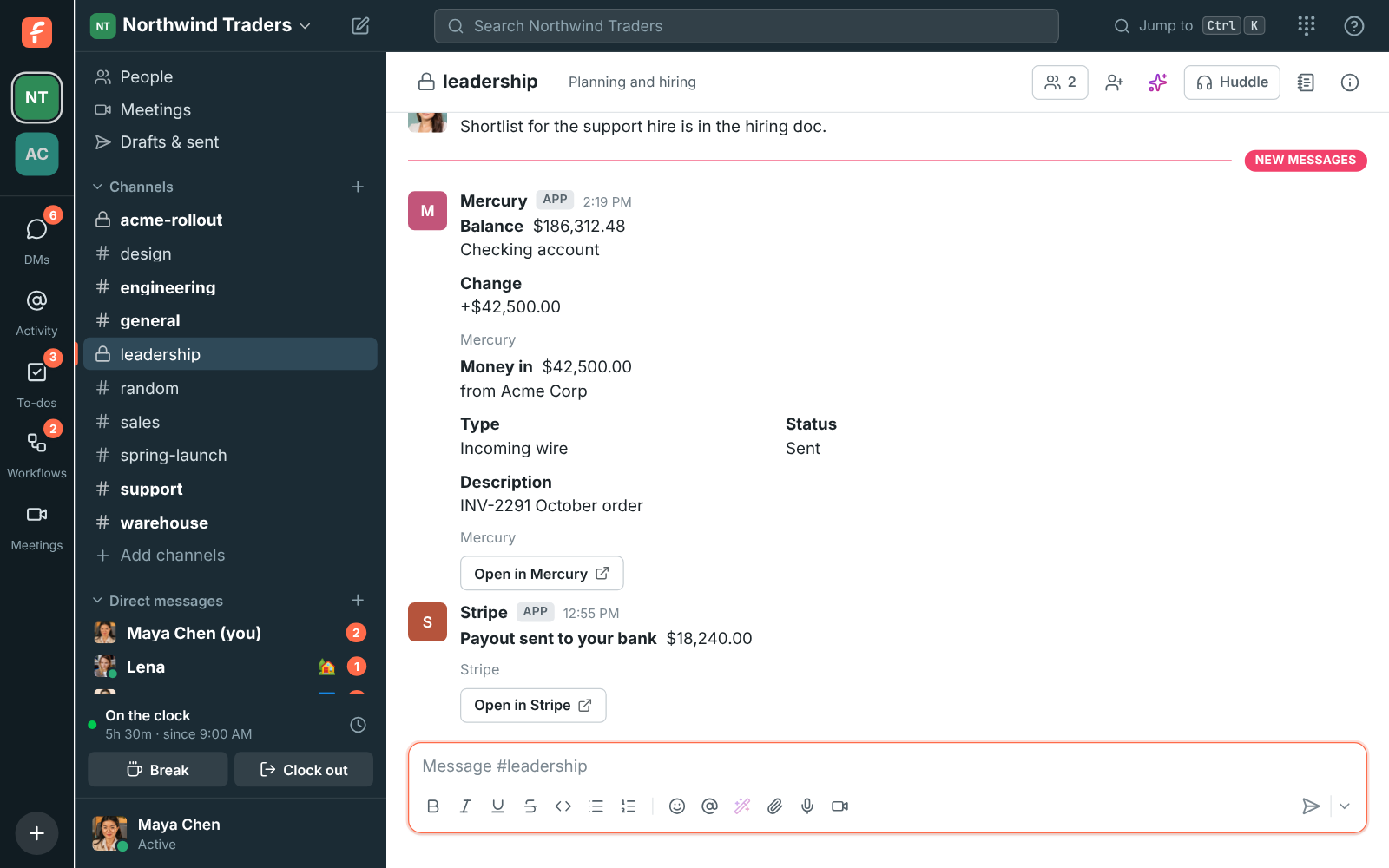
Each alert is a card with the amount, who sent or received it, its status and an Open in button that takes you to the transaction. The cards come from Mercury, Stripe or Airwallex, so nobody’s account is borrowed.
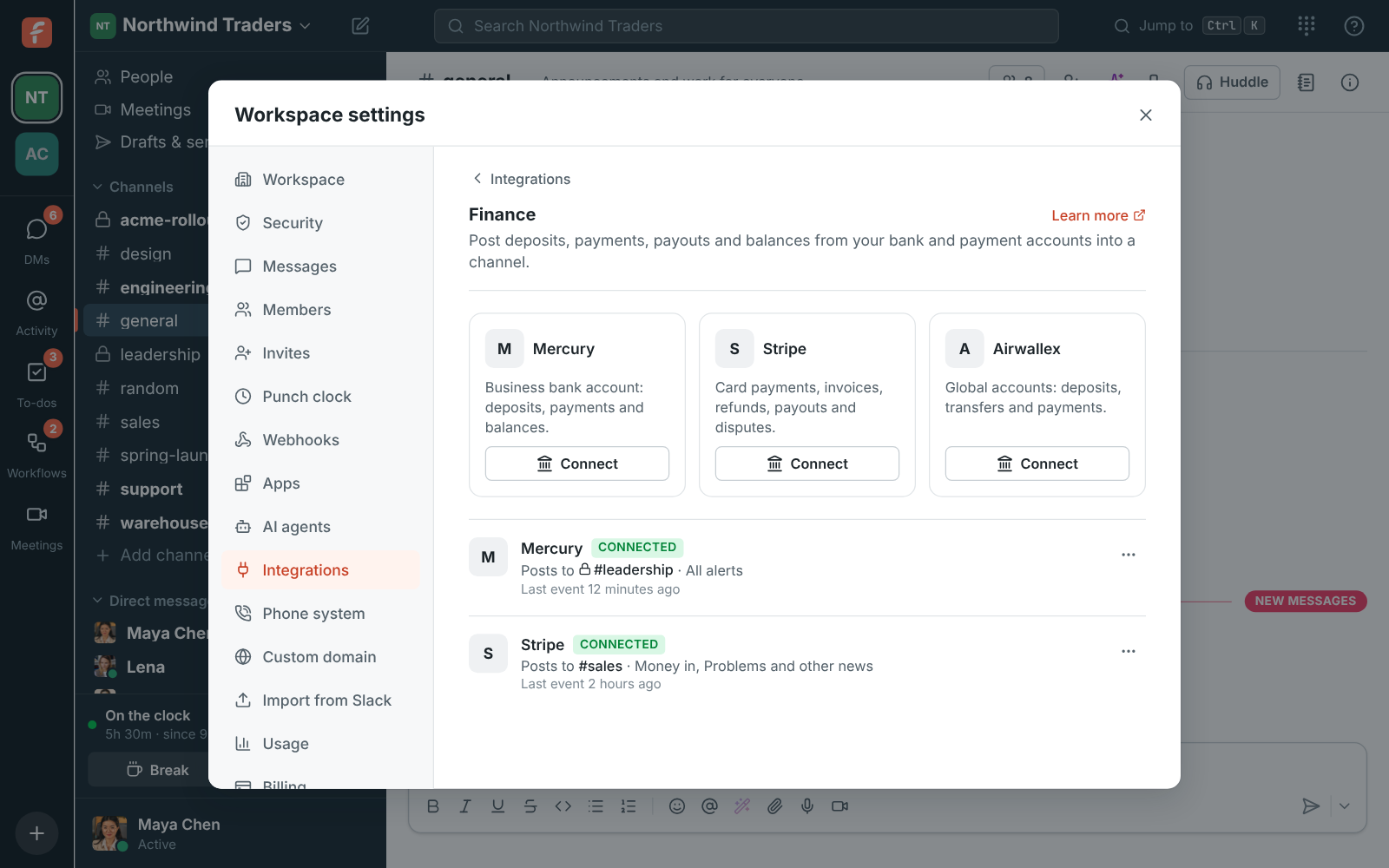
Only owners and admins can connect accounts, in Workspace settings → Integrations & apps → Integrations → Finance. Each account posts to one channel; connect the same account twice to post to two channels.
Choose what to post
Section titled “Choose what to post”When you connect an account, or later from its ⋯ menu → Edit, pick:
- Post to channel. Money is private, so a private channel for your finance team works best. Alerts in a private channel are only visible to admins who are in it.
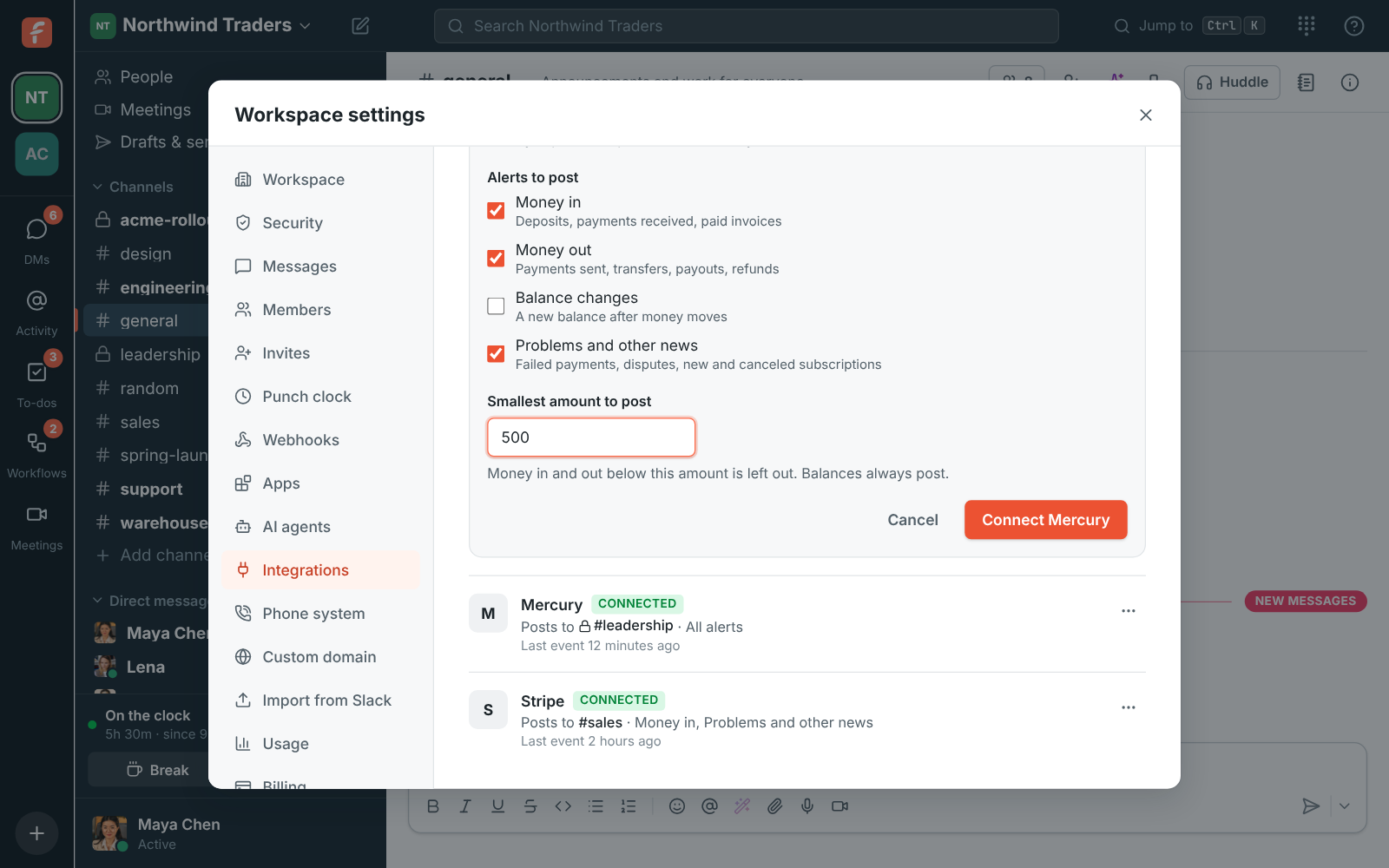
- Alerts to post:
- Money in: deposits, payments received and paid invoices.
- Money out: payments sent, transfers, payouts and refunds.
- Balance changes: the new balance after money moves, with how much it changed.
- Problems and other news: failed payments and transfers, disputes, and new or canceled subscriptions.
- Smallest amount to post. Money in and out below it is left out, so a busy Stripe account doesn’t drown the channel in coffee-sized payments. Balances always post.
Connect Mercury
Section titled “Connect Mercury”- In Mercury, open Settings → API Tokens and create a token with read and write access. Mercury asks for an IP whitelist for these tokens: copy the list from the IP whitelist box in Freesbe’s Connect Mercury form and paste it there.
- In Freesbe, open Workspace settings → Integrations & apps → Integrations → Finance and click Connect under Mercury. Copy the IP whitelist for step 1 from here.
- Paste the token, pick the channel and the alerts you want, and click Connect Mercury.
- Back in Mercury, open Settings → API Tokens again and delete the token. Mercury doesn’t delete it for you, and Freesbe doesn’t need it any more: alerts keep working without it.
Freesbe uses the token once, to add a webhook to your Mercury account, and doesn’t keep it. Mercury then sends each new transaction and balance change to Freesbe, signed with a secret only the two of them know. That’s why you can delete the token as soon as Mercury is connected.
Mercury posts:
- Money in and Money out for every new transaction, with the counterparty, the type (for example Incoming wire), the status and its description.
- Transaction failed or Transaction canceled when one doesn’t go through.
- Balance for checking, savings, treasury and credit accounts.
Connect Stripe
Section titled “Connect Stripe”Stripe needs two steps: you give Stripe a URL, and Stripe gives you a secret.
- In Freesbe, open Workspace settings → Integrations & apps → Integrations → Finance, click Connect under Stripe, pick the channel and the alerts, and click Next. Freesbe shows the Endpoint URL.
- In the Stripe Dashboard, open Developers → Webhooks and add an endpoint. Paste the URL as
the endpoint URL and pick these events:
payment_intent.succeeded,invoice.paid,charge.refunded,payout.paid,payout.failed,charge.dispute.created,invoice.payment_failed,customer.subscription.created,customer.subscription.deletedandbalance.available. Leave out any you don’t want. - Copy the endpoint’s signing secret (it starts with
whsec_), paste it into Freesbe and click Save secret.
Until the secret is saved the account shows Needs secret and Freesbe turns Stripe’s deliveries away. Click Paste signing secret on it to finish. Copy the URL when it’s shown: for your security it is only shown once. If you lose it, delete the alert and connect again.
Stripe amounts are shown in each currency’s own units, so ¥1,200 stays ¥1,200. Test-mode events are marked Mode: Test.
Connect Airwallex
Section titled “Connect Airwallex”Airwallex works like Stripe:
- In Freesbe, click Connect under Airwallex, pick the channel and the alerts, and click Next to get the Endpoint URL.
- In the Airwallex web app, open Developer → Webhooks and add a webhook. Paste the URL as the notification URL and pick the payment, deposit, transfer and refund events you want.
- Copy the webhook’s secret, paste it into Freesbe and click Save secret.
Airwallex posts payments received, deposits into global accounts, transfers sent, refunds and balance updates, plus anything that fails or is reversed.
Check that it works
Section titled “Check that it works”From the account’s ⋯ menu, choose Send a test alert. Freesbe posts a sample card into the channel, marked Sample alert, so you can see where alerts land and what they look like. Under each account, Last event says when the provider last sent something, which tells you the connection is alive.
Turn alerts off or disconnect
Section titled “Turn alerts off or disconnect”- ⋯ → Turn off pauses an account’s alerts. The provider’s deliveries are turned away until you turn it back on, and providers usually stop retrying after a while.
- ⋯ → Delete disconnects it. Also remove the webhook in Mercury, Stripe or Airwallex so it stops sending.
Privacy and security
Section titled “Privacy and security”- Every delivery is checked against the provider’s signature before anything is posted, and old or replayed deliveries are refused. A delivery is only posted once, even when a provider sends it twice.
- Freesbe keeps each provider’s signing secret encrypted and never keeps your Mercury API token.
- Freesbe can’t move money or read anything beyond what the provider sends to it.
- Payment alerts are separate from your Freesbe billing: connecting Stripe here shows your own customers’ payments, not your Freesbe subscription.
Using Zoho Books or Zoho Invoice? See Zoho Books and Zoho Invoice for invoice and payment alerts.
For anything else that sends webhooks, use an incoming webhook or build an app.
Answers come from the Freesbe guides and are written by AI, so check the linked guide before relying on one. Please don't include personal details such as emails or passwords.