
Punch clock
The punch clock is a simple time clock built into Freesbe. It records only when people clock in, start and end breaks, and clock out, plus any notes they type. It never tracks activity, apps or screens.
An admin turns it on and picks who it covers. See For admins below.
Clocking in and out
Section titled “Clocking in and out”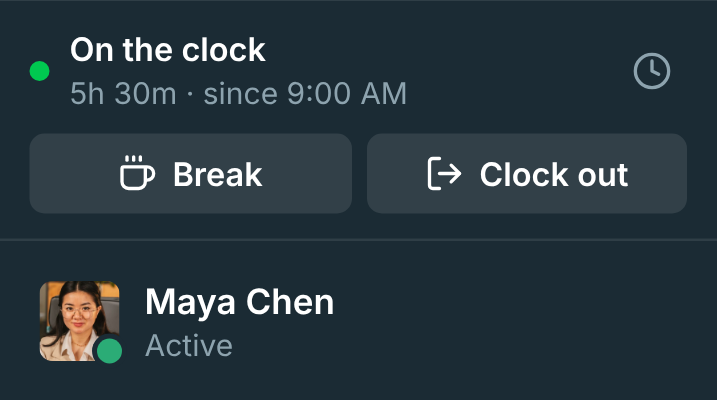
If the punch clock covers you, a clock card sits in the sidebar above your name:
- Clock in when you start work.
- Break when you step away, and Back to work when you return.
- Clock out when you’re done.
The desktop app has the same buttons in its tray menu (Clock In, Start Break, End Break, Clock Out), and the tray icon’s tooltip shows whether you’re on the clock.
Your timesheet
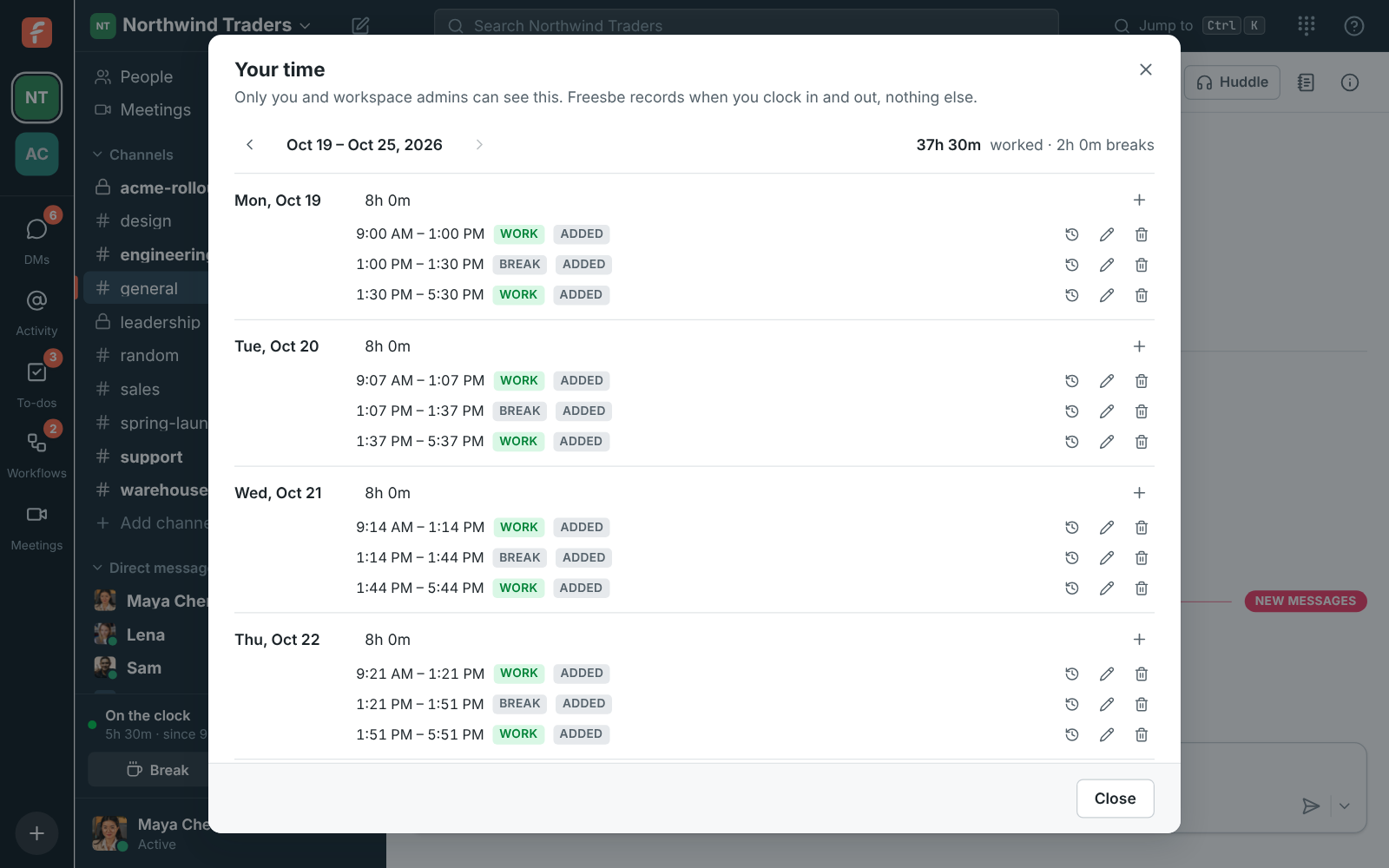
Section titled “Your timesheet”Click the clock icon on the clock card to open Your time. It shows your week day by day. Use the arrows to move between weeks. Only you and workspace admins can see it.
Fix a mistake
Section titled “Fix a mistake”Forgot to clock out, or clocked in twice? You can fix your own time:
- Add time on a day to add a shift or break you missed.
- Change an entry’s start, end or note.
- Delete an entry that shouldn’t be there.
Every change asks Why, such as “forgot to clock out”. The reason, who made the change and what changed are kept in the entry’s History, and the entry is marked Edited (or Added), so whoever reviews the timesheet can see it.
How hours are counted
Section titled “How hours are counted”- Days are cut in each person’s time zone, unless an admin sets one time zone for the workspace.
- A shift that runs past midnight counts toward the day it started.
- By default weeks start on Monday, breaks are unpaid, overtime starts after 8 hours a day or 40 a week, and shifts longer than 12 hours are flagged as a likely Missing clock-out?.
For admins
Section titled “For admins”Turn it on
Section titled “Turn it on”- Open the workspace menu → Workspace settings → People → Punch clock.
- Turn on Use the punch clock.
- Under Who it covers, choose Everyone or People you pick, and pick them.
Only the people covered see the clock.
Settings
Section titled “Settings”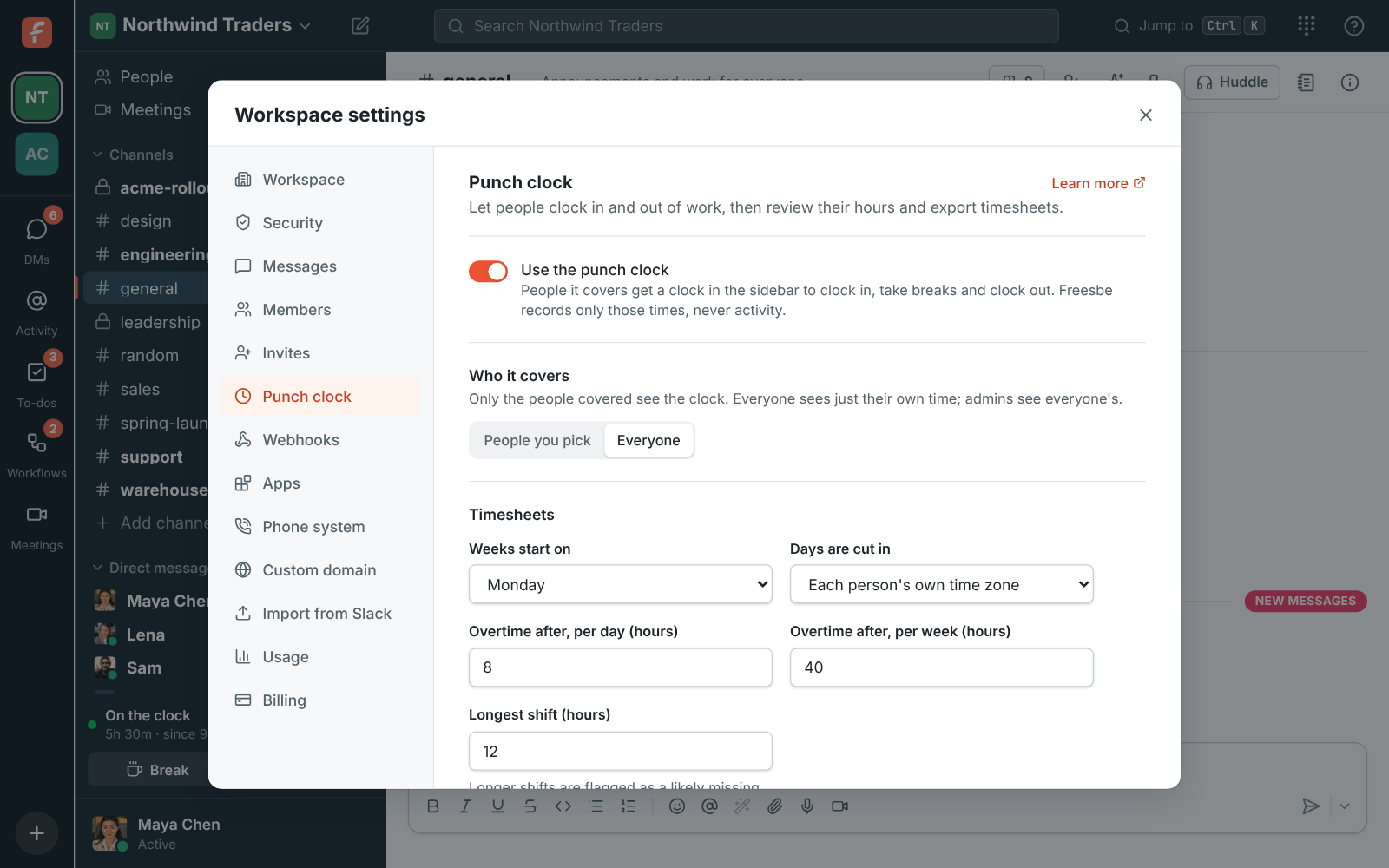
Under Timesheets you can change:
- Weeks start on: any day of the week.
- Days are cut in: each person’s own time zone, or one time zone for everyone.
- Overtime after, per day (hours) and per week (hours).
- Longest shift (hours): longer shifts are flagged as a likely missing clock-out.
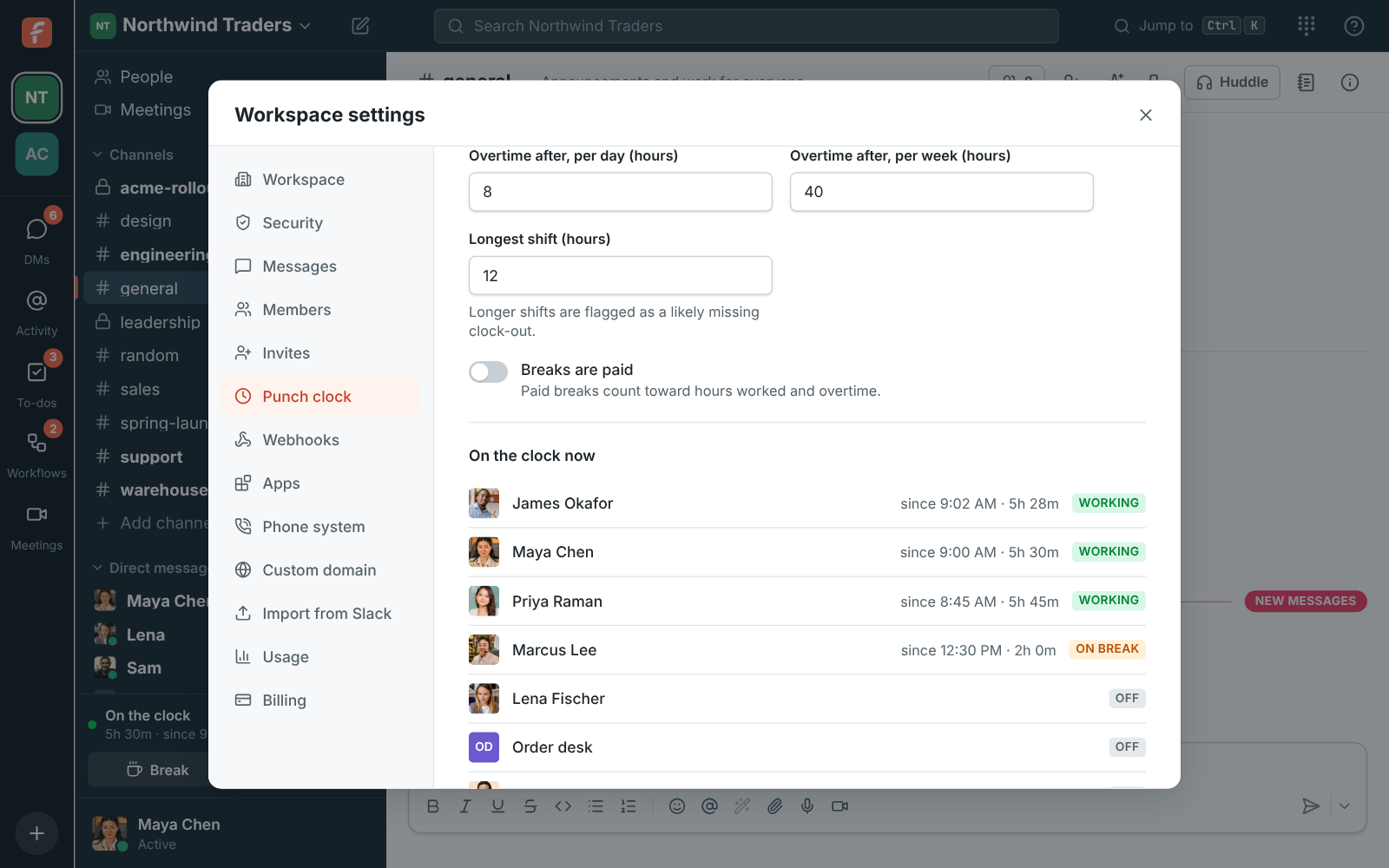
- Breaks are paid: paid breaks count toward hours worked and overtime.
Review and export
Section titled “Review and export”The Punch clock settings page also shows who is Working or On break right now, and a weekly table of everyone’s hours with On now, Overtime, Check (a shift that’s too long) and Edited flags. Click a person to see and fix their week. Admins can change anyone’s time; every change needs a reason and is kept in the history.
To export for payroll, use Download CSV under Export. Pick a date range and either One row per shift or One row per day.
For totals over any dates, filtered by people and grouped by person, day or week, open Reports → Hours in the Admin Center.
Approvals, reminders and automatic clock-out aren’t available yet.
Answers come from the Freesbe guides and are written by AI, so check the linked guide before relying on one. Please don't include personal details such as emails or passwords.