
DMs, Activity and to-dos
The narrow column on the far left of the window is the rail. Your workspaces are at the top. Under them are five buttons, each with a count when something needs you:
- DMs shows all your direct messages, and how many are unread.
- Activity collects mentions of you and replies in your threads.
- To-dos is your own list of things to do. Its count shows what’s due today or overdue.
- Workflows opens your workflows. Its count shows forms that workflows sent you and that are waiting for your answer.
- Meetings opens your meetings. Guests don’t see this button.
The + at the bottom of the rail starts anything new.
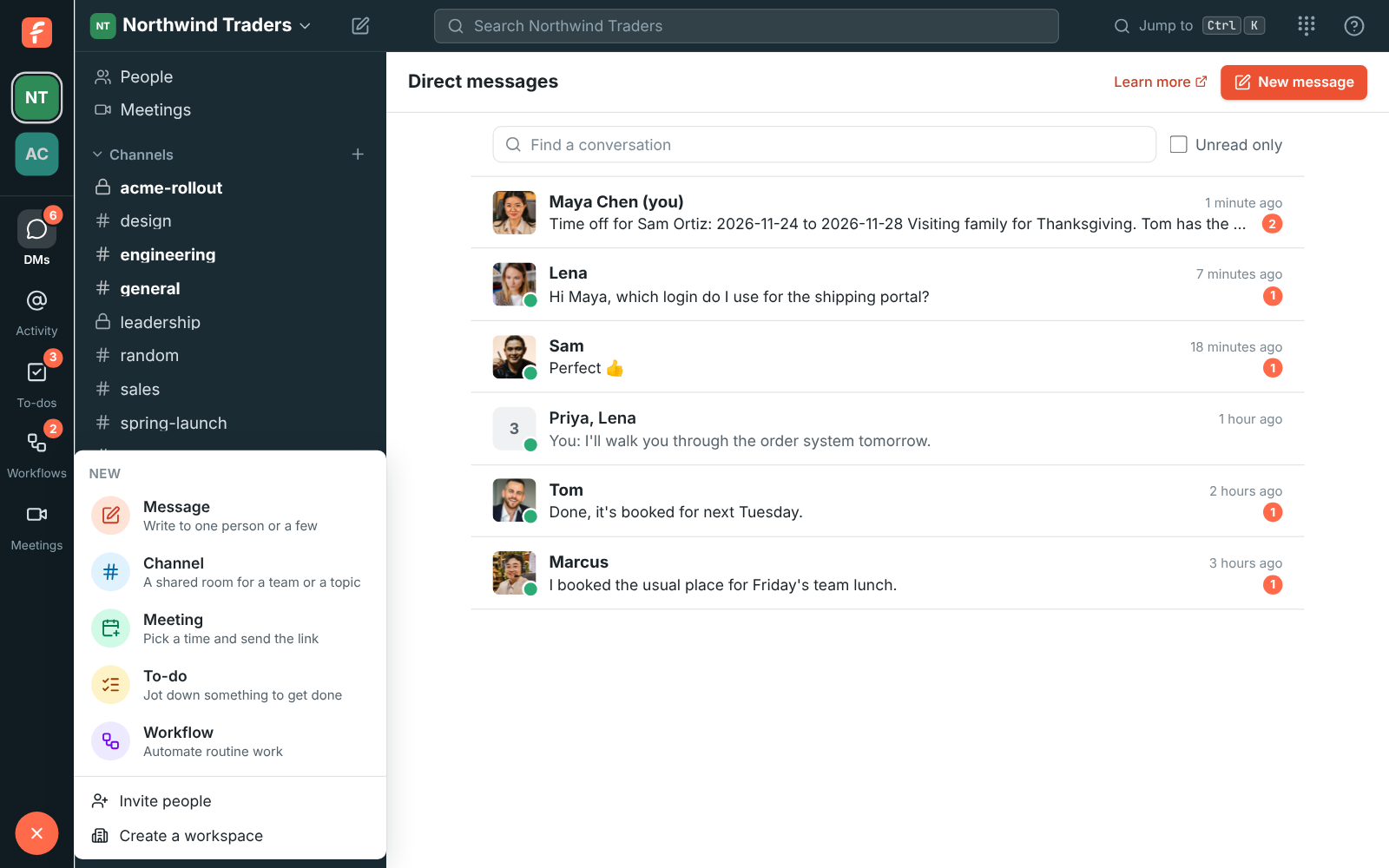
Create anything from the + button
Section titled “Create anything from the + button”Click + at the bottom of the rail and pick what to start:
- Message opens a new direct message to one person or a few.
- Channel creates a channel. It isn’t offered to guests.
- Meeting opens Meetings with the scheduler ready. See Schedule a meeting. It isn’t offered to guests.
- To-do opens your to-dos with the cursor in the box, ready to type.
- Workflow opens a new workflow. It’s offered to people who can make workflows.
- Invite people (owners and admins) and Create a workspace sit under a line at the end.
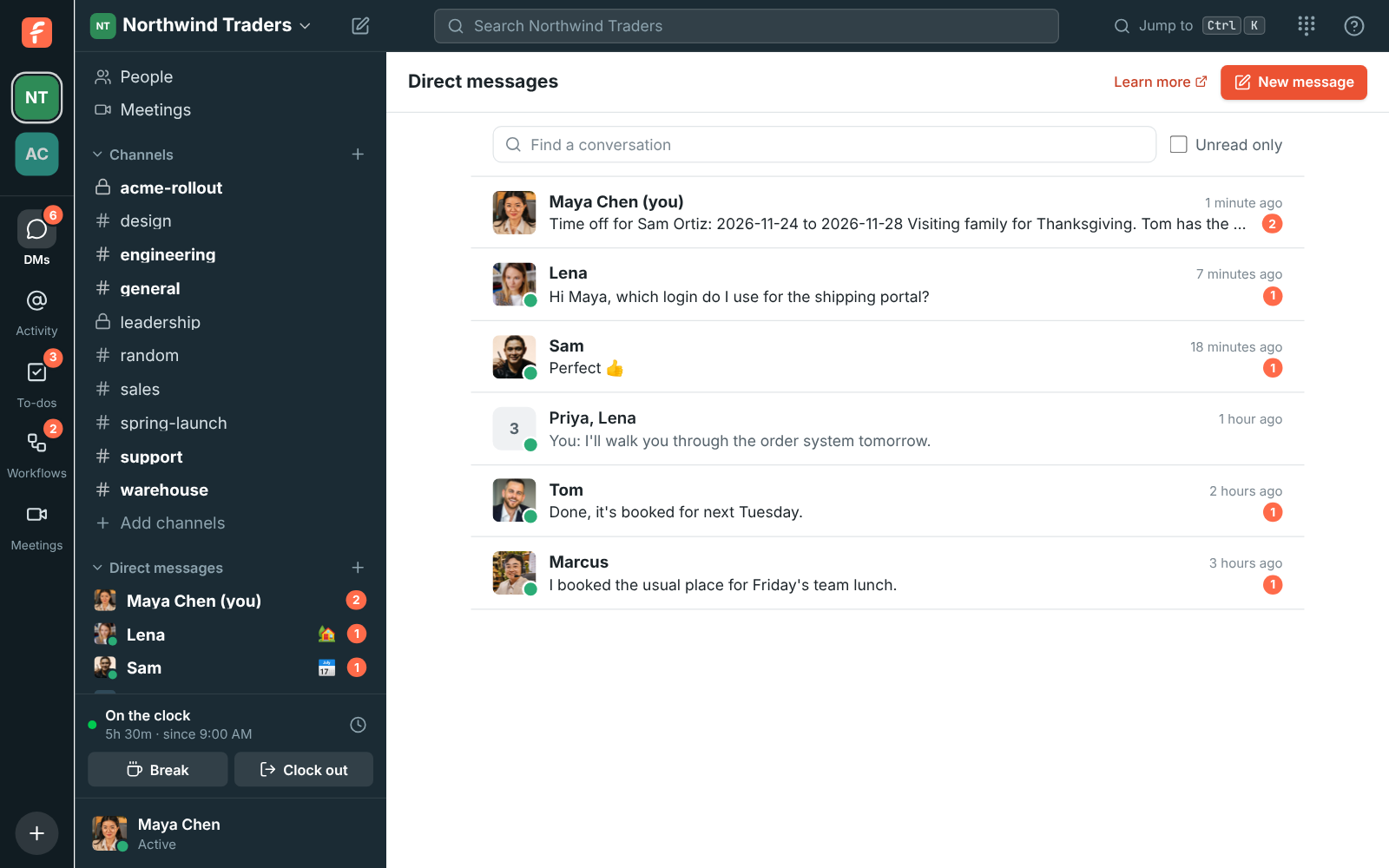
DMs lists every direct message in the workspace, newest first. Each one shows the last message and how many are unread. Type in Find a conversation to filter by name, or tick Unread only. New message starts another one.
Activity
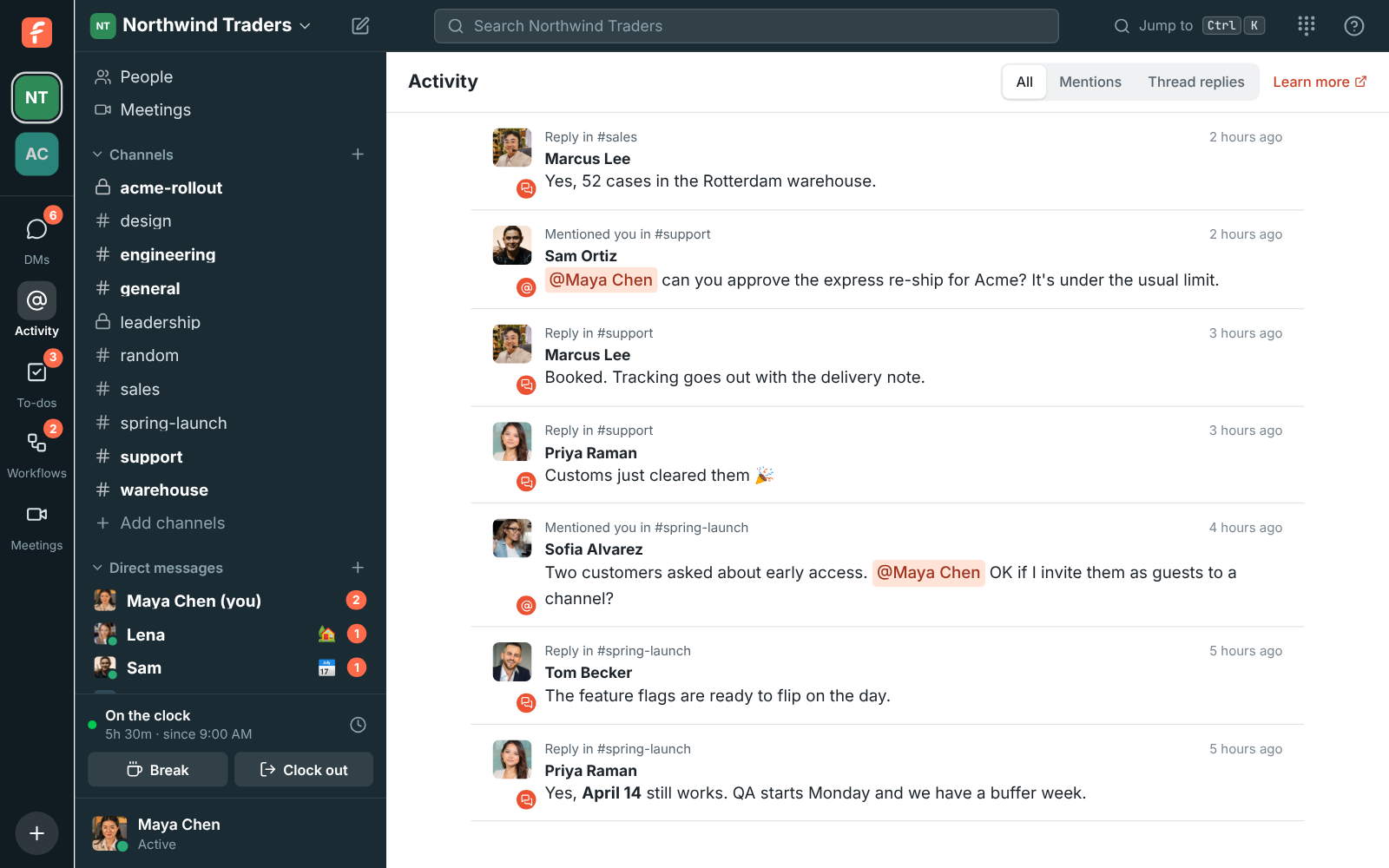
Section titled “Activity”Activity gathers, newest first:
- messages that mention you,
@channelor@here; - huddles in your DMs that you missed, with Call back;
- replies in threads you started or replied in.
Use All, Mentions or Thread replies at the top to narrow it down. Calls lists the huddles in your DMs, missed, taken and made, with your phone system calls if you have them (see Your calls). Click an item to open the message, or the thread it’s in. The count on the button is how many unread mentions you have in channels. Unread direct messages are counted on DMs instead. New items show up as they arrive.
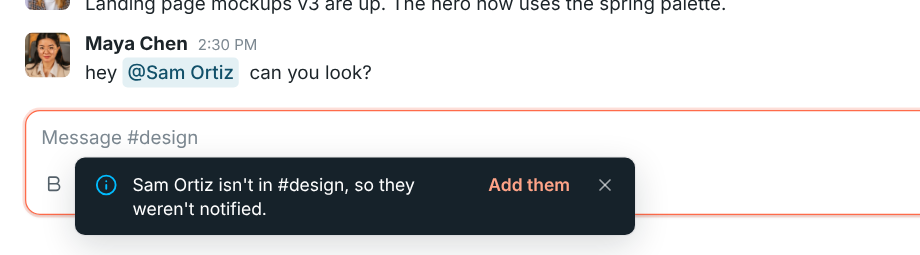
A mention only reaches people who are in the conversation. If you mention someone who isn’t in the channel, Freesbe tells you they weren’t notified, and Add them adds them to the channel.
To-dos
Section titled “To-dos”To-dos is a list only you can see, one per workspace. Nobody else can see it, admins included.
- Type in Add a to-do…. Long titles wrap onto more lines as you type.
- Optionally click the notes button to add notes under it (see Notes below).
- Optionally click Due date and pick Today, Tomorrow, End of this week, Next week or Pick a date….
- Press Enter or click Add.
Your list is grouped into Overdue, Today, Coming up and No date:
- Click the circle to tick a to-do off. Ticked-off to-dos go under Show done, and clicking the circle again brings one back.
- Click a to-do’s title to change it and its notes, or its date to change or clear the date.
- Point at a to-do and click the bin to delete it.
The To-dos button counts the to-dos that are due today or overdue. Freesbe doesn’t send reminders for them.
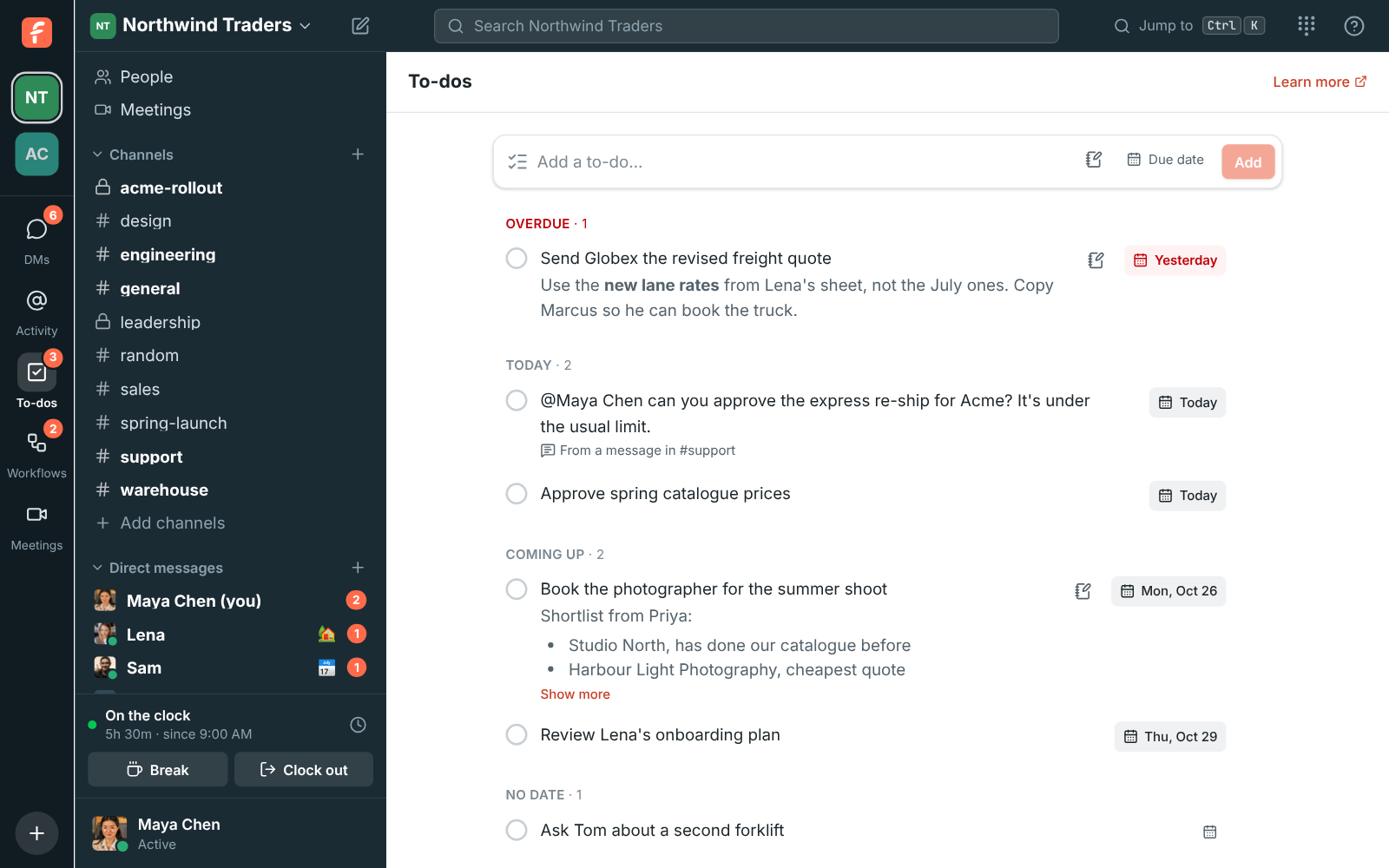
Every to-do has a short title and can have notes under it, for the details: links, steps, who to ask, or a whole checklist.
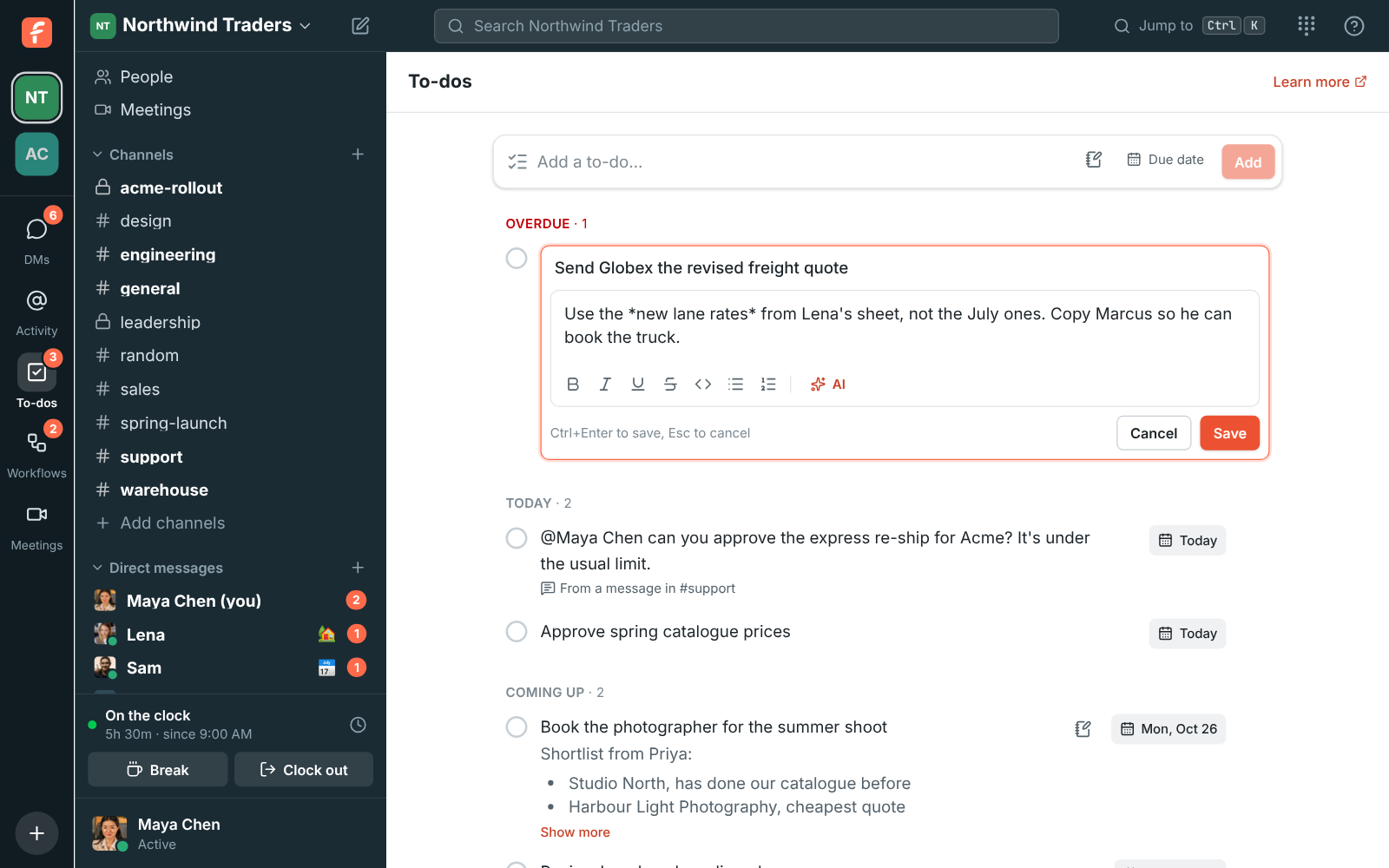
- Click a to-do’s title, or point at it and click the notes button, to open the editor. The title is on top and the notes box is underneath.
- Notes take the same formatting as messages: bold (Ctrl+B),
italic (Ctrl+I), underline (Ctrl+U),
strikethrough,code, bulleted and numbered lists, links, @mentions and emoji. The buttons under the box do the same. - Enter starts a new line in the notes, or the next item when you’re in a list. Press Ctrl+Enter (⌘+Enter on a Mac) or click Save to save, and Esc to cancel.
- Notes can be up to 10,000 characters.
- When your workspace has AI, click AI under the notes box to have it write the notes, plan the to-do as steps with a due date, or sum up the conversation it came from. See Help with your to-dos.
In the list, notes show under the title, formatted. Long notes are cut to a few lines; click Show more to read the rest.
Turn a message into a to-do
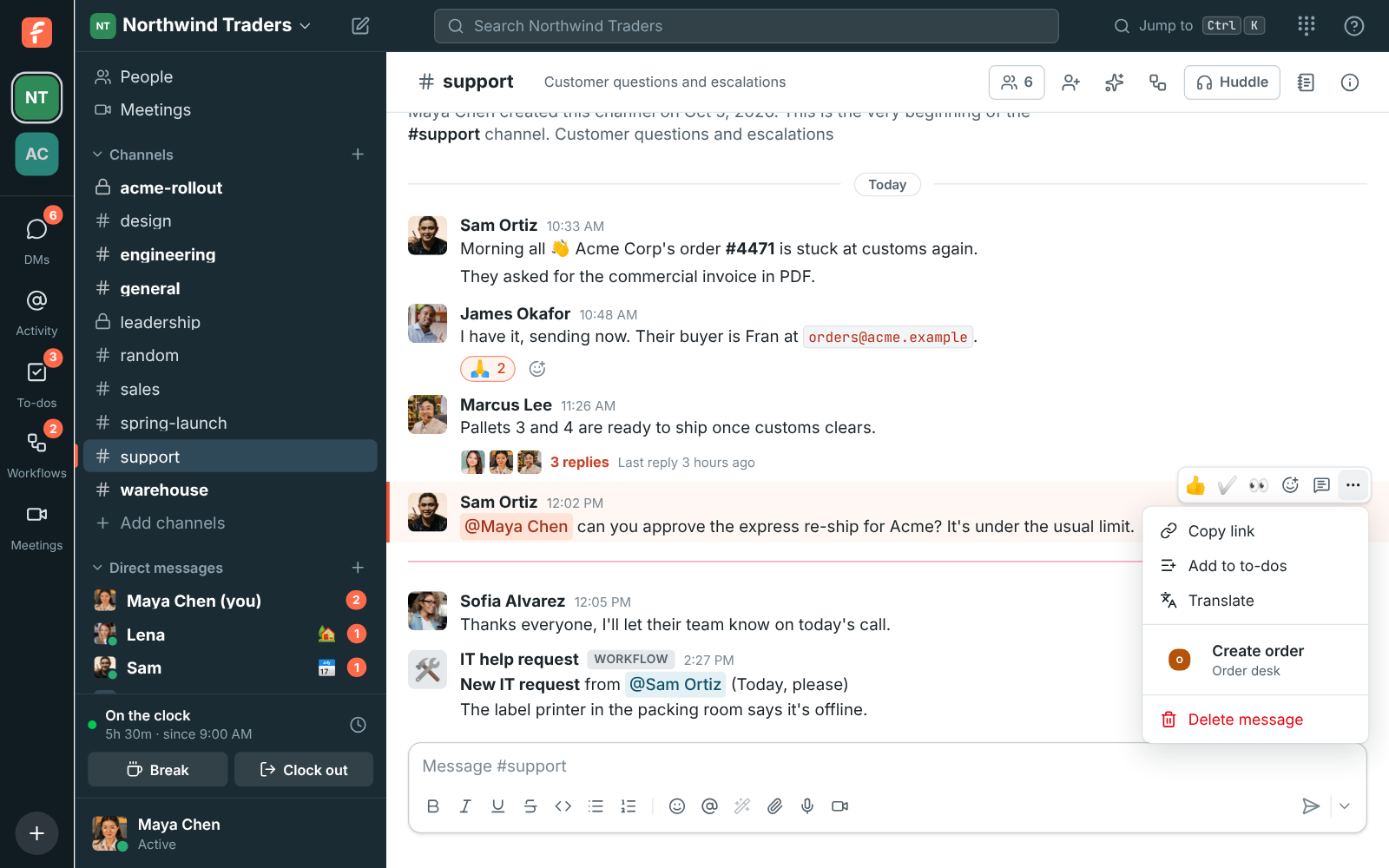
Section titled “Turn a message into a to-do”Point at any message, click ⋯ and choose Add to to-dos. The to-do takes the message’s text and has a From a message in … link that jumps back to it. When the message is long or has more than one line, the title is its first part and the whole message, formatting and all, goes in the notes. Edit the text or add a date like any other to-do.
In the mobile app, press and hold a message and tap Add to to-dos. Your list is under You → To-dos there. See The mobile app.
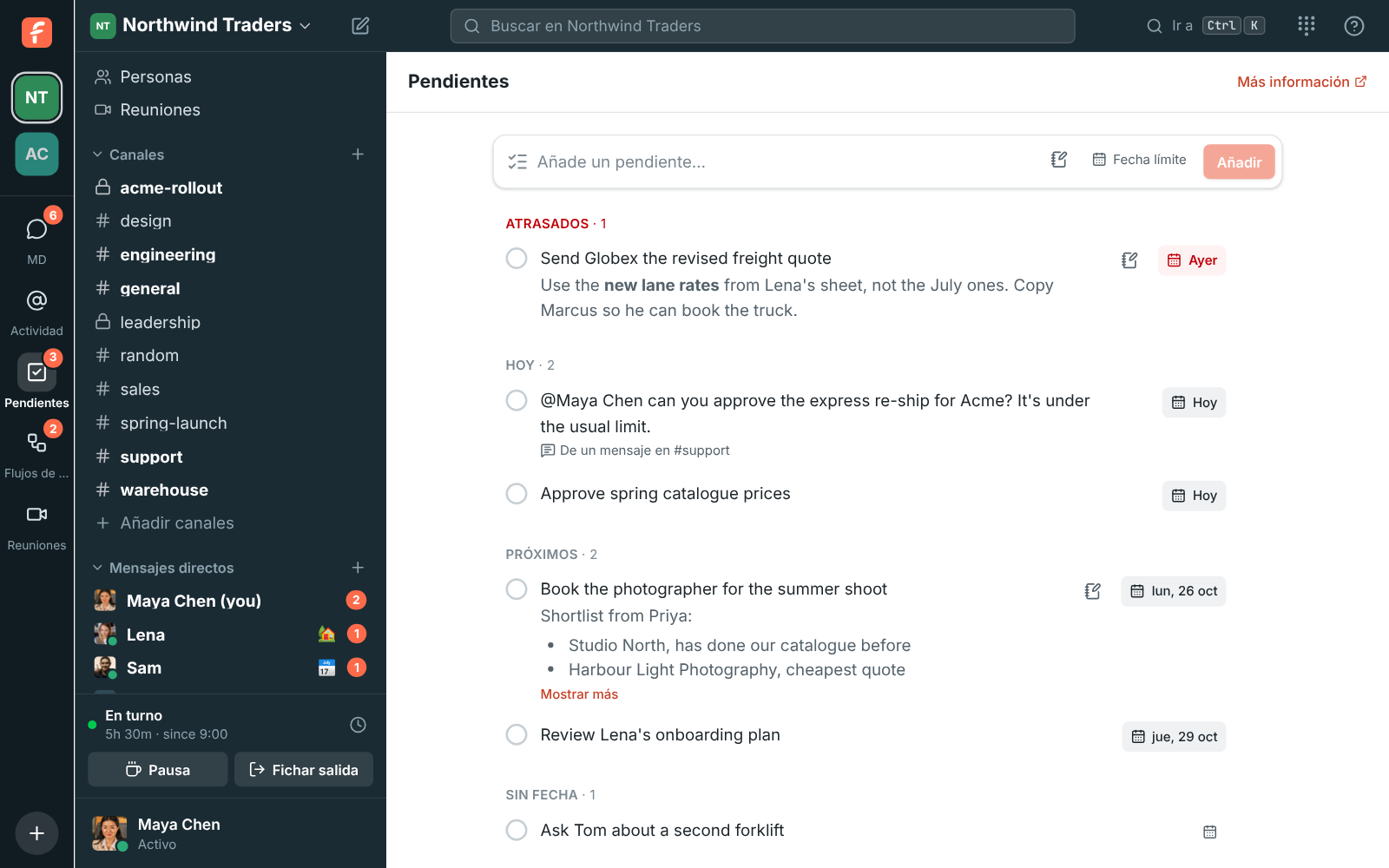
To-dos work in every language Freesbe speaks, right-to-left ones included.
Answers come from the Freesbe guides and are written by AI, so check the linked guide before relying on one. Please don't include personal details such as emails or passwords.