
Sign in with Freesbe
Sign in with Freesbe lets the people in your workspace sign in to your other tools with their Freesbe account: an internal dashboard, a wiki, a support tool, anything that supports OpenID Connect (often listed as “OIDC” or “generic OAuth” in its settings). It’s on every plan.
Because the sign-in happens on Freesbe, everything you set up for Freesbe applies there too: a second step, single sign-on, and approving sign-ins on your phone. When someone leaves your workspace, they can’t sign in to those tools with Freesbe any more.
Set up an app
Section titled “Set up an app”Each tool you sign in to is one of your workspace’s apps. Owners and admins set it up in Workspace settings → Integrations & apps → Apps:
- Make an app for the tool if you haven’t yet. Its name and colour are what people see when they sign in.
- Open the ⋯ menu next to it and choose Sign in with Freesbe.
- Under Return addresses, paste the address your tool asks you for (often called the
redirect URI or callback URL), such as
https://dashboard.northwind.example/auth/callback. Add one per line if the tool has several. - Click Turn on.
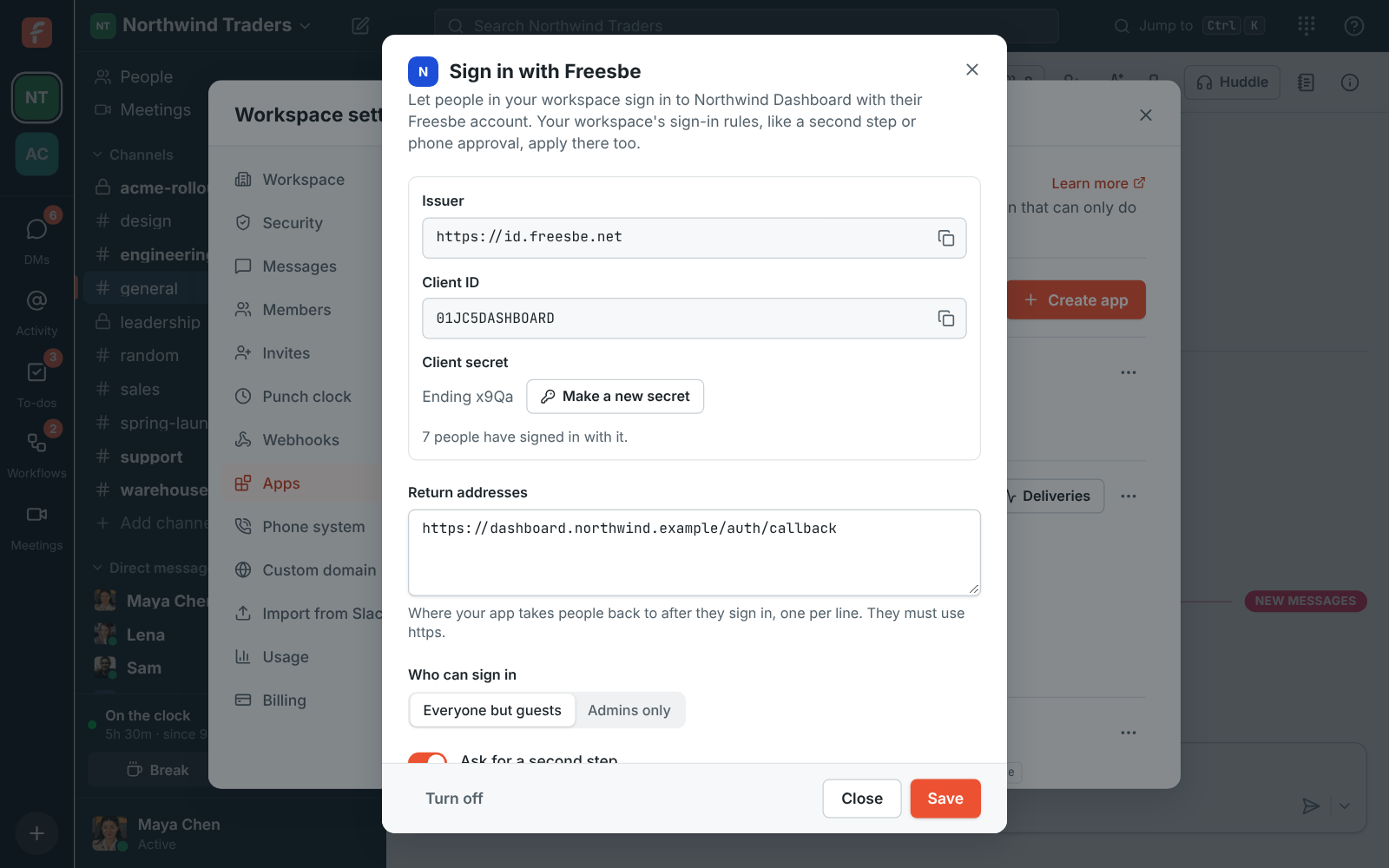
Freesbe shows three things to put in your tool’s settings:
- Issuer:
https://id.freesbe.net. Most tools only need this and find the rest themselves athttps://id.freesbe.net/.well-known/openid-configuration. - Client ID: the app’s id.
- Client secret: shown once, right after you turn it on. Copy it into your tool then. If you lose it, click Make a new secret; the old one stops working at once.
Options
Section titled “Options”- Who can sign in: everyone in the workspace except guests, or admins only.
- Ask for a second step: people confirm it’s them before signing in to this tool, even if your workspace doesn’t require a second step everywhere. Phone approval, a passkey or a code all count.
- Allow it for everyone: skips the screen that asks each person to allow the app, for tools everyone’s expected to use.
- It’s a phone or browser-only app: for tools that can’t keep a secret, like a phone app or a
single-page web app. They use PKCE instead of a client secret, and may return to their own app
link (such as
net.northwind.dashboard:/callback).
To stop it, open Sign in with Freesbe again and click Turn off. Turning the whole app off, or deleting it, stops it too.
What people see
Section titled “What people see”When someone signs in to your tool, it sends them to Freesbe. If they aren’t signed in to Freesbe in that browser, they sign in as usual, with any way your workspace allows, including just their phone. The first time, Freesbe asks them to allow the tool:
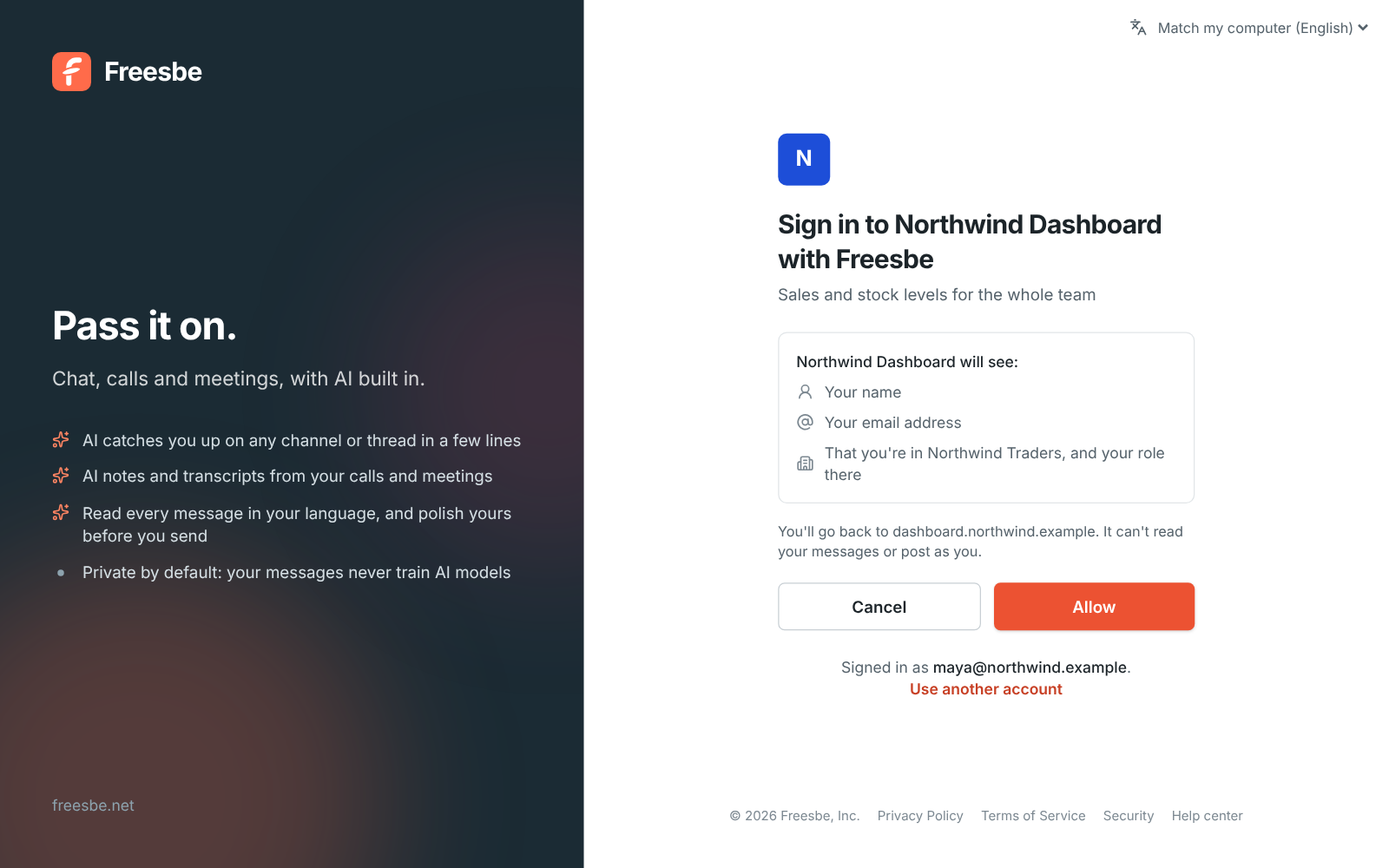
Click Allow and Freesbe sends them back to the tool, signed in. Next time it goes straight through. The tool learns only what the screen lists: their name, email address, and their role in your workspace. It can’t read their messages or post as them.
Apps you sign in to
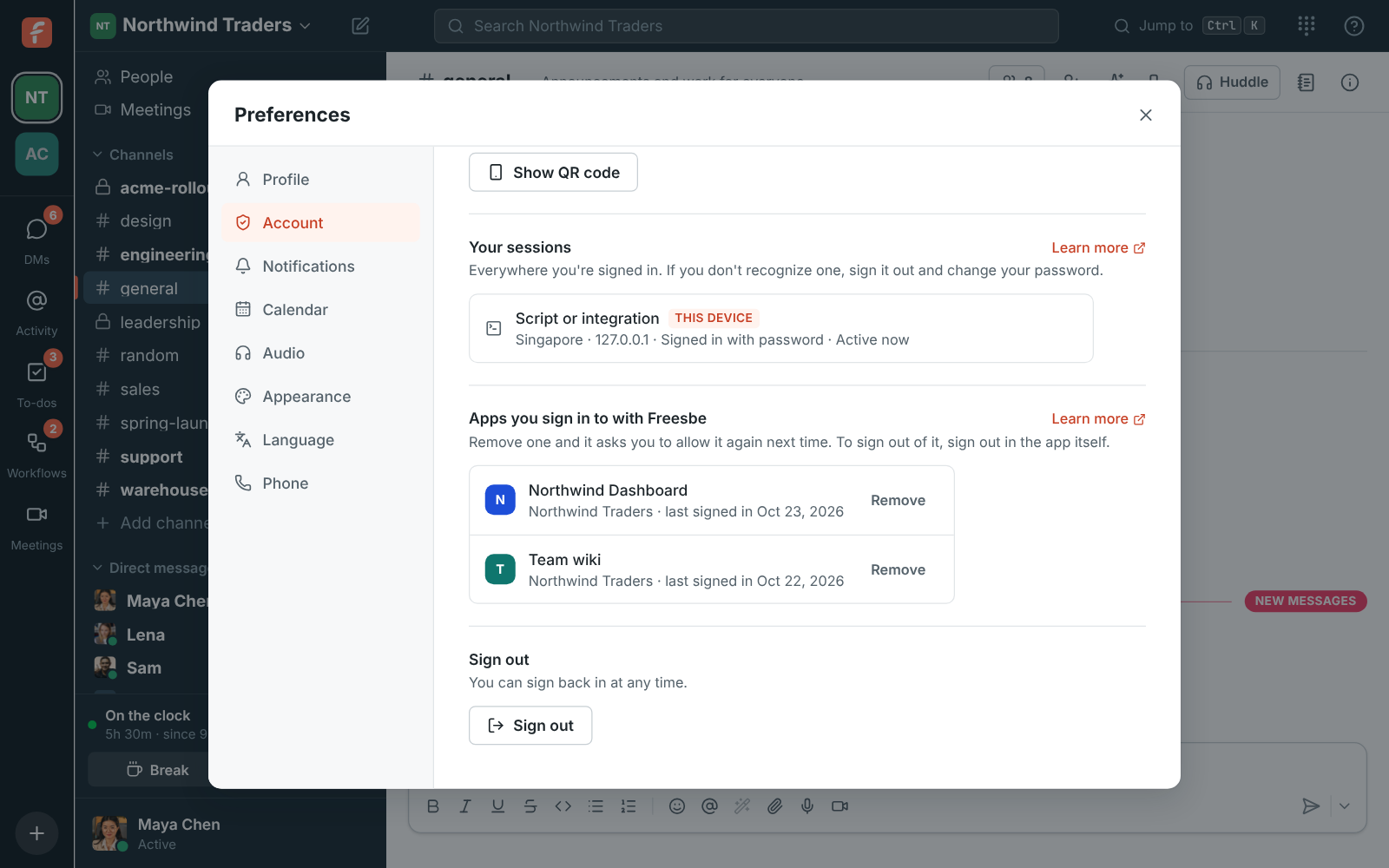
Section titled “Apps you sign in to”Preferences → My account → Sessions and apps → Apps you sign in to with Freesbe lists every tool you’ve allowed and when you last signed in to each. Click Remove to take it back: the tool asks you to allow it again next time. To sign out of a tool, sign out in the tool itself.
For developers
Section titled “For developers”Sign in with Freesbe is standard OpenID Connect with the authorization code flow. Any OpenID Connect library works; point it at the issuer.
| Issuer | https://id.freesbe.net |
| Discovery | https://id.freesbe.net/.well-known/openid-configuration |
| Authorize | https://id.freesbe.net/authorize |
| Token | https://id.freesbe.net/token (client_secret_basic, client_secret_post, or PKCE alone for phone and browser-only apps) |
| User info | https://id.freesbe.net/userinfo |
| Keys | https://id.freesbe.net/jwks |
| Scopes | openid (required), profile, email |
| ID tokens | ES256, valid for an hour |
PKCE (S256) works for every app and is required for phone and browser-only apps. A code works
once, for a minute. prompt=none isn’t supported: Freesbe always shows its own page.
The ID token and /userinfo carry:
sub: the person’s Freesbe id. It never changes, even if their email does.emailandemail_verified, with theemailscope;name, withprofile.workspace_idandworkspace_role(owner,adminormember).amr: how they signed in:pwd(password),otp(an emailed code),hwkanduser(a passkey, or approval on their phone),fed(Google or Microsoft), andmfaonce they’ve passed a second step. Check formfaif your tool needs it, or turn on Ask for a second step.auth_time, and thenonceyou sent.
Signing keys rotate every 90 days; fetch them from the keys address rather than copying one.
Answers come from the Freesbe guides and are written by AI, so check the linked guide before relying on one. Please don't include personal details such as emails or passwords.