
Customer verification
Before you change someone’s address, reset their password or read out their balance, you want to know you’re talking to the customer and not someone pretending to be them. With Customer verification, you send the customer a code or a link while they’re on the line or in the chat, and see their answer in Freesbe as soon as they give it.
It’s an add-on to Call center, priced per agent. An admin sets it up in the Admin Center under Call center → Customer verification.
Three ways to prove it
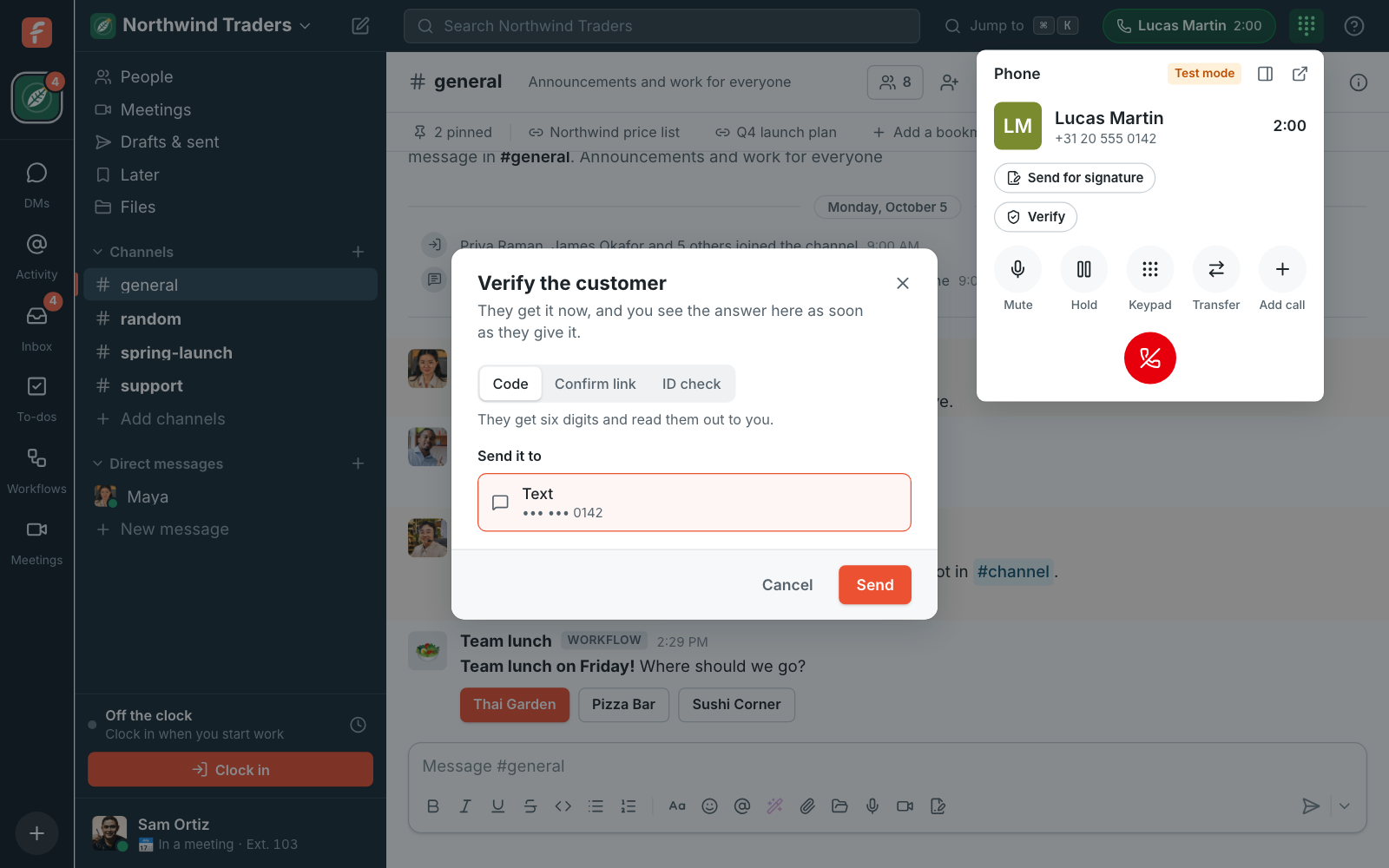
Section titled “Three ways to prove it”- Code. The customer gets six digits by text or email and reads them out to you. You type them in, and Freesbe tells you if they’re right. It proves they have the phone or inbox you have on file.
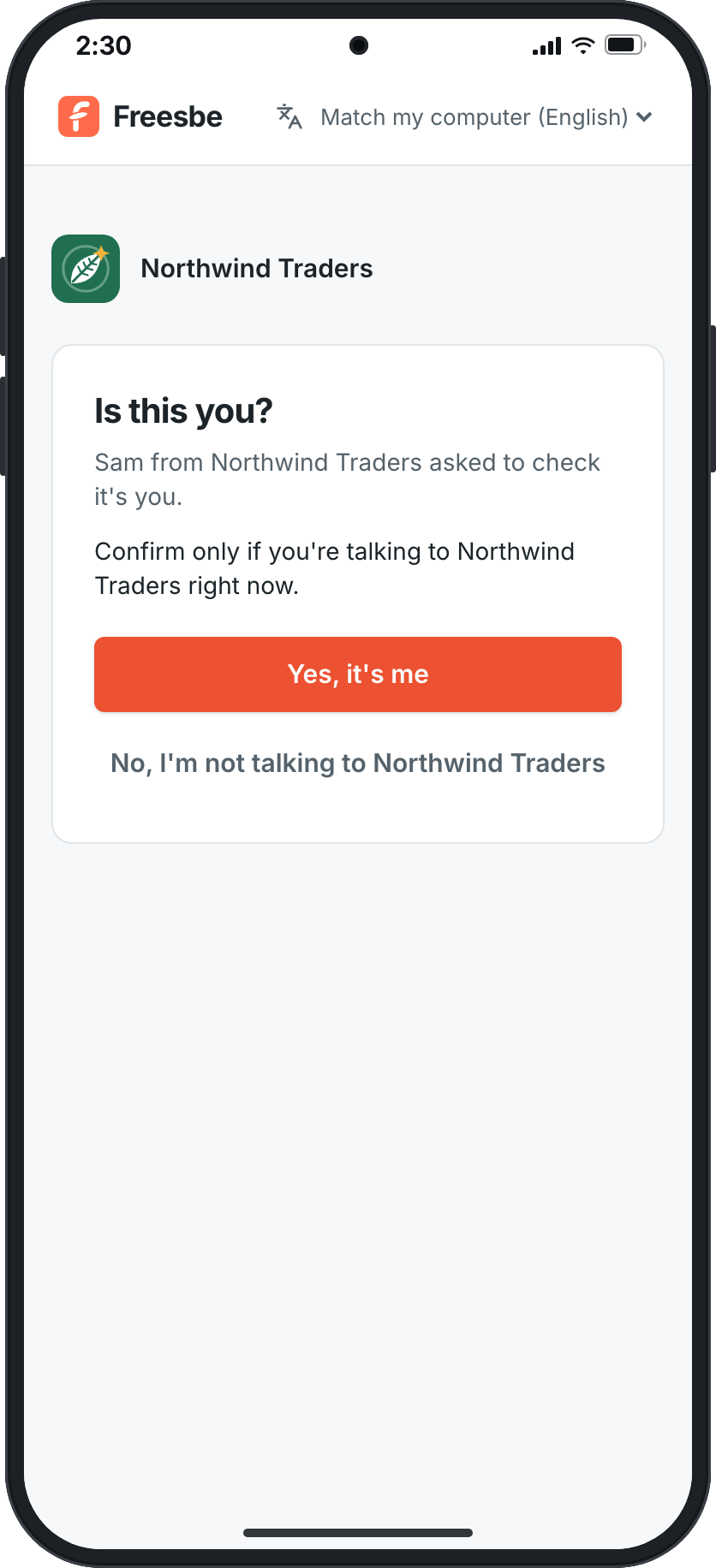
- Confirm link. The customer taps a link and sees who’s asking: your business’s name and logo, and your first name. They tap Yes, it’s me, or No, I’m not talking to them.
- ID check. The customer takes a photo of their ID and a short selfie on their phone, and it’s checked in a couple of minutes. For the riskiest changes, like moving money or changing the owner of an account.
Verify someone on a call
Section titled “Verify someone on a call”- On the call, click Verify, under the caller’s name in the phone panel.
- Pick how they prove it, and where to send it: a text to the number they’re calling from, or, for a confirm link, Read the link out. The number is shown partly hidden, so a caller can’t ask you to read it back.
- Click Send.
For a code, ask them to read it out and type it in. You see how long it lasts, and how many tries are left.
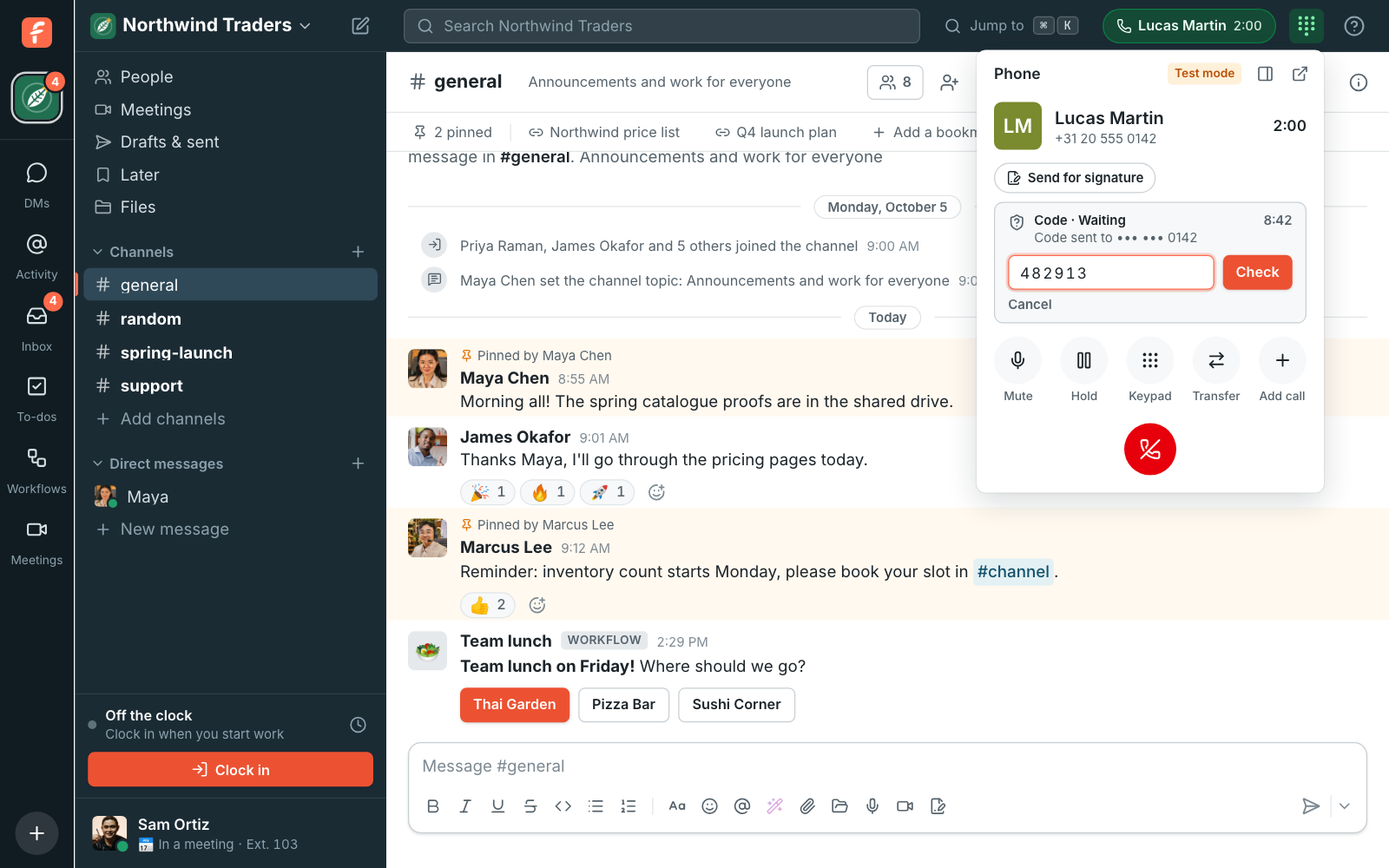
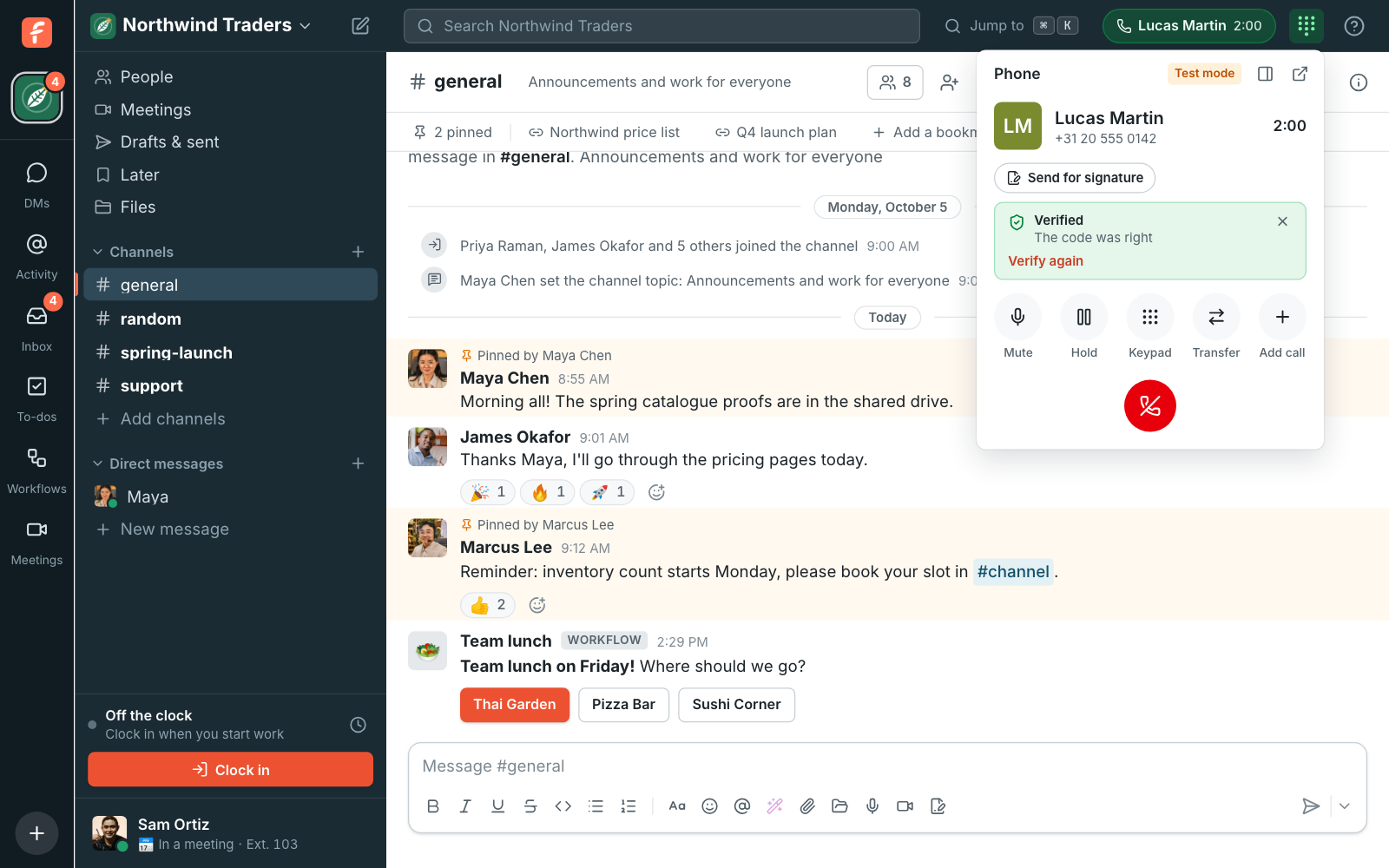
The answer shows on the call the moment they give it.
Verify someone in a customer conversation
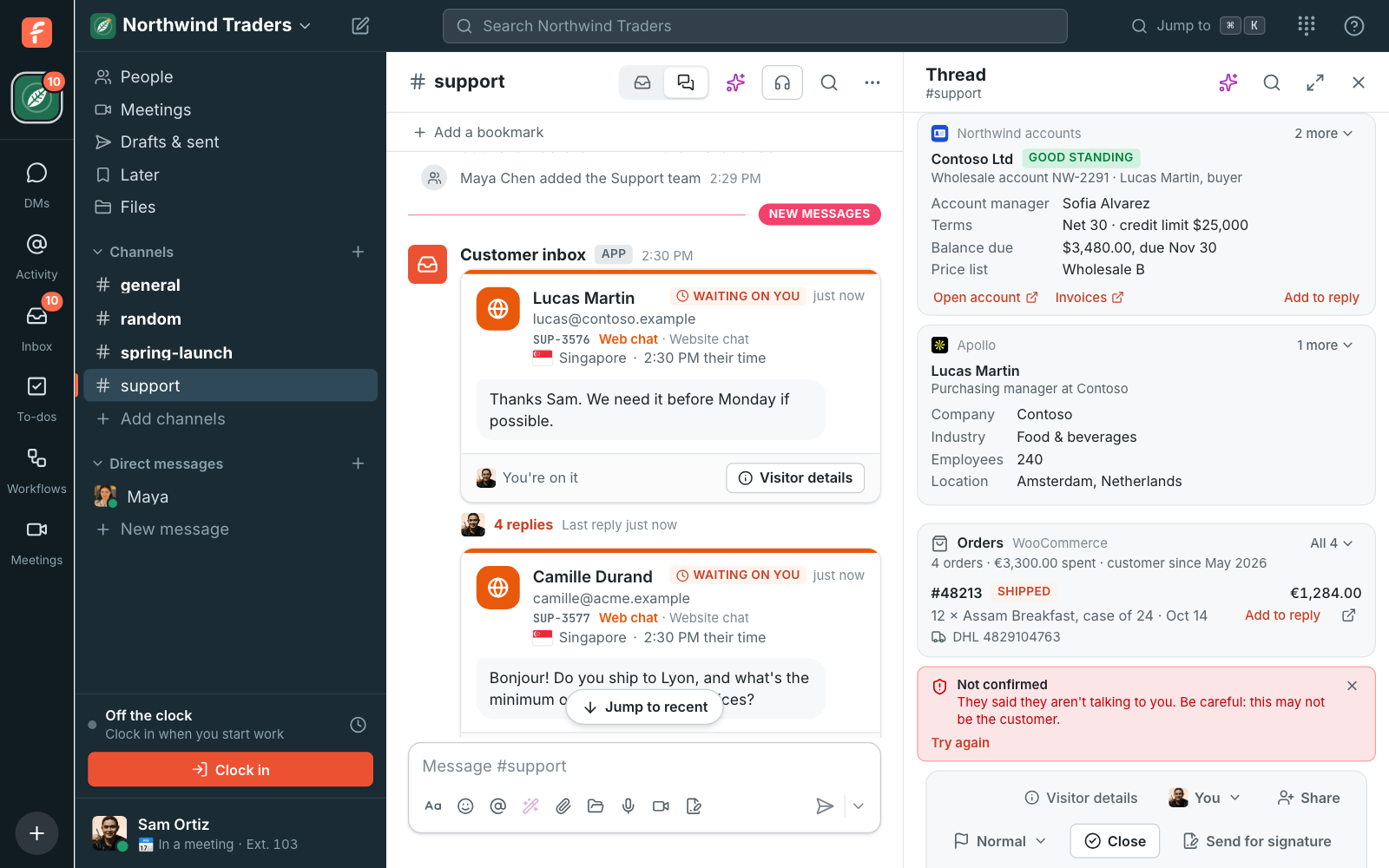
Section titled “Verify someone in a customer conversation”The Verify button is also in every customer inbox conversation, over the box where you reply. For a web chat, you can pick Read the link out and paste the link into your reply instead of sending a text or an email.
When a customer says it isn’t them, Freesbe shows it as a warning. Someone may be using their name, so don’t share any details or make changes.
What the customer sees
Section titled “What the customer sees”The text or email comes from your business’s name. The link opens a page with your name and logo, who’s asking, and two buttons. Nothing to install and no account to make.
How long it lasts
Section titled “How long it lasts”- Codes and links work for 10 minutes by default; an admin can choose from 2 to 30. ID checks get at least 15.
- A wrong code takes one try. After 5 wrong codes (3 to 10, as your admin chooses), it stops working and you see Not verified.
- Sending a new one to the same customer, or on the same call or conversation, cancels the one before it. Its link stops working.
- If the customer doesn’t answer in time, you see Nobody answered in time. Click Try again to send a new one.
- Once it’s done, the link shows the result to the customer and can’t be used again.
If the call drops, the verification keeps going until it ends: when the customer answers, the app that started it hears the result, but your call panel is gone, so verify them again when they call back.
Set it up
Section titled “Set it up”In the Admin Center, open Call center → Customer verification. You need to be an admin who manages the phone system.
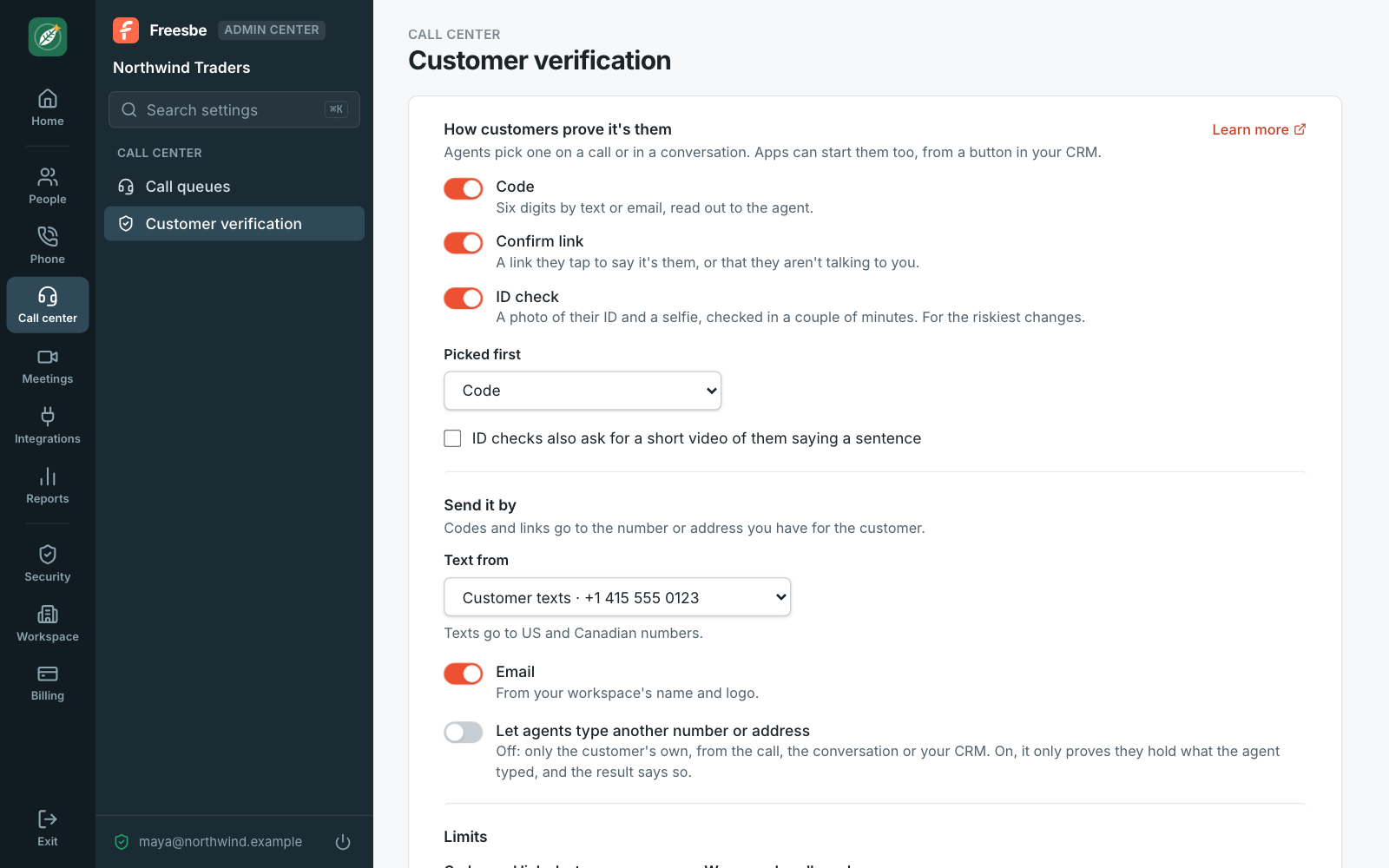
- How customers prove it’s them: turn each kind on or off, and pick the one agents see first.
- Text from: one of your SMS inboxes. Texts go to US and Canadian numbers. While the number is in test mode, nothing is sent and the result says (test).
- Email: sent with your workspace’s name and logo.
- Let agents type another number or address: off by default, so agents can only send to the customer’s own: the number they’re calling from, the conversation’s customer, or what your CRM sends. When it’s on, the result only proves the customer holds what the agent typed.
- Limits: how long codes and links last, and how many wrong codes are allowed.
Each customer can get up to 10 verifications a day, and your workspace up to 300, so nobody can use it to flood someone with texts.
From your CRM
Section titled “From your CRM”Put a Verify button in your CRM, help desk or back office. An app with the
verifications:write scope starts one with POST /api/workspaces/{w}/verifications, naming the
customer and the agent who waits. It shows on the agent’s call or conversation at once, with the
live status, and the app hears how it ended from the verification.verified,
verification.declined, verification.failed and verification.expired events. Send your
own reference and metadata and they come back with every event, so you can update the
record. See Customer verification in the API reference.
Privacy
Section titled “Privacy”Freesbe keeps codes and links only as fingerprints that can’t be turned back into them. For ID checks, the photos of the ID and the selfie are kept by our identity checking partner, not in your workspace, and Freesbe keeps only the result.
Answers come from the Freesbe guides and are written by AI, so check the linked guide before relying on one. Please don't include personal details such as emails or passwords.