
E-signatures
E-signatures sends a PDF to the people who need to sign it: a customer, a supplier, a new hire, or a colleague. Each person gets their own link by email, or in the WhatsApp, Telegram, SMS or other chat you’re already having with them in the customer inbox. They open it with a code we send the same way, fill in the fields you placed for them and sign with a finger, a mouse or by typing their name. Nobody needs a Freesbe account to sign.
When the last person signs, the signed PDF comes back to you in a direct message, in the conversation you sent it from, and in your Files, with a certificate page of who signed, when and from where.
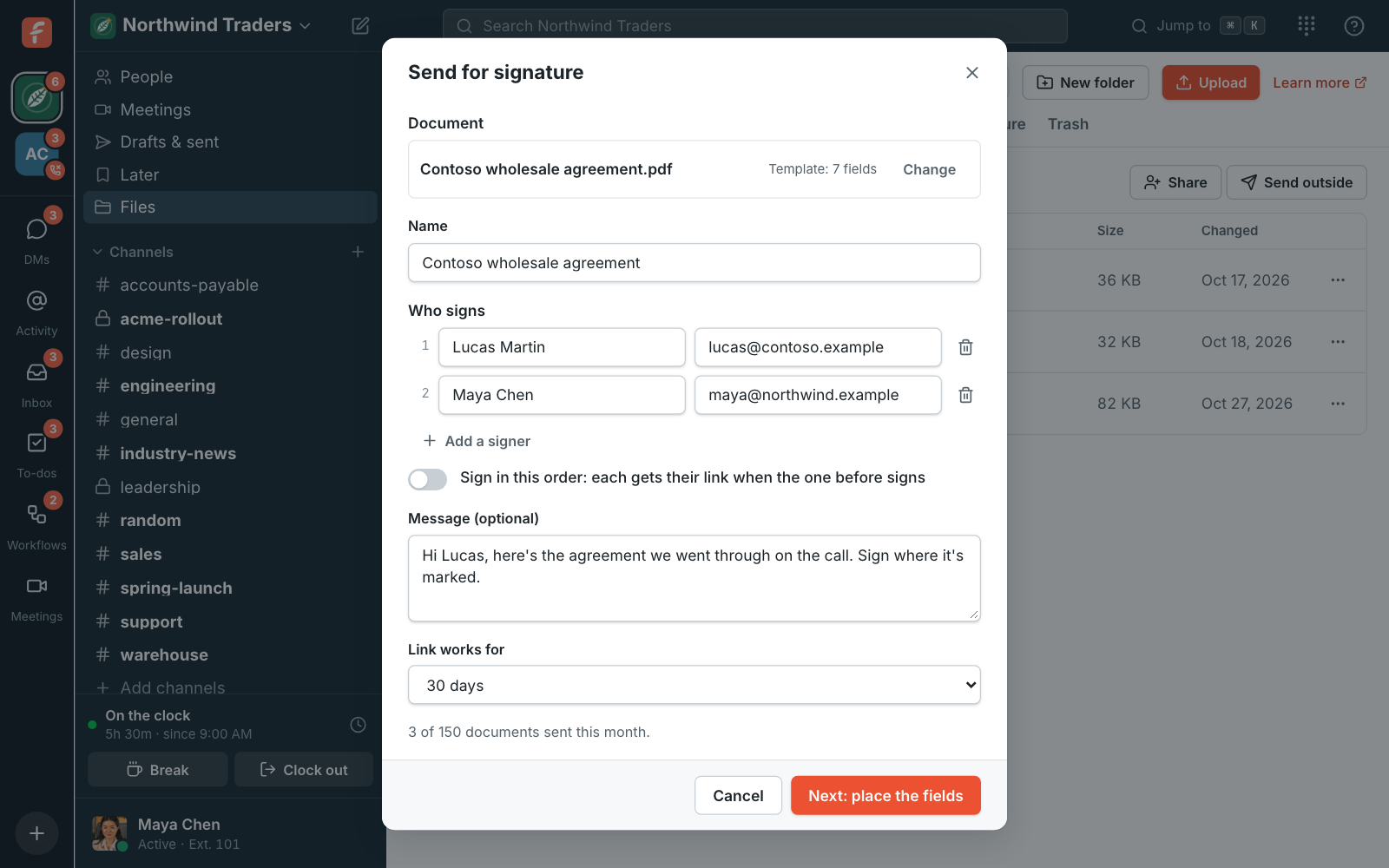
Send a document
Section titled “Send a document”You can start from wherever the conversation is:
- In a channel, DM or thread: the Send for signature button in the message box.
- In a customer conversation: Send for signature in the bar over the reply box. The customer is filled in, with the link going to the chat they wrote from.
- On a phone call: Send for signature under the caller’s name. When a connected CRM knows the caller, their name and email are filled in from it.
- In a meeting: Send for signature at the top of the call. The guests in the call are filled in; type their email addresses.
- In Files: a PDF’s menu (⋯) → Send for signature.
- Files → Sent for signature: the Send for signature button.
Then:
- Pick the PDF: Upload a PDF from your computer, or From Files. PDFs can be up to 25 MB and 200 pages. A PDF that’s password protected can’t be sent.
- Give it a name, and add who signs it: their name and email address, up to 10 people. With more than one, turn on Sign in this order to send each person their link only when the one before has signed.
- Add a message if you like, and pick how long the links work (30 days unless your admin changed it, up to 120).
- Click Next: place the fields, put the fields on the pages (below), and click Send for signature.
Place the fields
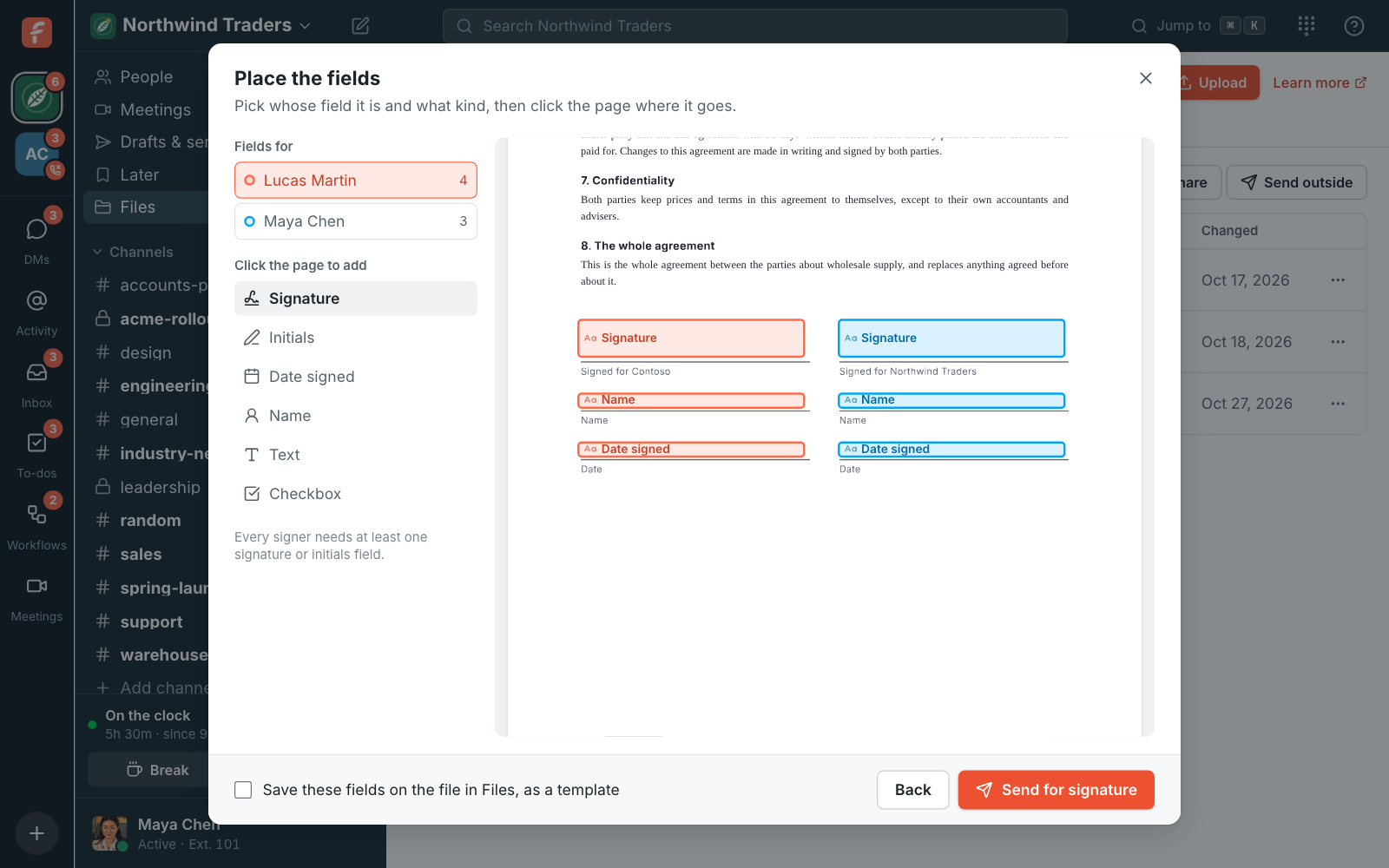
Section titled “Place the fields”Pick whose field it is on the left, pick what kind, and click the page where it goes. Drag a field to move it, drag its corner to resize it, and click × (or press Delete) to take it off. Each signer’s fields have their own color.
| Field | What the signer does |
|---|---|
| Signature | Signs: types their name or draws their signature |
| Initials | Adds their initials the same way |
| Date signed | Nothing: it fills in with the day they sign |
| Name | Checks their name, which is filled in |
| Text | Types what the field asks for, like a company or job title |
| Checkbox | Ticks it. Mark it Required for terms they must agree to |
Every signer needs at least one signature or initials field.
Templates in Files
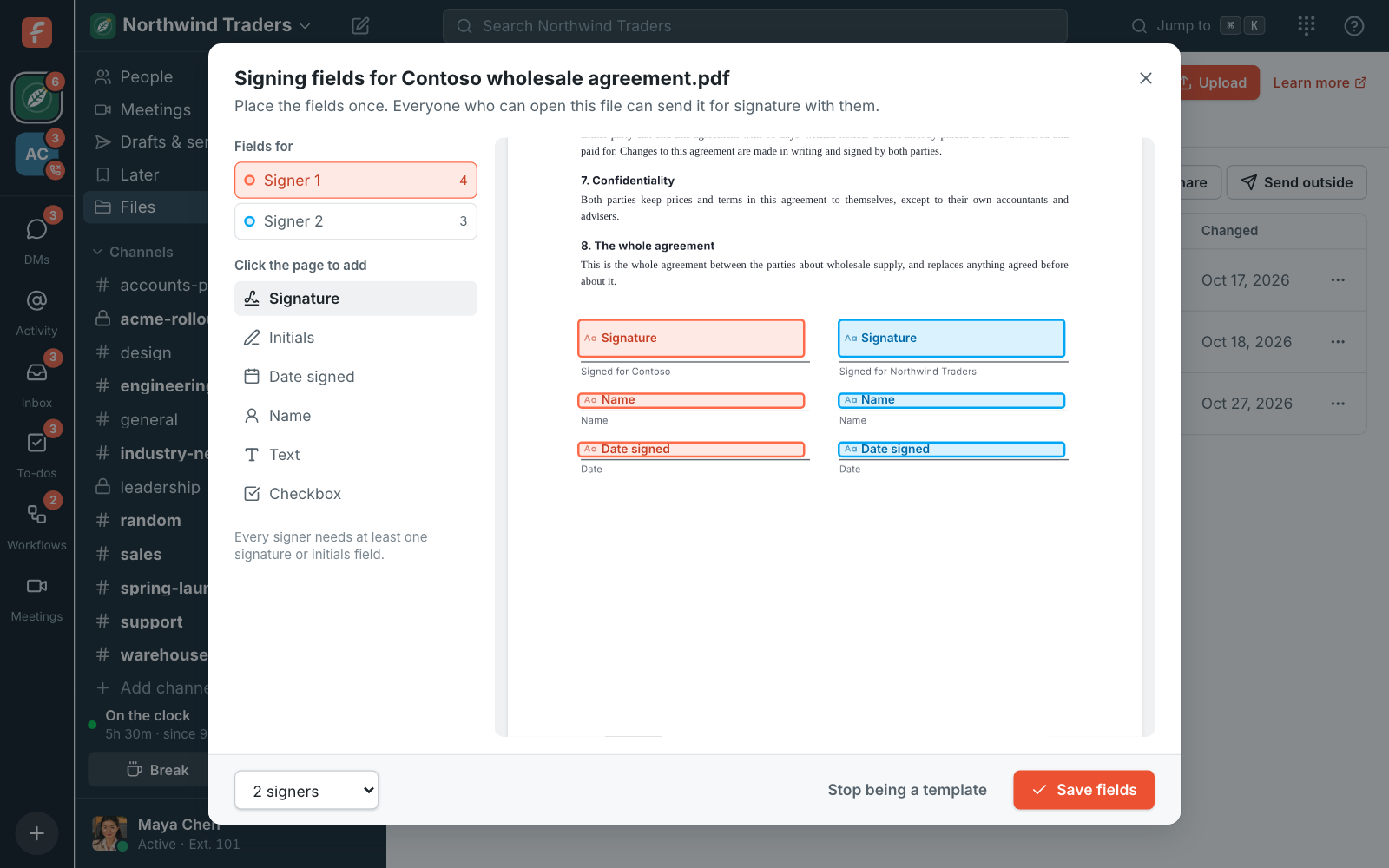
Section titled “Templates in Files”A contract you send again and again can keep its fields. Open the PDF’s menu in Files and choose Signing fields, place the fields once for Signer 1, Signer 2 and so on, and click Save fields. You can also tick Save these fields on the file in Files as you send it.
From then on, anyone who can open the file can send it with its fields already placed: they only add who signs. Changing the fields takes edit access to the file. When someone uploads a new version of the file, the fields stay, with a note to check they’re still in the right places.
Send it in a WhatsApp or Telegram chat
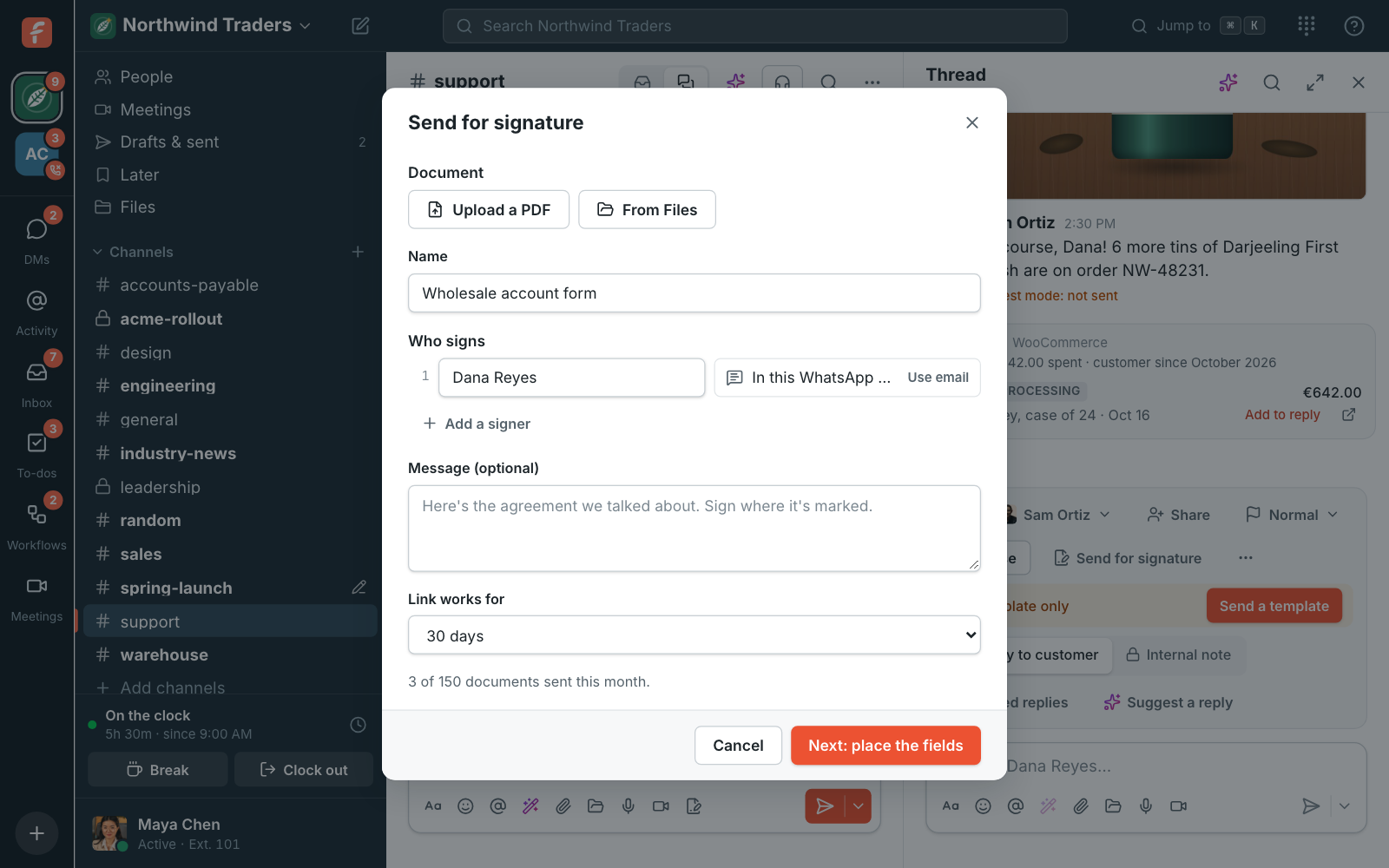
Section titled “Send it in a WhatsApp or Telegram chat”From a customer conversation, the link goes in the chat the customer wrote from: WhatsApp, Telegram, SMS, Messenger, Instagram or email. Your colleagues see the link in the conversation like any reply. The code to open it goes to the customer privately in the same chat, so it isn’t in the conversation for the team to see.
- WhatsApp only takes messages within 24 hours of the customer’s last message. After that, send a template to start talking again first.
- Telegram only reaches customers who have already written to you there.
- Web chat can’t take private messages, so send to the customer’s email address instead.
Click Use email in the dialog to send to an email address instead of the chat.
What the signer sees
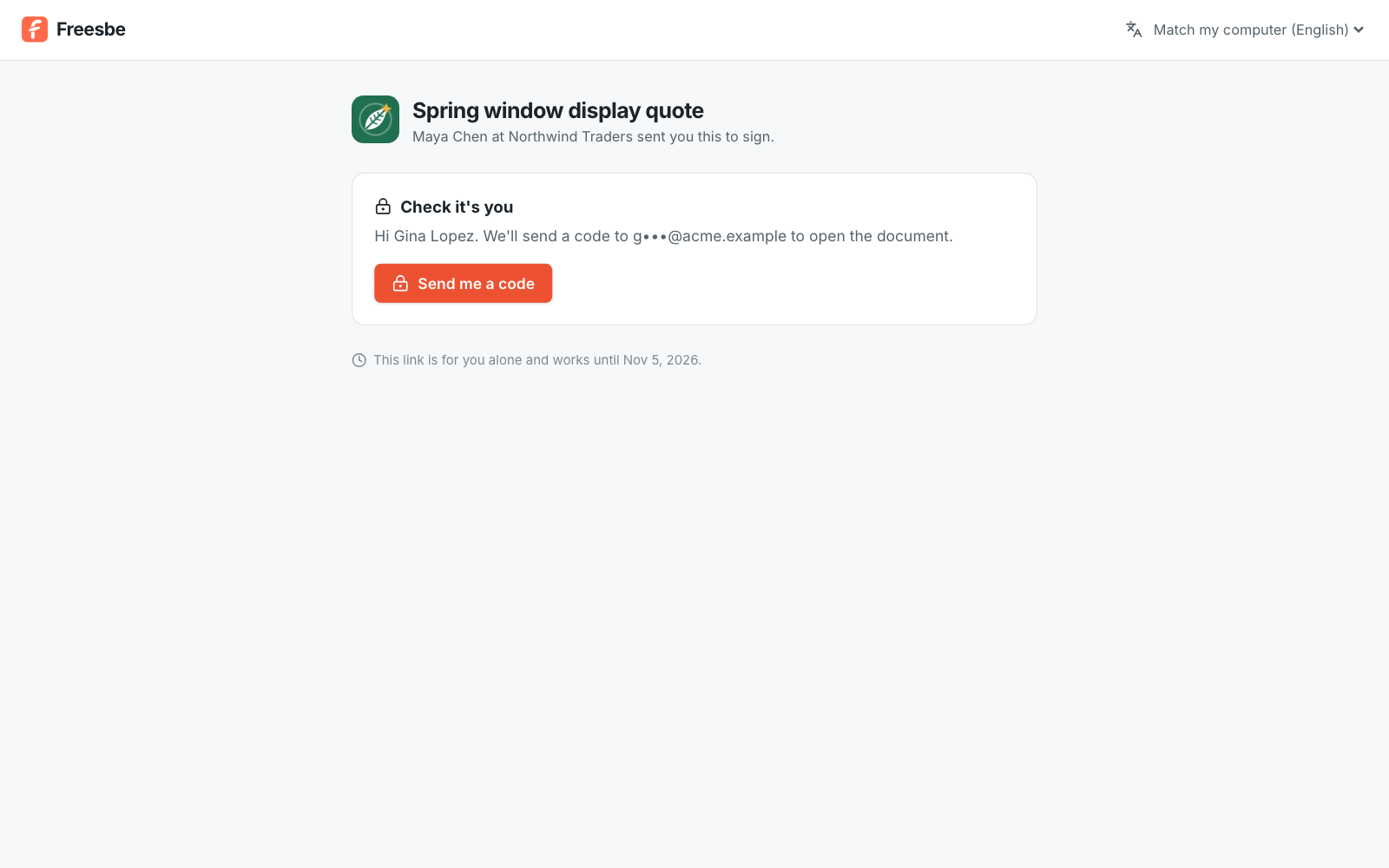
Section titled “What the signer sees”The link opens a page with your workspace’s name and logo. They click Send me a code and type the six-digit code we send to their email or chat. The code works once, for 10 minutes, and after five wrong tries they ask for a new one. Their browser stays in for 12 hours.
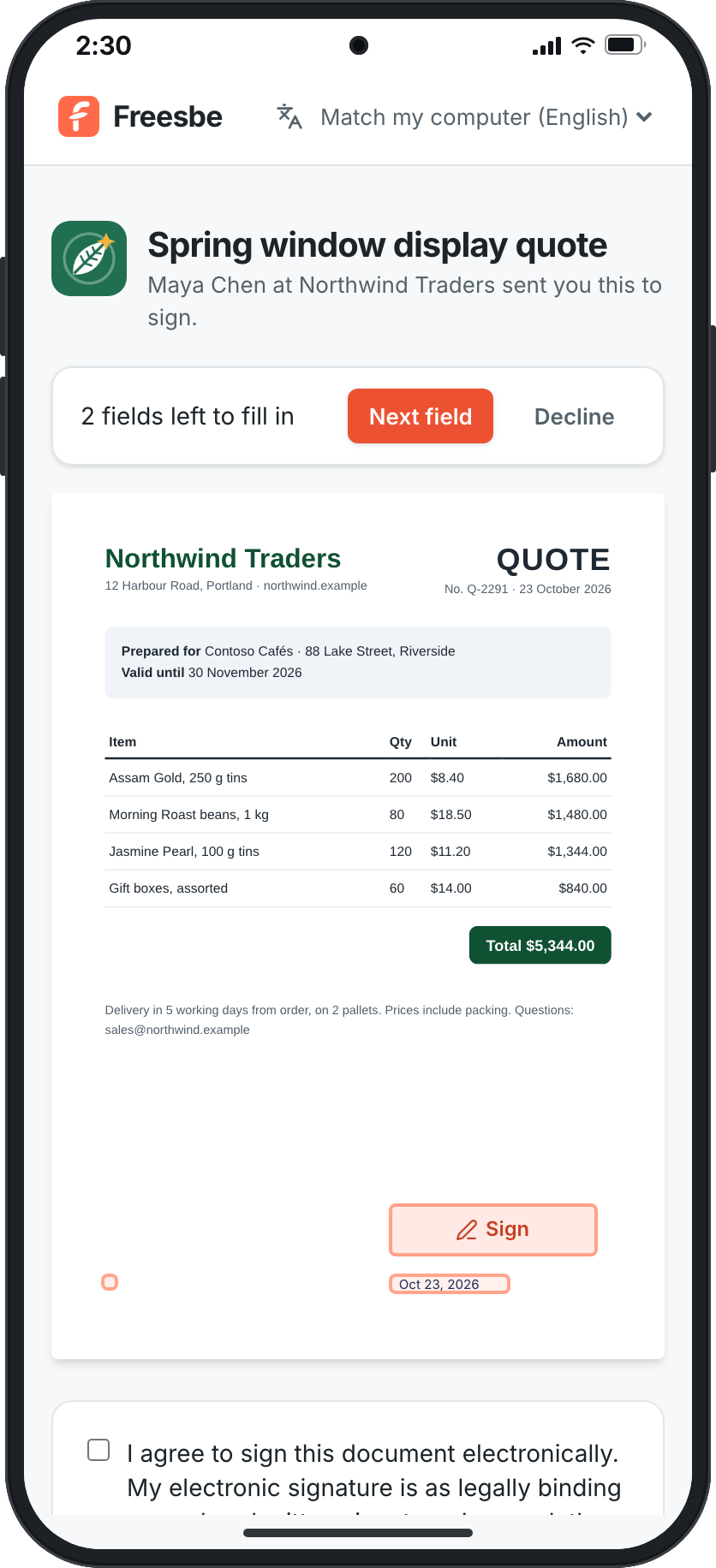
Then they read the document, with their fields marked on the pages. Next field takes them to each one in turn. A signature or initials made once goes in every field of its kind. They tick that they agree to sign electronically and click Sign. They can also click Download to read first, or Decline it and say why.
When everyone has signed, each signer gets the signed copy by email, or in their chat, and can download it from the same link until it runs out.
Follow what you sent
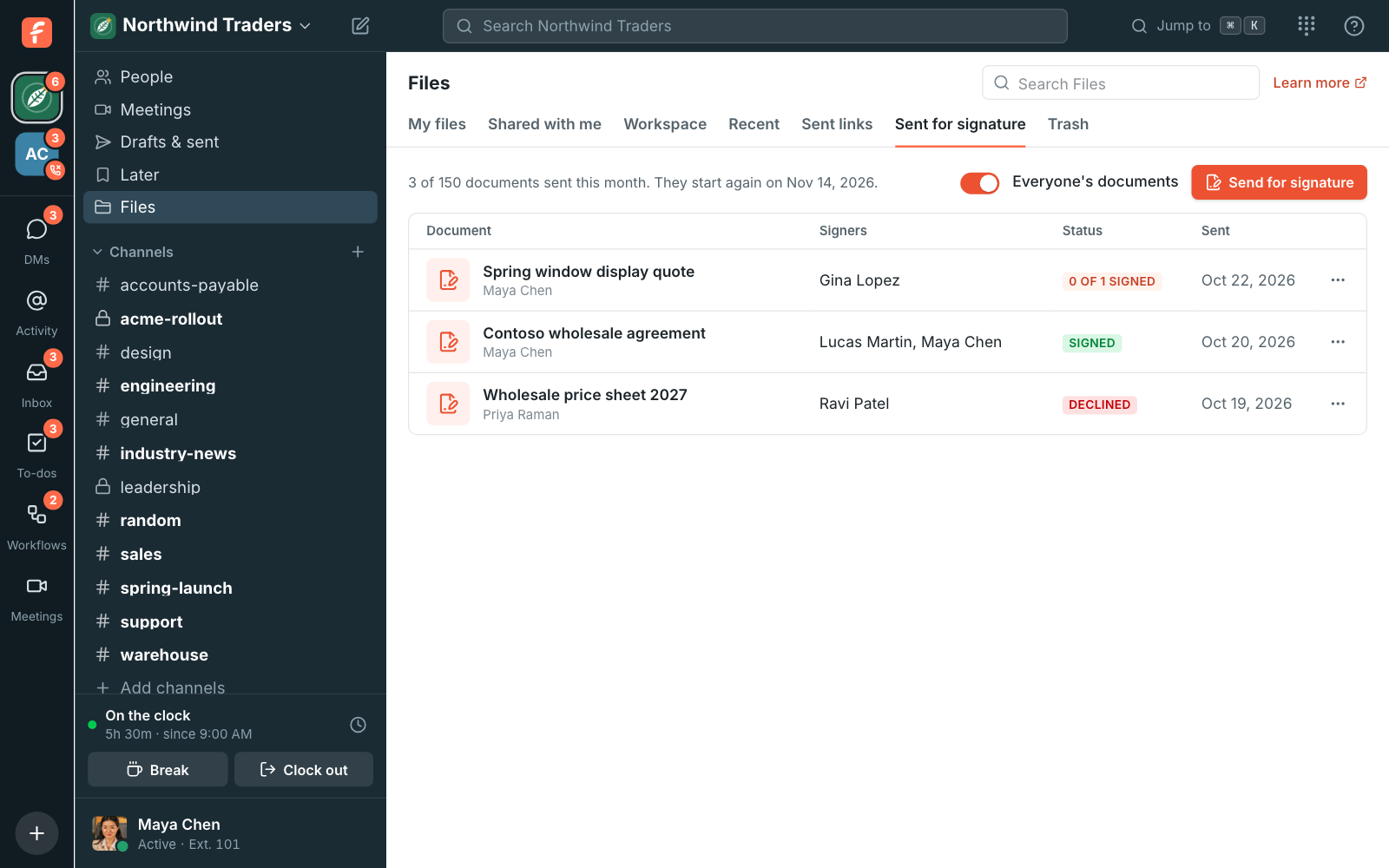
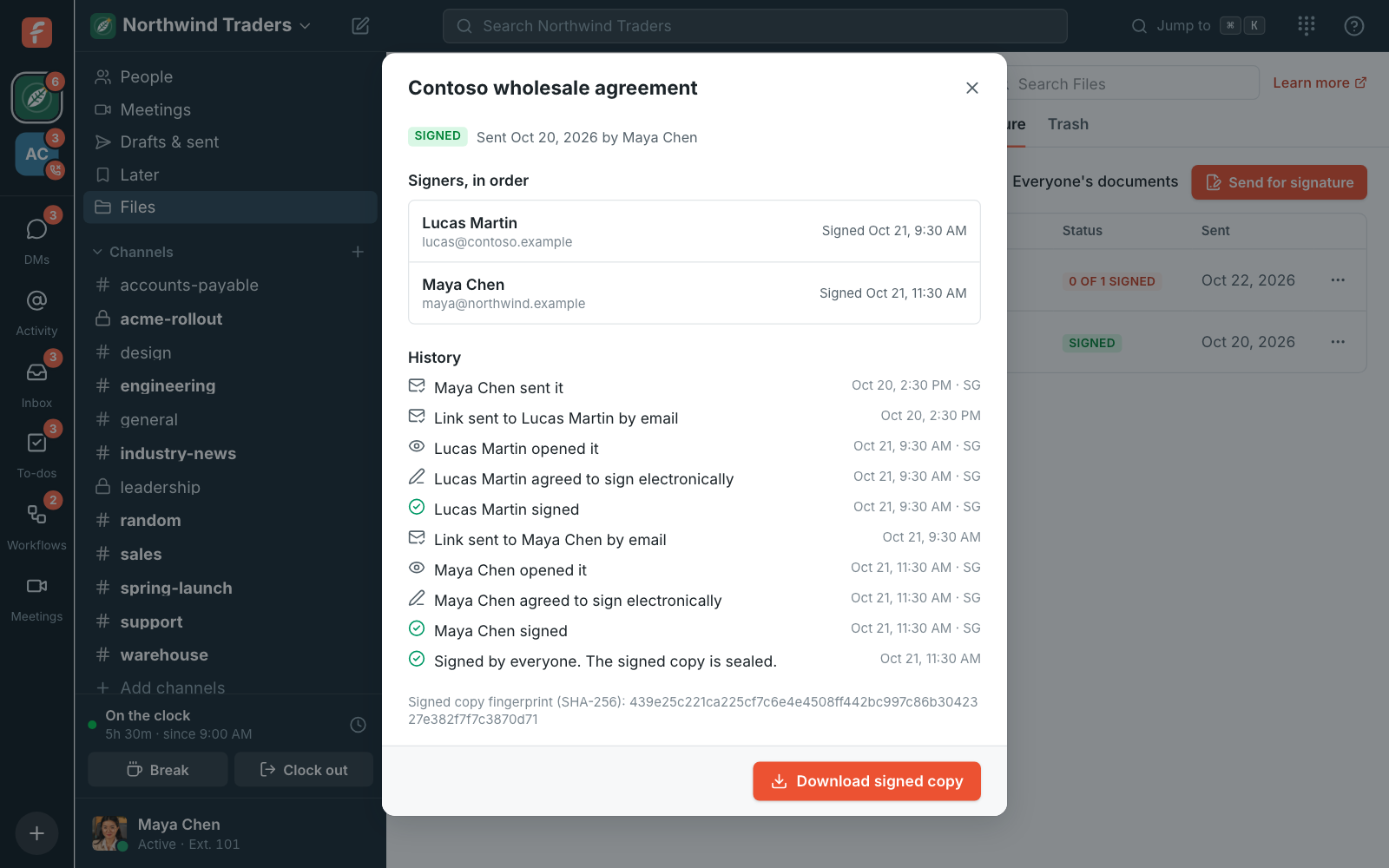
Section titled “Follow what you sent”Files → Sent for signature lists what you sent, newest first, with who’s signing and how far they got. Click one to see each signer and its history: when the link went out and how, codes asked for, wrong codes, when it was opened, signed or declined, and the country and device each time. Admins can switch on Everyone’s documents to see the whole workspace’s.
- Remind sends the link again to whoever hasn’t signed. People are also reminded on their own every 3 days (your admin can change this) until the link runs out.
- Cancel it stops every link at once. Nobody can sign it after that.
- Download signed copy gets the signed PDF.
If someone declines, you get a direct message and an email saying so, with their reason, and nobody else can sign that copy. Send it again once you’ve talked it over.
The signed copy
Section titled “The signed copy”The signed PDF has everyone’s signatures and fields on its pages, and a certificate page at the end with:
- the document’s name and ID, who sent it, and when it was sent and finished,
- each signer: where the link went, how they proved who they are (a code to their email or chat), when they signed, from which IP address, country and device, and their signature,
- the whole history, and
- the SHA-256 fingerprint of the PDF as it was sent, so anyone can check the document wasn’t changed.
It goes to your DM from E-signatures, to the channel, thread or customer conversation you sent
it from, and to a Signed documents folder in your Files. Apps and
webhooks can get it too: the signature.completed event comes with a
link to the signed PDF, and signature.declined says who declined and why.
How many you can send
Section titled “How many you can send”Every workspace can send 3 documents a month, sent by hand. The E-signatures add-on is $10 a month for each sender, or $96 a year, on Pro, Business and Enterprise. Each sender adds 50 documents a month to the workspace’s pool. Signers aren’t counted, and neither is each signature: one document sent to three people is one.
For admins
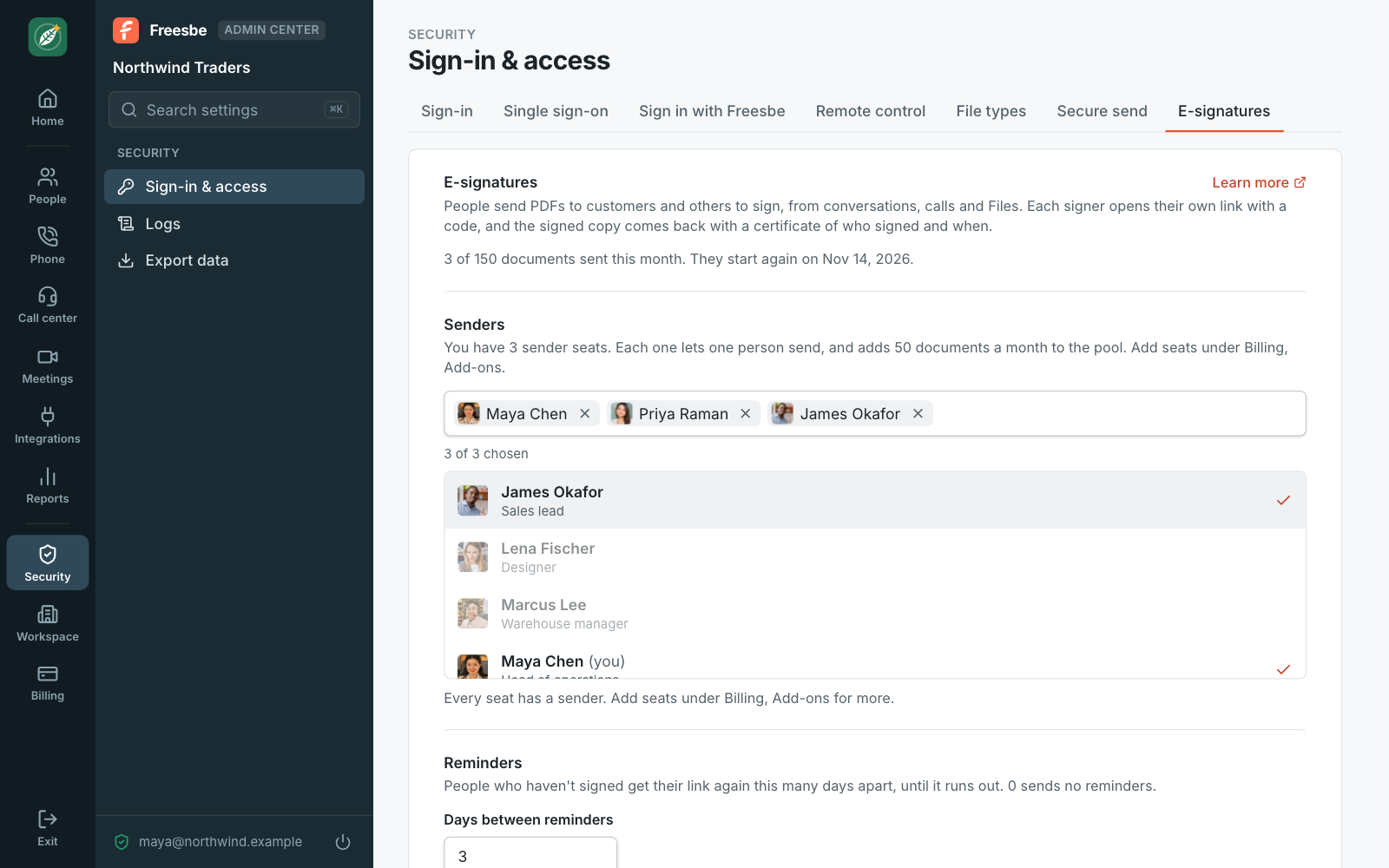
Section titled “For admins”In the Admin Center, Security → E-signatures:
- Senders: who sends documents for signature, one person for each sender seat. Add seats under Billing → Add-ons. Guests can’t send.
- Reminders: how many days apart people who haven’t signed get their link again. 0 sends no reminders.
- How long links last: what the send dialog starts with.
Everything sent, signed and canceled, and every change here, is in the workspace’s Audit log.
Answers come from the Freesbe guides and are written by AI, so check the linked guide before relying on one. Please don't include personal details such as emails or passwords.