Who's calling, from your CRM
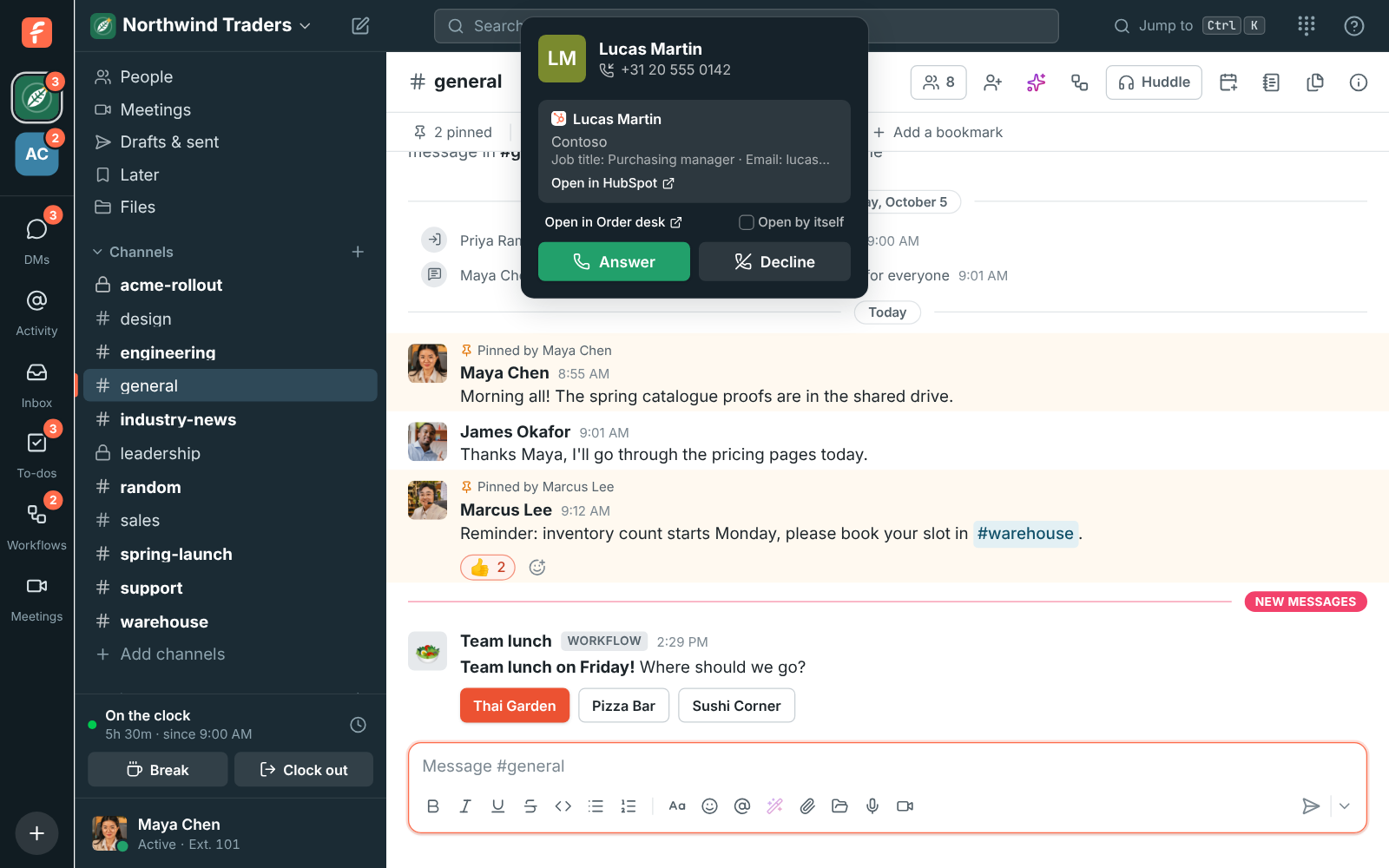
When a customer calls or writes in, Freesbe looks them up in the CRMs your workspace has connected and shows who they are: their name, company, owner and how to reach them, with a button that opens their record in the CRM. Turn on Open by itself and their record opens in a new tab the moment you answer.
It works with every CRM Freesbe connects to: HubSpot, Salesforce, Pipedrive, Zoho CRM, GoHighLevel, Dynamics 365, Freshsales and monday CRM. There’s nothing to set up beyond connecting the CRM.
How people are found
Section titled “How people are found”- Calls: by the caller’s number. Freesbe compares the last nine digits, so a number saved as
(020) 555 0142in the CRM still matches a call from+31 20 555 0142. - Customer inbox conversations (email, web chat, text messages, WhatsApp and the rest): by the customer’s email address, then by their phone number when the CRM doesn’t know the email.
Freesbe looks at contacts, and at leads in Salesforce and Zoho CRM, where a lead’s card says Lead. When more than one CRM knows the person, each one shows its own card. A CRM that takes longer than 3 seconds to answer is left out, so a slow CRM never holds up the call.
Freesbe doesn’t keep what it finds. It asks again each time the person calls or their conversation is opened, so the card always shows what’s in the CRM now.
On a call
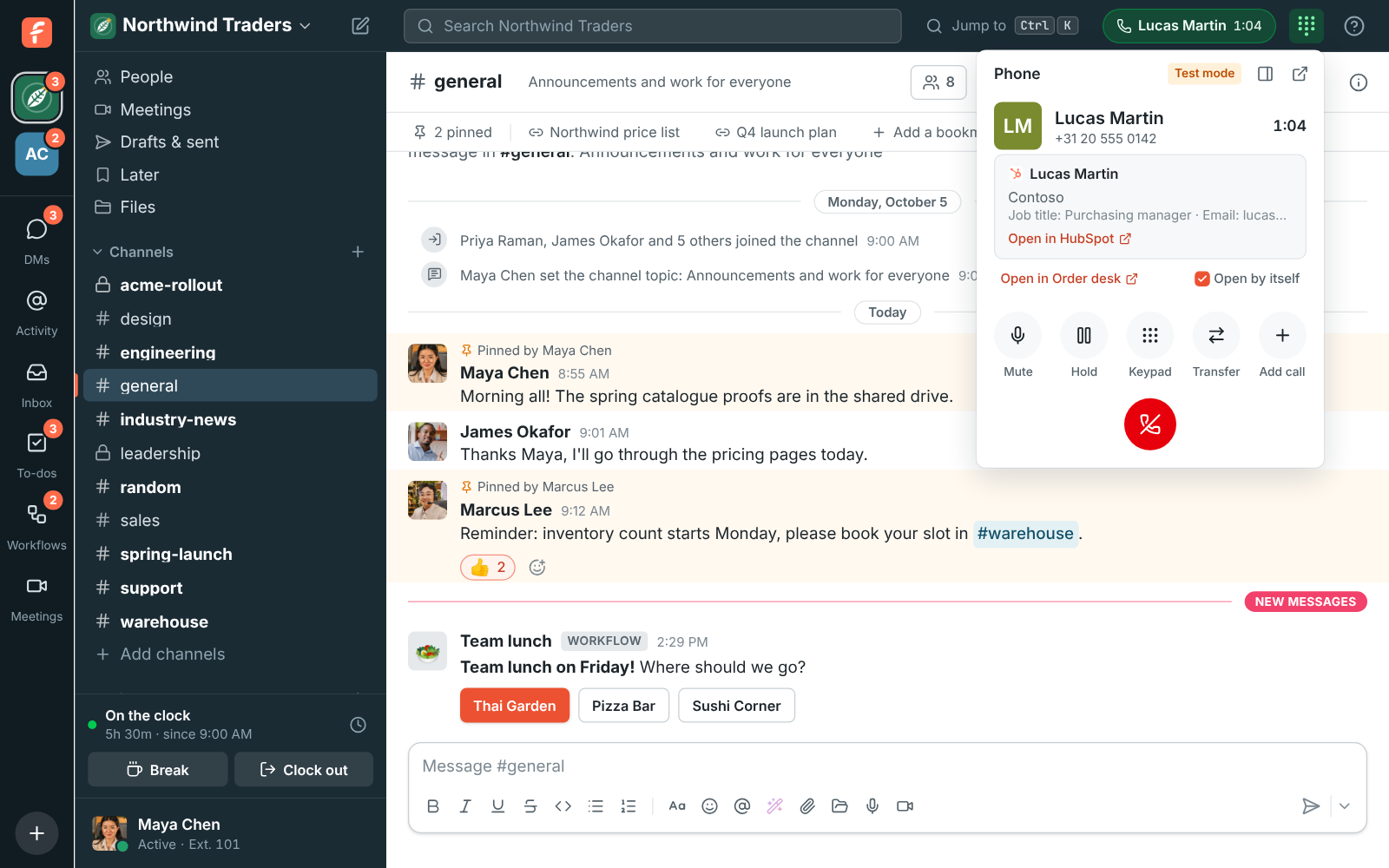
Section titled “On a call”The card shows on the ringing call, and stays on the call once you answer, in the phone panel. Open in HubSpot (or your CRM’s name) opens the caller’s record.
In a customer conversation
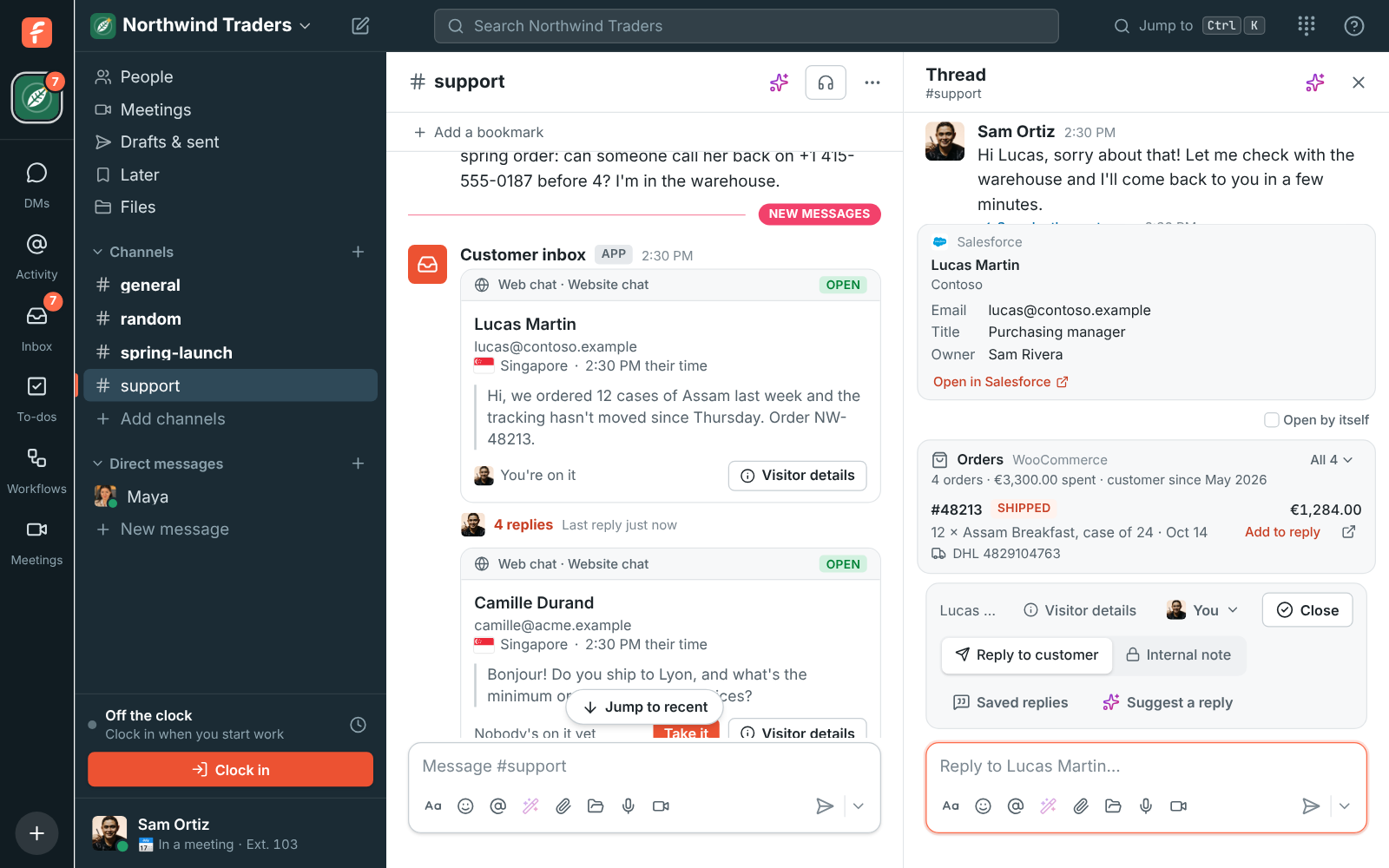
Section titled “In a customer conversation”The card shows over the box in the conversation’s thread, next to any customer details from your own system and orders from your store.
Open their record by itself
Section titled “Open their record by itself”Tick Open by itself under the card, or turn on Open the customer’s page by itself in Preferences → Phone. Then:
- When you answer a call, the caller’s record opens in a new tab, or in your browser from the desktop app.
- When you open a customer conversation, the customer’s record opens the same way.
Each call and each conversation opens it once. If no connected CRM knows the person, Freesbe opens your workspace’s customer page instead, when there is one.
The setting is yours and is kept on each computer, so you can have it on at your desk and off on your laptop. It’s off at first. Phones and tablets never open anything by themselves: the buttons are there instead.
In a browser tab, a record that opens after you open a conversation can be stopped by the browser’s pop-up blocker. Allow pop-ups for Freesbe in the browser’s site settings, or use the desktop app. Records that open when you click Answer aren’t affected.
A page of your own
Section titled “A page of your own”Use another system for customers, or want a CRM’s search page for people it doesn’t know yet? Admins can add a customer page: a button on every call and customer conversation that opens an address of your choosing with the customer’s number or email filled in.
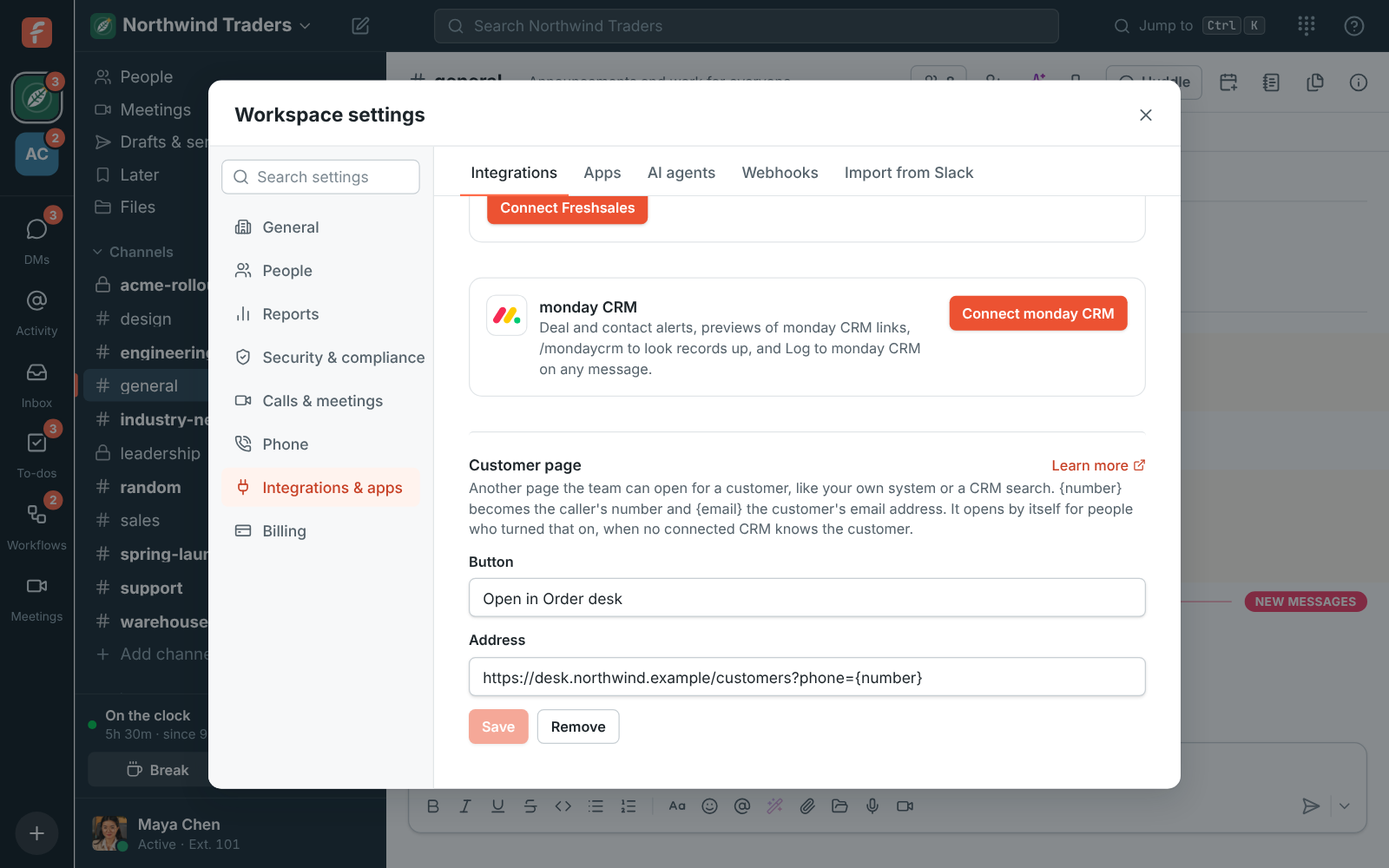
- Open Workspace settings → Integrations & apps → Integrations → CRM and scroll to Customer page.
- Give the button a name, like Open in Order desk.
- Enter the page’s address, with
{number}where the caller’s number goes and{email}where the customer’s email address goes, such ashttps://desk.example/customers?phone={number}. It must start withhttps://. - Click Save.
The number is sent the way calls show it, like +31205550142, and both are encoded for the
address. A page with {email} doesn’t show on calls, where there’s no email address. For people
who turned on Open by itself, the page opens when no connected CRM knows the customer.
To stop showing it, click Remove.
Answers come from the Freesbe guides and are written by AI, so check the linked guide before relying on one. Please don't include personal details such as emails or passwords.