
Meetings
Meetings are scheduled calls with their own short link, like
https://meet.freesbe.net/abc-defg-hij. Anyone can join from a browser without a Freesbe account.
They’re Freesbe’s replacement for Google Meet or Zoom links.
The link takes people to the meeting’s page in Freesbe, where members of your workspace are
already signed in and guests ask to join. Older links like https://app.freesbe.net/m/abc-defg-hij
keep working, and so does meet.freesbe.net/m/abc-defg-hij. Someone who types the code by hand
can leave out the dashes.
Start a meeting now
Section titled “Start a meeting now”Open Meetings in the sidebar and click Start now. Freesbe opens the call and copies its link so you can paste it to anyone. The link works again whenever you come back to it, until 30 days after its last call.
Pasted into a chat app, a meeting link previews as a card with your workspace’s name and logo. The meeting’s title and time stay out of the preview.
Helping a customer? Support session next to Start now gives you a one-hour link and a code they can type in, made for showing and controlling their screen. See Support sessions.
Schedule a meeting
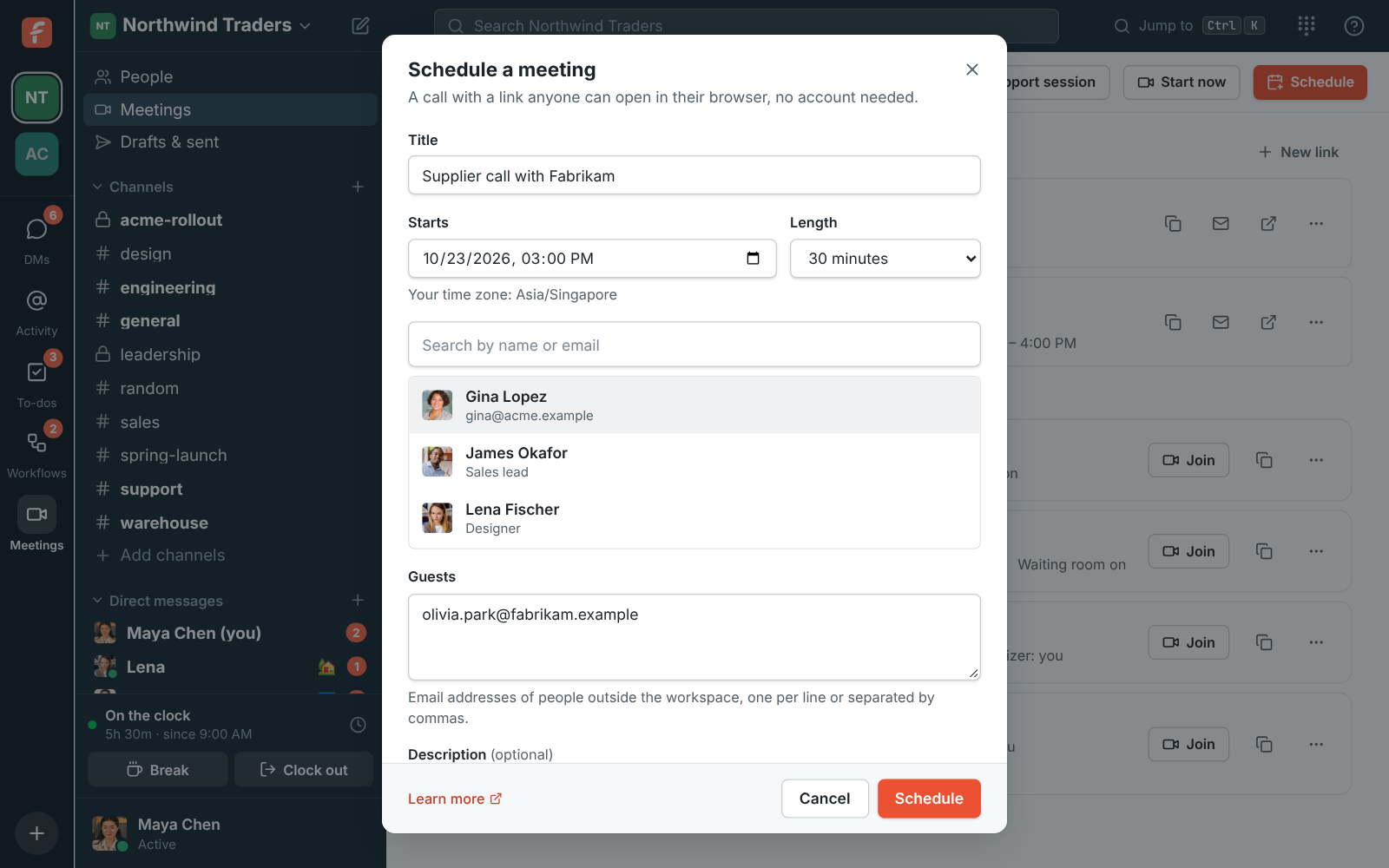
Section titled “Schedule a meeting”- Open Meetings and click Schedule. Or, from any DM, group DM or channel, click the calendar button (Schedule a meeting) at the top: everyone in the conversation is invited to start with.
- Enter a Title, when it Starts (in your time zone) and its Length, from 15 minutes to 4 hours.
- Under People in this workspace, pick teammates. Under Guests, add the email addresses of people outside the workspace, one per line or separated by commas.
- Add a description if you like. Leave Waiting room for guests on to let each guest in yourself, and leave Email the invites on.
- Click Schedule.
Schedule from Outlook
Section titled “Schedule from Outlook”Your team lives in Outlook? With the Freesbe add-in, Freesbe meeting sits where Teams usually does in Outlook’s events, and can be your default for every meeting. Outlook puts the link in the invitation, and the meeting shows up here marked From Outlook. See Freesbe meetings in Outlook.
Schedule from Google Calendar
Section titled “Schedule from Google Calendar”The Freesbe add-on puts Freesbe meeting next to Google Meet in Google Calendar’s video conferencing menu. The event gets a Join with Freesbe button, and the meeting shows up here marked From Google Calendar. See Freesbe meetings in Google Calendar.
Find a time that works
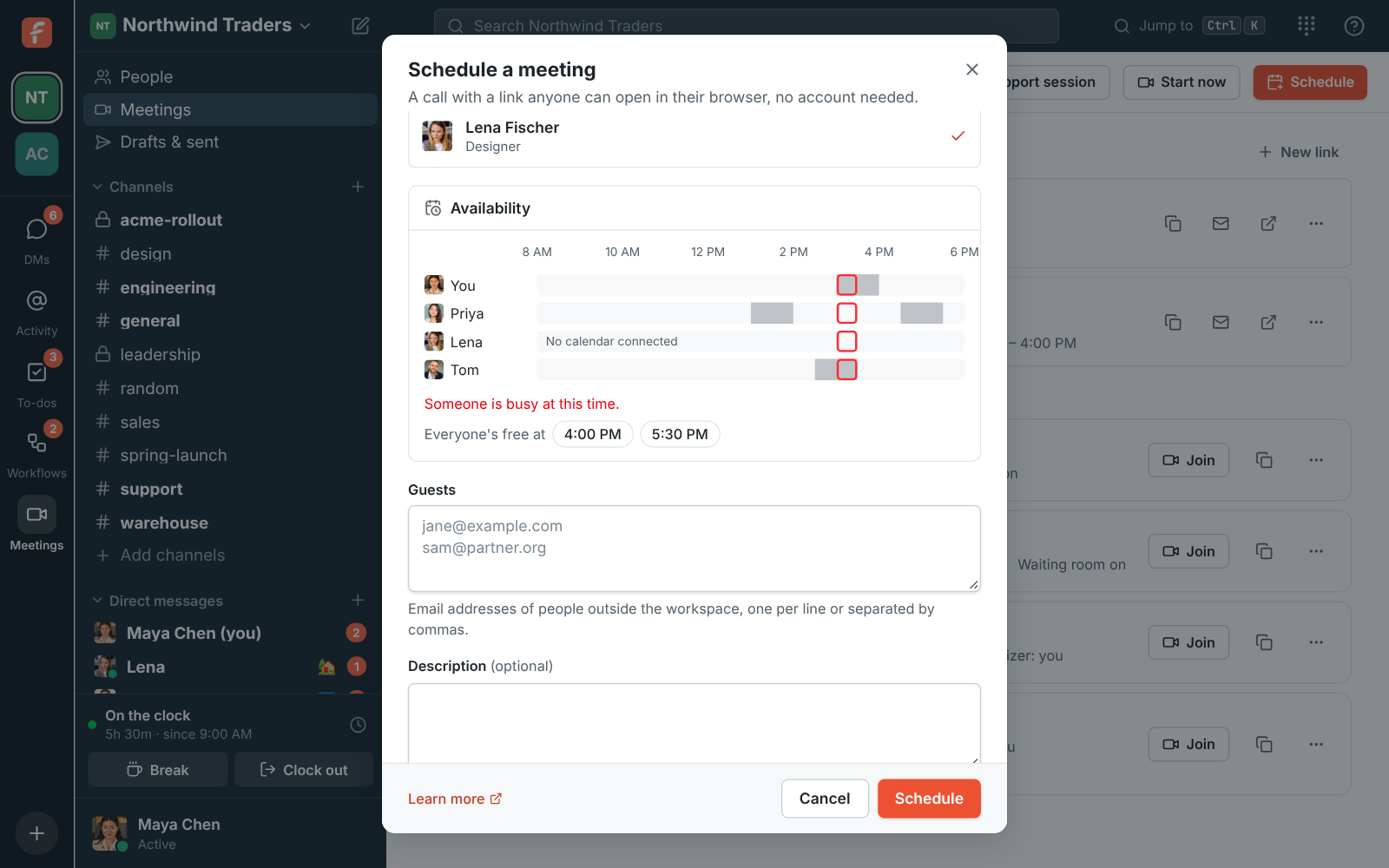
Section titled “Find a time that works”When you invite people from the workspace, Find a time lines up everyone’s day side by side:
- Working hours, in each person’s own time zone. Outside them the row is shaded. Everyone works Monday to Friday, 9 to 5 until they set their own.
- Freesbe meetings they organize or are invited to, in any workspace.
- Calendar busy times from the Google, Microsoft or Zoho calendar they connected.
- Do Not Disturb, while their notifications are paused.
Each row also says what the chosen time is for them when they’re in another time zone, like “10:00 AM there”. Use the arrows next to the date to look at other days.
Your chosen time is outlined in green when it works, in red when a required person can’t make it, and in amber when only optional people can’t. Under Times that work, Freesbe suggests up to six times over the next week that fit every required person’s working hours and busy times. It prefers times the optional people can make too, and shows −1 optional on a time one of them can’t. Click a suggestion to move the meeting there.
Required and optional people
Section titled “Required and optional people”Everyone you invite is Required at first. Click Required next to someone to make them Optional: they’re still invited, but a time doesn’t have to suit them. Their calendar invite marks them as optional, and their email says they can join if they can.
When nothing fits
Section titled “When nothing fits”If no time in the next week works, make someone optional, or turn on Include times outside working hours. Busy times and Do Not Disturb still count.
Schedule from a conversation
Section titled “Schedule from a conversation”The Schedule a meeting button at the top of a DM, group DM or channel opens the same dialog with the conversation’s people already invited (in channels of up to 20 people; in bigger ones, pick who to invite). Leave Post it in #channel on and Freesbe posts the meeting’s time and link in the conversation once it’s scheduled, so everyone there sees it.
Only busy times show, never what anyone’s meetings are about. People who haven’t connected a calendar show No calendar: their Freesbe meetings, working hours and Do Not Disturb still count, but meetings elsewhere don’t. To connect yours, see Connect your calendar.
Everyone invited gets an email with their own link and a calendar invite that works with Google Calendar, Outlook and Apple Calendar, plus a reminder about 10 minutes before the start. If you turn emails off, copy the Meeting link and share it yourself.
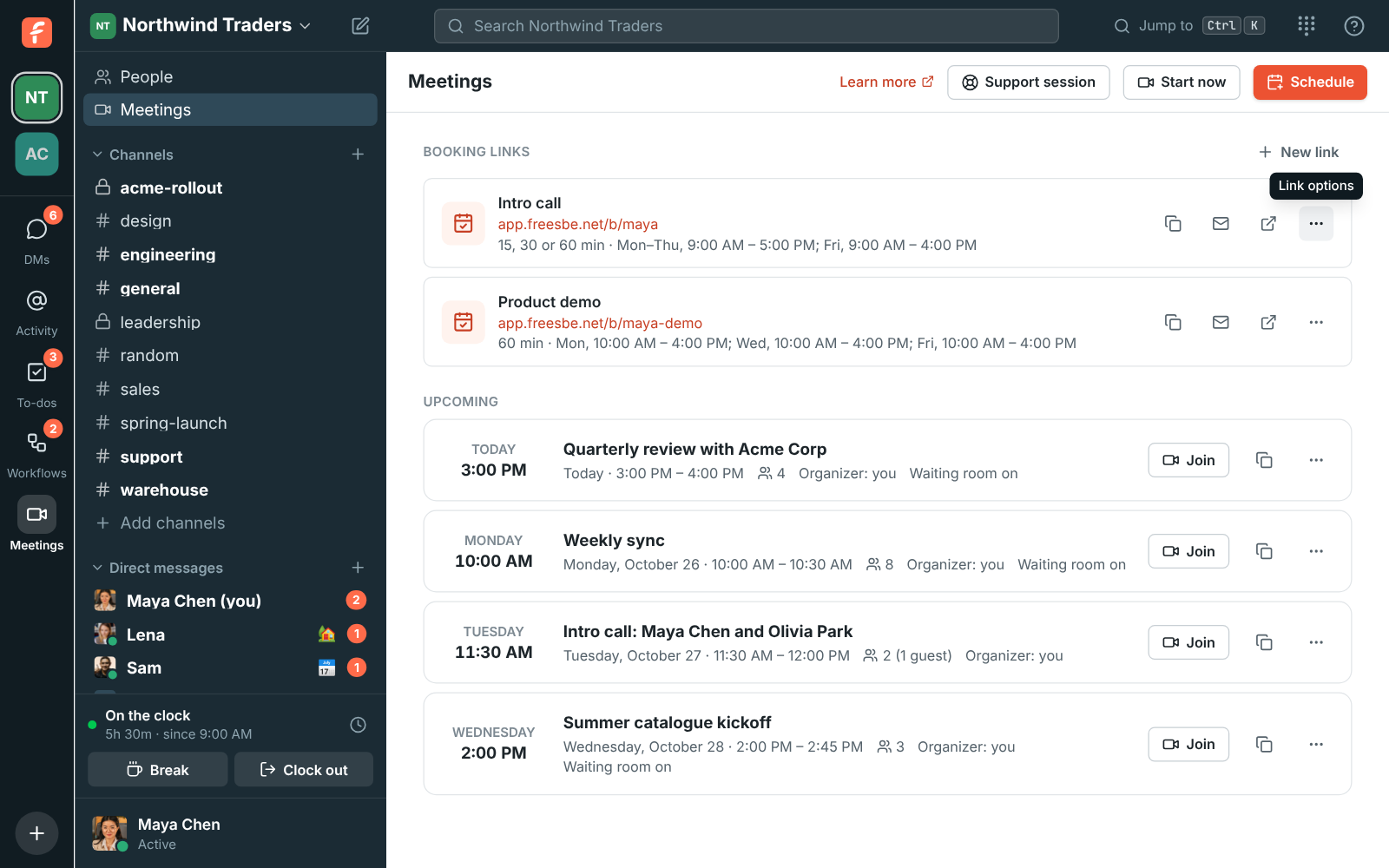
Your upcoming and recent meetings are listed under Meetings. Use the Meeting options menu to:
- Copy link.
- Edit the meeting. Leave Email everyone the update on and their calendars update too.
- Make a new link. The old link stops working, anyone in the call is disconnected, and invited people get the new link by email.
- End for everyone, which disconnects everyone and closes the link.
- Cancel meeting, which removes it and sends a cancellation to everyone’s calendar.
Let people book time with you
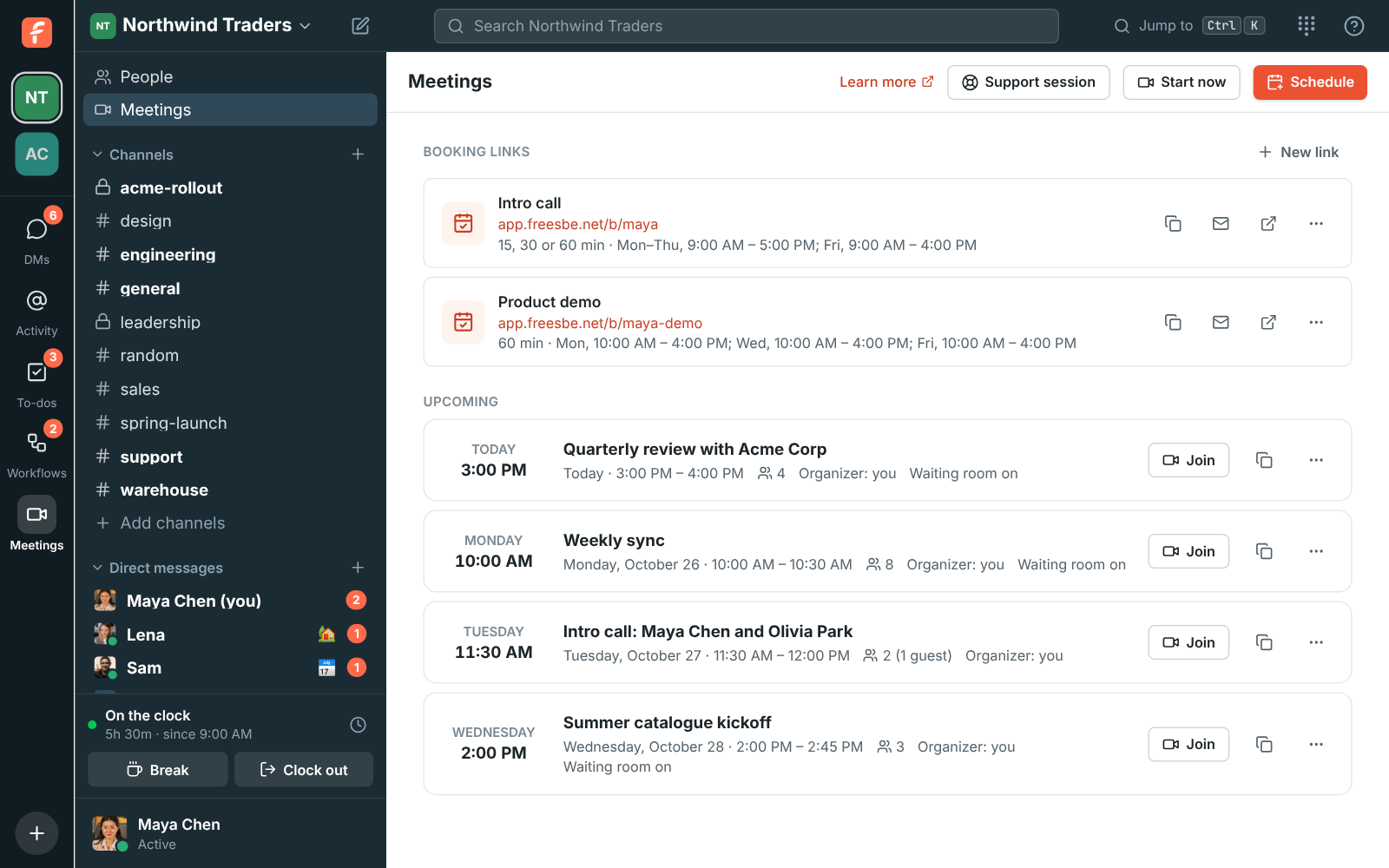
Section titled “Let people book time with you”Instead of finding a time yourself, share a booking link. People outside the workspace pick a free 15, 30 or 60 minute slot inside the hours you set, and the booking shows up here as a meeting. Your booking links are listed at the top of Meetings.
Joining
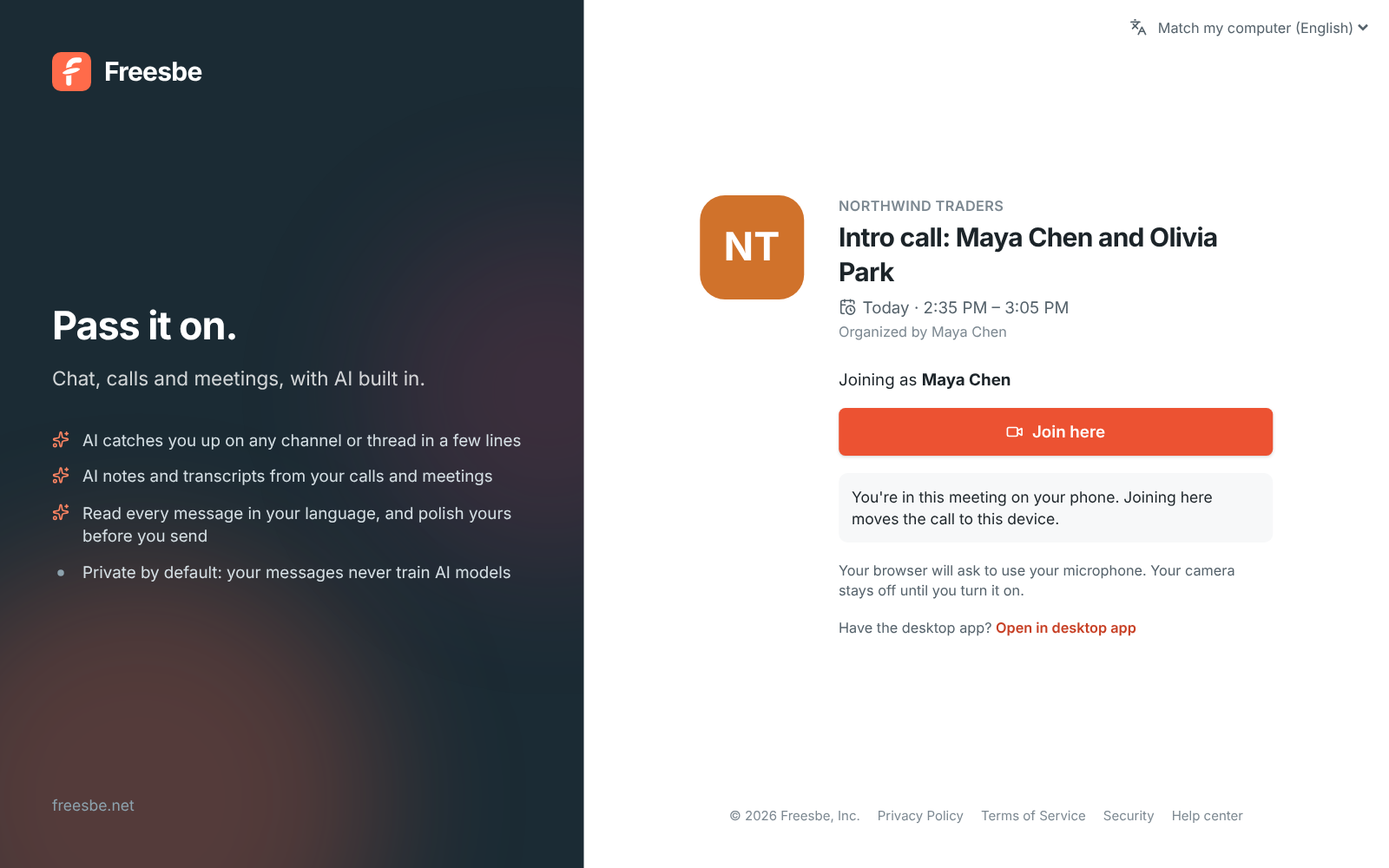
Section titled “Joining”The meeting link opens a page with your workspace’s logo next to the meeting’s title, time and organizer, so guests know right away who they’re meeting. A workspace without a logo shows its initials instead. Set the logo in Workspace settings.
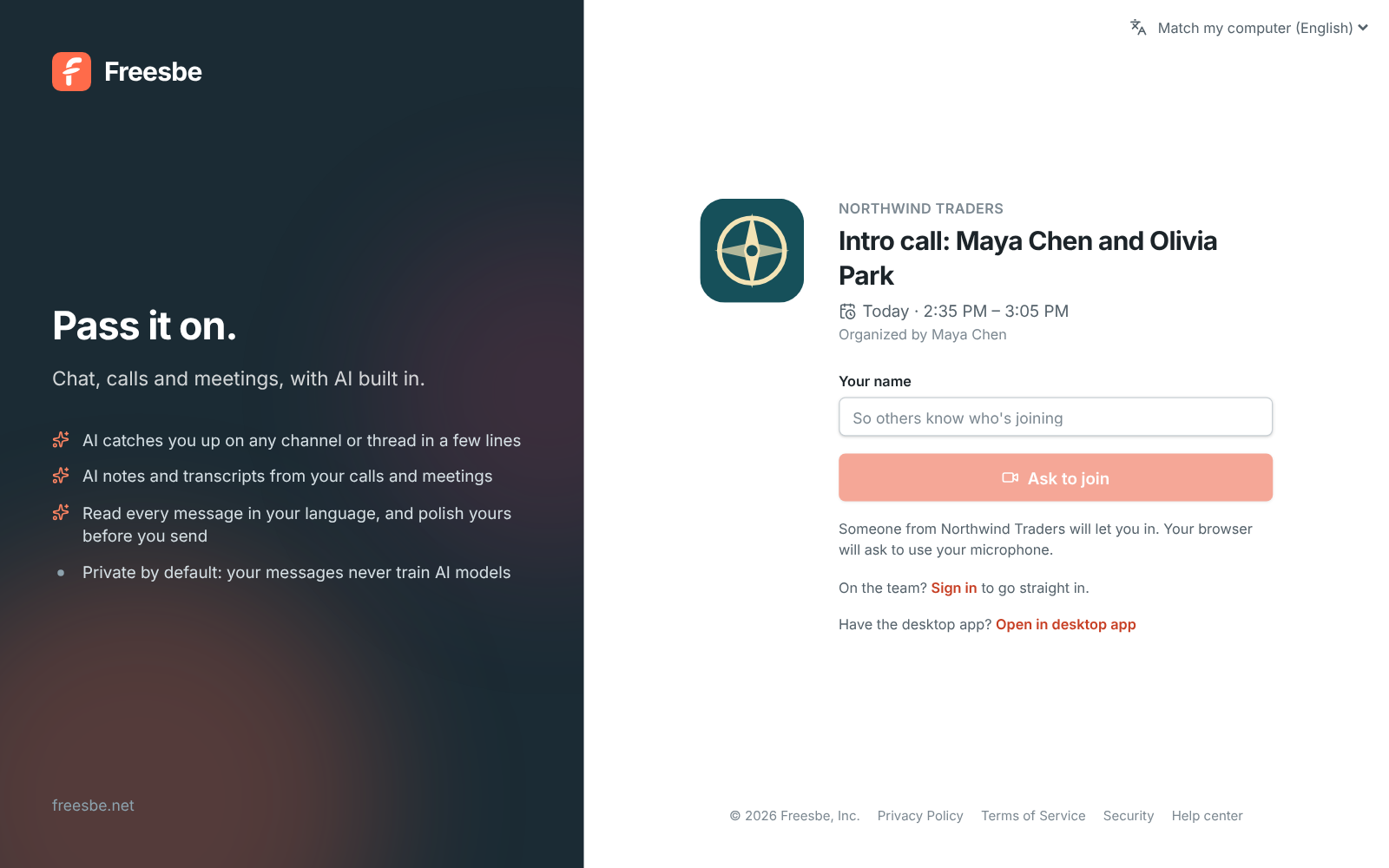
- People in the workspace go straight in.
- Guests click Ask to join and wait in a lobby until someone from the workspace lets them in. Their personal link from the email fills in their name.
- With Waiting room for guests turned off, invited guests go straight in with their personal link. Anyone else with the link still asks to join.
Before joining, Check your camera and background shows your camera as others will see it, with the backgrounds to pick from: a blur or a picture. With the preview open, your camera is on when you join; Join with my camera off closes it.
Guests can join from 15 minutes before the start. The link keeps working until 30 days after its last call, like Zoom’s and Teams’ links, or 2 hours after the scheduled end if nobody has used it. It stops working sooner when the organizer ends the meeting or makes a new link. A meeting holds up to 20 people.
When everyone leaves a call with two or more people, the meeting moves from Upcoming to Recent right away, along with its recording if it was recorded. Recent says who else was in the call, like With James Okafor, Sofia Alvarez +1, so you can tell one instant meeting from another. A meeting you joined by its link is in your Recent too, even if you weren’t invited.
- Rejoin within 5 minutes carries on the same call, and the 5 minutes start again when the last person leaves it.
- Join later, or opening the same link, starts a new call of the same meeting. Recent lists each call under the meeting, with when it was, who was in it and its Recording.
- Once the link has stopped working, the meeting is marked Ended.
If you’re alone in a call, or someone is still waiting in the lobby, the call goes on until the scheduled end.
While a guest waits to be let in, the page keeps the logo and the meeting’s title in view.
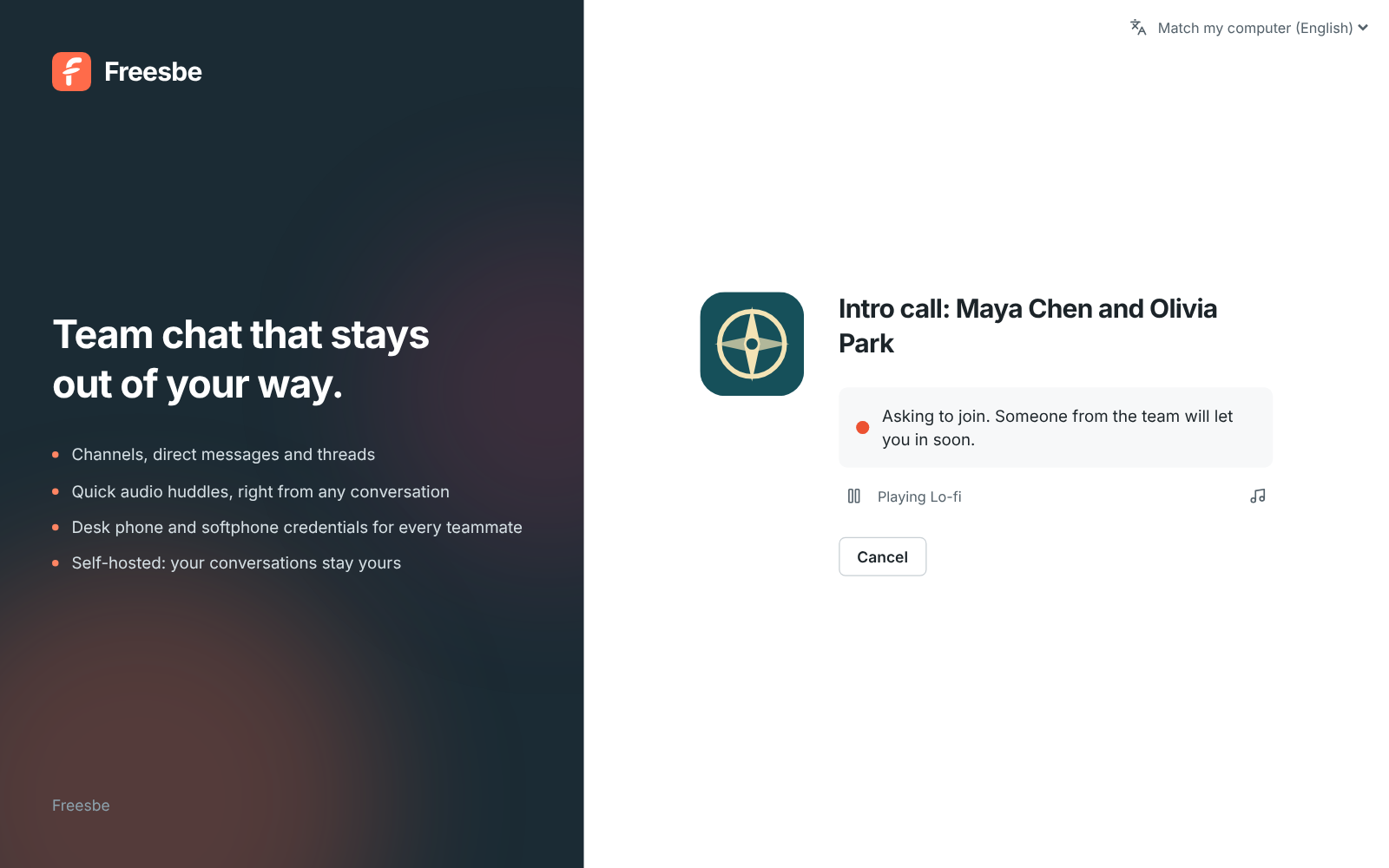
Without a logo, the initials take its place. On a phone, a small logo sits by the workspace’s name, and in right-to-left languages like Hebrew the logo moves to the right.
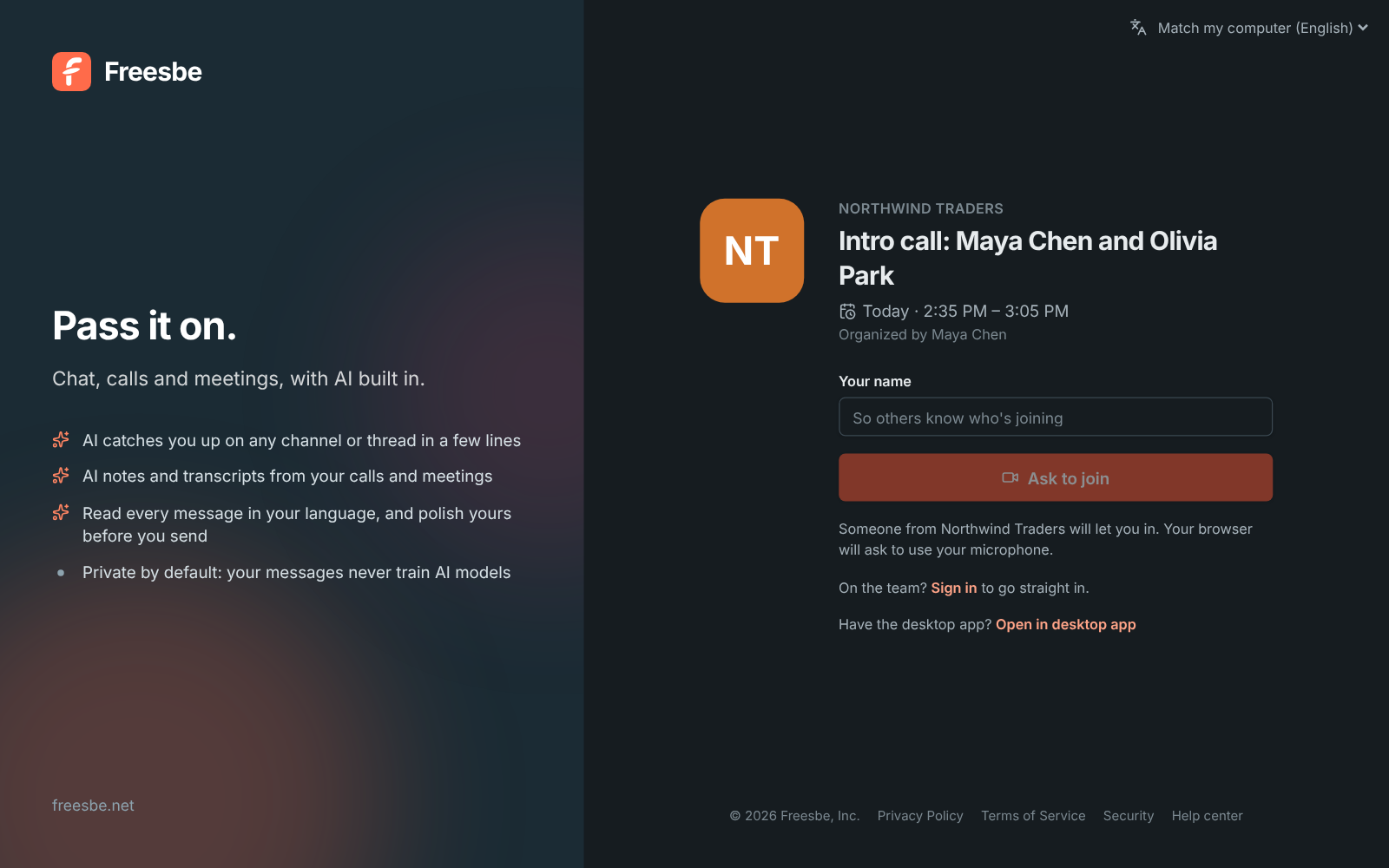
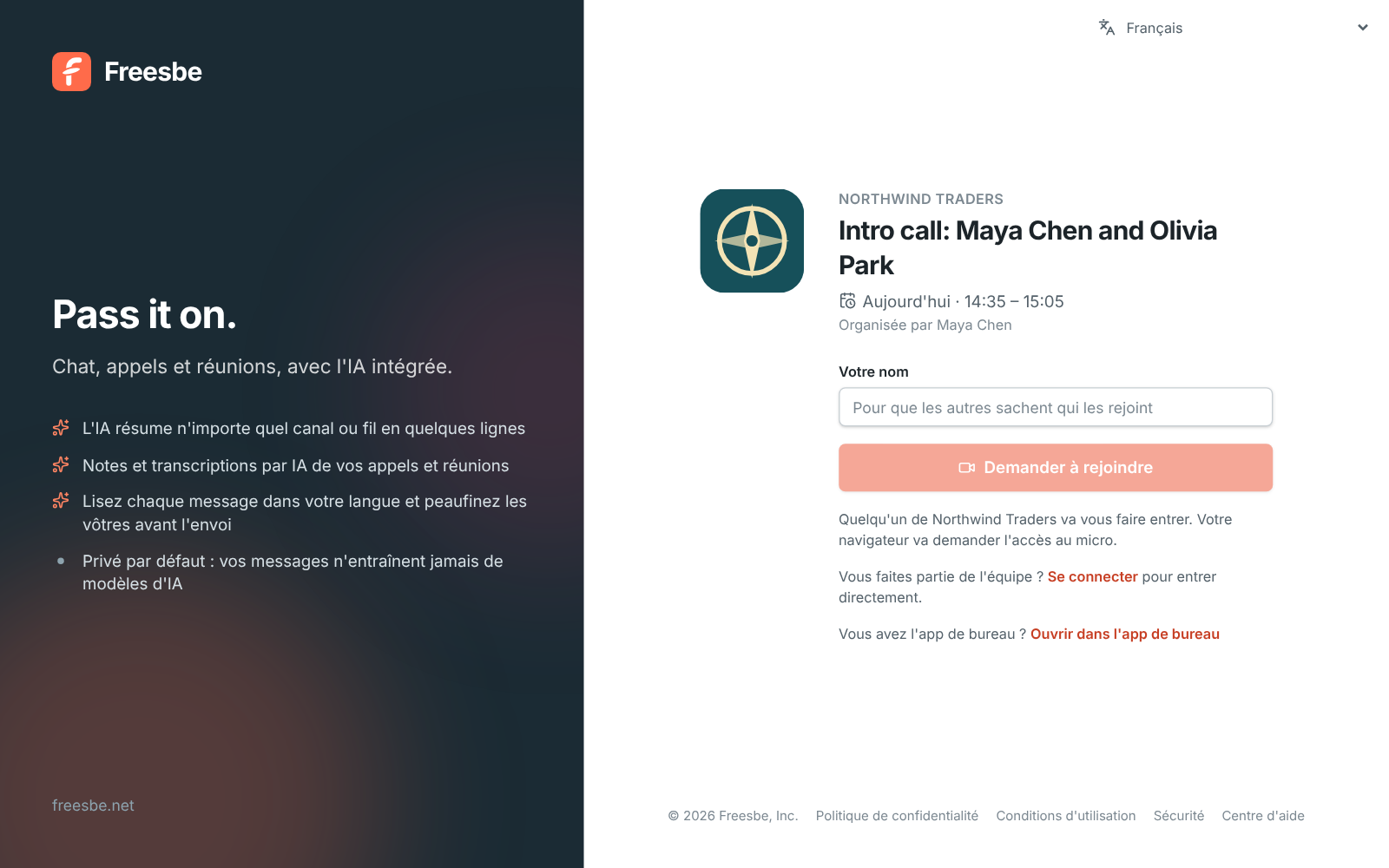
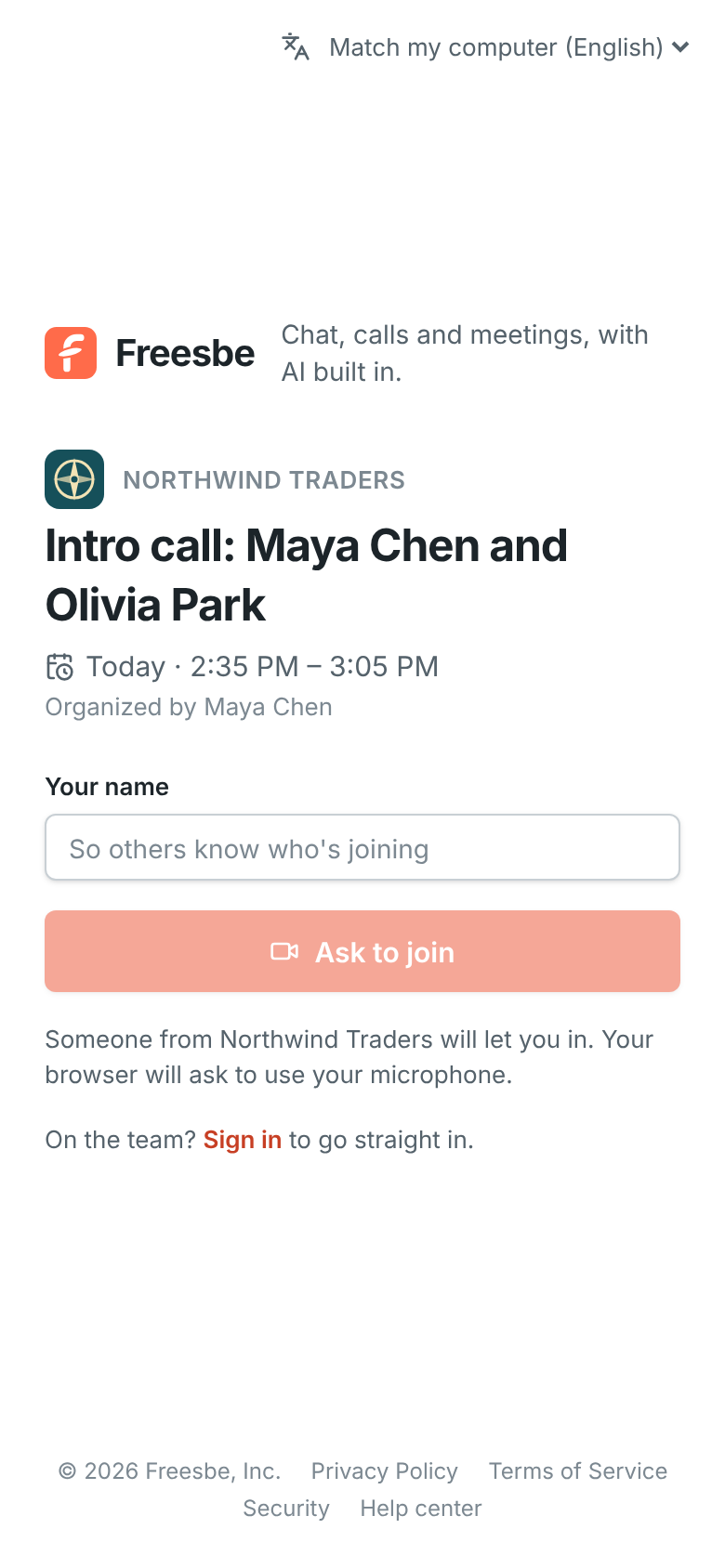
On a computer with the desktop app, the meeting link opens there once your browser has seen you use the app. You can also click Open in desktop app under the join button; Join in browser instead keeps you on the web page.
On a phone with the Freesbe app, the app’s Meetings tab lists
your meetings with a Join button. On Android, a meet.freesbe.net link asks first: Open in
the Freesbe app or Continue in the browser.
On the Corporate and Enterprise plans, guests’ links can use your company’s own address, like
https://meetme.acme.com/m/…. See Custom domains.
When someone shares a meeting link in a channel or a DM, clicking it opens the meeting right where
you are, in the desktop app or in the browser tab you have Freesbe open in, and you join as
yourself. That works for meet.freesbe.net links, older app.freesbe.net/m/… links and links on
your company’s own address.
If that meeting has already ended, was canceled or can’t be found, the page says so with Back to Freesbe under it, which takes you to the meeting’s workspace. The same link sits under the join button when you’d rather not join after all. In the desktop app, which has no Back button, you can also press Alt+← (see Go back).
Music on hold
Section titled “Music on hold”Guests hear soft music while they wait in the lobby, so they know the page is still working. The music stops the moment they’re let in.
- It starts by itself. If the browser holds it back until the guest clicks something, they press Play music.
- Guests can pause it, or pick another track from the music button. Their browser remembers the choice next time.
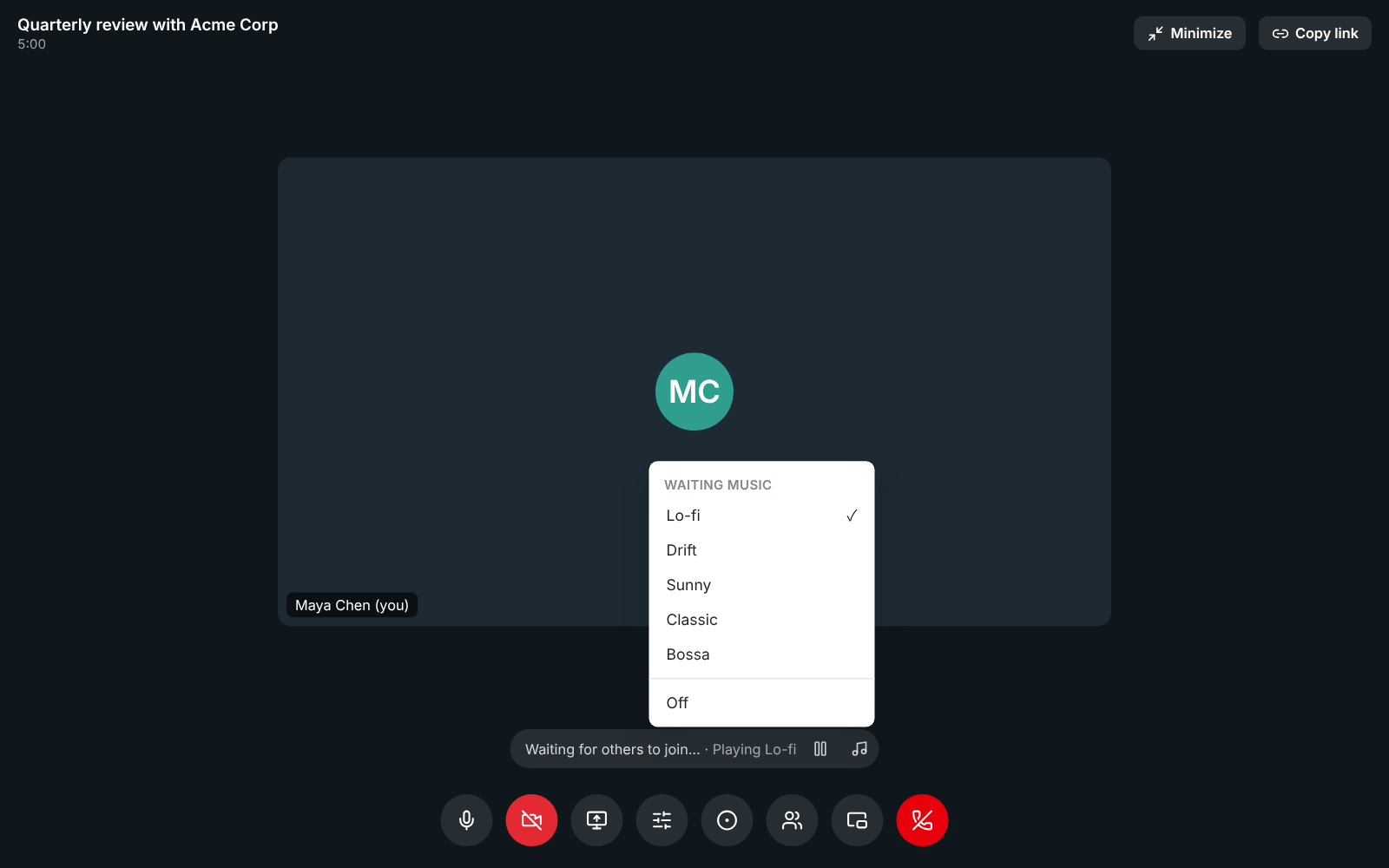
- There are five tracks: Lo-fi, Drift, Sunny, Classic and Bossa. They’re composed in Freesbe itself, the same music that plays while you’re alone in a huddle.
- Admins pick the track guests hear first, or turn the music off, in Workspace settings.
While you’re alone in a meeting
Section titled “While you’re alone in a meeting”The same music plays when you’re the only one in the call: before anyone else joins, or after everyone else has left. It starts after a couple of seconds on your own and stops the moment someone joins. It plays only on your speakers, so it never goes into the call or a recording.
- Under your tile it says Waiting for others to join… and which track is playing. Press Pause music to stop it, and Play music to start it again.
- Pick another track, or Off, from the music button next to it. Your browser remembers the choice, for the lobby too.
- It plays the track your admins picked for the lobby, and not at all when they turned the music off. Huddles do the same while you wait alone (Huddles); calls with one person don’t, since they ring until the other person answers.
Letting people in
Section titled “Letting people in”When someone asks to join, everyone from the workspace in the call sees a banner with Admit and Deny. Open People to see everyone who’s waiting and everyone in the call.
You don’t have to be in the call. While a meeting is open, its row under Meetings shows who is in the call and who is waiting, with Admit and Deny next to each person waiting. The organizer, the teammates the meeting invites and workspace admins can let people in this way.
Waiting room alerts
Section titled “Waiting room alerts”You don’t have to watch the Meetings page to know someone is waiting. When a guest asks to join and nobody from the workspace is in the call, the meeting’s organizer and the teammates it invites hear about it:
- Right away, a card appears in the corner of Freesbe with the guest’s name, the meeting and how long they’ve waited, with Admit, Deny and Join. The app you’re using plays a knock, and shows a desktop notification if Freesbe is in the background.
- After 2 minutes, if they’re still waiting, every Freesbe app you have open knocks again every few seconds and shows a notification, and the mobile app gets a push notification if you aren’t at your computer.
- After 5 minutes, hosts who are away or don’t have Freesbe open get an email. Let them in opens your meetings list, where you click Admit; Join takes you into the call, where you see who’s waiting.
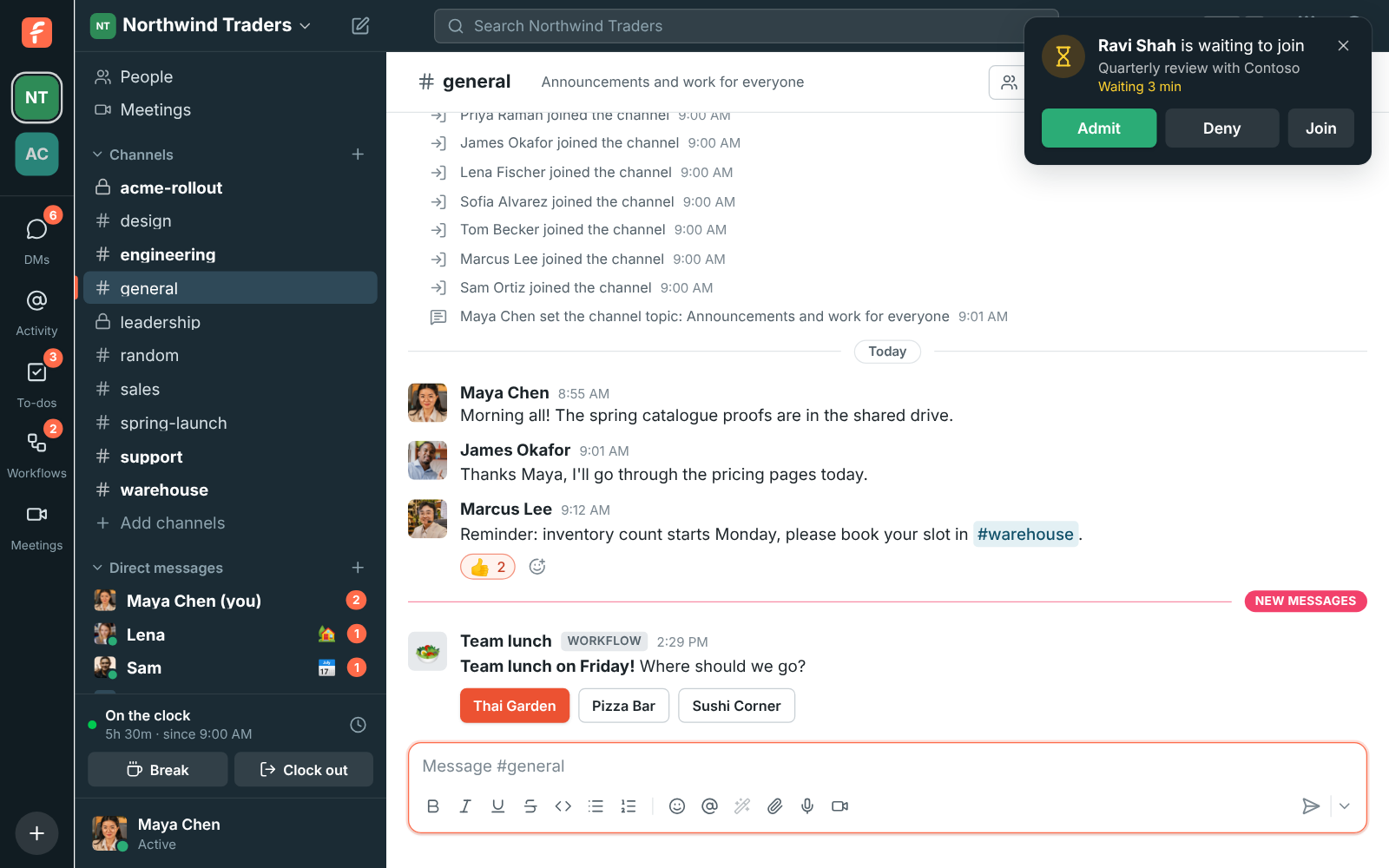
The alerts stop for everyone as soon as one person lets the guest in or turns them away, when the guest gives up, or when someone from the workspace joins the call (they see the lobby there). Closing the card with × only hides it on that device. While you’ve paused notifications, the card shows up without a sound and you don’t get the push or the email.
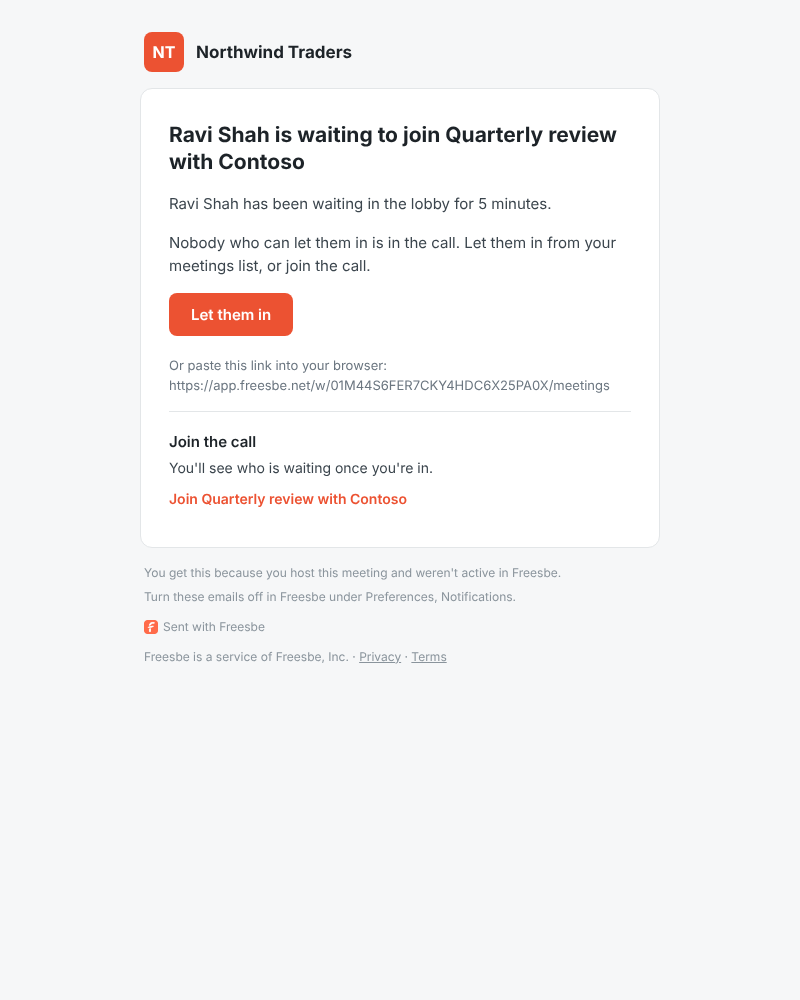
Admins choose the timing for the whole workspace in Workspace settings → Calls & meetings → Waiting room → Waiting room alerts: the louder alert after 1, 2, 3, 5 or 10 minutes, and the email after 5, 10, 15 or 30 minutes, or either one Off. Anyone can turn the email off for themselves in Preferences → Notifications → Meetings.
In the call
Section titled “In the call”The controls are the same as in a huddle: Mute, Turn on camera, Backgrounds and effects, Share screen, Microphone and camera settings, Record the meeting, Send a reaction, Raise hand, People, Chat, Pop out (in a browser) and Leave call. While someone shares their screen, a pencil lets you draw on it. Your camera stays off until you turn it on, unless you previewed it before joining. The settings button also picks the speaker the call plays through and noise cancellation. See Huddles for the floating call window. In a meeting, its More options menu also has Copy joining info, and In-call messages opens the meeting’s chat.
Backgrounds and effects opens a panel beside the tiles with the backgrounds: no effect, a slight blur, a blur, or a picture. Your camera changes as soon as you pick, so you can turn a blur off or swap the picture without leaving the call. Hover over your own tile for the same button there.
Everyone’s tile fits in the window without scrolling. The tiles grow or shrink with the window and with how many people are in the meeting: two people sit side by side, four make a 2×2 grid, and six or nine share the space in rows. Only in a very large meeting in a small window do the tiles stop shrinking and the grid scrolls.
Share screen lights up while you’re sharing; click the same button again to stop. Everyone sees a screen icon next to the name of whoever is sharing, and the shared screen fills the stage, with everyone’s tiles in a narrow column beside it. In the desktop app, a frame goes around the screen or window you share, with a Stop sharing bar at the top: see See what you’re sharing.
Make the shared screen bigger
Section titled “Make the shared screen bigger”While someone shares, Layout at the top of the call picks where everyone else goes:
- Screen and people: the screen fills the stage and people sit in a column beside it. This is where every call starts.
- Screen and a strip: people in a row under the screen.
- Screen only: everyone’s tiles are hidden, so the screen gets the whole stage. Whoever is talking stays small in a corner, so you still see who’s speaking.
People size in the same menu makes everyone’s tiles smaller or bigger. You can also drag the edge of the column, or click the arrows at its top to hide it. Hide people and the full-screen button sit right on the shared screen too, and F puts the screen on your whole monitor (Esc brings it back). Your layout is kept for your next calls in this browser or app; turn off Remember for my next calls to have each call start beside the screen again.
When two people share
Section titled “When two people share”More than one person can share at the same time. Each shared screen gets a tab above the stage, with a live picture of it, and the newest share comes up front with a New badge. Click a tab to see that screen big. When someone starts sharing while you’re watching another screen, a note at the top says so, with a button to go back to the one you were watching. A meeting recording shows the newest share big.
Show both puts every shared screen side by side, so you can compare them; click a tab to go back to one screen.
Draw on a shared screen
Section titled “Draw on a shared screen”Anyone in the call can point at something on a shared screen by drawing on it, guests included. While someone shares, click Draw on the shared screen (the pencil under the call) and draw over the screen with your mouse, trackpad or pen. Everyone sees the line as you draw it, with your name next to it, and it fades away about 2 seconds after you let go. Click the pencil again, or press Esc, to stop drawing and use the screen as usual.
Each person draws in a colour of their own, shown as a dot on the pencil, and keeps it for the whole call, so you can always tell who drew what. Several people can draw at once. Lines stay on the right part of the shared screen whatever size each person’s window is, and the person sharing sees them too: on their own screen in the desktop app, and over their preview of the share in a browser. Nothing drawn is saved or recorded, and the lines go away when the screen stops being shared.
Drawing is on in every meeting. Hosts and co-hosts can click Turn drawing off for everyone next to the pencil to stop it for the rest of the call: lines being drawn disappear, the pencil is greyed out for everyone else, and they see a short note that you turned drawing off. Click it again (Let everyone draw on shared screens) to turn drawing back on. The next call on the same meeting link starts with drawing on again.
The first time you join a call on a new device or browser, it asks to use your microphone. Allow it and your microphone works straight away; there’s no need to reload the page.
Whoever is talking gets a green frame around their tile, drawn just inside its edge so it shows in full on every tile, at any window size.
While their camera is off, members of your workspace show their profile picture on their tile and in People. Guests, and members without a picture, show their initials.
If someone’s sound reaches you choppy, a small signal icon shows next to their name on their tile. On your own tile, it means the call is losing some of your sound on the way out. See Call quality, which works the same in meetings, guests included.
When your own connection stays weak, the meeting keeps the sound first: other people’s cameras pause and their pictures show instead, your camera is sent smaller and your sound a little leaner. Shared screens keep showing. A note above the controls says why; click Show video anyway to bring the cameras back for the rest of the meeting. Once your connection has been fine for half a minute, everything comes back by itself.
Everyone at the same volume
Section titled “Everyone at the same volume”Freesbe evens out voices: someone on a quiet laptop microphone is turned up and someone close to their headset turned down, so everyone sounds about as loud. Recordings and transcripts get the same even levels. To hear one person louder or quieter, right-click their tile and drag the slider, from 0% to 200%. Freesbe remembers it for that person on this device, in meetings and huddles. Turn the leveling off with Even out voices in Preferences → Calls & audio → Audio.
If someone can’t be heard, open Microphone and camera settings and click Copy call details. See If you can’t hear or be heard.
Reactions and raised hands
Section titled “Reactions and raised hands”Click Send a reaction (the smiley under the call) to open the reaction bar, and tap an emoji. The bar floats just above the call buttons, so the video stays where it is. The emoji are 💖 👍 🎉 👏 😂 😮 😢 🤔 and 👎. Everyone in the call sees it, guests included: it rises from the bottom corner of the call with your name under it, and pops up on your tile for a few seconds so people can see whose it was. When the window is narrow, the bar scrolls: use the arrows at its ends. Click the smiley again to put the bar away.
Each emoji moves its own way while it rises: the heart beats, the thumbs up pumps, the party popper bursts open, the hands clap, the laughing face shakes, the surprised face gasps, the crying face droops, the thinking face tilts its head and the thumbs down dips. If you’ve turned on reduced motion on your computer or phone, reactions don’t move: they line up in the corner, then fade.
The round button beside the bar picks your skin tone for 👍 👏 and 👎. Freesbe remembers it on this device, for meetings and huddles.
Reactions aren’t saved or recorded, and a burst of taps is spaced out: after a handful in a few seconds, the rest are dropped until you slow down.
When someone joins the meeting, member or guest, everyone else hears a soft chime, and a quieter one when someone leaves. Meetings of more than 8 people stay quiet, and a few people arriving together make one chime. To turn it off, use Play a sound when someone joins or leaves in Preferences → Calls & audio → Audio.
Raise hand puts a ✋ on your tile and tells the others that you’d like to speak, without interrupting. Everyone else hears a soft chime, at most once every 10 seconds however many hands go up, and you never hear one for your own. Raised hands go to the top of People, in the order they went up. Click it again (Lower hand) when you’re done. To stop the chime, turn off Play a sound when someone raises a hand in Preferences → Calls & audio → Audio. Hosts and co-hosts can lower anyone’s hand from People by clicking the ✋ next to them.
Meeting chat
Section titled “Meeting chat”Click Chat in the call to write to everyone in it and share files. Guests from outside the workspace can use it too, as soon as they’re let in.
- Type a message and press Enter to send it (Shift+Enter starts a new line). Links open in a new tab.
- To share a file, click the paperclip, drop files on the chat, or paste a picture. Files can be up to the same size as in channels. Guests follow the workspace’s file type rules for guests, and people in the workspace follow the rules for members.
- Anyone who joins later, or reloads the page, sees everything written so far.
- While the chat is closed, new messages show up briefly at the bottom of the screen and as a count on Chat. When you’ve minimized the meeting, the chat button on the corner card shows the count and opens the meeting with the chat showing.
Read the chat after the meeting
Section titled “Read the chat after the meeting”The chat is kept with the meeting. Under Meetings, a meeting whose chat has messages shows Chat with how many there are: click it to read what was said and open the files. If the meeting was recorded, the recording’s page shows the chat under the notes too.
People in the workspace can read it afterwards if they organized the meeting, were invited to it, were in the call, or can see its recording. Owners and admins can read every meeting’s chat. Guests from outside see the chat only while they’re in the call.
Move a meeting to another device
Section titled “Move a meeting to another device”You can switch devices in the middle of a meeting. Open the meeting’s link, or Meetings, on the other device: it says You’re in this meeting on your phone (or in the desktop app, or in a browser) and the button reads Join here. Join and the call moves to this device, and the one you left shows You moved this meeting to another device, with a button to bring it back.
The others see you in the call once, not twice. Moving works for people in the workspace who are signed in on both devices.
Record a meeting
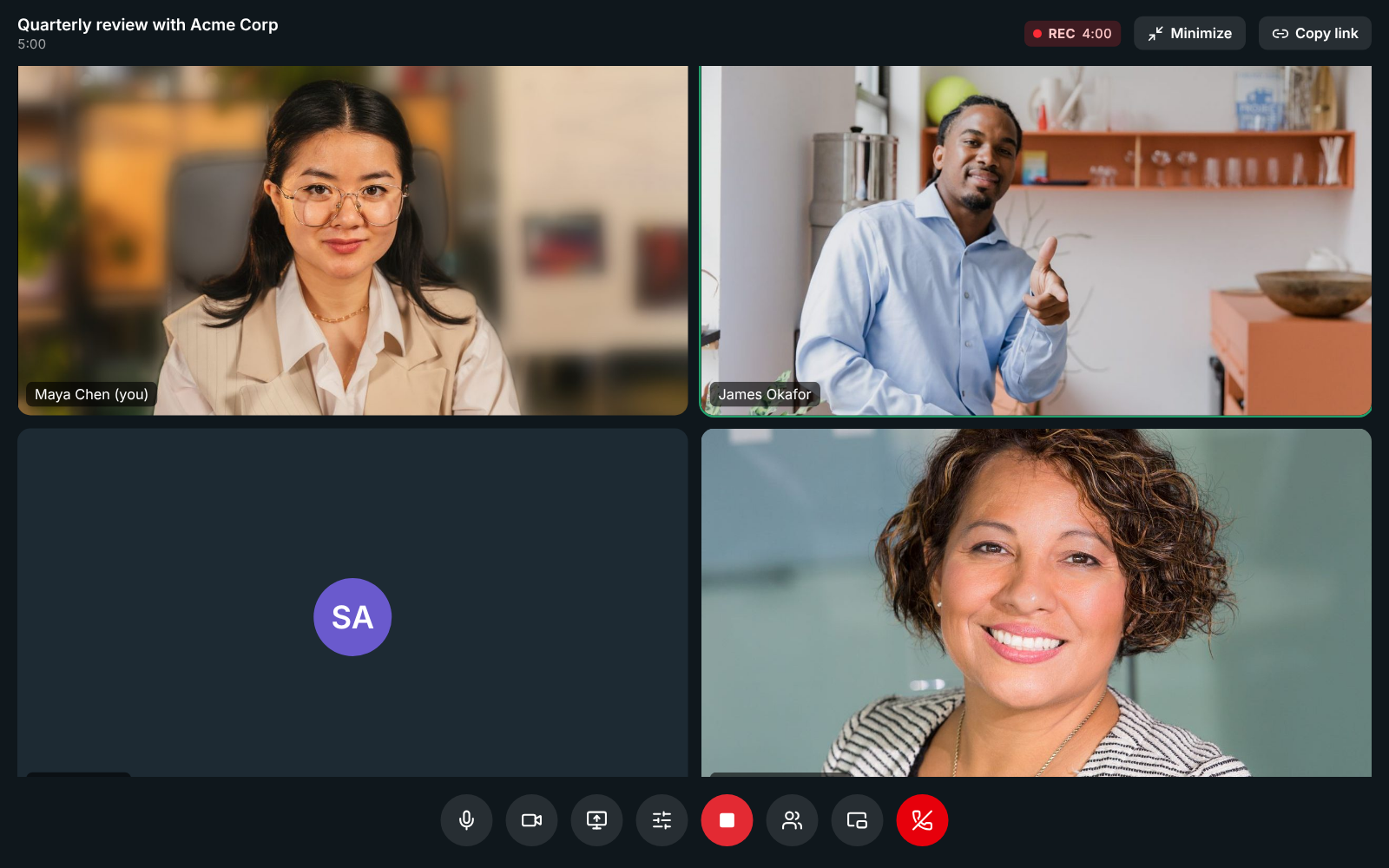
Section titled “Record a meeting”Anyone from the workspace in the call can click Record the meeting, unless an admin allows only hosts and co-hosts. Everyone hears a tone and sees a red REC badge. By default, the person recording, the meeting’s hosts (its organizer and the people it invites), co-hosts, and owners and admins can stop it. Hosts make someone a co-host from People: click … next to them and choose Make co-host. See Who can start and stop recordings. The recording is kept with the meeting, under Meetings → Recordings, with a transcript and AI notes: a summary, decisions and action items. See Recordings, transcripts and notes. Share on the recording sends it to teammates who weren’t there and, if an admin allows it, to people outside the workspace by a private link; guests who joined with their invite link can be emailed theirs automatically. See Share a recording.
Chat while you’re in a meeting
Section titled “Chat while you’re in a meeting”If you’re on the team, you can keep using Freesbe during a meeting. Click Minimize at the top of the call: the meeting shrinks to a small card in the corner and you’re back in your channels and DMs, still in the call. Going back in your browser or picking a channel does the same.
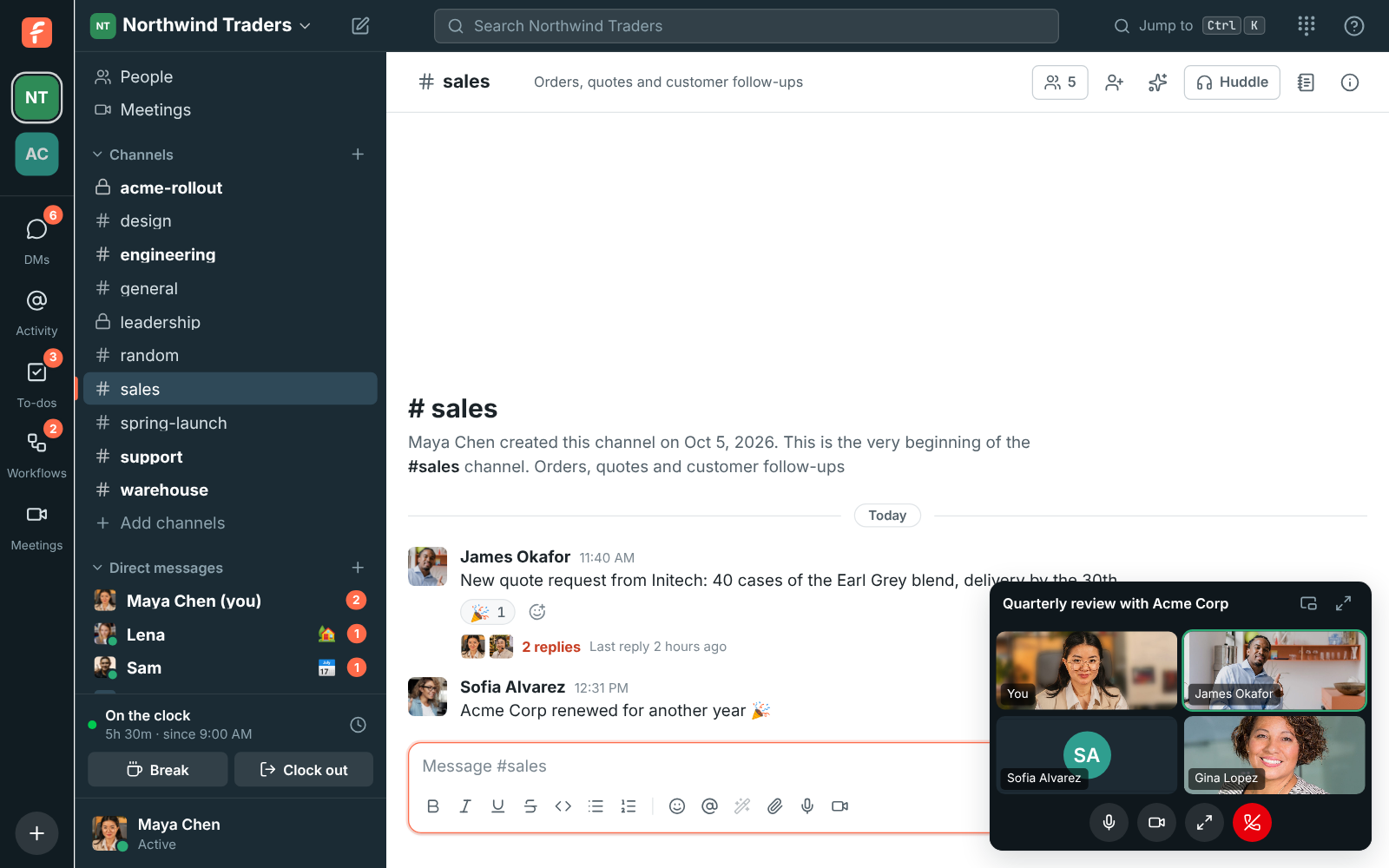
The card shows who’s talking and has Mute, Turn on camera, Back to the call and Leave call. Drag it by its title to move it. To see the whole meeting again, click Maximize: the meeting fills the window again, as it was before you minimized it. The card’s Chat button does the same with the meeting’s chat open.
Undock the meeting into its own window
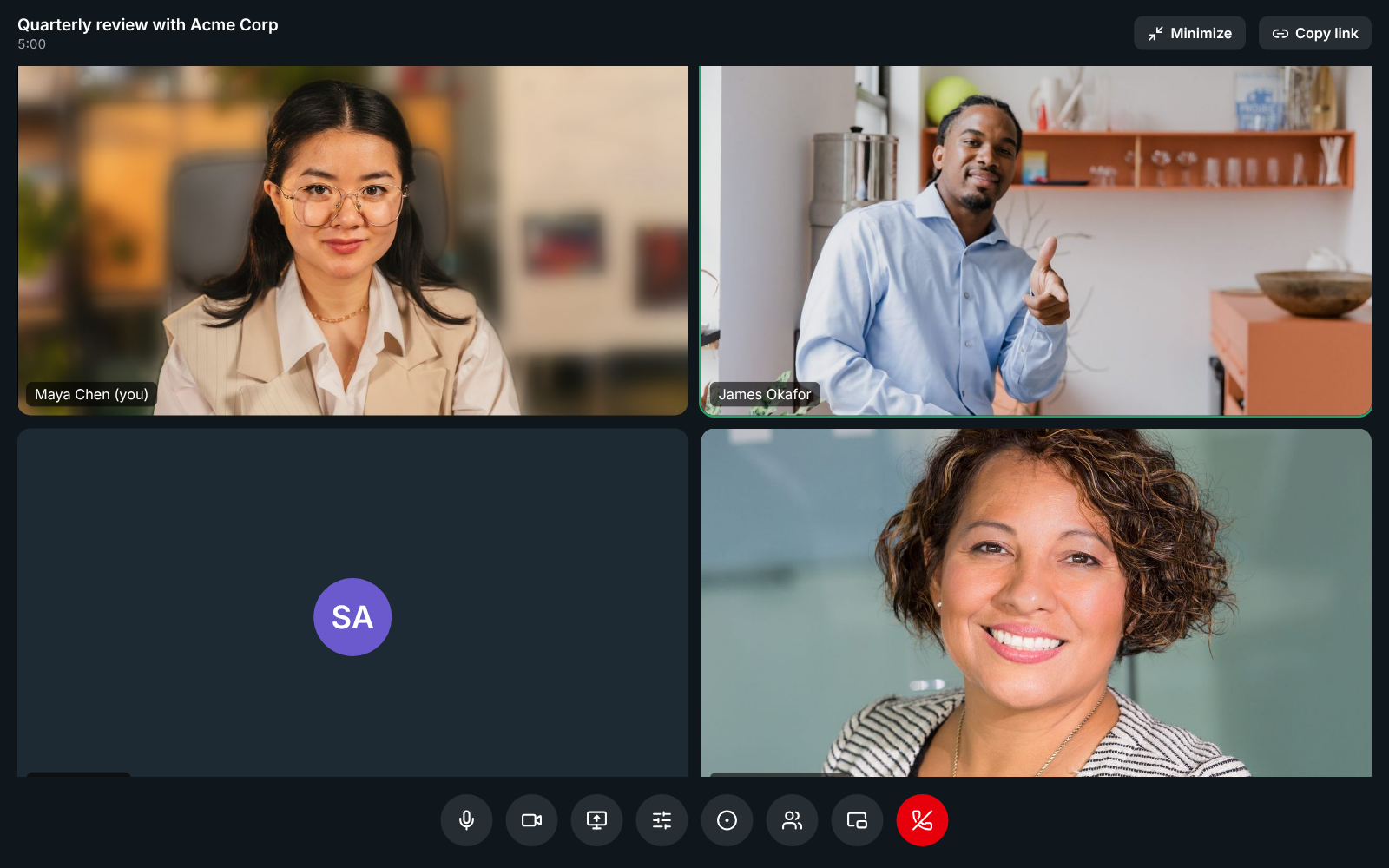
Section titled “Undock the meeting into its own window”To watch the meeting and work in Freesbe side by side, click Undock at the top of the call. The meeting moves to a window of its own that you can resize, maximize, or put on another screen, and Freesbe’s window goes back to your channels and DMs. You stay in the call the whole time.
In the meeting’s window, Dock puts the meeting back in Freesbe’s window, filling it, and Minimize shrinks it to the card in the corner. Closing the window does the same as Minimize: it doesn’t take you out of the call. In a browser, allow pop-ups for Freesbe if the window doesn’t open. In the desktop app, undocking needs version 0.1.12 or later.
Guests don’t have the rest of the app, so for them the meeting stays a full page. Closing or reloading the tab still asks first, because it takes you out of the call.
Answers come from the Freesbe guides and are written by AI, so check the linked guide before relying on one. Please don't include personal details such as emails or passwords.