Before and after, your call
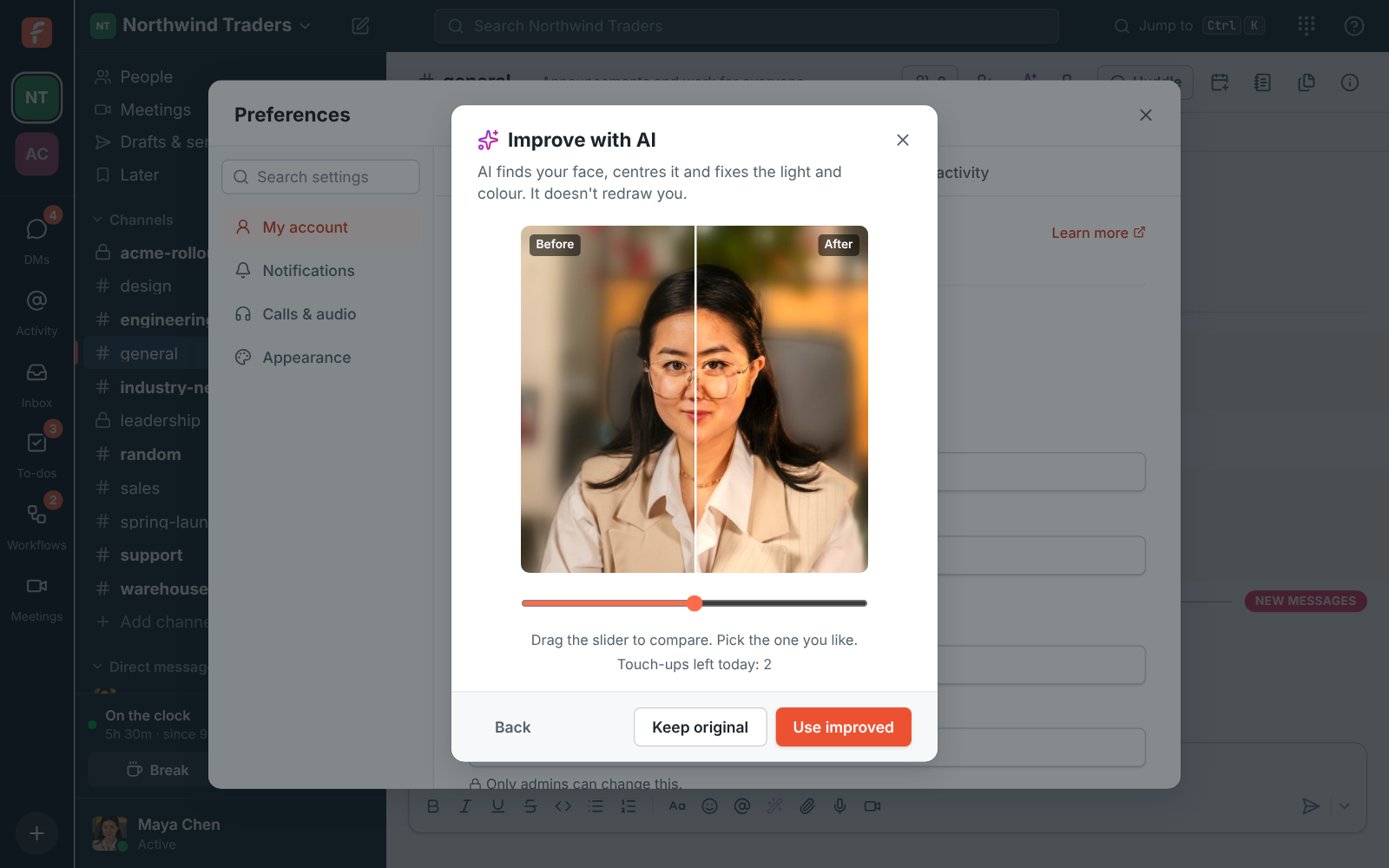
In the crop step, click Improve with AI. It finds your face, centres it, fixes the light and colour, a dark or backlit face, a washed out or too-blue photo, and can soften a busy background a little. Drag the slider to compare before and after, then click Use improved or Keep original. Back returns to cropping. It only works on a photo of a person with their face showing; a logo, a drawing or a pet is turned away and you can still keep it as it is.