Freesbe

Trust

All plans

Sign in your way, on every device.

Freesbe signs you in with an email and password, a code it emails you, your Google, Microsoft or Apple account, a passkey, or just your phone: you tap the number it shows and confirm with your fingerprint or face. Scan a QR code to sign the phone app in with nothing to type, and see every open session.

  • Keep several ways on one account and use whichever is handy.
  • Sign in with no password at all, from your phone.
  • Use Apple's Hide My Email and keep your address private.
  • See where you're signed in and sign out a device you don't recognize.

For Everyone who signs in, and the admins who field the password questions.

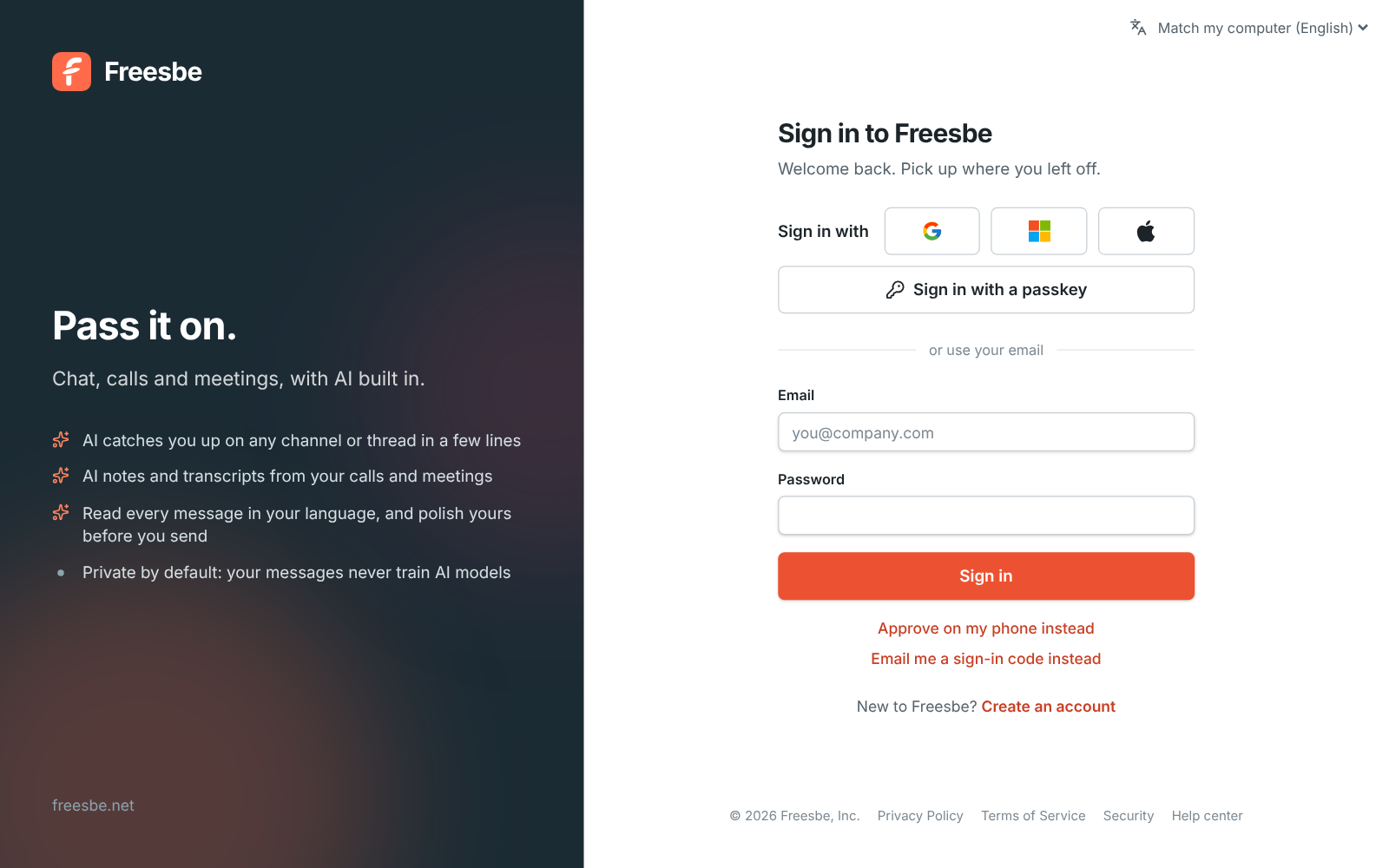
The Freesbe sign-in page: Sign in with and the Google, Microsoft and Apple logos, a passkey, password and emailed code options

Pick a provider, a passkey or a code

On the sign-in page: email and password; Email me a sign-in code instead, a six-digit code that lasts ten minutes; Sign in with Google, Microsoft or Apple by clicking the logo; a passkey, which is your fingerprint, face or device PIN; or Approve on my phone instead. The first time you continue with a provider, Freesbe links it to the account with the same email address, as long as the provider confirms it, and the link holds after that.
The sign-in page with the provider logos above the email form

Sign in with Apple, with Hide My Email

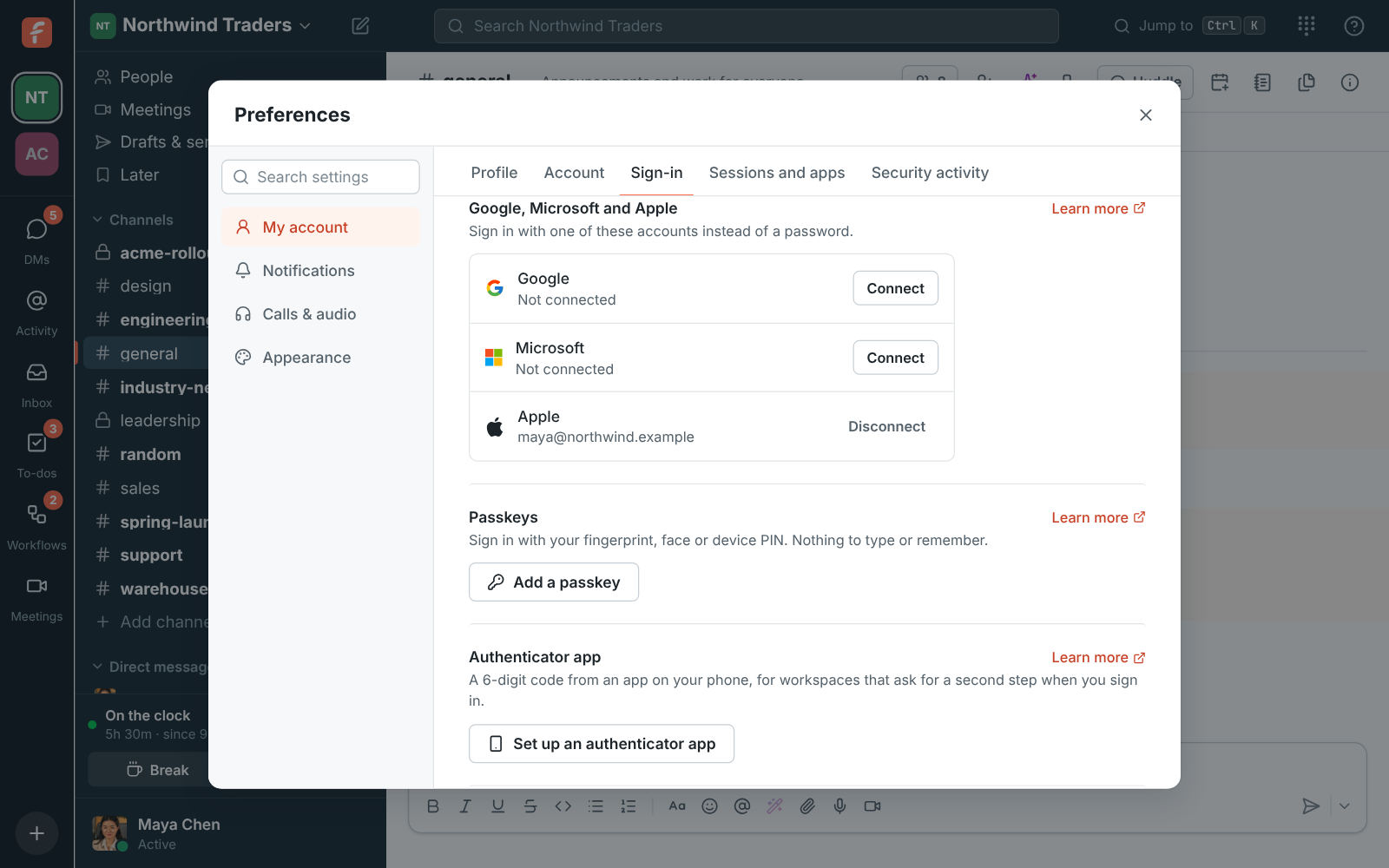
The Apple logo signs you in with your Apple ID on the web, in the desktop app and in the mobile app, confirmed with Face ID or Touch ID. The first time, Apple lets you share your real address or hide it behind a private one that forwards to your inbox. Apple only lets Apple IDs with two-factor authentication sign in this way, so it counts as your second step in workspaces that require one. To use Apple with an existing account, connect it from Preferences first.

Preferences, Sign-in: Google and Microsoft not connected, Apple connected with a Disconnect button

See it on your own team's data.

Start free with up to 10 people and try it today, or book a 20-minute demo with the people who make Freesbe.

Just your phone, no password

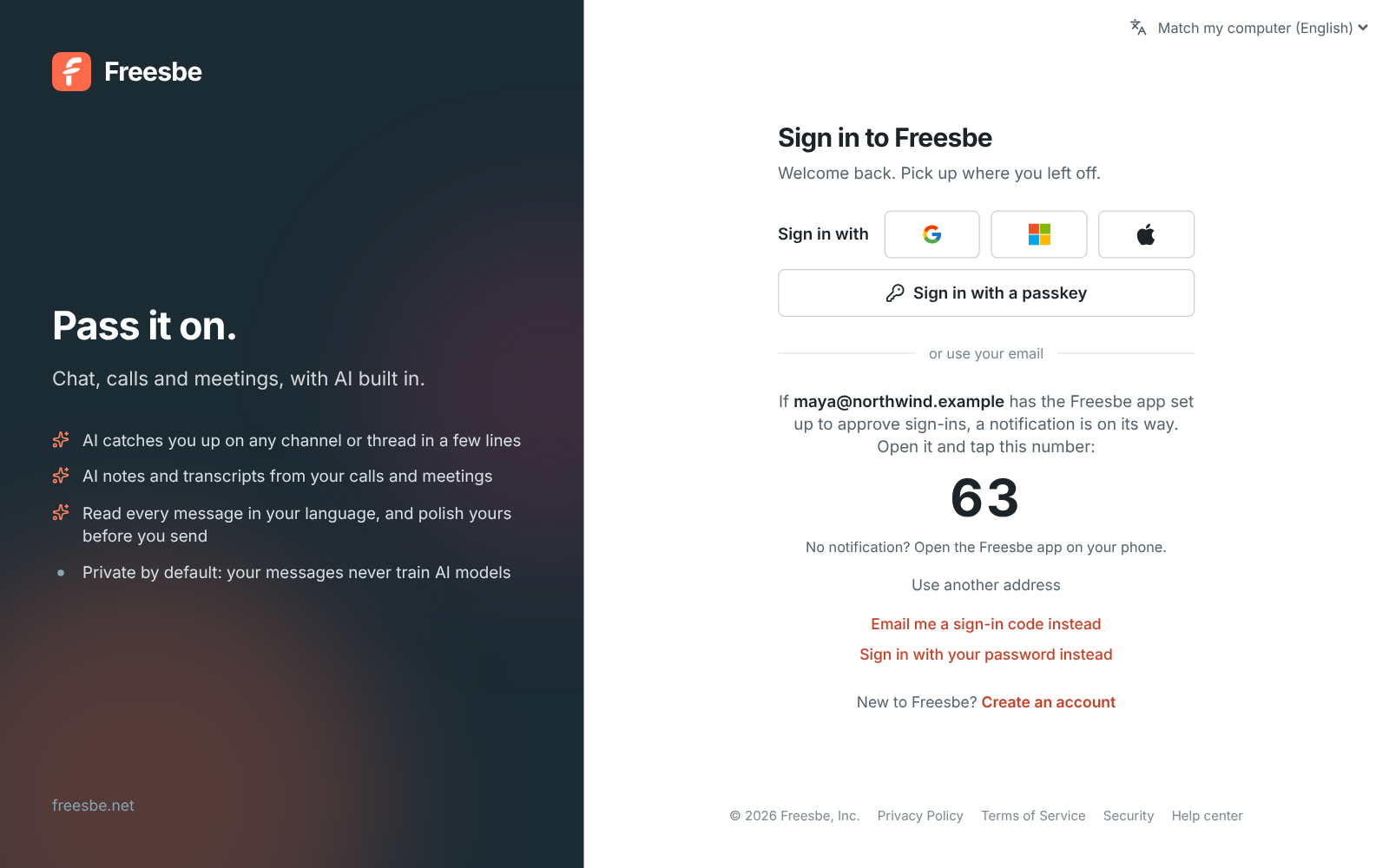
Once your phone approves sign-ins, click Approve on my phone instead, type your email and click Send to my phone. The page shows a two-digit number; tap it on your phone, confirm with your fingerprint or face, and the page signs you in. Your phone already proved it's you twice over, so this counts as the second step too, and workspaces that require one let you straight in. Tap Deny on a request you didn't start, and phone approval pauses for 15 minutes.

The sign-in page showing the number 63 to tap on your phone

Scan to sign in the phone app

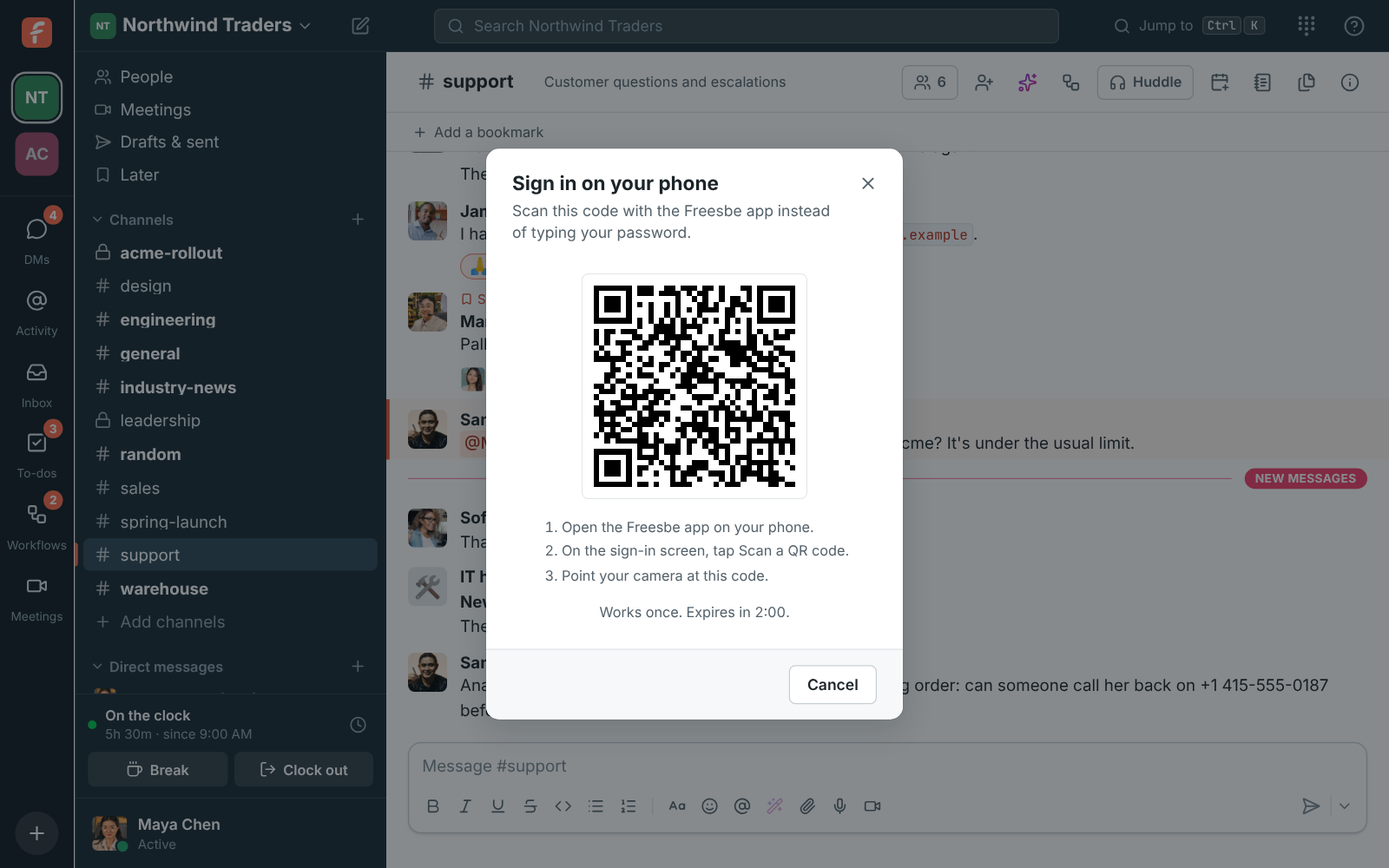
Choose Sign in on your phone in your account menu on the computer and scan the QR code with the Freesbe app: the phone signs in with nothing to type. The code works once and expires in under two minutes. Google, Microsoft, Apple and your company's single sign-on open in a sign-in sheet inside the app and bring you back signed in, and your workspace's second-step rules apply on your phone too.

The Sign in on your phone dialog with a QR code that works once and expires in under two minutes

See every session, sign one out

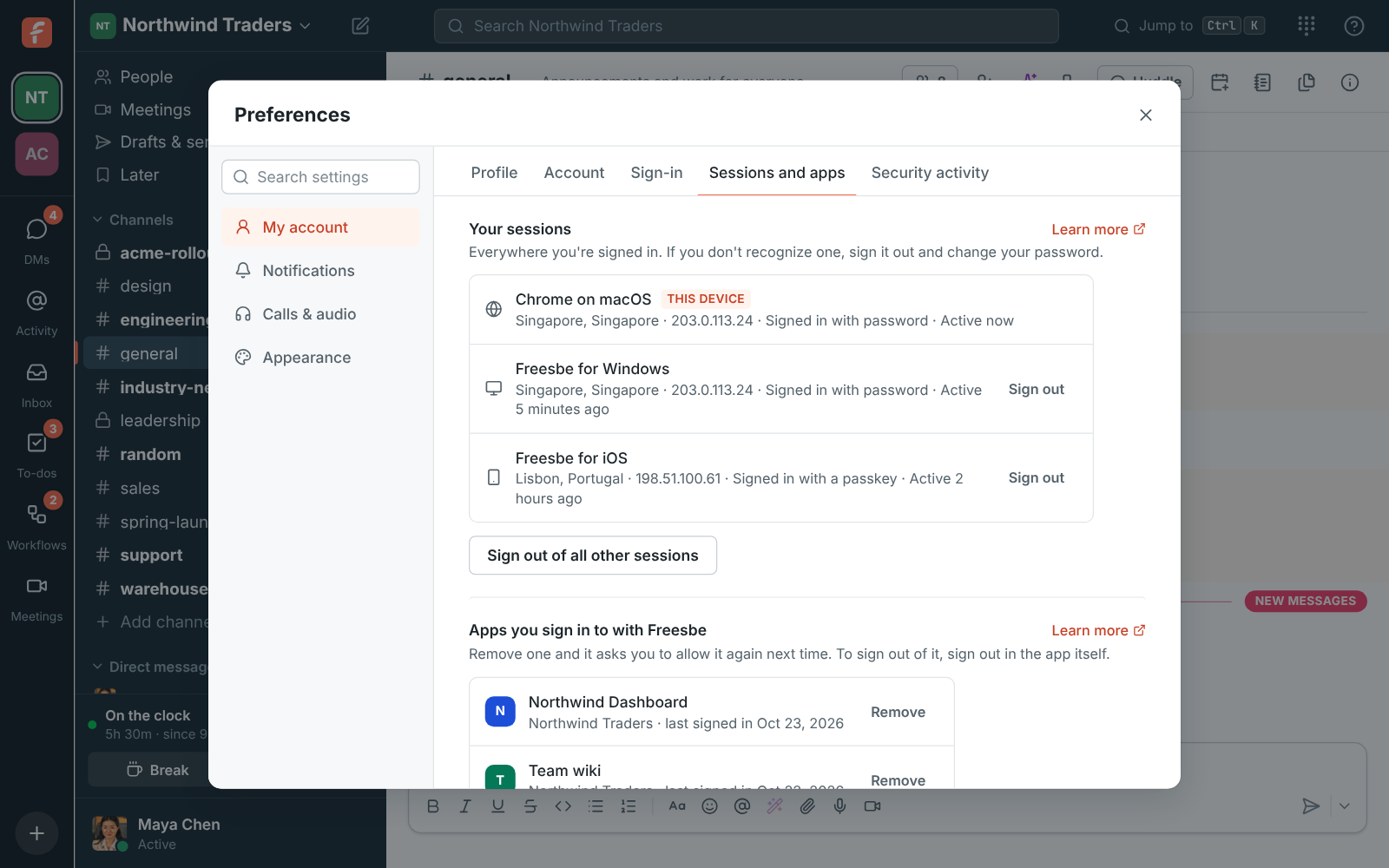
Your sessions lists everywhere you're signed in: the desktop app or the browser and system, roughly where it signed in from, how it signed in and when it was last used, with the one you're using marked This device. Sign out any one of them, or everything but this one. Changing your password signs you out everywhere else, and Security activity goes further back, with every sign-in and wrong password over the last year.

Your sessions: Chrome on macOS (this device), Freesbe for Windows and Safari on iOS, each with a Sign out button

Plans and pricing

Sign in with Google, Microsoft, Apple or a code is included in every plan, including Free.

  • FreeUp to 10 people
  • BusinessUp to 500 people
  • CorporateUp to 2,500 people
  • EnterpriseOver 2,500 people

Questions

Which plan includes this?
Every way to sign in works on every plan, including Free. Workspaces on Corporate and Enterprise can require Google or Microsoft for everyone.
Can I use more than one?
Yes. Keep a password, a passkey, a provider and your phone on one account and use whichever is handy. You can disconnect a provider as long as you have another way in.
Does Apple work where single sign-on is required?
No. An Apple ID is a personal account no company manages, so those workspaces ask you to continue with Google or Microsoft. Apple does count as a second step where MFA is required.
I forgot my password.
Choose Email me a sign-in code instead, sign in with the code, then set a new password under Preferences, My account, Account.

Try all of it free with up to 10 people.

No card, no time limit. Invite your team and see what sticks.