Freesbe

Run the team

All plans

Hours and calls, totaled, filtered, downloaded.

Reports is a section of the Admin Center for owners and admins. Hours shows the time people recorded with the punch clock: hours worked, overtime, breaks and shifts edited after the fact, for any dates and people, grouped by person, day or week. Call center shows how your queues and the people in them did. Both download as CSV.

  • Payroll gets this month's hours and overtime as a CSV in decimal hours, ready to import.
  • Overtime only shows just the people and days that went over, nothing else.
  • Edited shifts are counted and every change has a reason in its history.
  • Call queues report answered, missed, service level and wait, per queue or per person.

For Owners, office managers and supervisors who run payroll or a call queue.

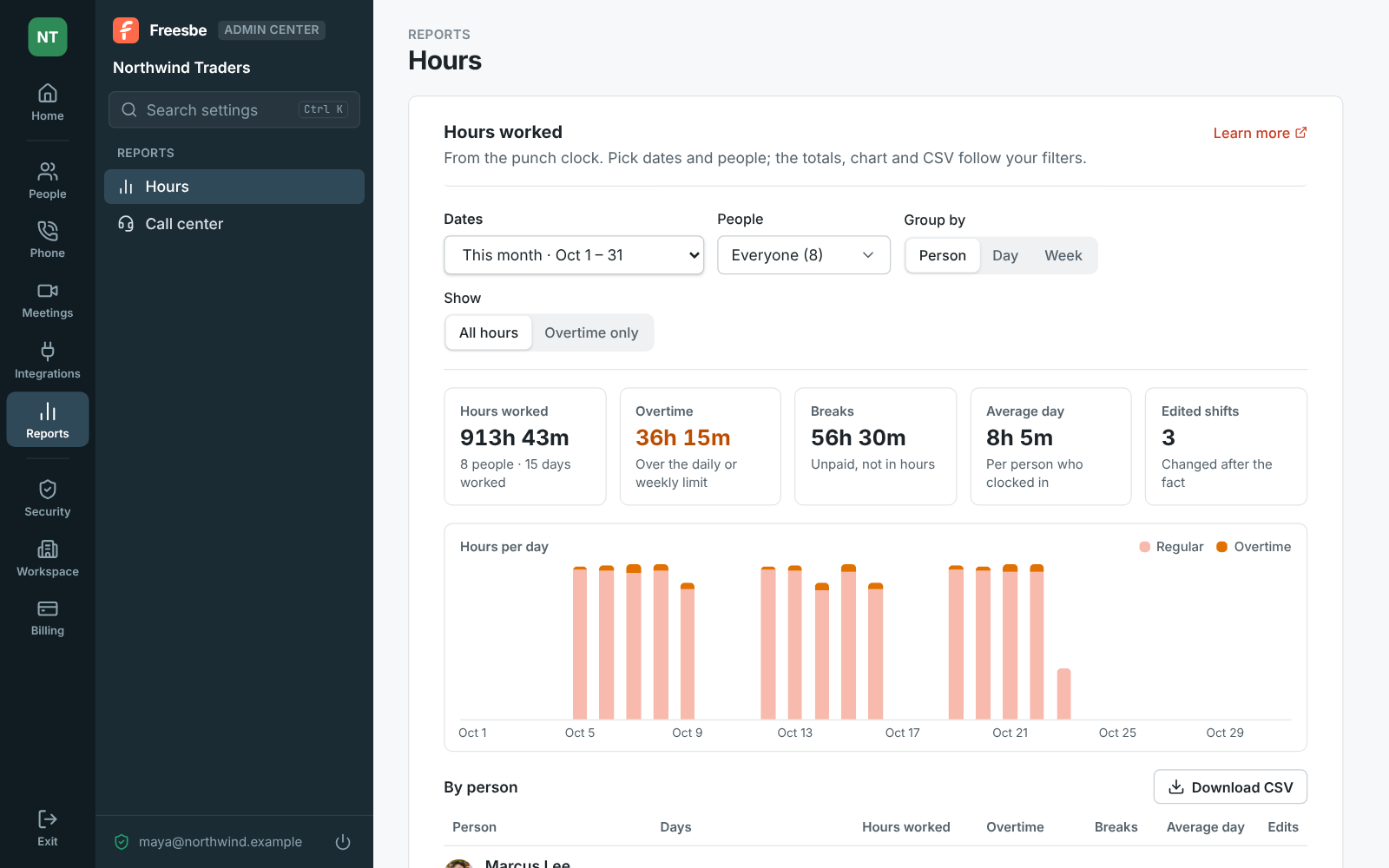
Reports, Hours: filters, totals for the month and hours per day

This month's hours at a glance

Hours starts with totals for the dates and people you picked: hours worked, with breaks when they're paid; overtime past the daily or weekly limit set in the punch clock; breaks; the average day for each person who clocked in; and edited shifts, the ones someone changed after the fact. Under them, Hours per day shows each day's regular time and overtime, so a heavy week stands out.
Reports, Hours: totals for the month and a chart of hours per day

Any dates, any people, grouped your way

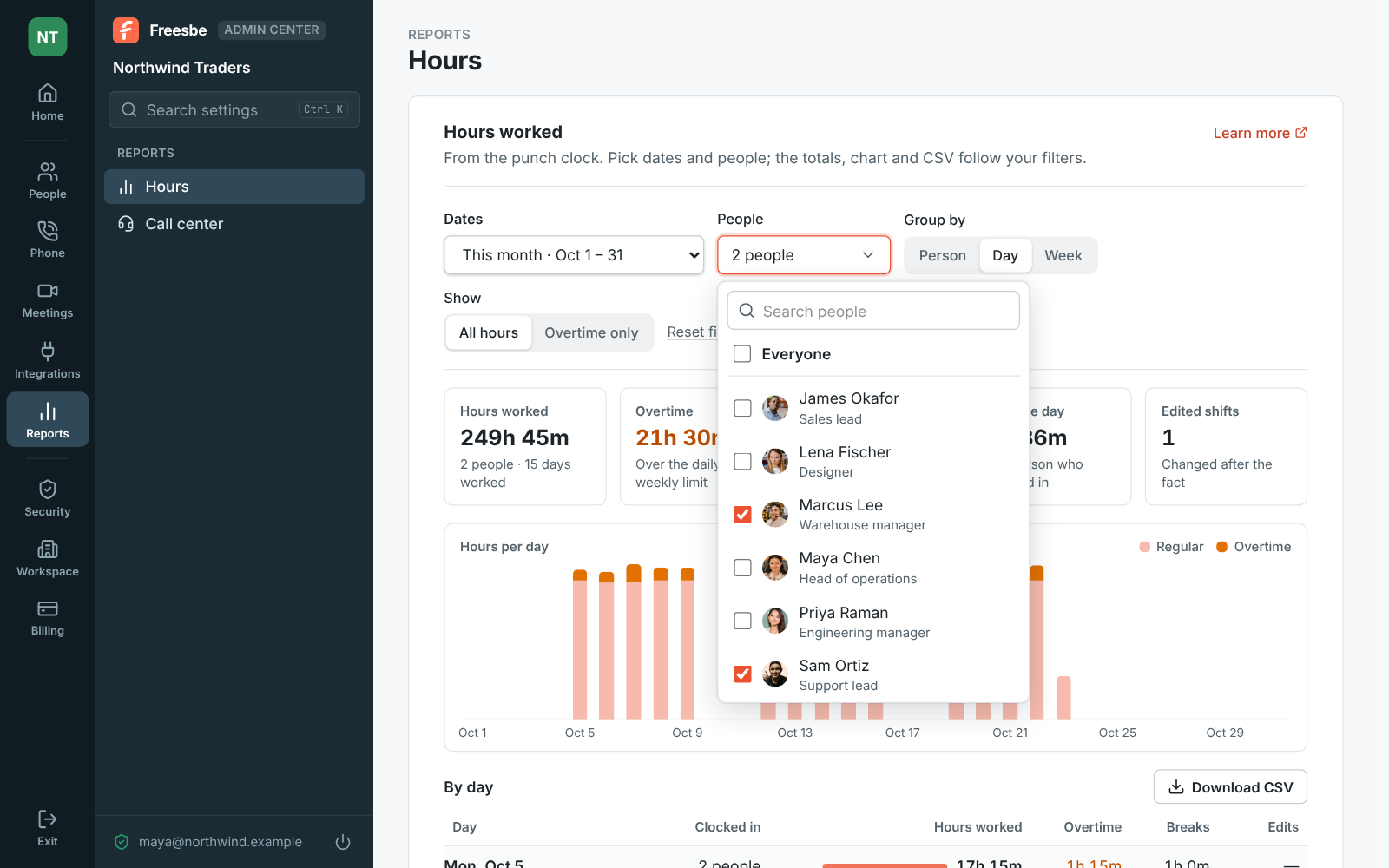
Pick this week, last week, this month, last month or custom dates up to 93 days. Tick the people you want, or everyone the punch clock covers. Group one row per person, per day with each person's clock-in and clock-out times, or per week. Show Overtime only for just the people and days that went over. Reset filters goes back to this month, everyone, by person.

Reports, Hours grouped by day for two people, with the people picker open

See it on your own team's data.

Start free with up to 10 people and try it today, or book a 20-minute demo with the people who make Freesbe.

A table that opens the timesheet

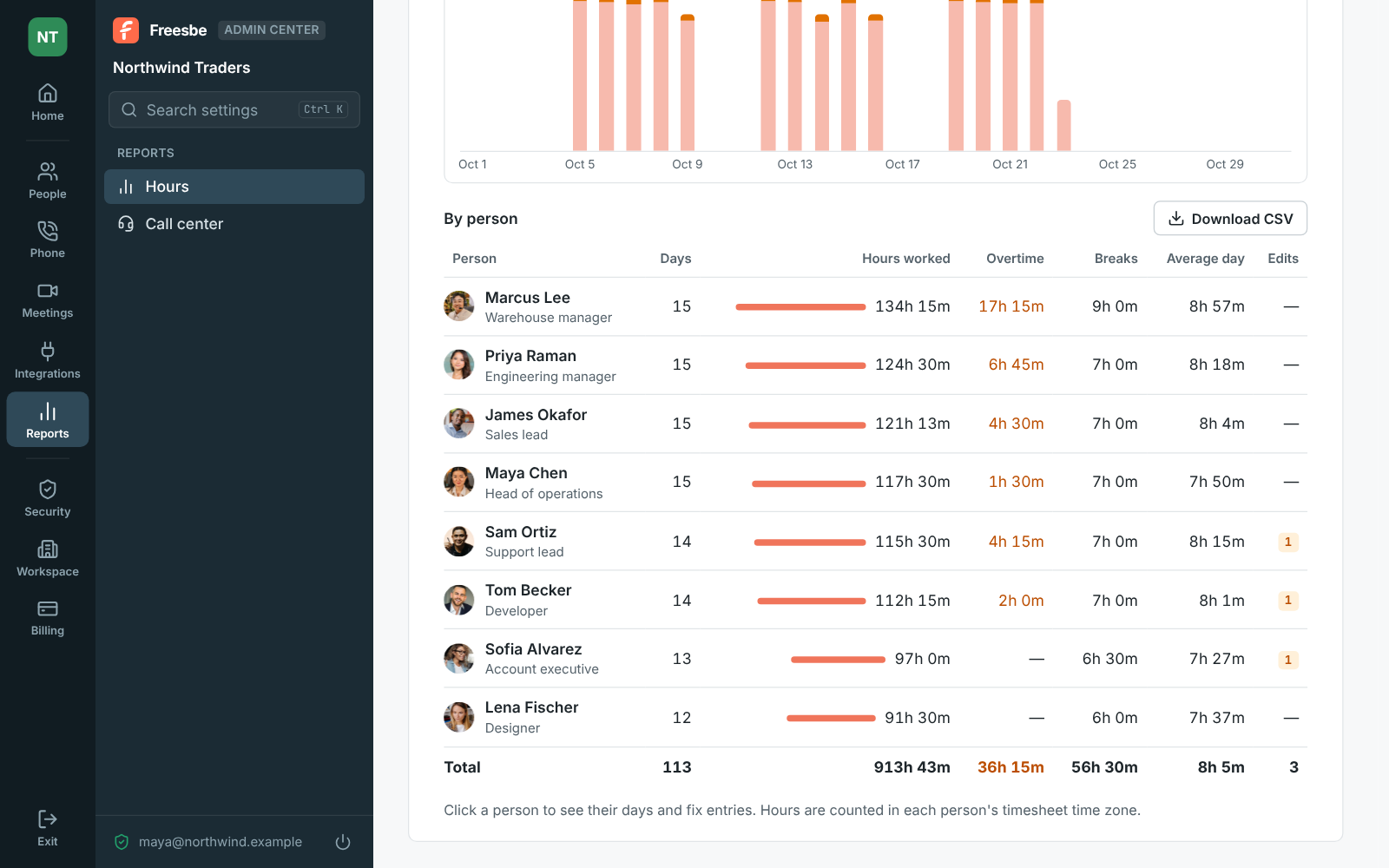
Grouped by person, the table lists each person's days worked, hours, overtime, breaks, average day and edited shifts, with a total at the bottom. Click a person to open their timesheet and fix an entry; every change needs a reason and shows in the entry's history. Download CSV saves exactly what the table shows, same filters and grouping, with a total row and decimal hours, so 7.50 is seven and a half.

Reports, Hours: the table by person with a total row

How your call queues did

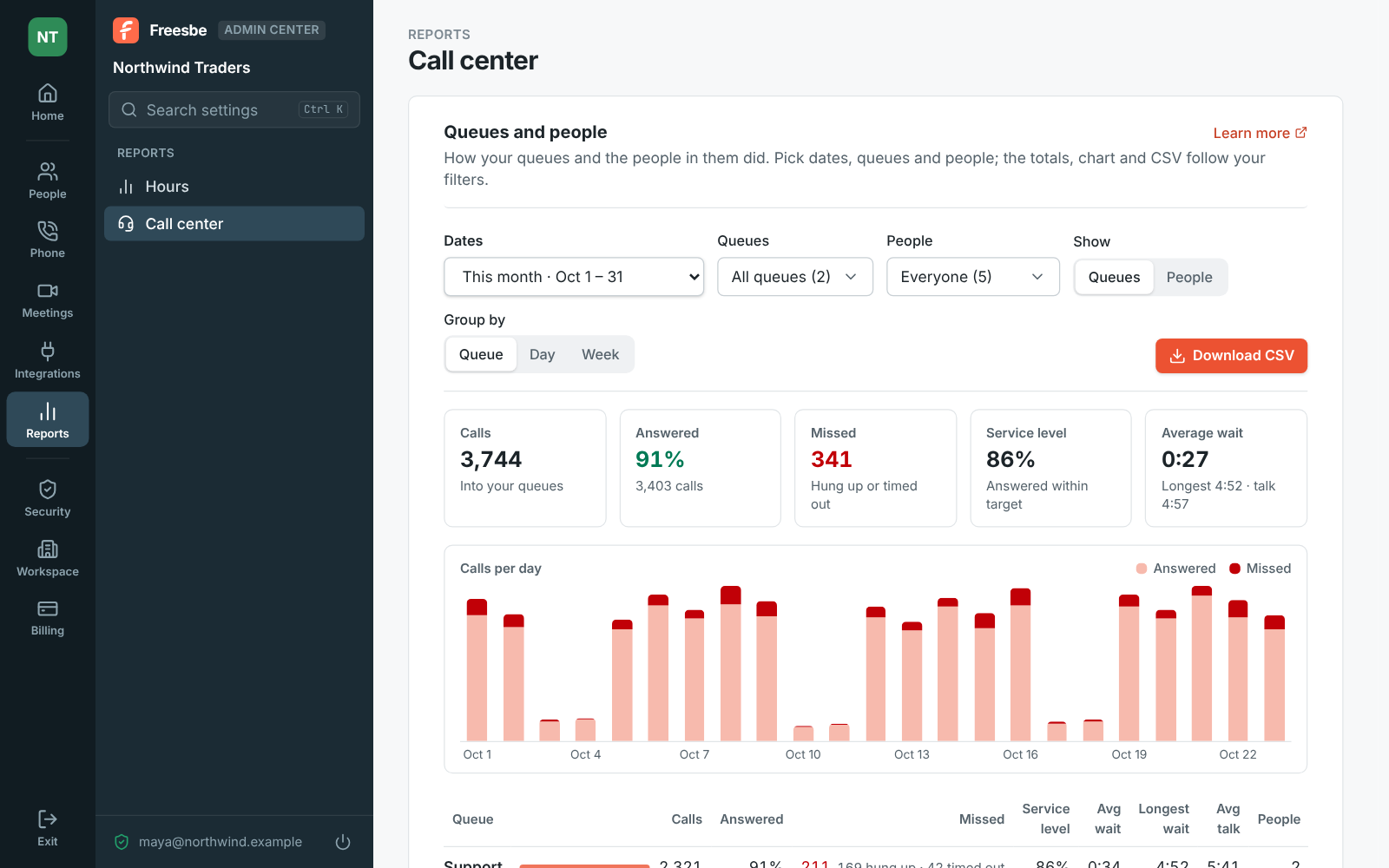
Call center shows calls into your queues and how many were answered, missed calls where the caller hung up or the queue gave up after its longest wait, the service level, the share answered within the queue's target, and the average and longest wait with the average talk time. Calls per day shows answered and missed for each day. Filter by dates up to 90 days, queues and people, and group by queue, day or week. Calls show up a few minutes after they end.

Reports, Call center: filters, totals for the month and calls per day

How each person spent their shift

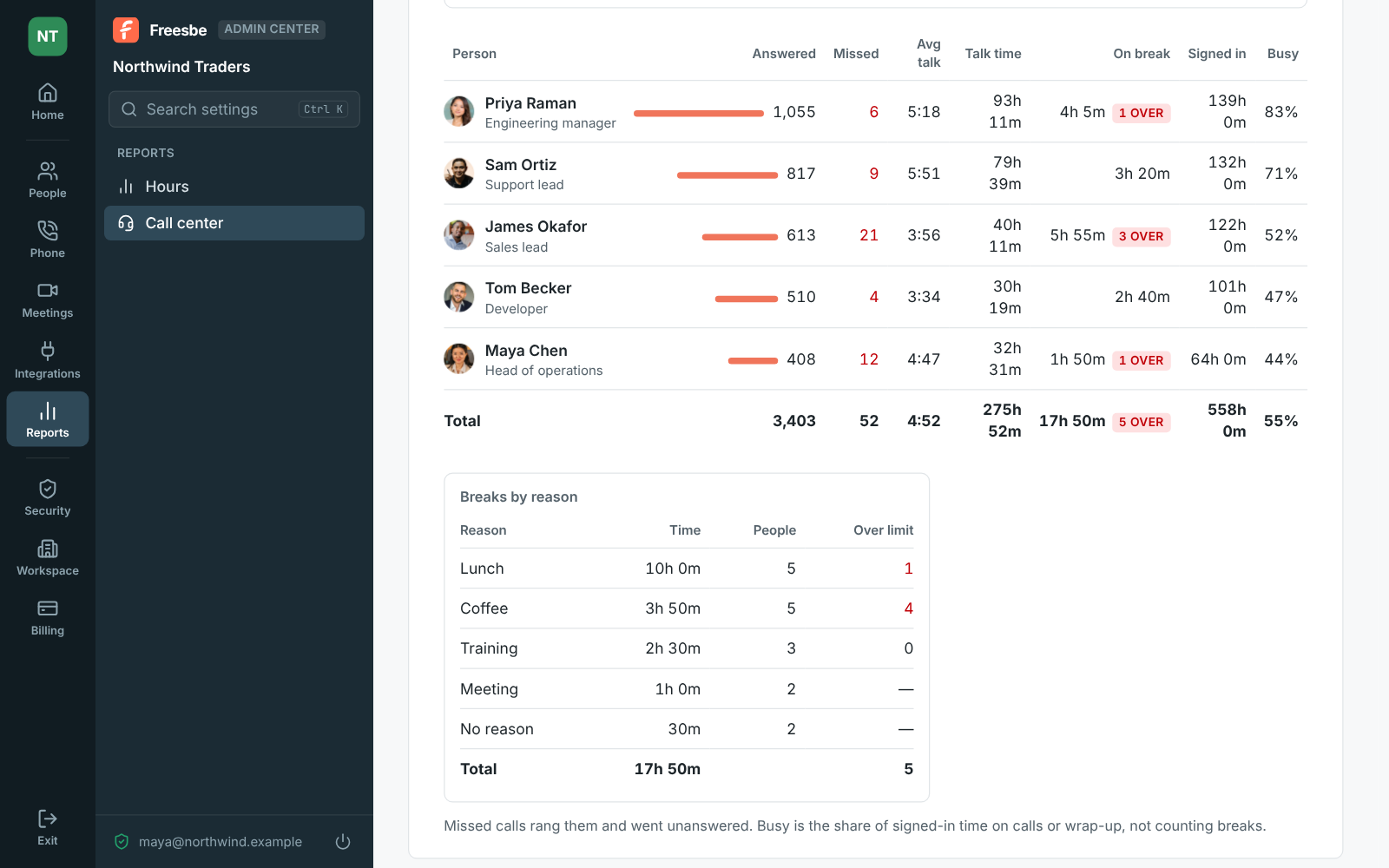
Show People for one row per person: calls answered, calls that rang them and went unanswered, average and total talk time, time on break, time signed in to their queues, and how busy they were, the share of signed-in time spent on calls or wrapping up. Breaks that ran past their reason's limit get a red over tag. Breaks by reason under the table adds up break time for each reason and how many went over. The CSV gives times in seconds and shares as fractions.

Reports, Call center by person: answered calls, talk time, breaks and time signed in, and breaks by reason

Plans and pricing

Reports is included in every plan, including Free. Hours needs the punch clock turned on; Call center comes with the Call center add-on.

  • FreeUp to 10 people
  • BusinessUp to 500 people
  • CorporateUp to 2,500 people
  • EnterpriseOver 2,500 people

Questions

Which plan includes this?
Reports is in the Admin Center on every plan. Hours fills up once the punch clock is on, which is a plan feature; Call center comes with the Call center add-on on top of the Phone system.
Who can open Reports?
Workspace owners and admins. It sits in the Admin Center right under People.
How is overtime counted?
Each day's time up to the daily limit is regular time, until the week's regular time reaches the weekly limit; everything past either limit is overtime, counted once. Weeks start on the day set in the punch clock settings, and a week cut off by your dates only counts the days inside them.
What is in the CSV?
Exactly what the table shows: the same dates, people, grouping and Show filter, with a total row. Hours are decimal, ready for payroll. For one row per shift or per day for everyone, use Export under the punch clock settings instead.

Try all of it free with up to 10 people.

No card, no time limit. Invite your team and see what sticks.