Freesbe

Call and meet

Corporate and up

Take the mouse when pointing isn't enough.

During a huddle, ask to control a screen someone is sharing from the desktop app. Once they allow it, your mouse and keyboard work their computer: click, type, scroll and drag as if you were there. It's made for support, onboarding and showing someone where a setting is. They allow it every time and press Esc to take it back.

  • Fix the setting yourself instead of reading out menu paths.
  • Type on a Mac and it lands right on their PC: shortcuts are translated between the two.
  • Stay in charge of your own screen: Esc ends it at once, and a red bar shows who has control.
  • Give IT a record: every request is logged, and the session is recorded when the workspace allows recordings.

For IT and support teams who help colleagues, and anyone who onboards new hires.

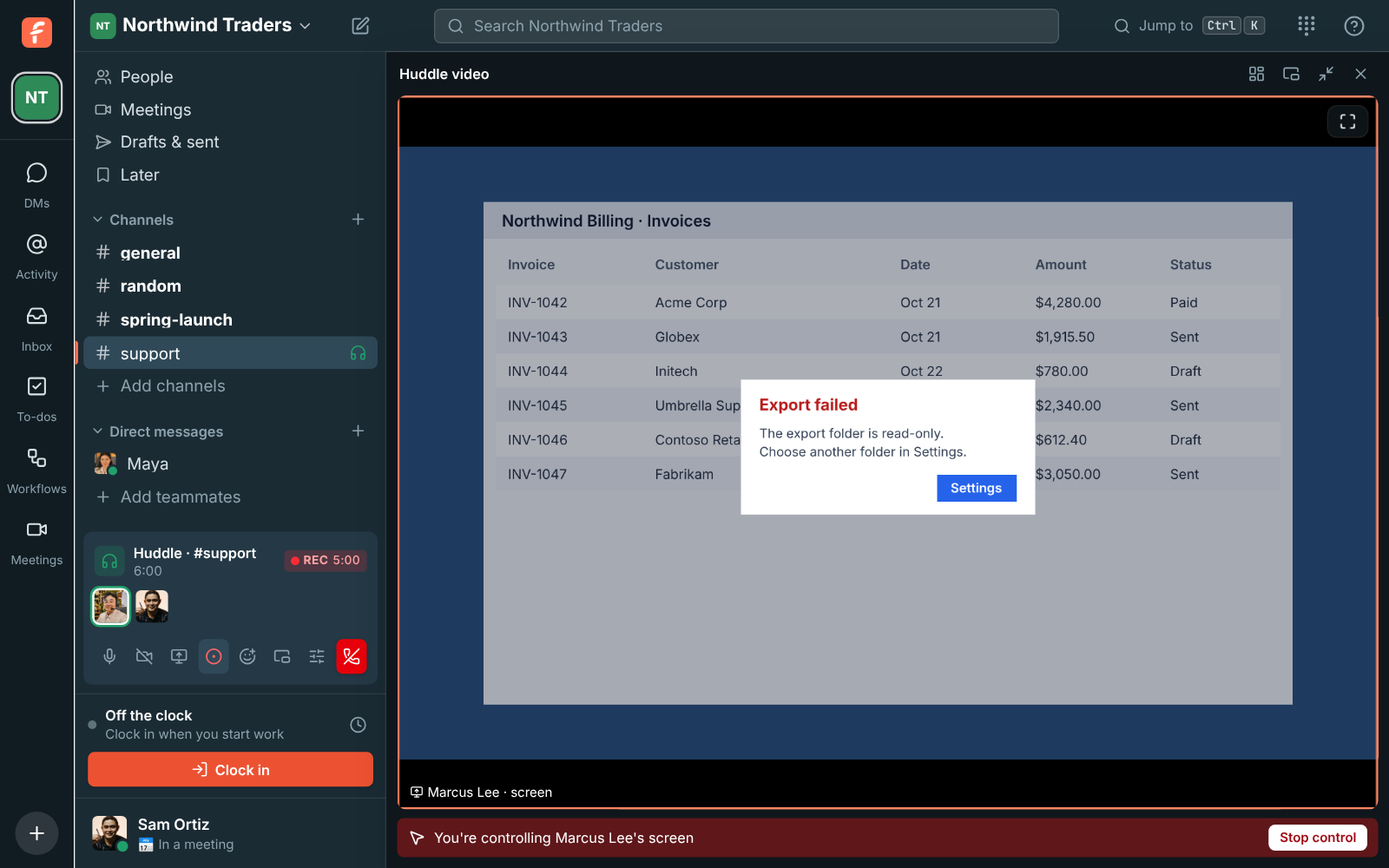
Sam Ortiz controlling Marcus Lee's screen: the shared screen fills the window with a red bar and Stop control

Ask, and wait for the yes

Join the huddle. When someone shares their entire screen from the desktop app, click Request control under it. The bar says Waiting to allow control, and Cancel takes the request back; a request nobody answers goes away after a minute. When they allow it, the huddle video gets bigger and a red bar says you're controlling their screen. Click it once so it gets your keyboard, then work as usual, and click Stop control when you're done.
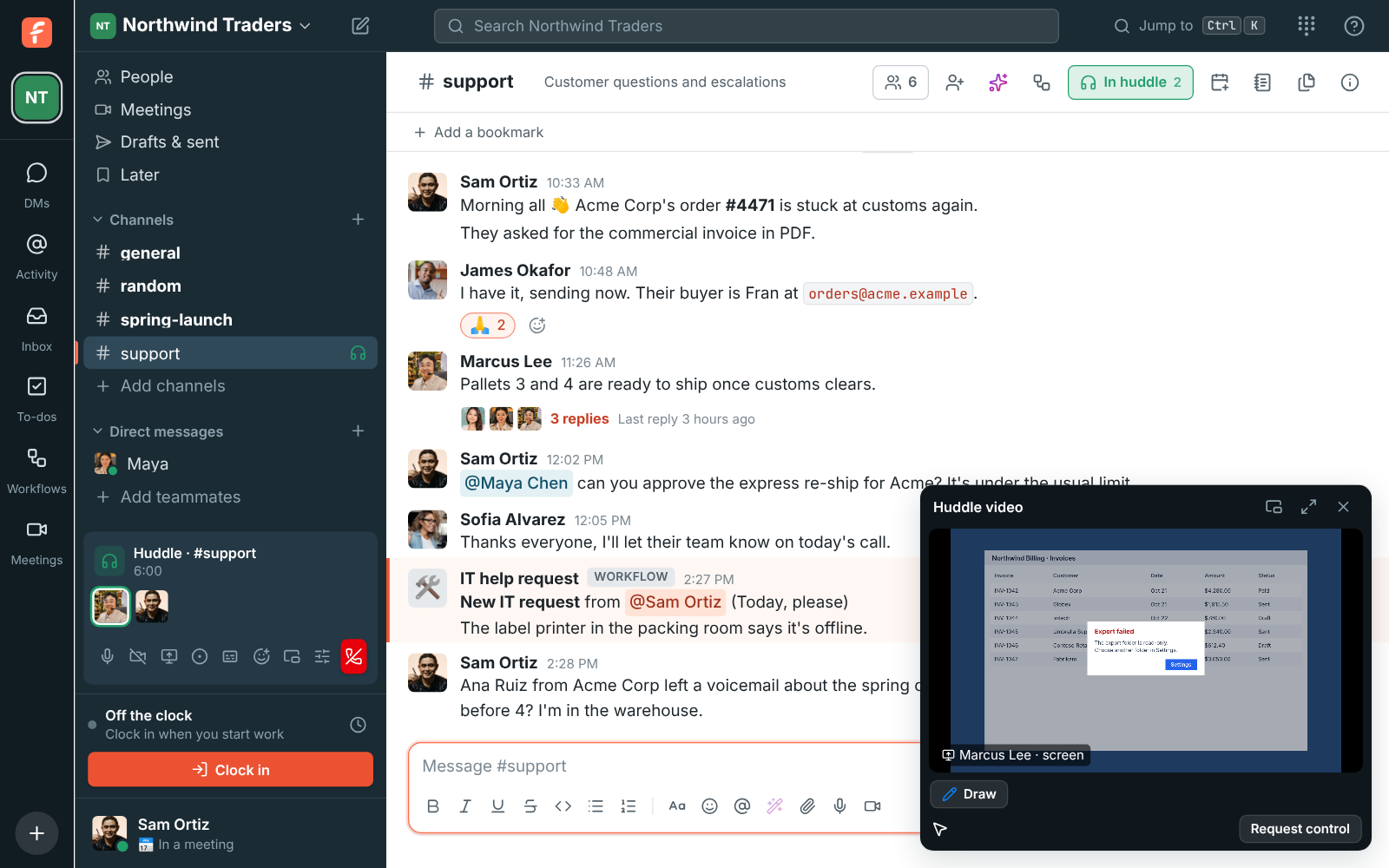

Sam Ortiz's shared screen in the huddle video, with Request control under it

Shortcuts that work on both sides

Everything you type goes to their computer, including Esc and shortcuts. They're translated between Mac and PC: Cmd+C on your Mac is Ctrl+C on their Windows computer, and the other way round. Typing works with any keyboard layout, and shortcuts work even when your layout isn't Latin, in Hebrew, Arabic or Russian. The person helping can use the desktop app or a browser; only the person being helped needs the desktop app, on Mac, Windows or Linux.

Controlling a teammate's shared screen, with the control bar at the top

See it on your own team's data.

Start free with up to 10 people and try it today, or book a 20-minute demo with the people who make Freesbe.

The person sharing stays in charge

Freesbe asks them in a system window the person asking can't click for them: Allow or Don't allow. While someone is in control, a red bar at the top of their screen says who it is, they can still use their own mouse and keyboard, and Esc takes control back at once, as does stopping the share or leaving the huddle. Everyone in the huddle sees who is controlling whose screen, and the conversation gets a line saying so.

The bar on a controlled screen: Sam Ortiz is controlling your screen. Press Esc to stop. With a Stop button

Off until an admin turns it on

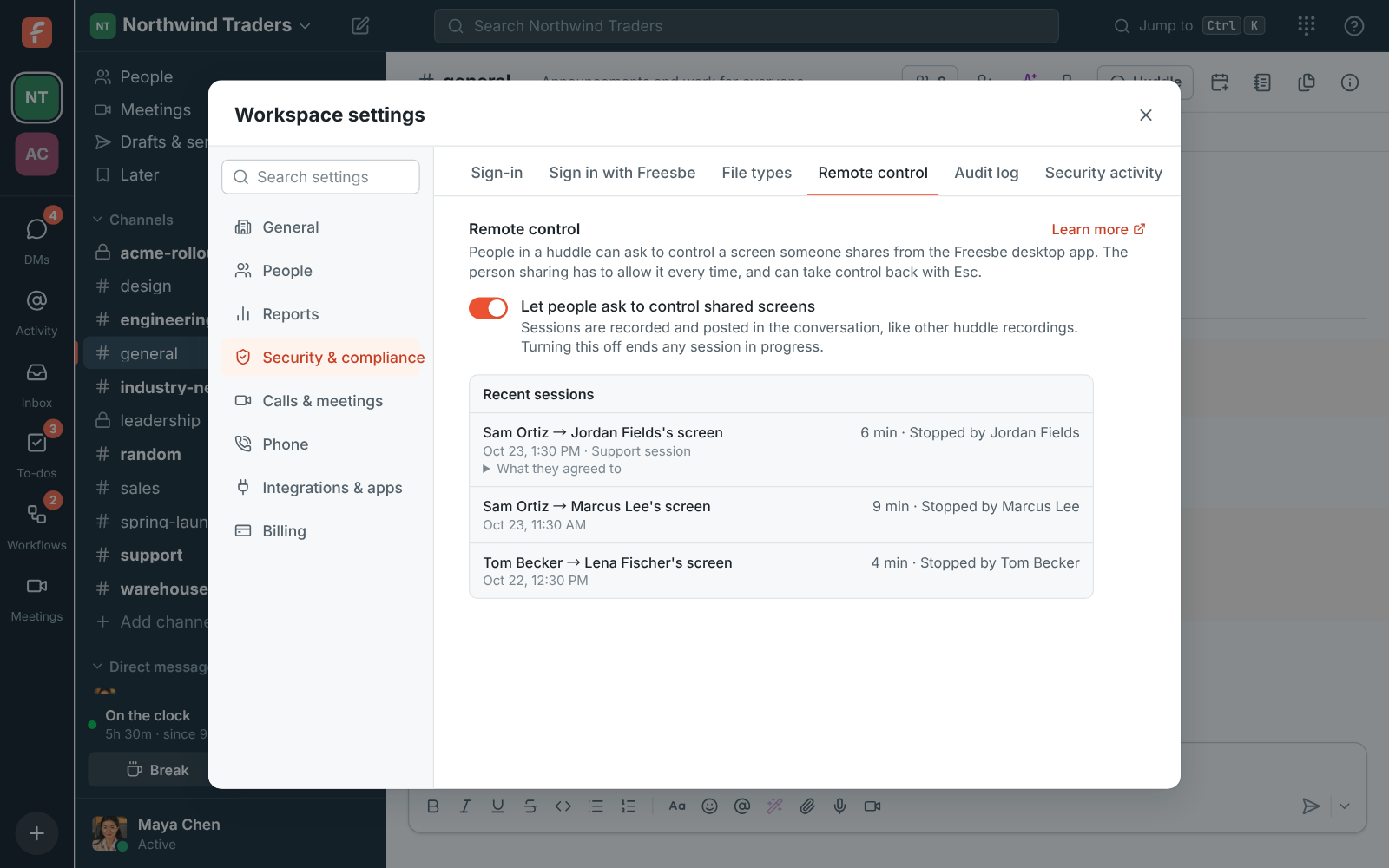
Remote control is off until a workspace admin turns it on under Security & compliance, and turning it off ends any session that's running. The same section shows the 100 most recent sessions: who asked, whose screen, whether it was allowed, how long it lasted, who stopped it and whether it was recorded. When the workspace allows huddle recordings, recording starts when control begins, so every session can be reviewed later.

Workspace settings: the Remote control switch and the Recent sessions log

Plans and pricing

Remote control is included in Corporate and Enterprise.

  • CorporateUp to 2,500 people
  • EnterpriseOver 2,500 people

Questions

Which plan includes this?
Remote control is part of Corporate and Enterprise. On other plans the switch in Workspace settings is greyed out and says it requires the Corporate plan.
Can a browser share be controlled?
No. A web browser can show its screen but can't let anyone control it. The person being helped shares their entire screen from the Freesbe desktop app; the person helping can use either.
Can guests be helped?
Yes. Guests can be helped, but can't control anyone else's screen. To help a customer without inviting them, use a support session.
What can't it do?
Windows doesn't let any app click the UAC prompt or type into the sign-in screen. On Linux, control works on X11 desktops and reaches XWayland apps on Wayland. Phones and tablets can't be controlled in huddles.

Try all of it free with up to 10 people.

No card, no time limit. Invite your team and see what sticks.