Freesbe

Trust

Corporate and up

No program gets in dressed as a PDF.

Admins decide which kinds of file members and guests can share: any type, anything except programs and scripts, or only the kinds you pick. Every upload is checked on the server by its name and by what's inside, so a program renamed to report.pdf is turned away. Corporate and Enterprise add always-allow and always-block lists of extensions.

  • Stop installers, scripts, shortcuts and macro-enabled Office files at the door.
  • Hold guests from other companies to a stricter rule than your own people.
  • Catch a renamed program by reading the file, not just its name.
  • Allow the drawings your partners send and block the archives you don't want, by extension.

For IT and security teams, and anyone who invites outside guests into channels.

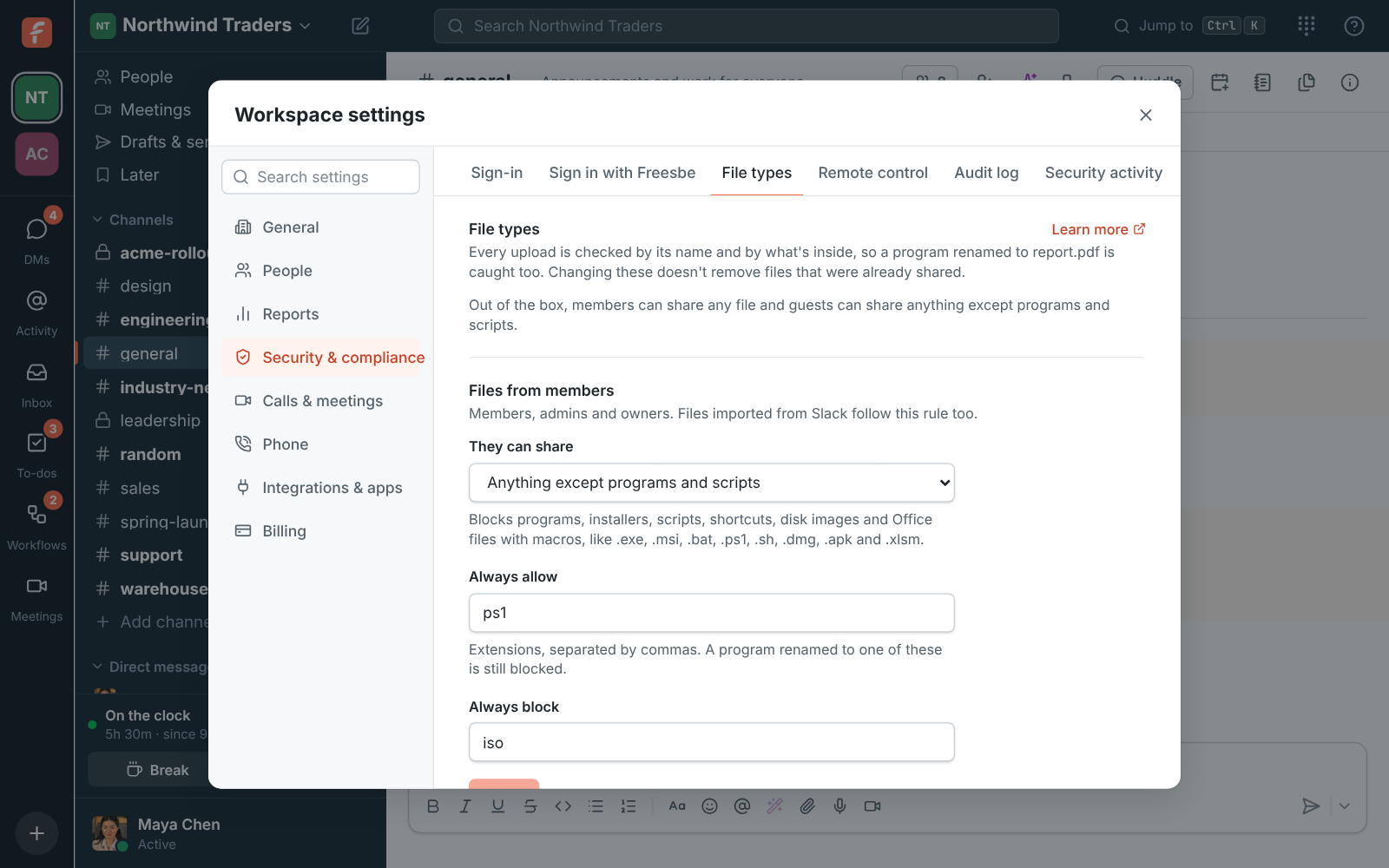
Workspace settings, File types: members blocked from sharing programs and scripts, PowerShell scripts always allowed and ISO images always blocked

One rule for members, one for guests

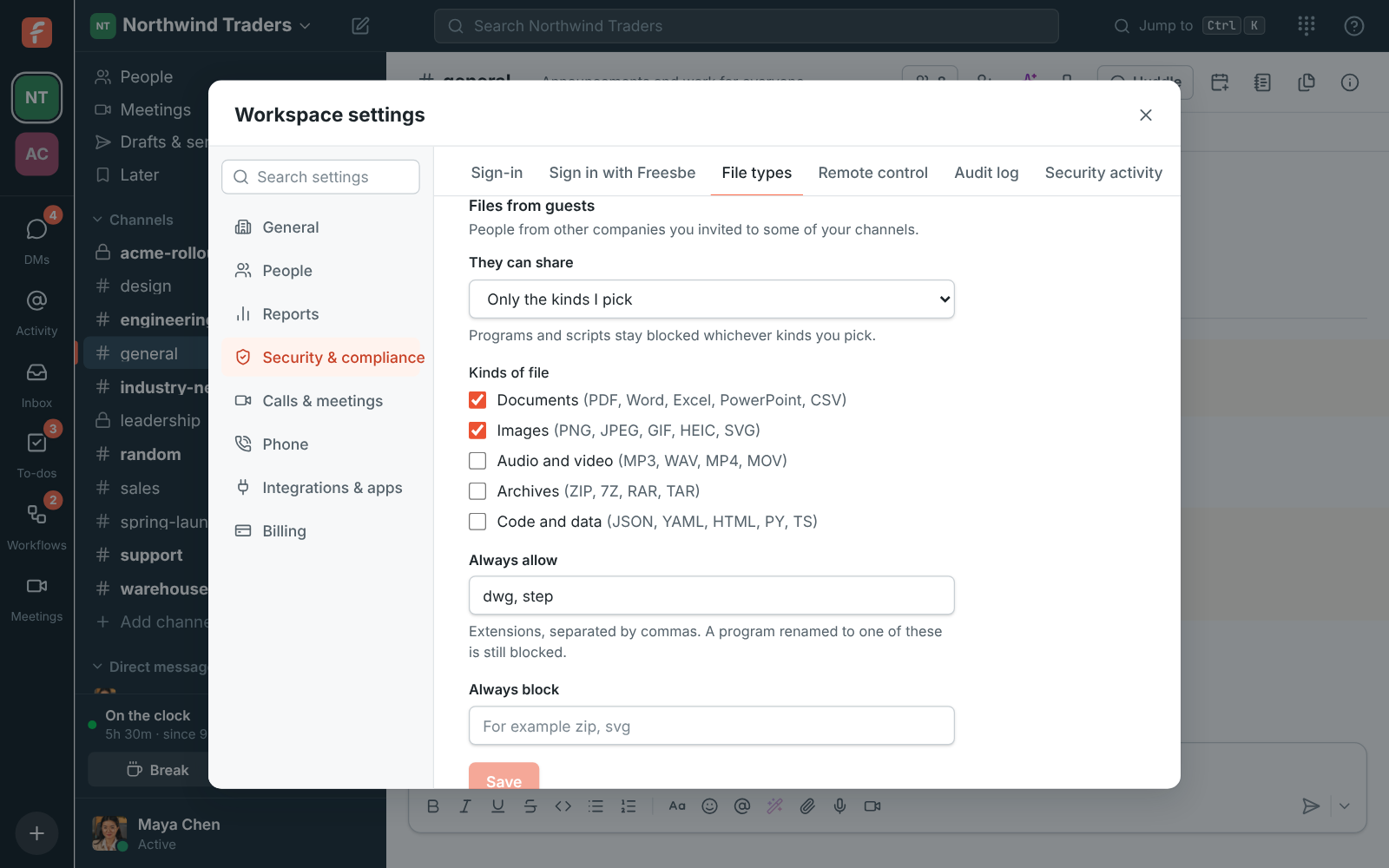
For each of Files from members and Files from guests, pick what they can share: any type of file; anything except programs and scripts, which covers programs, installers, scripts, shortcuts, disk images and Office files with macros; or only the kinds you pick from documents, images, audio and video, archives, and code and data. Out of the box, members share anything and guests can't share programs and scripts. Changing a rule affects new uploads only.
File types for members in workspace settings

Checked by name and by what's inside

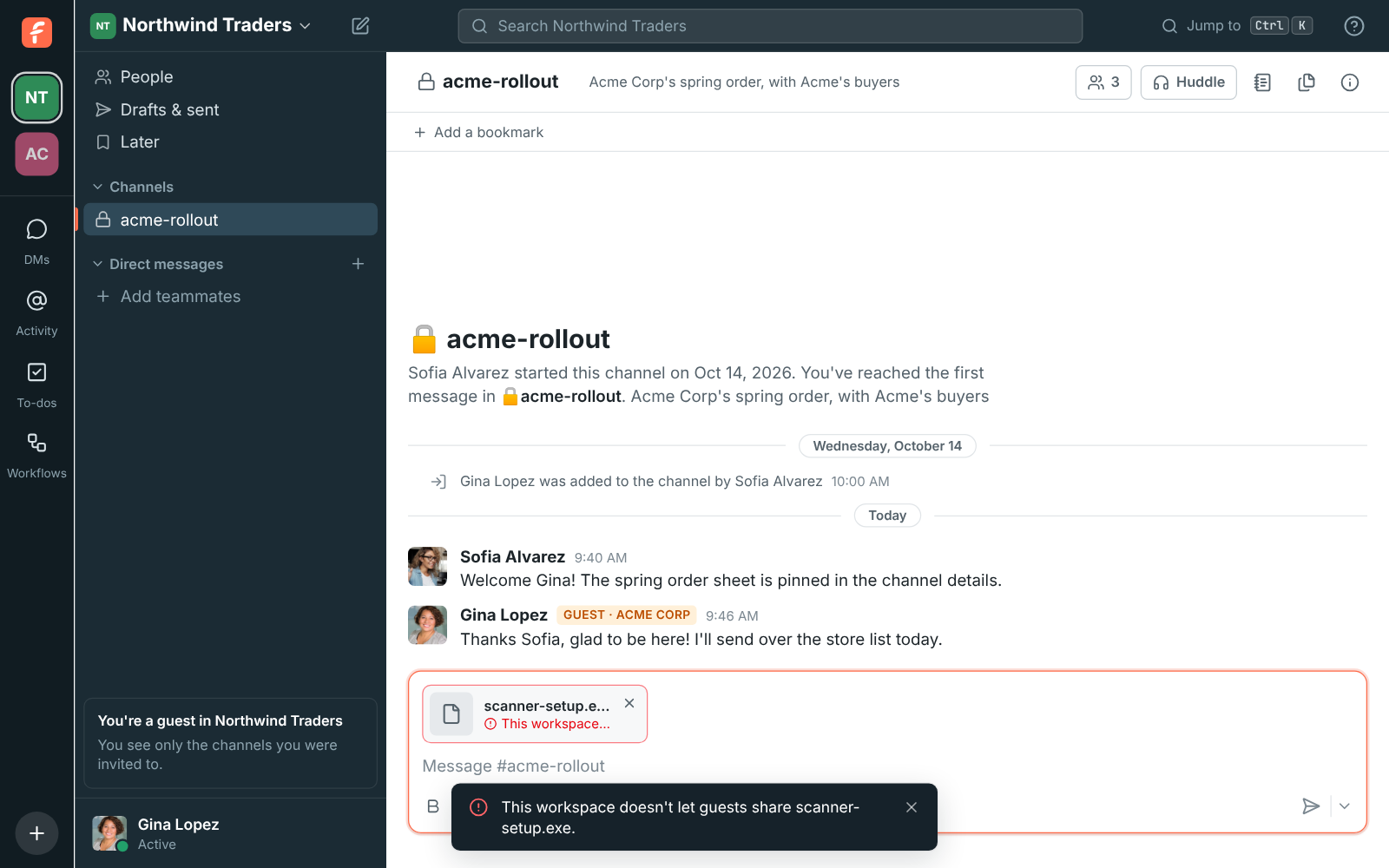
Freesbe checks every upload on the server, so the rule holds in the desktop app, the browser, the API and a meeting's chat alike. The last extension counts, so invoice.pdf.exe is an .exe. Then it reads the start of the file: a Windows, Mac or Linux program, a Java or Android package, a shortcut or a disk image is recognised even when renamed to report.pdf or given no extension. When a file isn't allowed, it isn't uploaded; the person sees why, and the message can still go without it.

A guest's message with scanner-setup.exe turned away by the workspace's file rules; the PDF next to it uploaded normally

See it on your own team's data.

Start free with up to 10 people and try it today, or book a 20-minute demo with the people who make Freesbe.

Always allow, always block

On Corporate and Enterprise, list extensions separated by commas. Always allow lets people share them whatever the rule says, like dwg and step for the drawings your partners send. Always block stops them for everyone, even under any type of file, like zip. An extension on Always allow still doesn't let a program through under someone else's name. If the workspace moves off Corporate, the lists stop counting and Only the kinds I pick works like anything except programs and scripts, so nothing becomes looser.

Files from guests set to Only the kinds I pick, with Documents and Images ticked and dwg and step always allowed

Plans and pricing

File type rules is included in Corporate and Enterprise. Blocking programs and scripts for members or guests works on every plan; picking kinds and the lists need Corporate.

  • CorporateUp to 2,500 people
  • EnterpriseOver 2,500 people

Questions

Which plan includes this?
Any type of file, and anything except programs and scripts, are on every plan, including Free. Only the kinds I pick and the always-allow and always-block lists come with Corporate and Enterprise. See pricing for the plans.
What counts as a program or script?
Files such as .exe, .msi, .bat, .cmd, .ps1, .vbs, .js, .lnk, .sh, .app, .pkg, .dmg, .deb, .jar, .apk and .iso, and macro-enabled Office files like .docm and .xlsm. With Only the kinds I pick they stay blocked whichever kinds you tick.
What about files already shared?
They stay where they are. A rule change applies to new uploads only.
Does it apply to a Slack import?
Yes. Imported files follow the rule for members, and files the rule turns away are left out of the imported messages and counted as skipped.

Try all of it free with up to 10 people.

No card, no time limit. Invite your team and see what sticks.