Blog
Letting AI agents into a workspace without handing them the keys
Most teams connect an AI agent to their tools the same way: someone creates an API token, pastes it into the agent, and forgets about it. The token usually never expires, can do anything its owner can do, and nobody can tell afterwards what the agent did with it.
When we added AI agents to Freesbe, we wanted the opposite. Any agent should be able to connect: Claude, ChatGPT, Cursor, VS Code, or one your own team wrote. But every one of them should get only what a person allowed, show up as itself, and leave a trail.
The decision: a standard MCP server with real OAuth
Freesbe runs a Model Context Protocol (MCP) server at one address. Any tool that can add an MCP server or “connector” can use it, with nothing to install.
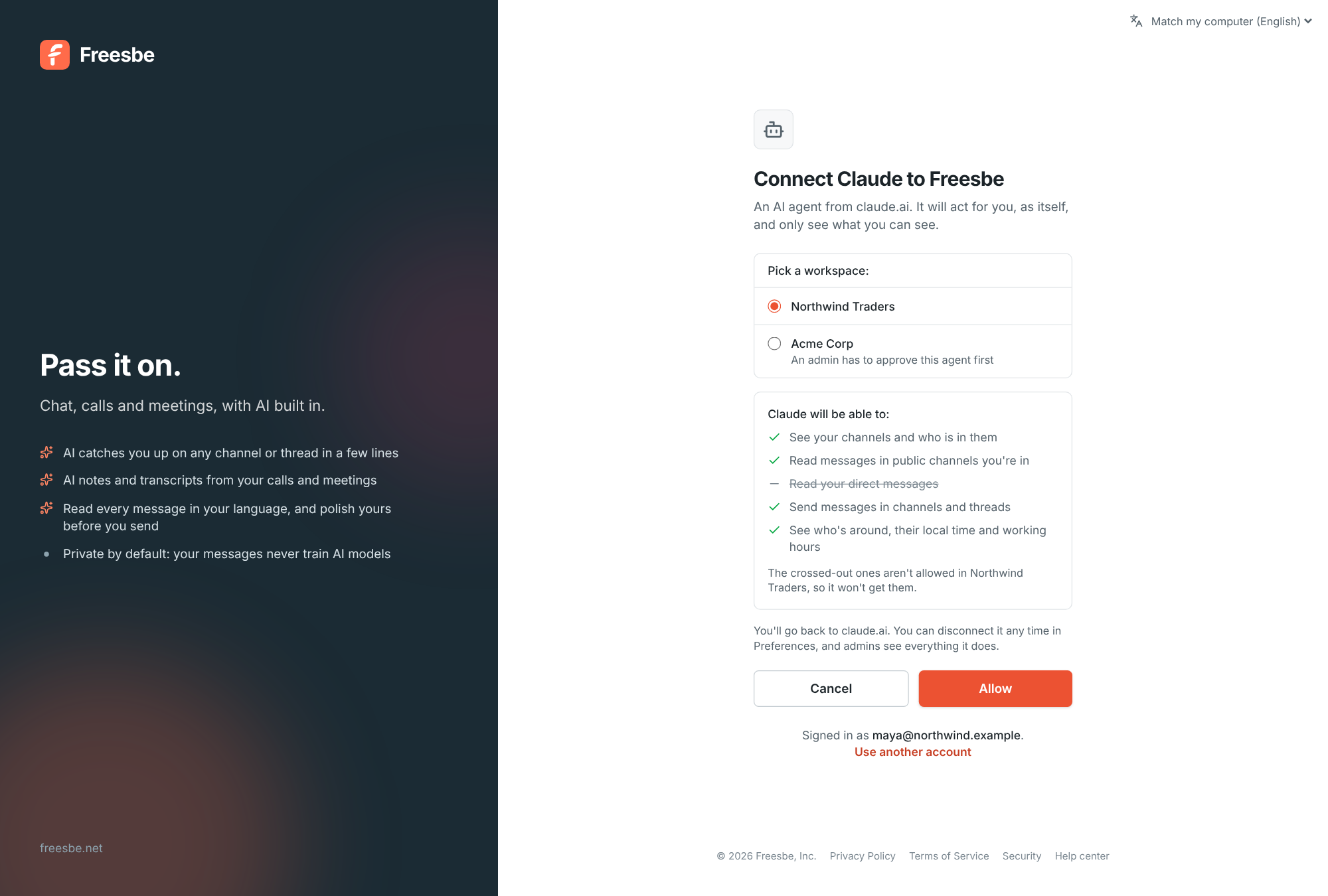
Connecting works like signing in to an app with Google:
- You add Freesbe’s address to your AI tool.
- The tool opens a Freesbe page in your browser. You sign in the usual way, including your workspace’s second step or single sign-on.
- You pick one workspace and see exactly what the agent is asking to do, in plain words: “Read your direct messages”, “Send messages in channels and threads”, “See when people are free or busy”.
- You click Allow, and the tool gets a token for that workspace and those permissions only.
Under the hood it’s OAuth 2.1 as the MCP specification describes it: PKCE so a stolen code is useless, dynamic client registration so new tools can connect without us pre-registering them, short-lived access tokens, and refresh tokens that rotate on every use. An agent that isn’t used for 30 days has to be connected again.
Permissions per tool, not per agent
Every tool our MCP server offers declares the one scope it needs. “Search messages” needs
search:read. “Send a message” needs chat:write. If a token doesn’t carry the scope, the tool
isn’t even listed for that agent, so a model can’t be talked into calling it.
We named the scopes the way Slack’s app platform does where they mean the same thing, so anyone
who has built a Slack app already knows what channels:history allows.
On top of that, an agent can never see more than the person who connected it. It acts for you, so a private channel you’re not in is invisible to your agent too.
Admins stay in charge
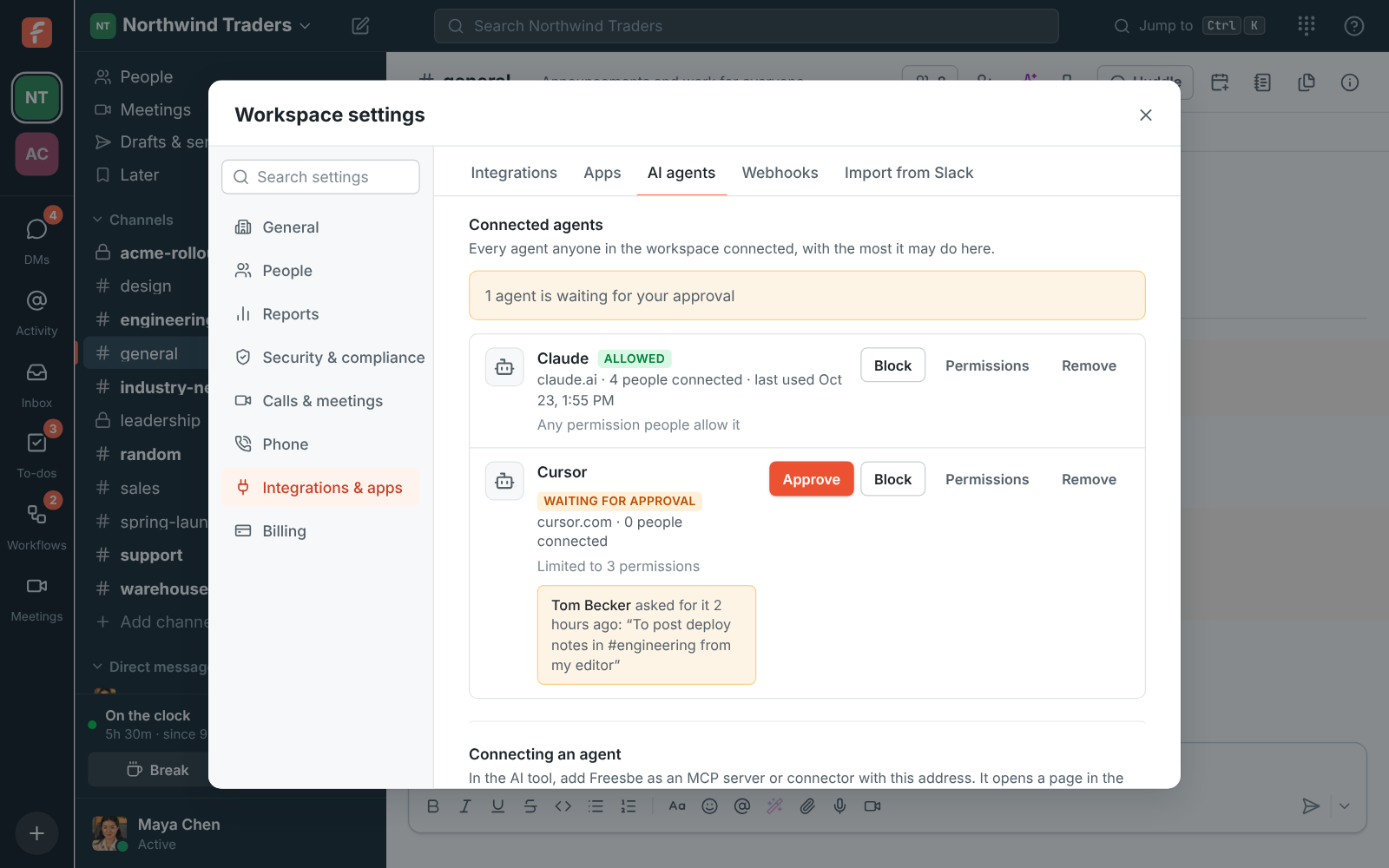
Each workspace has a policy with three settings: agents are off, agents need an admin’s approval, or anyone may connect one. Admins can also set a ceiling on what any agent may do in the workspace, for example “read only”, and block a specific agent at any time. Every action an agent takes is logged, and the log is right there in admin settings.
Agents are visible
An agent never posts as you. It shows up in the member list and in messages as its own bot, with an AI agent badge and the name of the tool. People in a channel always know whether a person or an agent wrote something.
What we turned down
- Personal API tokens. Easy to build, impossible to govern: no scopes a person can understand, no expiry, no record of which agent used them.
- Our own agent SDK. It would have meant every AI vendor building a Freesbe integration. MCP means they already have one.
- Bot accounts created by admins. Fine for shared automations, wrong for a personal assistant that should only see what you see.
What we’d tell another team
If you’re adding agent access to a product, treat agents like third-party apps, because they are. Use the OAuth you’d use for any other app, put a scope on every tool, make the agent visible as itself, and give admins a log. MCP gets you the connection; the trust comes from the boring parts around it.
Read AI agents in the help center to connect one.