Freesbe

Talk

All plans

Your logo, your jokes, one colon away.

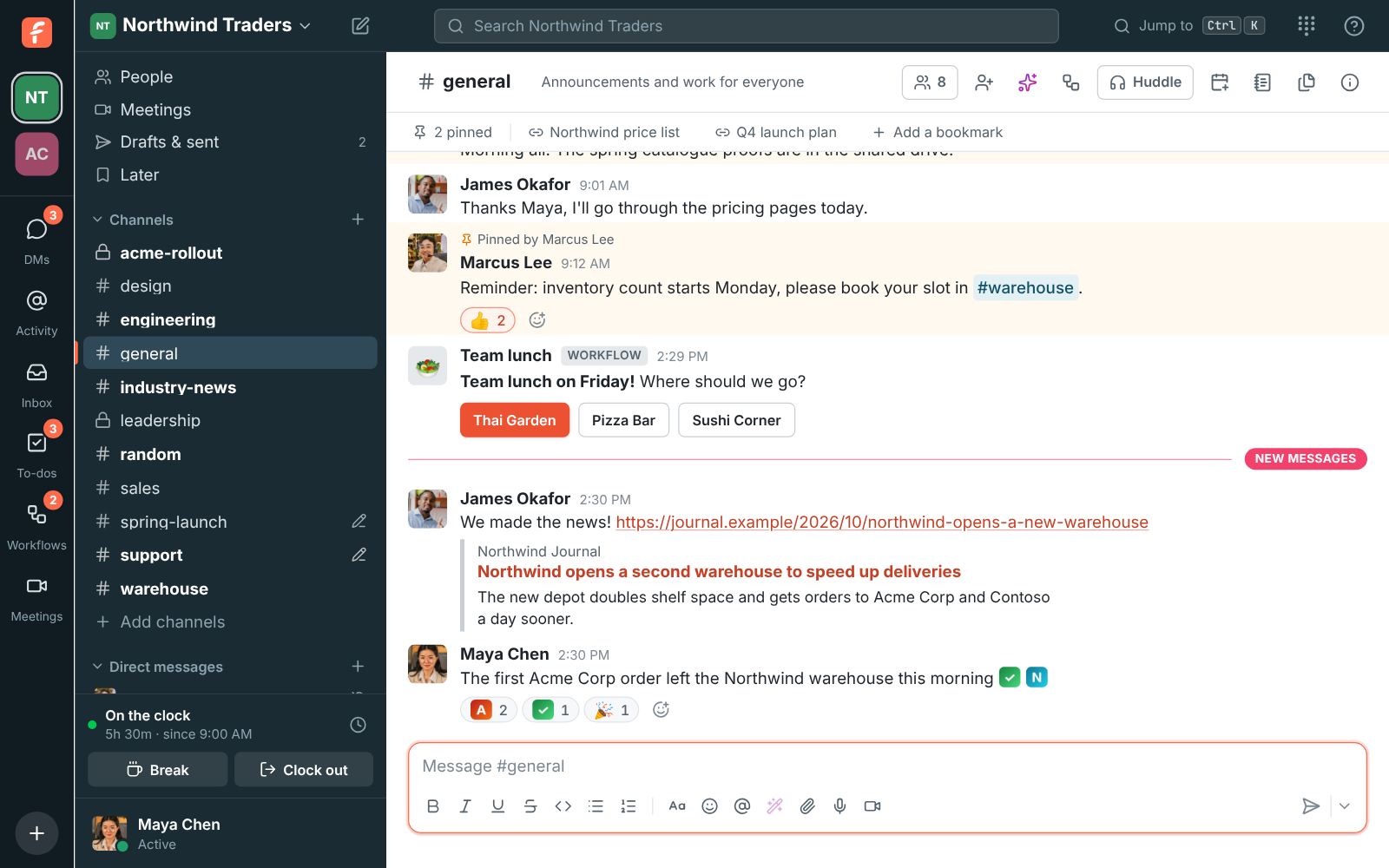
Add a custom emoji from the emoji picker: a PNG, JPEG, GIF or WebP with a name like northwind_logo. Everyone in the workspace can use it in messages and as a reaction, and it comes up first when you type a colon and its name. A workspace can have up to 500, and admins can remove any of them.

  • React with the team's own emoji instead of the nearest standard one.
  • Add one in a minute from the picker, no admin needed.
  • Leave several reactions in one go; the picker stays open.
  • Keep it tidy: admins can remove any emoji, and the name stays where it was used.

For Teams with a logo, a mascot or a running joke.

A message in #general with the workspace's own emoji in its text and as reactions under it

Add one from the picker

Open the emoji picker and click Add emoji. Choose a PNG, JPEG, GIF or WebP picture, give it a name such as northwind_logo and click Add emoji. Pictures are shrunk to fit, and a small animated GIF keeps moving. The window shows the workspace's custom emoji and who added each, and you can remove the ones you added from the same place.
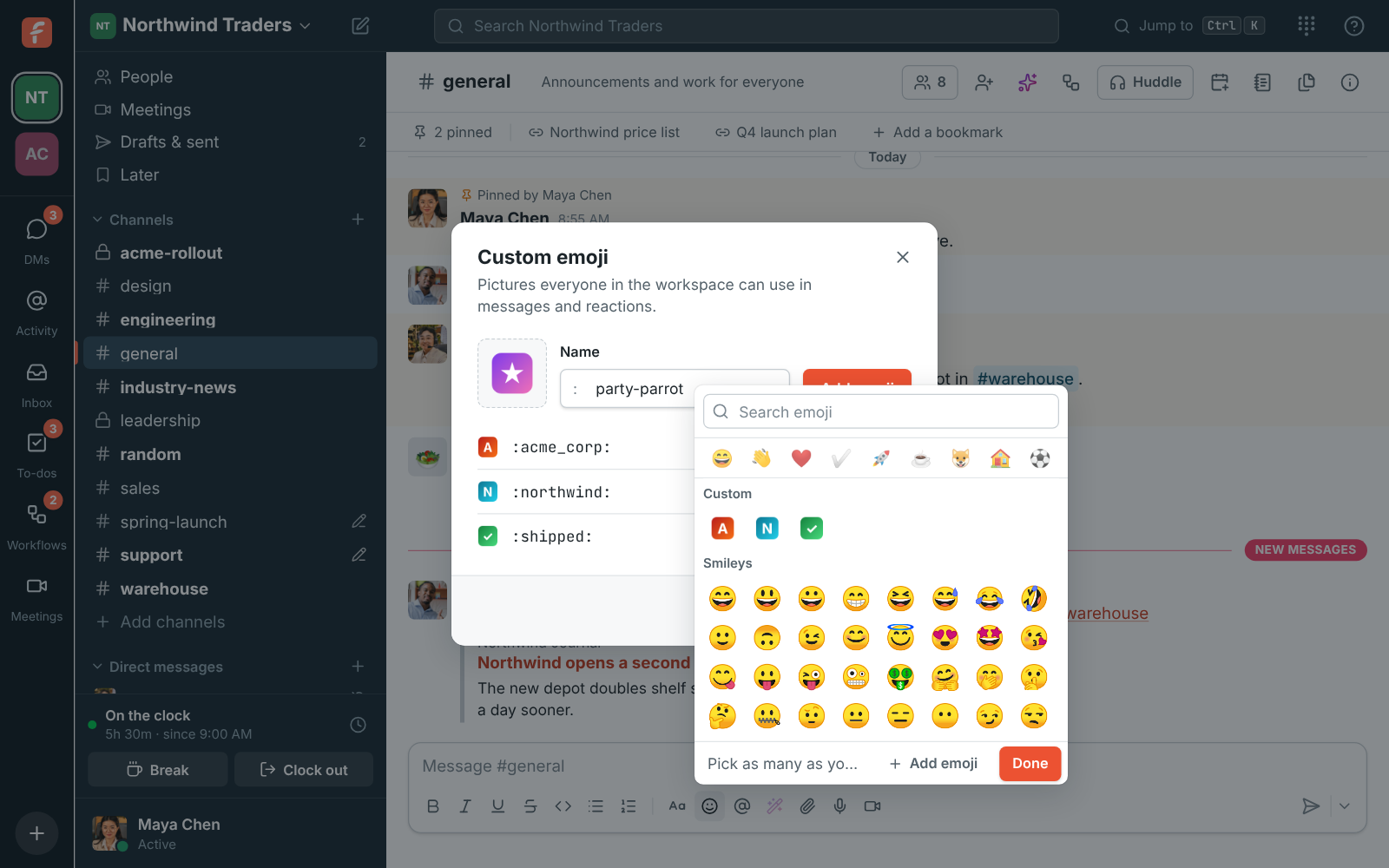
The Custom emoji window: a party parrot picture named party_parrot ready to add, above the workspace's custom emoji and who added each

In messages and as reactions

Custom emoji sit in the picker under Custom, come up first when you type a colon and their name in a message, and work as reactions. Guests can use them but not add them. Messages and reactions that used a removed emoji show its name instead, so nothing breaks when an admin tidies up.

A message in #general with the workspace's own emoji in its text and as reactions under it

See it on your own team's data.

Start free with up to 10 people and try it today, or book a 20-minute demo with the people who make Freesbe.

Several reactions in one go

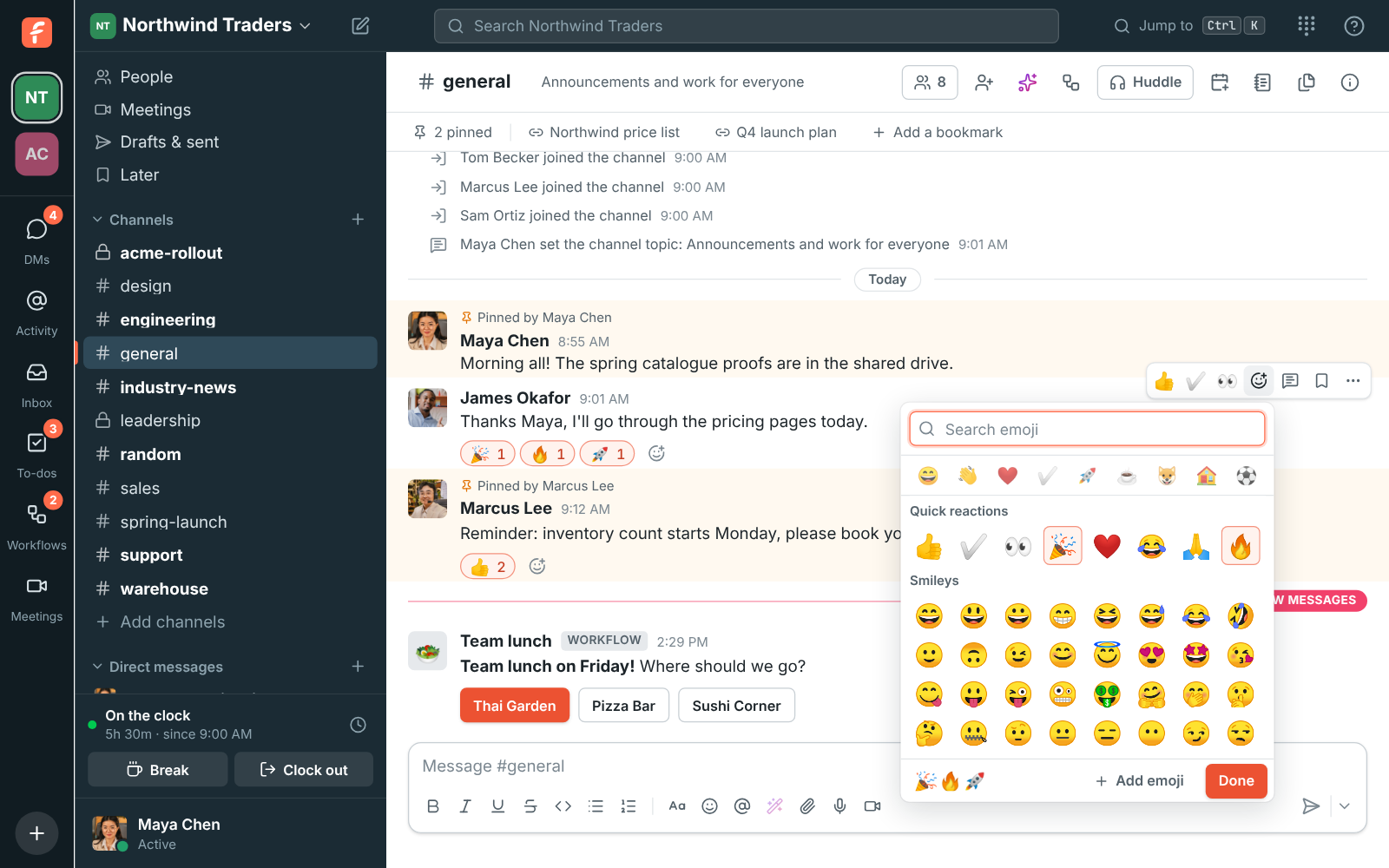
Click Add reaction and the picker stays open, so you can leave several reactions at once. The ones you have already left are highlighted, and clicking one again takes it away. Click a reaction under a message to add yours, click it again to remove it. On the phone, press and hold a message for a row of quick reactions and the full picker behind the plus.

The reaction picker on James's message, with two emoji highlighted as chosen, and the three reactions Maya just added under the message

The same picker while you write

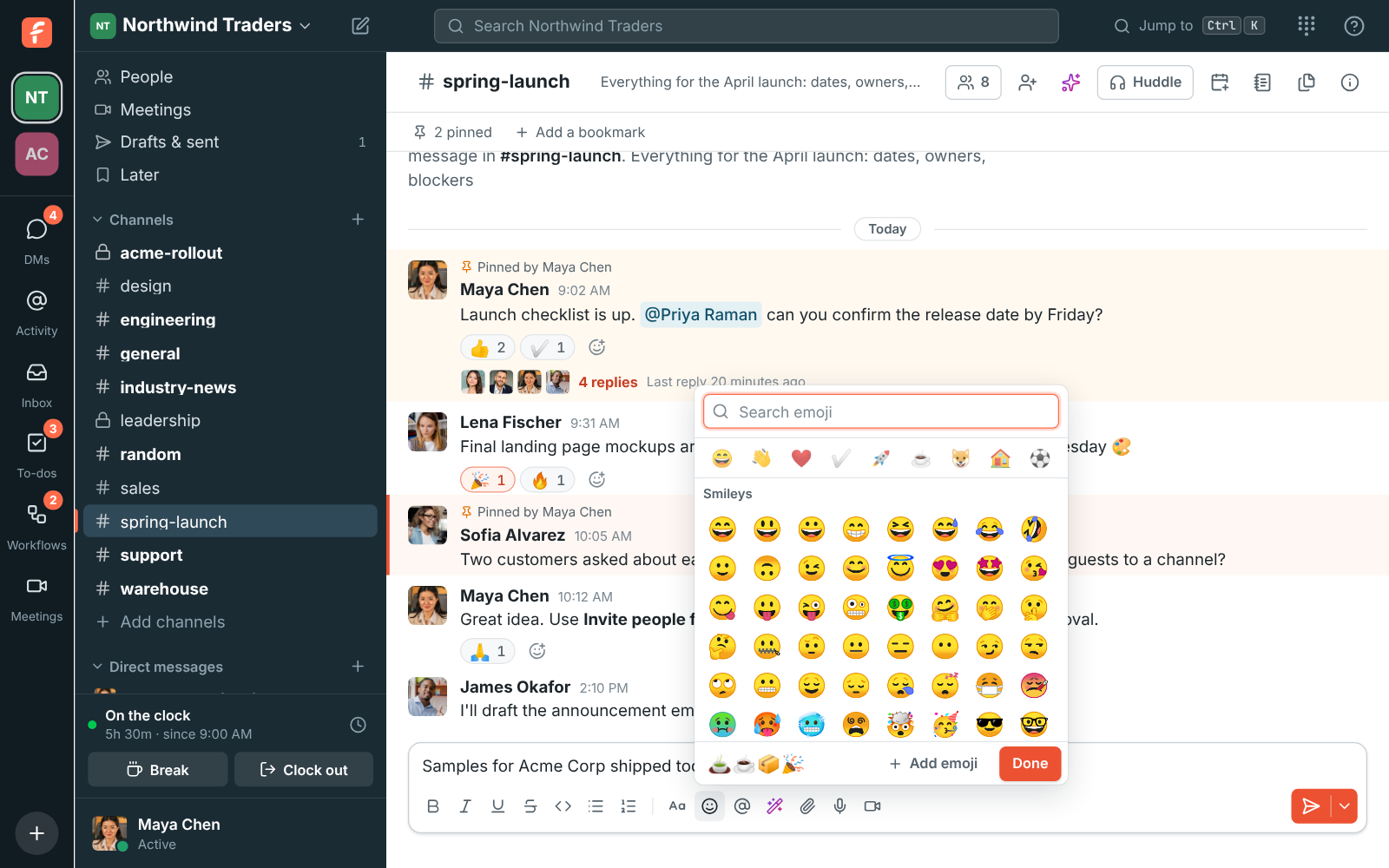
Click the smiley under the message box and the picker stays open there too. Each emoji goes into your message where the cursor is, the bottom of the picker shows what you have added so far, and you can search, press Enter to add the first match, and type the next search straight away. Click Done, press Esc or click outside when you are finished.

The emoji picker open over the message box in #spring-launch, with four emoji added to the message and Done at the bottom

Plans and pricing

Custom emoji and reactions is included in every plan, including Free.

  • FreeUp to 10 people
  • BusinessUp to 500 people
  • CorporateUp to 2,500 people
  • EnterpriseOver 2,500 people

Questions

How many custom emoji can a workspace have?
Up to 500.
Which picture formats work?
PNG, JPEG, GIF and WebP. Pictures are shrunk to fit, and a small animated GIF keeps moving.
Who can add and remove them?
Any member can add one and remove the ones they added. Owners and admins can remove any of them in Workspace settings, Messages, Custom emoji. Guests can use them but not add them.
Which plan includes this?
Every plan, including Free.

Try all of it free with up to 10 people.

No card, no time limit. Invite your team and see what sticks.