Freesbe

Talk

All plans

Say it, or show it, instead of typing it.

A clip is a short audio or video recording made from the Freesbe message box, up to 5 minutes long. Record your voice, your camera, your screen, or your screen with your camera in a circle in the corner. The clip is sent like any other file and plays in the conversation for everyone in it.

  • Explain a bug or a layout in a two-minute screen recording instead of ten messages.
  • Leave a voice note when typing would take longer than saying it.
  • Play clips in the conversation, with a play button and a bar to jump around.
  • Nothing is sent until you add the clip to a message and press send.

For Support, product and design teams who explain things better on screen than in text.

An audio clip and a video clip in a conversation

A voice note from the message box

Click the microphone under the message box, then Start recording. Bars move with your voice while you talk. Click Stop recording when you are done, listen back, and either Record again or Add to message. The clip lands in the message box, where you can add a note before you send it. Audio files of any kind play in the conversation too, and only one audio clip plays at a time.
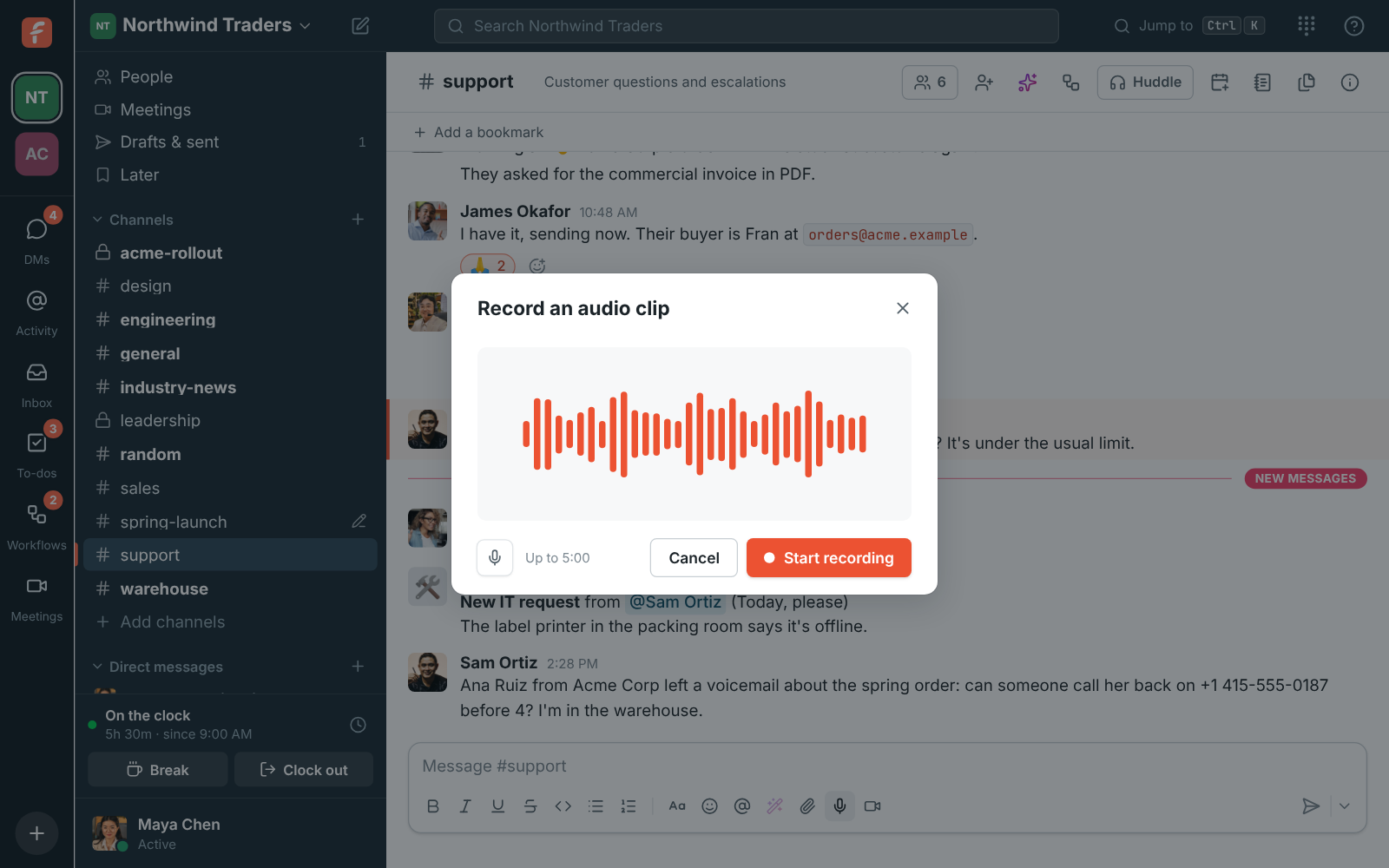
Recording an audio clip, with bars that move with your voice

Your screen, with you in the corner

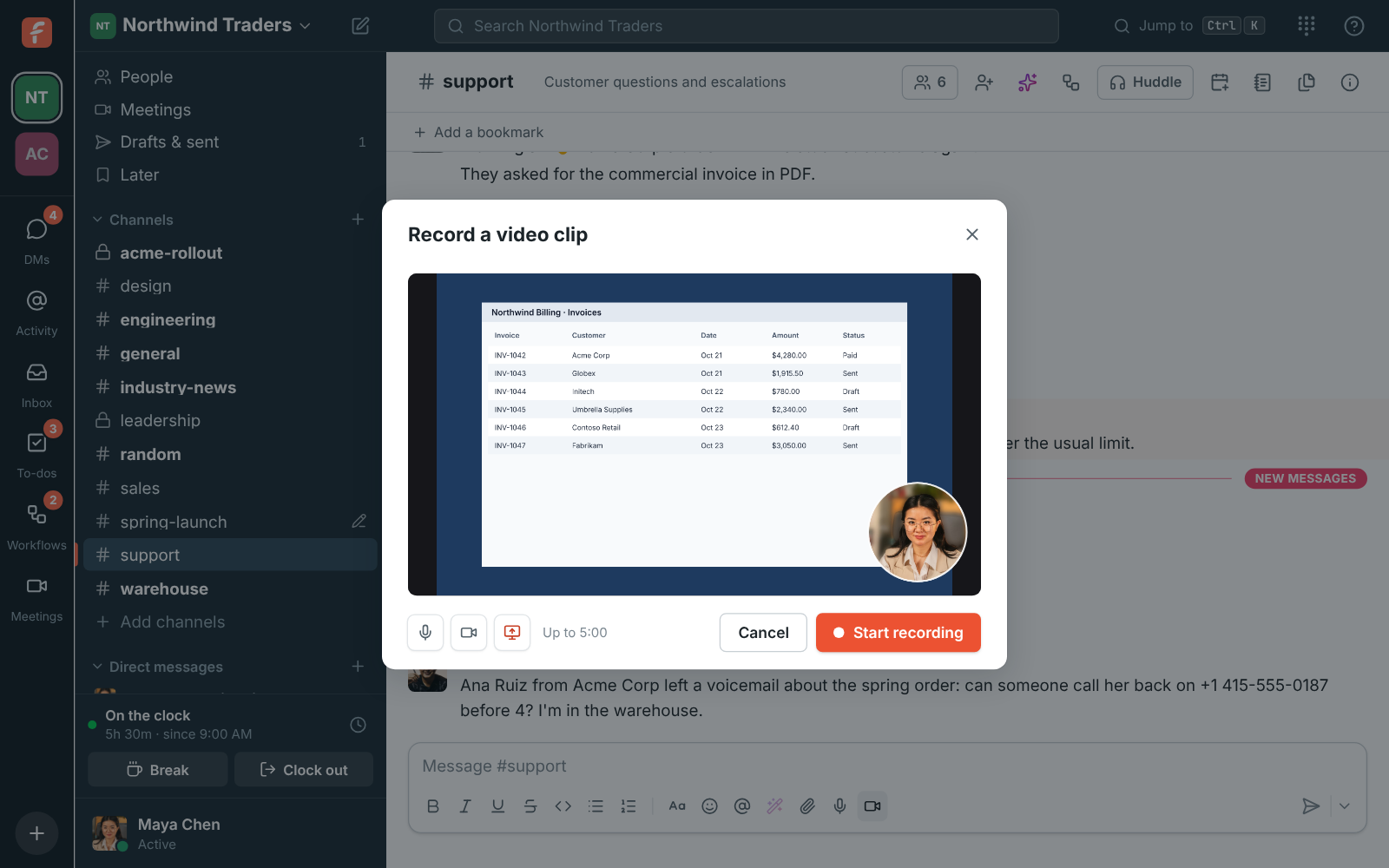
Click the video camera and your camera turns on. Click Share screen to record a screen or window instead, with your camera in a circle in the corner, or turn the camera off to record just the screen. While you record you can mute the microphone, switch the camera, and start or stop sharing. A clip can be up to 5 minutes long.

Recording a video clip of a shared screen, with the camera in a circle in the corner

See it on your own team's data.

Start free with up to 10 people and try it today, or book a 20-minute demo with the people who make Freesbe.

Plays where the conversation is

Clips play in the conversation for everyone in it: audio clips with a play button and a bar to jump around, video clips in a player with full screen. They are named by when you recorded them, such as Video clip 2026-10-23 14.05.webm, and count toward your workspace's storage like other files. Find them again under the conversation's Files tab, filtered to Video and audio.

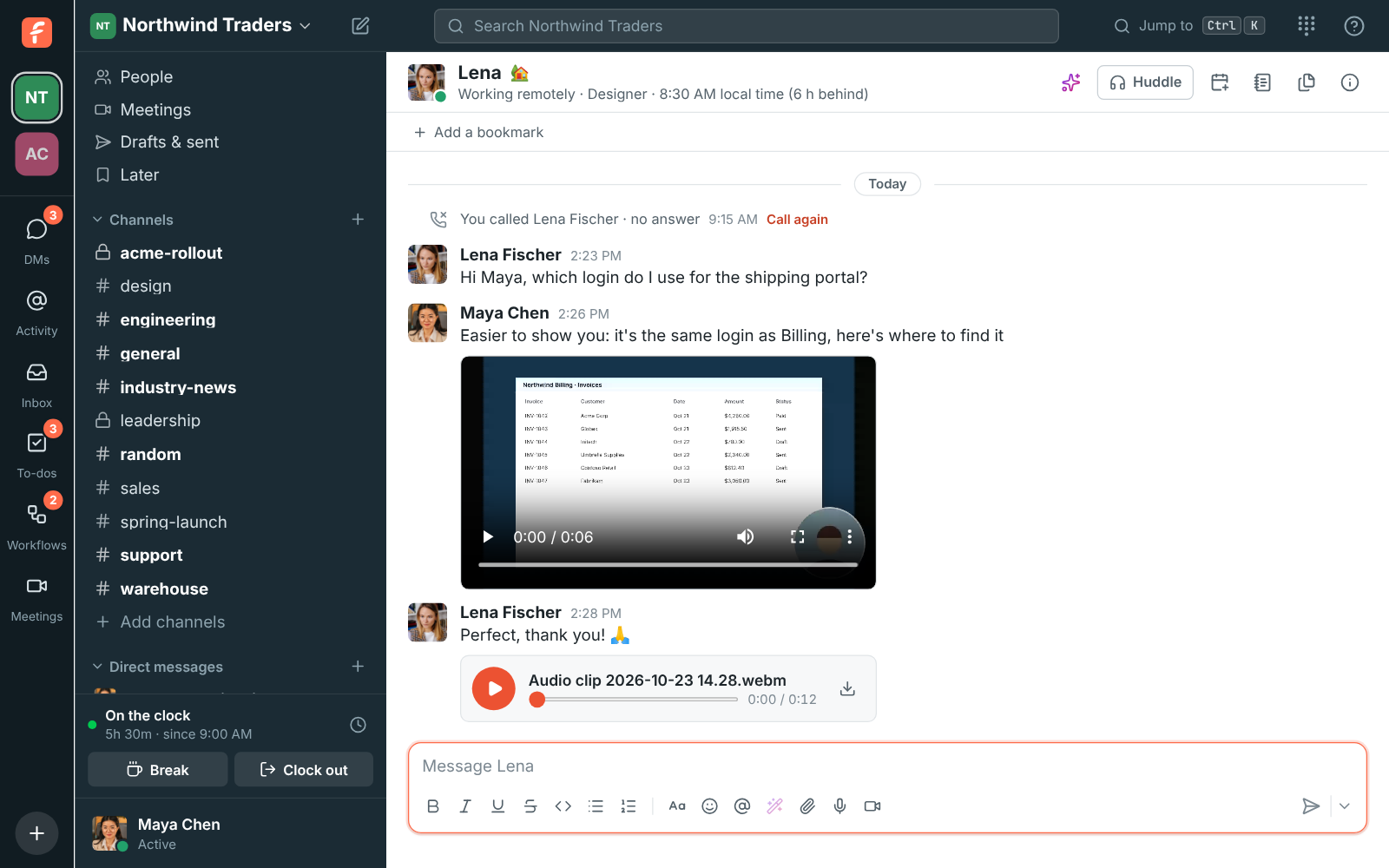
A screen recording and an audio clip in a direct message

Recorded on your computer, sent only when you say

Clips are recorded in your browser or the desktop app, and nothing is sent until you add the clip to a message and send it. Closing the dialog throws the recording away. The first time, your browser or computer asks to let Freesbe use your microphone and camera. Workspaces that do not allow audio and video files under File types cannot record clips either.

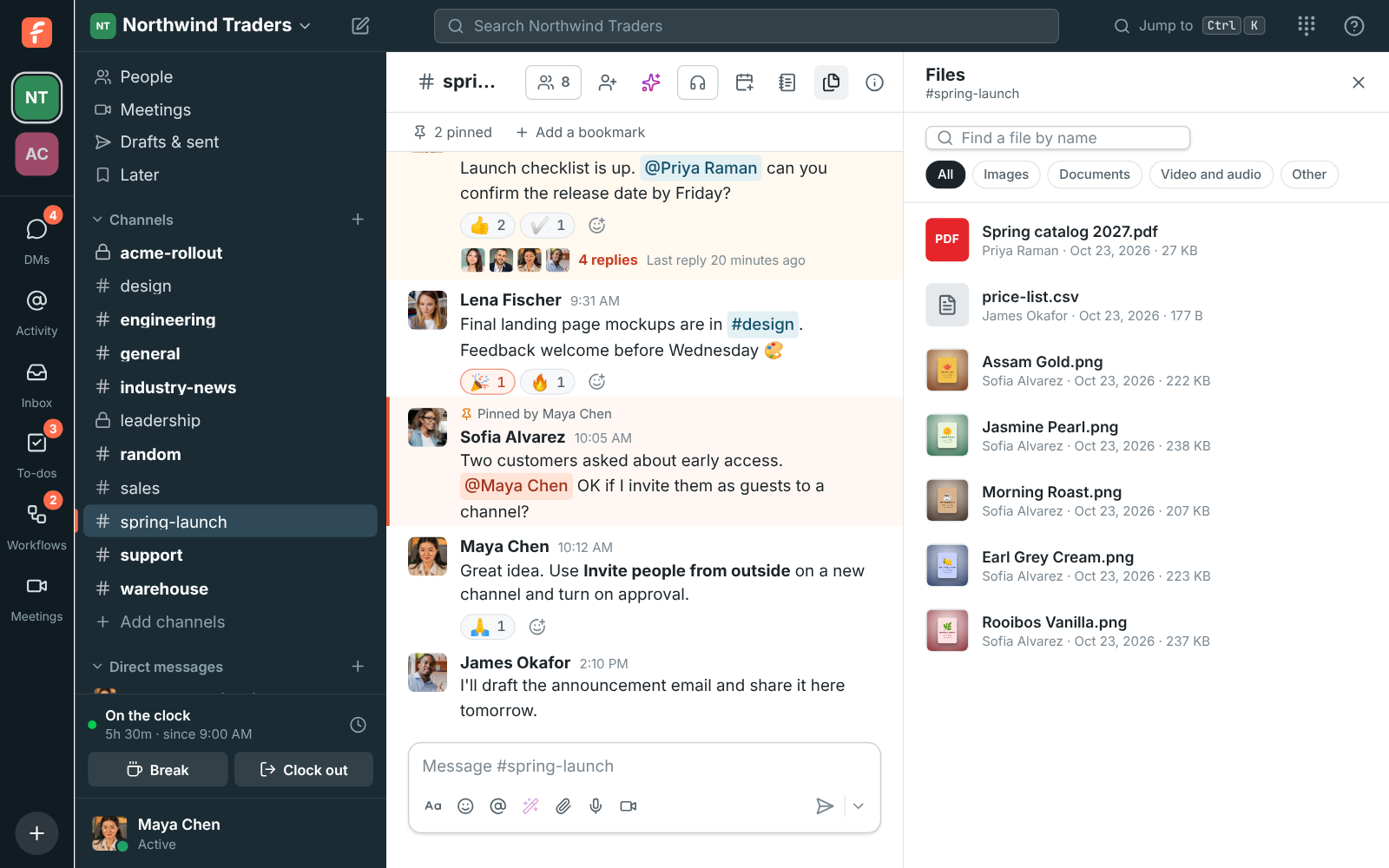
The Files tab of a channel with the Images, Documents, Video and audio, and Other filters

Plans and pricing

Audio, video and screen clips is included in every plan, including Free.

  • FreeUp to 10 people
  • BusinessUp to 500 people
  • CorporateUp to 2,500 people
  • EnterpriseOver 2,500 people

Questions

How long can a clip be?
Up to 5 minutes, audio or video.
Can I record my screen and my camera at the same time?
Yes. In a video clip, click Share screen and your camera shows in a circle in the corner. Turn the camera off to record just the screen.
Can admins turn clips off?
Yes. A workspace that does not allow audio and video files in its File types cannot record clips.
Which plan includes this?
Every plan, including Free. Clips count toward the workspace's storage like other files.

Try all of it free with up to 10 people.

No card, no time limit. Invite your team and see what sticks.